Overview
EA SPORTS FC™ uses game files that are regularly updated and redownloaded in the background while you play. If something goes wrong with these files, you can have issues with freezing, glitching, disconnections, or matchmaking. The best way to fix these issues is to delete the files.
How to delete corrupt files
- 1Launch the game and log in to your profile.
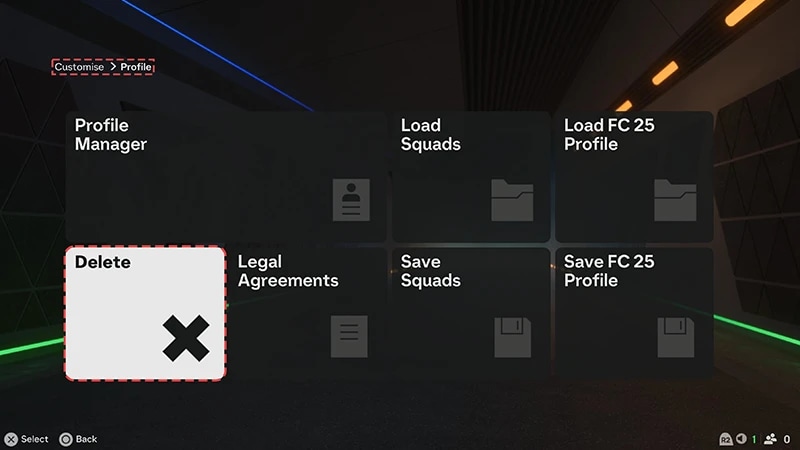
- 2Go to Customise > Profile > Delete to bring up the game's file list.
- 3Delete all files except:
- Online Profiles.
- Files with Career in the name. These are your saves for these game modes—they won’t be re-downloaded and can’t be restored.
- Personal Settings 1
- You can delete this file to fix audio or visual issues like glitching, flickering, or loss of sound, but keep in mind that you’ll lose Skill Game progress and your custom controller layout. Only delete this if you’re okay with losing this progress and recreating your custom settings.
- 4Log out of the game and re-launch it to see if you’re still having problems.