Overview
Learn how to troubleshoot issues in The Sims Mobile and get more help if you need it. If your issue is related to a ban or suspension, find out more about our rules and why we may take action if you break them.
How to troubleshoot common issues in The Sims Mobile
Having problems while playing The Sims Mobile? Check out some common issues and steps for troubleshooting them.You may need to exit The Sims Mobile and relaunch it to use content you bought with real money. If that doesn’t work, try turning off and restarting your device. Some bought or earned items go directly to your Build/Buy Inventory. To check if your missing items are there:
- 1Select the Build/Buy icon (an armchair and a lamp) on the bottom right of your screen.
- 2From the options available in a bar on the bottom right, choose the Inventory icon (an open box).
If you’re missing Special Items or Boosts, check the Inventory they’re stored in.
- 1Select the arrow pull-out tab on the right side of the screen.
- 2Choose the Inventory tab (a box).
- If you’re missing a Special Item, select the Special Items button.
- If you’re missing Boosts, select the Boosts button.
You may need to exit The Sims Mobile and relaunch it to access content you bought with real money. If that doesn’t work, try turning off and restarting your device. Some items that are bought or earned go directly to your Inventory.
If you’re having issues when trying to buy items in-game using real money, try these steps.
- 1Force quit The Sims Mobile on your device.
- 2Relaunch The Sims Mobile.
- 3Double-check your balance again to see if your purchase went through. If it didn’t, try buying it again.
If your issue is related to billing, you’ll have to contact Apple or Google Play directly.
- If you’re using an Apple device, check out Apple’s support options for billing.
- If you’re using an Android device, check out these purchasing FAQs on Google Play Help.
Here’s how to double-check you linked The Sims Mobile to a social media, Apple, Google, or EA Account.Learn how to link accounts to The Sims Mobile.
- 1Select the arrow pull-out tab on the right side of the screen.
- 2Choose the Settings cog tab.
- You’ll find info on other platforms you linked The Sims Mobile to here.
- If you see a Sign In or Connect button beside the platform you want to link to, it means you haven’t linked your account.
If The Sims Mobile is crashing or won’t load properly, try these steps to see if it fixes the issue.
- 1Uninstall The Sims Mobile from your device.
- 2Redownload and reinstall the game.
- If you’re playing on an Apple device, download The Sims Mobile from the App Store.
- If you’re playing on an Android device, download The Sims Mobile from Google Play.
- 3Launch The Sims Mobile. You might get the option to continue a new game or restore from a cloud save.
- 4Select Keep playing.
Linking The Sims Mobile to an account helps you save game progress if you:If you don't link to an account, you'll play as a guest and might lose progress if you need to do any of the actions listed above. Learn how to save or restore progress by linking accounts in The Sims Mobile.
- factory reset your phone
- install a major update
- delete The Sims Mobile app
- lose your device
- get a new device.
If you’re having general update issues, make sure your device is running the latest version of The Sims Mobile. Update The Sims Mobile on Apple devicesUpdate The Sims Mobile on Android devices
- 1Open the App Store.
- 2Select your account icon in the top right corner.
- 3Scroll down and check if The Sims Mobile (or TSM) is listed under Available Updates. If it is, select Update.
- 1Open the Google Play Store.
- 2Tap My Apps.
- 3Find The Sims Mobile (or TSM).
- 4Select the game to see if an update is available. If there is, select Update.
If your issue isn’t listed above, you might need to contact us. Before you do that, learn how to find your Player ID in the How to Get More help and find a Player ID in The Sims Mobile section below.
How to get more help and find a Player ID in The Sims Mobile
How to get help in-game
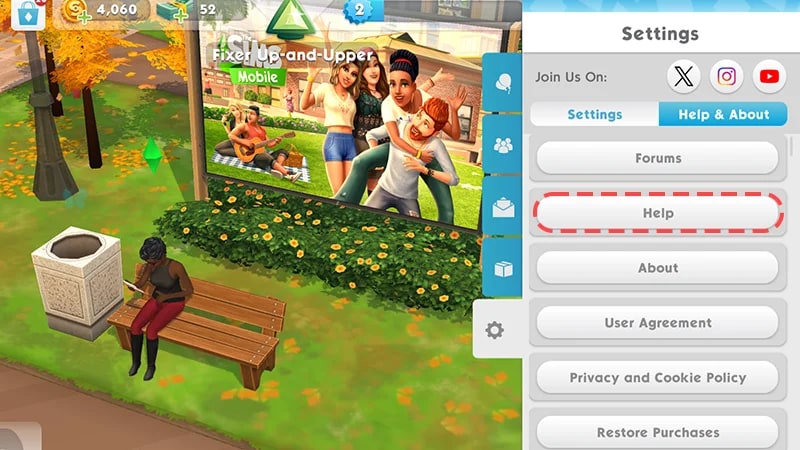
- 1Select the arrow pull-out tab on the right side of the screen.
- 2Choose the Settings cog tab.
- 3Select the Help & About tab.
- 4Choose Help to go to EA Help.
How to find your Player ID
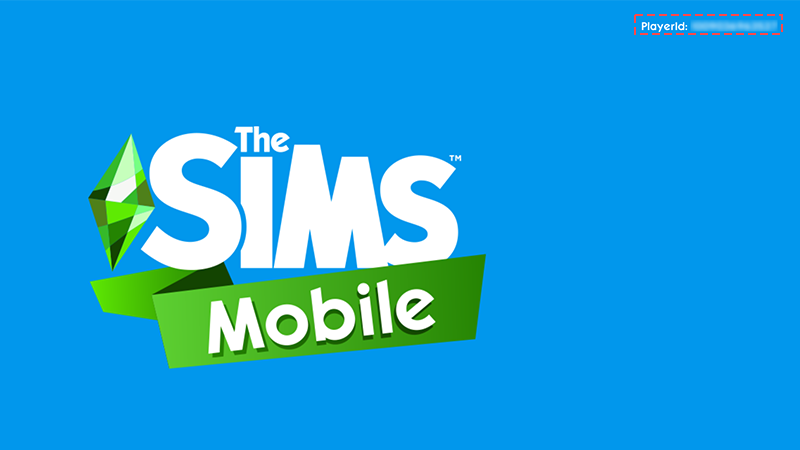
If you’re locked out of your game or lost your device, have your Player ID ready before you reach out. Without it, we can’t find your account. If you don’t know your Player ID, we may be able to help if you’ve linked your account to Facebook, X, Google Play, Game Center, Apple, or an EA Account. We can’t recover guest accounts.Learn more about linking The Sims Mobile to an account.
About bans and suspensions in The Sims Mobile
If you've broken the rules and gotten a ban or suspension, you may have issues accessing The Sims Mobile or using your EA Account.Why do accounts get banned or suspended?
To learn more about our complete rules of conduct, read Section 6 of the EA User Agreement.Find out how to contribute to a positive and inclusive gaming community in our Positive Play Charter.
- Harassment or real-life threats. Respect other Simmers and don’t make threats against people, places, or even yourself.
- Advertisements. Don’t advertise anything, including pay-to-play gaming sites, products, or items for sale.
- Offensive content. This can include, but isn’t limited to, offensive Sim or player names, offensive profile pictures, offensive house layouts, and abusive chat.
If you think we made a mistake, find out how to appeal your ban or suspension.