Overview
Battlefield 1 is a first-person shooter game. Get ready to jump into the game with our beginner guide.
Where to play Battlefield 1
Battlefield 1 is available to play on Xbox, PlayStation, and PC.What are Platoons in Battlefield 1?
In Battlefield 1 you can join or manage your own Platoon to play together with friends. There’s no cross-play in Platoons, so you can only play with friends on the same platform as you. For example, if you’re playing on an Xbox One you can only play with a friend who’s also playing on an Xbox One. Use the Shield icon in the main menu (on the left) to access Platoons.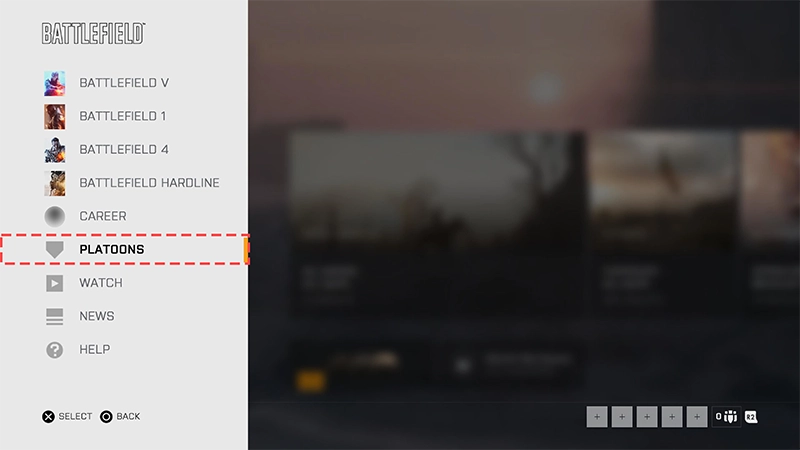
You can join up to ten Platoons, but you can only represent one Platoon at a time.To join a Platoon:Once you’ve joined a Platoon, you can see which one you’re representing by opening the Platoon menu (Shield icon). A Representing tile will display your current Platoon.To switch to another Platoon:To stop representing a Platoon, repeat the steps above and choose Stop Representing.To leave a Platoon:Choose Leave Platoon.
- 1Use the Shield icon to open the Platoons menu.
- 2Browse the Find Platoon section to find existing Platoons or search for a Platoon by name. We may recommend Platoons to you if your friends are already members.
- 3Select Apply to join or check the access type for your chosen Platoon for further instructions on how to join.
Some Platoons accept all applicants, some may be closed if they’ve reached their 100-member cap, and some might want you to complete an application.
- 1Use the Shield icon to open the Platoons menu.
- 2Choose Your Platoons.
- 3Select the Platoon you want to represent.
- 4Select Represent Platoon.
- 1Use the Shield icon to open the Platoons menu.
- 2Choose Your Platoons.
- 3Select the tile of the Platoon you want to leave.
- 4Select More
To create and manage your own Platoon, go to Your Platoons or the Find Platoon section, and select Create Platoon. We’ll ask you for a few things to set up your Platoon:Once you have everything set, select the Create button.
- Name—Choose a name for your Platoon. It must be 3-24 characters long, but it doesn’t have to be unique.
- Tag—Choose a tag for your Platoon. It must contain 1-4 alphanumeric (letters or numbers) characters, but it doesn’t have to be unique.
- Description–Descriptions are optional and can be up to 256 characters long. Use this to describe your Platoon.
- Emblem–Choose an emblem from your personal gallery to set as the Platoon emblem. Once you’ve set this, changing your personal emblem won’t affect it.
- Access Type–Choose how other players join your Platoon:
- Open–Anyone can join the Platoon, instantly.
- Apply to join–Anyone can apply to join. Platoon members with permissions can approve or reject applications.
- Closed–No one can join a Closed Platoon. If you’ve reached 100 members, it’s a good idea to set your Platoon to Closed.
Platoon names, tags, and emblems will not be allowed if they breach our Terms of Service or Rules of Conduct.
- General–The leader and often the founding member of a Platoon. You can only be a General of one Platoon. This is the highest rank and has access to all Platoon settings. The General can change the name, the emblem, and disband their Platoon.
- Colonel—As second-in-command, the Colonel has access to most Platoon settings, including editing the description, emblem, and membership access type.
- Lieutenant–Lieutenants can approve and reject membership applications (if those are required in your Platoon).
- Private–A Private is a standard member of the Platoon and does not have any access to Platoon management settings.
To manage your Platoon: From here you can check on Applications, change your Platoon information, set or change your emblem, or (if you’re the General) disband your Platoon.If you’re the General, you can also demote yourself and promote another player to General in your place. You’ll need to do this if you ever want to leave the Platoon you created.
- 1Choose your Platoon in the Platoons menu.
- 2Select Manage.
Community sites and privacy settings
When you play Battlefield 1, your stats and progress are automatically shared publicly by Battlefield Community sites, including Battlefield Tracker.Community sites are operated by third parties and allow visitors to review their own and others’ stats and progress in Battlefield 1. If you’d rather not share your stats and progress with these sites, you can use the in-game menu to choose how your data is shared.
- 1Open the Start menu.
- 2Select More.
- 3Select Options.
- 4Open the Gameplay menu.
- 5Select the Advanced option.
- 6Go to the Share Usage Data option and select No.
More privacy settings
Here are some additional ways to update your privacy settings.PC
PlayStation
Xbox
- 1Open the EA app.
- 2Click your profile name in the top right.
- 3Choose Invisible from the dropdown list if you’d rather not appear online.