Overview
Learn how to set up a child account to help your kids have a safe and age-appropriate gaming experience.
Create a child account
Parents or guardians need to create an account for their child. Parents or guardians don’t need to have their own EA Account to create an account for their child, or to contact us about child account issues.If you create an adult account, you can’t link your child’s account until they’re eligible to upgrade to a teen account.
- 1If you haven’t already, download the EA app.
- 2Select Create account.
- If you’re already logged in, log out first.
- 3Pick your Country/Region, enter the child's Date of birth, and select Next.
- 4Enter your email address in the Parent or Guardian Email Address field.
- 5You’ll get an email asking you to confirm you’re an adult. To proceed, select Yes, I’m an adult to complete the verification process.
- If verification isn’t completed within 10 days of beginning the child account creation process, the verification link will expire, and you’ll have to create the child account again.
- 6Once you’ve confirmed you’re an adult, Create an EA ID for your child. This information will be publicly displayed so avoid revealing personal information, such as your child’s name.
- 7Choose a memorable password different from your own. Your child will use this to log in.
- Make a note of your child’s ID and password. If you forget their password later on, you can reset it in a few quick steps.
- 8Once you’ve discussed relevant terms with your child, as appropriate, read and respond to the prompt regarding the User Agreement and Privacy & Cookie Policy.
- 9Select Create Account.
Setting up a child’s EA Account in-game depends on the EA game and your platform. When playing some EA games on console, you’ll be asked to sign in or create an account after starting up. Other games only ask when you try to access online modes.When prompted, follow the steps in-game to create an EA Account for your child. Depending on the game, you’ll have the option to use your platform and its controller or a mobile device.
How to verify a child’s EA Account
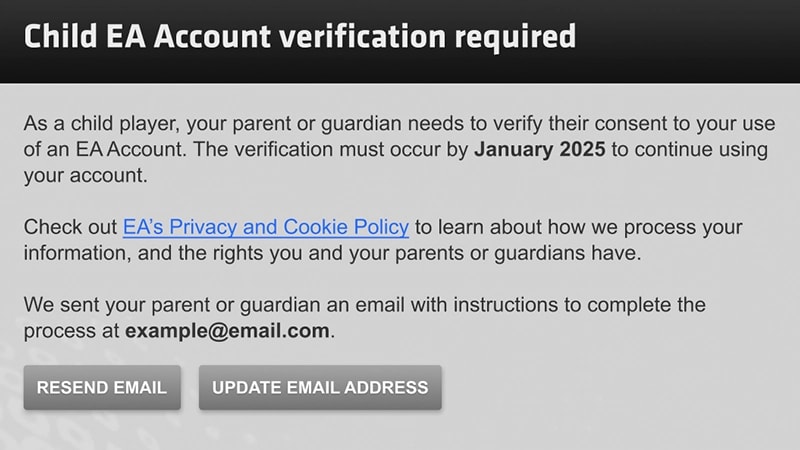
If your child’s account was created before June 28, 2024, you might have received an email to verify your child’s account. Your child would also have received prompts during game login to confirm their parent or guardian’s email address so that you can complete verification.Make sure you complete this verification so your child maintains access to their account.
- 1Select Add Email to add your email address to your child’s account.
- If you’ve already added your email address to your child’s account but you missed the verification email, select Resend Email or Update Email.
- 2Once you’ve added your email, you’ll get an email from EA with information on child account verification.
- 3Select Yes, I’m an adult in the email. You’ll be taken to our trusted partner Kids Web Services (KWS).
- 4Complete the verification process.
- 5Once verification is complete, you’ll receive a confirmation email and be redirected to EA app.
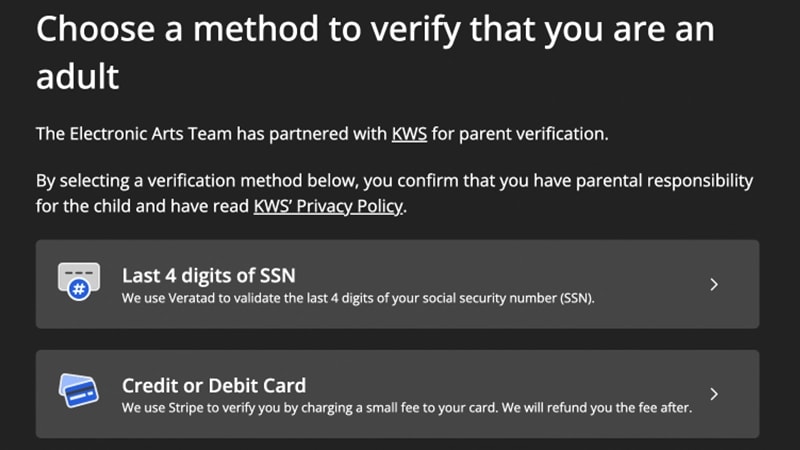
- 1Select Resend Email or Update Email.
- 2You’ll get an email from EA with information on child account verification.
- 3Select Yes, I’m an adult in the email. You’ll be taken to our trusted partner Kids Web Services (KWS).
- 4Complete the verification process.
- 5Once verification is complete, you’ll receive a confirmation email. Your child is now ready to play their game.