Check out our video to learn how to set up EAS FC on the Nintendo Switch™ and Nintendo Switch™ 2.
Physical copy
Physical copy
Digital copy
Digital copy
If you bought the physical copy version for Nintendo Switch™ 2:
1
Insert the cartridge into your Nintendo Switch™ 2.
2
Your console will recognize it and automatically start the download from the Nintendo eShop.
3
Once the download finishes, you’ll be able to launch and play the game.
If you bought a physical copy of EAS FC for the Nintendo Switch™, the 8 GB Game Card contains a limited version of the game. Kick-Off and Learn to Play are the only game modes available without downloading the rest of the game, and they will have fewer teams, kits, and stadiums. For the full EAS FC experience, you can download the rest of the game online. Here’s how:
1
Insertthe Game Card into your Nintendo Switch™.
2
The game can now be booted. You can play the Kick-Off game mode immediately.
3
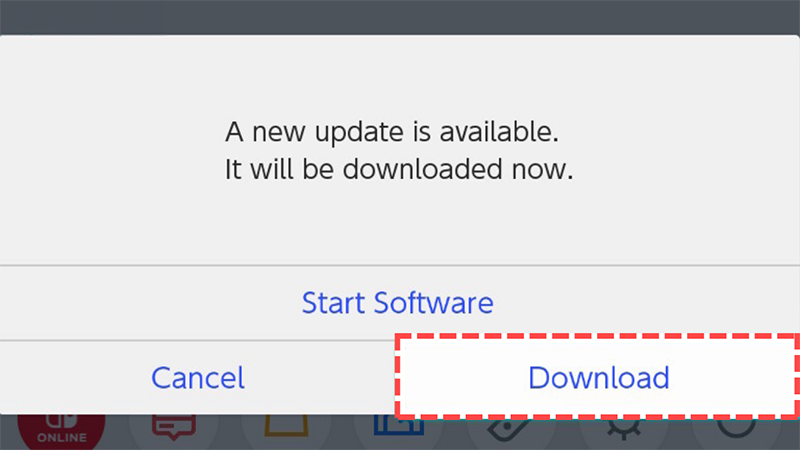
If your Switch is connected to the internet, you’ll be asked to download the rest of the game.
The game will only install while in the Nintendo Home Menu. The installation will pause while playing Kick-Off.
If you get a message on your Nintendo Switch™ saying There is not enough free space to download the data, there are a few things you can do to increase your storage.
Try archiving other games. Archiving means your game and its saved data won’t be removed, and you can re-download it if you want to play it again.
Expand the available memory on your Nintendo Switch™ system by buying a microSD card.
If you already have a microSD card, try transferring your data between your console's system memory and your microSD card.