Overview
MySims: Cozy Bundle includes retro re-releases of two games: MySims and MySims Kingdom. Learn how to use keyboard, PlayStation®, or Xbox controls in both games on PC.
How to use keyboard and mouse controls on PC
Playing MySims: Cozy Bundle on Nintendo Switch™? Check out our Nintendo Switch™ controls guide.If you need some beginner tips, learn how to get started in MySims: Cozy Bundle.
Keyboard and mouse controls for MySims
Keyboard buttons- W/A/S/D
- Move/Rotate objects
- Esc
- Pause/Exit without saving
- Tab
- My Stuff/Toggle Build/Paint Mode
- Shift
- Hold to duplicate
- Ctrl
- Toggle Paint Buckets
- Right arrow/Left arrow
- Rotate camera
- Q/E
- Cycle through options
- F
- Select
- B
- Backpack/Essences (Paint Mode)
- T
- View Tasks
- M
- Map/Decoratives
- Up arrow/Down arrow
- Zoom in/Zoom out
- Left button
- Select
- Right button
- Hold to rotate camera/Back/Delete
- Scroll wheel
- Zoom in/Zoom out

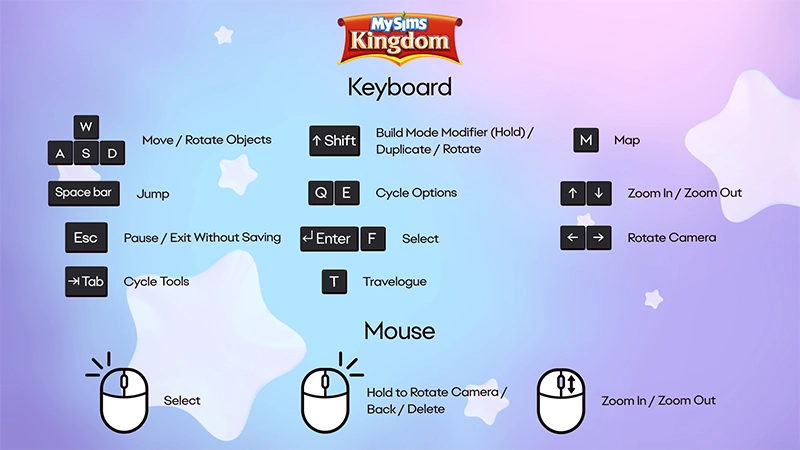
Keyboard and mouse controls for MySims Kingdom
Keyboard buttons- W/A/S/D
- Move/Rotate objects
- Space bar
- Jump
- Esc
- Pause/Exit without saving
- Tab
- Cycle through Tools
- Shift
- Build Mode modifier (hold)/Duplicate/Rotate
- Q/E
- Cycle through options
- Enter/F
- Select
- T
- Travel Log
- M
- Map
- Up arrow/Down arrow
- Zoom in/Zoom out
- Right arrow/Left arrow
- Rotate camera
- Left button
- Select
- Right button
- Hold to rotate camera/Back/Delete
- Scroll wheel
- Zoom in/Zoom out
How to use a PlayStation® controller on PC
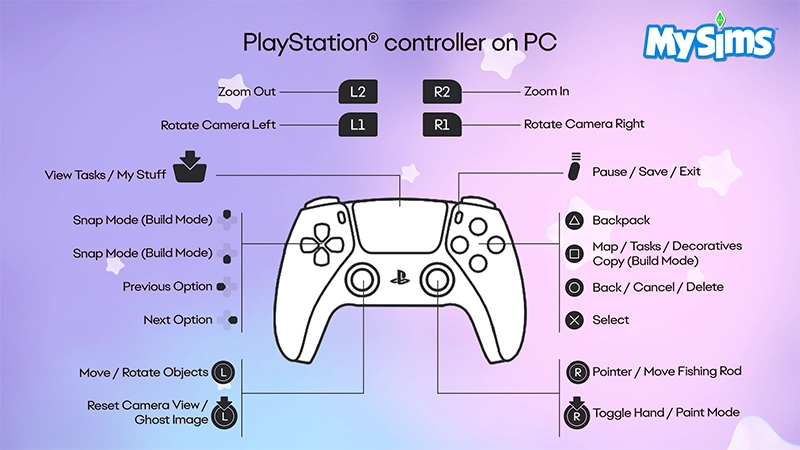
If your PC has a supported operating system, you can use a PlayStation® controller to play MySims and MySims Kingdom.Learn how to pair a PlayStation® controller with your PC on the PlayStation® Support website.PlayStation® controls for MySims
- L1
- Rotate camera left
- R1
- Rotate camera right
- L2
- Zoom out
- R2
- Zoom in
- Touch pad
- View Tasks/My Stuff
- Up button
- Snap mode (Build Mode)
- Down button
- Slide under mode (Build Mode)
- Left button
- Previous option
- Right button
- Next option
- Left stick
- Move/Rotate objects
- L3
- Reset camera view/Ghost image
- Options button
- Pause/Save/Exit
- Triangle button
- Backpack
- Square button
- Map/Tasks/Decoratives/Copy (Build Mode)
- Circle button
- Back/Cancel/Delete
- Cross button
- Select
- Right stick
- Pointer/Move fishing rod
- R3
- Toggle Hand/Paint Mode
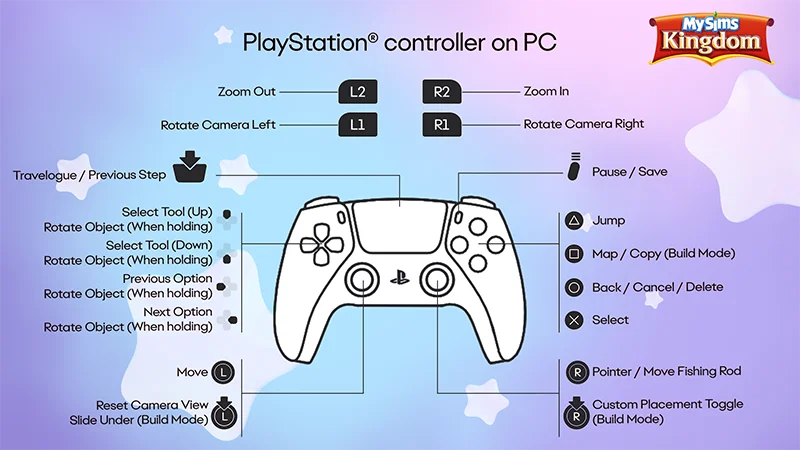
PlayStation® controls for MySims Kingdom
- L1
- Rotate camera left
- R1
- Rotate camera right
- L2
- Zoom out
- R2
- Zoom in
- Touch pad
- Travel Log/Previous step
- Up/Down button
- Select tool/Rotate object (when holding)
- Left button
- Previous option/Rotate object (when holding)
- Right button
- Next option/Rotate object (when holding)
- Left stick
- Move
- L3
- Reset camera view/Slide under (Build Mode)
- Options button
- Pause/Save
- Triangle button
- Jump
- Square button
- Map/Copy (Build Mode)
- Circle button
- Back/Cancel/Delete
- Cross button
- Select
- Right stick
- Pointer/Move fishing rod
- R3
- Custom placement toggle (Build Mode)
How to use an Xbox controller on PC
If your PC has a supported operating system, you can use an Xbox controller to play MySims and MySims Kingdom.Learn how to connect an Xbox controller to your PC on the Xbox Support website.Xbox controls for MySims
- Left bumper (LB)
- Rotate camera left
- Right bumper (RB)
- Rotate camera right
- Left trigger (LT)
- Zoom out
- Right trigger (RT)
- Zoom in
- View button
- View Tasks/My Stuff
- Left thumbstick
- Move/Rotate objects
- Left thumbstick (click)
- Reset camera view/Ghost image
- Up button
- Snap mode (Build Mode)
- Down button
- Slide under mode (Build Mode)
- Left button
- Previous option
- Right button
- Next option
- Menu button
- Pause/Save/Exit
- Y button
- Backpack
- X button
- Map/Tasks/Decoratives/Copy (Build Mode)
- B button
- Back/Cancel/Delete
- A button
- Select
- Right thumbstick
- Pointer/Move fishing rod
- Right thumbstick (click)
- Toggle Hand/Paint Mode

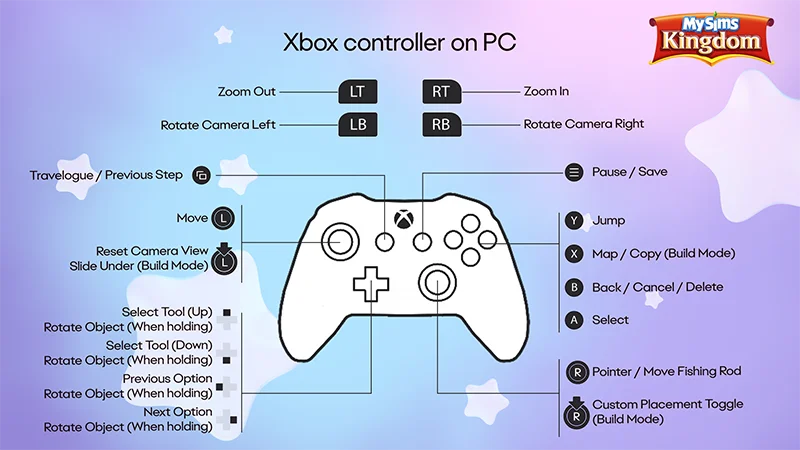
Xbox controls for MySims Kingdom
- Left bumper (LB)
- Rotate camera left
- Right bumper (RB)
- Rotate camera right
- Left trigger (LT)
- Zoom out
- Right trigger (RT)
- Zoom in
- View button
- Travel Log/Previous step
- Left thumbstick
- Reset camera view/Slide under (Build Mode)
- Left thumbstick (click)
- Reset camera view/Slide under (Build Mode)
- Up/Down button
- Select tool/Rotate object (when holding)
- Left button
- Previous option/Rotate object (when holding)
- Right button
- Next option/Rotate object (when holding)
- Menu button
- Pause/Save
- Y button
- Jump
- X button
- Map/Copy (Build Mode)
- B button
- Back/Cancel/Delete
- A button
- Select
- Right thumbstick
- Pointer/Move fishing rod
- Right thumbstick (click)
- Custom placement toggle (Build Mode)