Overview
Learn how to access, upload, and download from the Gallery in The Sims 4.
What is The Sims 4 Gallery?
The Gallery is a way to share your creativity with the Sims 4 community. You can create, share, and download content with players around the world. From the Gallery, you can upload and download Households, Rooms, and Lots to your game.You’ll need to have an internet connection to access the Gallery.
- The Gallery tab: Browse creations made by other Simmers. You can search by Item Name, Hashtag, and EA Account ID.
- The Profile tab: Showcase any creations you’ve made, write your Player Bio, and view Friends. Friends will bring up any creators you follow, or that follow you.
- My Library tab: Browse creations you’ve made, or creations by other Simmers that you’ve saved to your Library.
How to access the Gallery
Open the Gallery at any time in-game by selecting the Gallery icon in the top-right corner of the screen. There’s also an option to open the Gallery from the Main Menu when you launch the game. Note: If you’re playing on PC or Mac, you can press F4 to open the Gallery.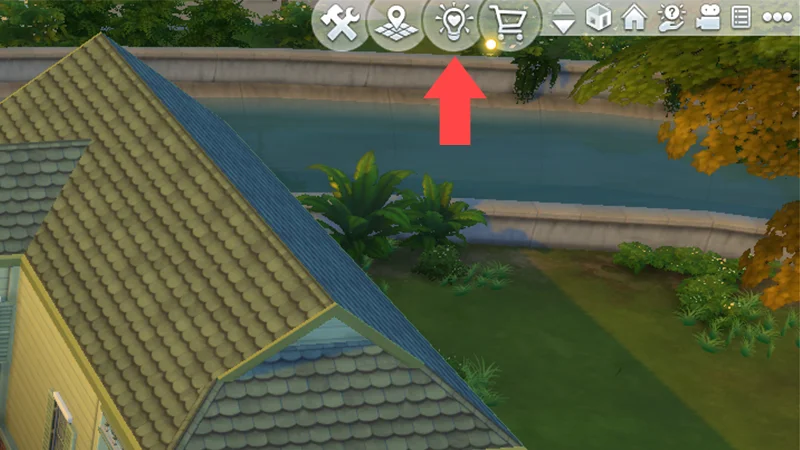
The Sims 4 is rated Teen so the Gallery is restricted to aged 13 and over. For more info, read our article about child accounts and parental controls.
Saving content from the Gallery
As you explore the Gallery, you can save content to your Library for future use.- 1Open the Gallery.
- 2Select the Household, Sim, Lot, or Room you want to save.
- 3Click the download arrow button to save it to My Library.
To find these later, open the My Library tab. Here you can view everything you’ve saved and can filter your saves by Lot, Household, and Room.
How to place content from the Gallery
You can download pre-made Households to your Library in the Gallery. Here’s how to place them in your game.
Placing in Create a Sim
- 1Open Create a Sim from the Main Menu.
- 2Select the Gallery icon in the top-right corner.
- 3Select the Gallery tab.
- 4Under Category, choose Households.
- 5Save the Household or Sim to My Library.
- 6Click Place Household in the bottom right corner.
Placing in Live Mode
- 1When in Live Mode click the Gallery icon in the top-right corner.
- 2Find a Sim or Household under the Gallery or My Library tab.
- 3Select Place Household to merge them with your Household.
How to place a Lot from the Gallery
You can place a pre-made Lot from the Gallery when you have the empty Lot open, or from Manage Worlds.- 1Open the Menu, then Manage Worlds.
- 2Open the Gallery by selecting the Gallery icon at the top of the screen.
- 3Choose the lot you wish to place and select Place Lot or Place Lot and Edit.
- 4Choose where you want to place the lot in the world.
- 5Select the tick icon in the bottom right to confirm your placement.
- 6Choose between a furnished or unfurnished Lot and select Replace Lot.
- 7If you choose Place Lot, you’ll stay in Manage Worlds. If you choose Place Lot and Edit, the new Lot will open in Build Mode.
If you’re trying to place a house or Lot, you can’t place anything bigger than your current Lot size.
How to download a room to your game
You can only place Rooms when you have the Lot open. You can’t place them from Manage Worlds.- 1Open Build Mode.
- 2Click the Gallery button in the top-right corner.
- 3Select the Room you want to add.
- 4Click Room in the bottom right-hand corner to add it to your Lot.
How to download a tattoo from the Gallery
Although any player can favorite custom and layered tattoos on the Gallery, they can only be used in-game if you own The Sims 4 Businesses & Hobbies Expansion Pack.- 1In Create a Sim, select the Gallery icon in the top-right corner.
- 2Select the Gallery tab.
- 3Under Category, choose Tattoos.
- 4When you find one you want to download, select Save Tattoo to My Library.
- 5Select Apply Tattoo in the bottom-right corner.
Uploading content to the Gallery
Sharing a Sim or Household to the Gallery
- 1Open the Gallery.
- 2Select the Household or Sim you want to share.
- 3Choose a name for your Household and write a description.
- 4In the bottom-left corner select Share Household to the Gallery.
Uploading a tattoo to the Gallery
Once you’ve created your custom tattoo in Create a Sim, you can upload it to the Gallery from Paint Mode.- 1Select Save Tattoo (the cloud icon with an arrow). This will open the Gallery.
- 2Name your tattoo and write a description.
- 3In the bottom left, select Share Tattoo to the Gallery.
Sharing a Lot to the Gallery
- 1Open Build Mode.
- 2Select Save to My Library (the arrow and folder icon) at the top of the screen.
- 3Choose the Save Lot dropdown.
- 4Choose a name for your Lot, write a description, and set how many bedroom and bathrooms the Lot has.
- 5Select Save Lot to My Library in the bottom-right corner.
- 6In the bottom-left corner select Share Lot to the Gallery.
Sharing a Room to the Gallery
- 1Open Build Mode.
- 2Select Save to My Library (the arrow and folder icon) at the top of the screen.
- 3Choose the Save Lot dropdown.
- 4Choose a name for your Room and write a description.
- 5Select Save Room to My Library in the bottom-right corner.
- 6In the bottom-left corner select Share Room to the Gallery.
Missing items from Gallery download
Sims and Lots uploaded to the Gallery may contain custom or exclusive content. This content will be missing from your download if you don't have it installed on your computer. If you have the content installed but it's still missing, you may need to restart your game.You can toggle the custom content option off and on when searching by ticking or unticking the box on the left-side bar when searching the Gallery.
For more info on custom content for The Sims 4, check out our Mods article.
How to report or block Gallery content
If you see Gallery content that’s breaking our rules, you can report it by using our steps. To block a player on PC or Mac:- 1
- 2Open Account Settings.
- 3Select Privacy Settings.
- 4Scroll down to EA Blocked Users List and type the EA ID you want to block into Block a User text box.
- 5Select Block.
- 6Select Update to save.
- 1Open the Gallery and find the user you want to block. You can find a user using the search bar, or by selecting their name on one of their comments or uploads.
- 2In their Profile select, the BLOCK button at the top of the screen.
Blocking a player directly from the Gallery won’t block them on Steam, PlayStation®, or Xbox. You’ll need to do this separately. If you block a player in The Sims 4, they’ll be blocked on all EA games across all platforms.