Overview
Need help installing or managing a Pack in The Sims 4? Use this guide to install Expansion, Game, and Stuff Packs in The Sims 4 and take control with the Pack Selection feature.
Installing The Sims 4 Packs on PC and Mac
Before installing any additional content for The Sims 4, make sure the Base Game is installed and updated. Read our guide to installing The Sims 4 Base Game.Digital Packs should install automatically after buying them. If they don't, here's how to manually install them.Digital purchase on the EA app
- 1Launch the EA app.
- 2If prompted, log in using your EA Account info.
- 3Open your Library and click on The Sims 4.
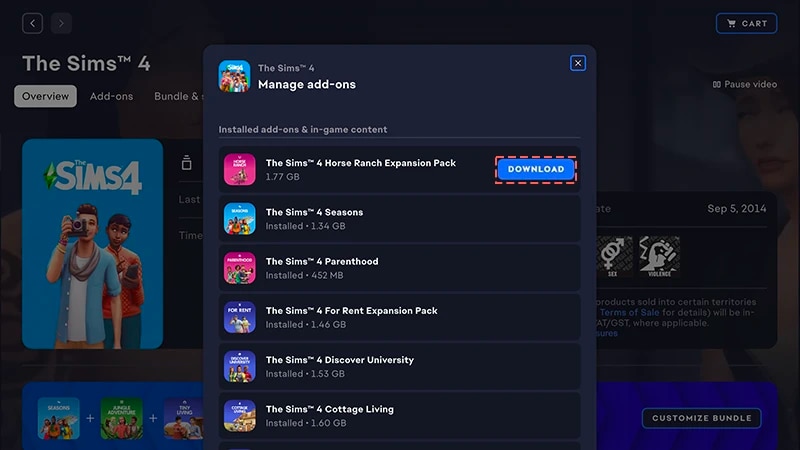
- 4Click Add-ons to see which packs you currently own.
- 5If you own a Pack and it hasn’t automatically installed, click the Download icon.
Installing a product code purchase for the EA app
- 1Launch the EA app.
- 2If prompted, log in using your EA Account info.
- 3Open your Library.
- 4Click Redeem Code.
- 5Enter the product code, click Next, and then Confirm.
- 6Click Download with the EA app.
The EA app has replaced Origin as the main platform for downloading and launching The Sims 4 for both Mac and PC. Mac users need to use macOS Catalina or later to run the EA app. Check out our macOS guide to learn more about upgrading your macOS.
If you bought a Pack on disk (PC only)
- 1Insert the game disk into your disk drive and follow the on-screen instructions.
- 2When prompted, enter the product code that was included with the installation disk.
- 3Once you’ve redeemed the pack, you can view it on The Sims 4 game details page in the Library tab.
- 4After the installation is complete, select The Sims 4, then Play to launch the game.
How to check if a Sims 4 Pack is installed
- 1Open your EA app Library.
- 2Click on The Sims 4 game tile.
- 3Select Manage.
- 4Choose Manage add-ons.
- 5In the pop-up, a list of your owned add-ons will appear. Installed add-ons and In-game content are ones you own and already have installed. Downloadable add-ons are ones you own but haven’t installed yet.
- 6Click the Download icon for any add-ons not yet installed.
The Sims 4 Pack selection
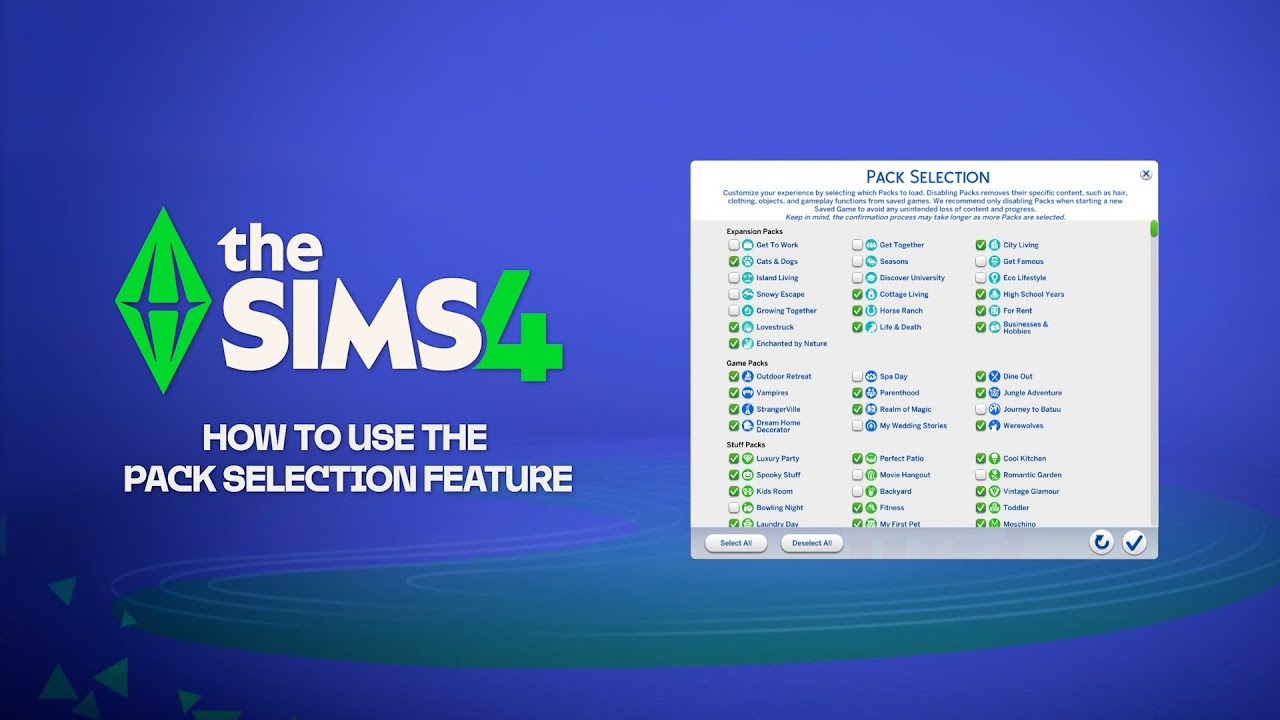
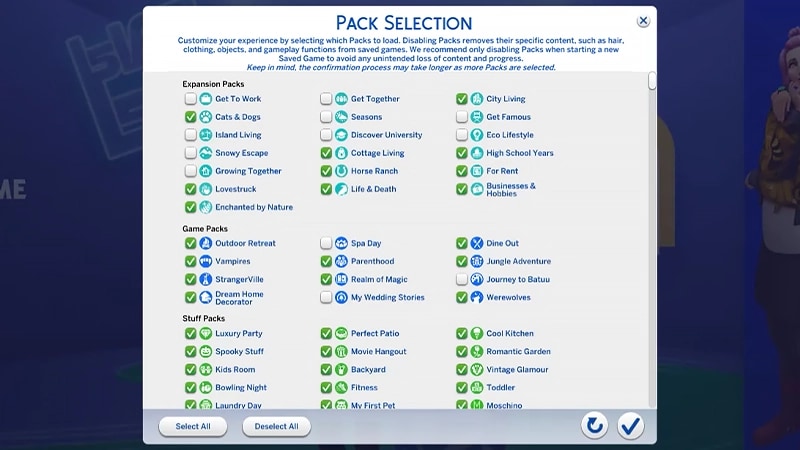
Pack selection is a feature that lets you customize which Packs you want installed. This is helpful for storytelling and your gameplay experience, as well as freeing up resources without needing to uninstall Packs you’re not currently using. Pack selection is available on all platforms: PC, Mac, and console. Here’s how to load or unload Packs from your game:- 1Open the Main Menu and choose Pack Selection.
- 2Select or deselect the Packs you want to load or unload to your game.
- 3Select the checkmark button to confirm your choices.
Removing Packs can impact existing save files, so it’s best to use this feature when creating a new save to avoid losing any content or progress.We recommend disabling all Mods before unloading or reloading any Packs. Read our article on how to disable Mods. Always make sure your save files are backed up. For help with this, check out our guide.
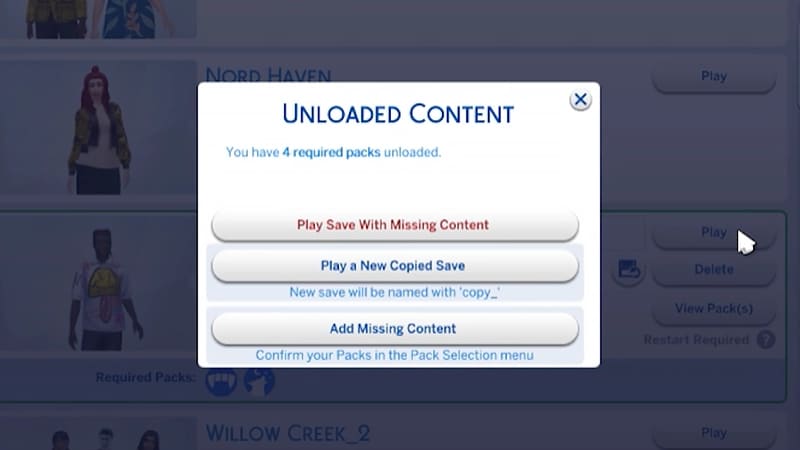
Loading a save file with missing Packs
You’ll know a save file is missing Packs by the following indicators.- When you try to load the save file, you’ll get a warning before you play that Packs or content are missing.
- If you open the Pack Selection menu, any Packs that don’t have a check beside them are currently not loaded.
- On PC, any save files with missing content will show if the Packs needed to play are loaded through the Required Packs icons.
If your Sims were living in a Pack-specific world that you’ve unloaded from your game, your Household will still be available in the Manage Households menu. From here, you can move them into a new Lot or merge them with another Household.Note: any Create a Sim Items or Traits that are Pack-specific will be removed unless you reload that Pack into your game.