Overview
Learn how the Tattooing skill works in The Sims 4. This guide covers how to build the skill, what each level unlocks, and how to use cheats on PC, PlayStation®, and Xbox.
About the Tattooing skill
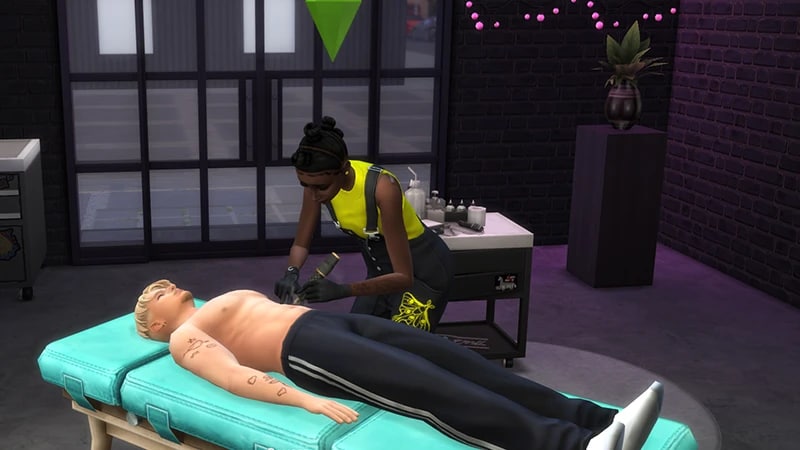
- The Tattooing skill comes with The Sims 4 Businesses & Hobbies Expansion Pack, and is a 10 level skill.
- Elder, Adult, Young Adult, and Teen Sims can build this skill.
- If your Sim has an Inspired Moodlet, they’ll build this skill faster!
Did you know your Sims can set up their own Tattoo Shop? Check out our guide to setting up a small business in The Sims 4 for tips to get started.
How to build the Tattooing skill
There are multiple ways for your Sim to build the Tattooing skill. Some interactions are only unlocked when your Sim reaches a certain level of skill.Designing tattoos builds the Tattoo skill, and Sims can do this using a digital sketchpad. Buy the Digitalistic Sketchpad or The CreativePro Tablet (if you own The Sims 4 Artist Studio Kit) from Build Mode. Using the sketchpad, select Tattoo Design. It costs 50 Simoleons to design a tattoo. Designing tattoos on the sketchpad unlocks new designs to tattoo on other Sims.
Buy the Deluxe Tattoo Table by Inktastic from Build Mode to start tattooing! The Tattoo Table has a few options that build your Sim’s Tattooing skill, Offer Tattoo, Practice Tattooing, and Tend Tattoo Table. Tending the Tattoo Table will also earn your Sim some Simoleons!
Reading skill books will work towards building skills, but is slower than other methods. Books will only get you as far as level 9 of a skill. To buy skill books:The skill books are:
- 1Select a bookshelf and choose Purchase Books.
- 2In the pop-up, select the drop-down at the top-left that reads Show All.
- 3Choose Skill and scroll through to find the book you want to buy. These will be added to your Sim’s bookshelf.
- Tattooing Vol 1: Sketch Twice, Ink Once
- Tattooing Vol 2: Style and Substance
- Tattooing Vol 3: United by Ink
If you own The Sims 4 Jungle Adventure Game Pack, the Peace and Quiet Lot Trait helps your Sim build skill faster when reading skill books.
If you own The Sims 4 Discover University Expansion Pack, your Sim can attend skill-building classes. These are rabbit-holes, so your Sim will leave the Lot for some time and then come back when the class is over. Note: Skill Classes are only available between 9 a.m.– 9 p.m.
- 1In Live Mode, select your Sim’s phone.
- 2Open the Business app (the briefcase icon).
- 3Choose Sit in on Skill Class (§250).
- 4In the pop-up menu, choose Tattooing. Your Sim will leave the Lot and gain the Tattooing skill while at the class.
If you own The Sims 4 Businesses & Hobbies Expansion Pack, your Sim can learn or teach the Tattooing skill using the Sharing is Caring Whiteboard. You’ll find this in Build Mode.
Tattooing skill levels
As your Sim builds the Tattooing skill, they’ll unlock new designs, interactions, and earn more when tattooing! You can also download custom Tattoos from the Gallery, check out our guide for steps how. A green progress bar will appear above your Sim’s head and gradually fill up as they’re building a skill. You can also check their progress by:- 1Entering Live Mode.
- 2Selecting the Sim Panel (bottom left).
- 3Selecting the Skills tab.
At this level, your Sim can:
- Give other Sims tattoos using the Tattoo Table
- Draw Tattoo Designs using a digital sketchpad
This level unlocks:
- The Wisp Voidcritter chest tattoo design
- The Key tattoo stamp
- Charging more for tattoo services
- Talk about Tattooing interaction
This level unlocks:
- The Freezer Bunny right lower arm tattoo design
- The Flame tattoo stamp
This level unlocks:
- Offer Tattoo Removal ability at the Tattoo table
- The Pleuro Voidcritter tattoo stamp
- Charging more for tattoo services
This level unlocks:
- Mentoring other Sims at Tattooing
- The Geometric tattoo stencil
- The Celtic Snake left upper arm tattoo design
- The Cats tattoo stamp
This level unlocks:
- The Vulpes Voidcritter left leg tattoo design
- The Pigeon tattoo stamp
- Charging more for tattoo services
This level unlocks:
- Offer Tattoo Touch-up ability at the Tattoo Table
- The Floral Half Sleeve right upper arm tattoo design
- The Cute Skull tattoo stamp
This level unlocks:
- The Simoleon upper back tattoo design
- The Triskelion tattoo stamp
- Charging more for tattoo services
This level unlocks:
- The Celtic Chain right leg tattoo design
- The Turtle tattoo stamp
This level unlocks:
- The Maple Leaf tattoo stencil
- The Floral Crown head tattoo design
- The Crystal Heart tattoo stamp
- Charging more for tattoo services
Tattooing skill cheats
When using skill cheats, type in the number of the level you want to reach. For example, putting stats.set_skill_level major_tattooing 7 into the cheat bar will get your Sim’s Tattooing skill up to level 7.PC and Mac
PlayStation®
Xbox
- 1Press Control + Shift + C to open the cheat dialogue box.
- 2Type testingcheats true and press Enter to turn on cheats.
- 3Type stats.set_skill_level major_tattooing [skill level] and press Enter.