Overview
You can enable two-factor authentication (2FA) for extra account security. After you set up 2FA, we’ll send you a code to make sure it’s you any time a new device tries to log in to your EA Account.
How to turn on 2FA
After you set up 2FA, select View backup codes and write down the codes in a safe place. If you can’t access your chosen verification method, backup codes are the only way to sign in to your EA Account from a new device.
- 1Go to your EA Account Security and Privacy page.
- 2Scroll down and select Two-factor authentication.
- 3Select Turn On.
- 4Choose the Email, Authenticator app, or Text Message tab.
- If you choose to use an authenticator app, select Set up and follow the on-screen steps to connect it to your EA Account.
- 5Select Send Code.
- 6Enter the code sent to the email address associated with your EA Account, authenticator app, or phone number to verify.

If passkeys are available for your EA Account, consider setting one up and regularly review your account security settings to make sure only trusted devices can access your account. Passkeys offer a more secure way to sign in because they use your device's built-in security features instead of a password. To help keep your EA Account secure, never share your login information, passwords, verification codes, or passkeys with anyone.
If you’re not getting codes sent to your email, try resending the code. If that doesn’t work, make sure: If you’re still not getting your codes, look for a past email from ea@e.ea.com and allow images to be displayed. Then, resend the code.If you can’t access or remember the email address you used to make your EA Account, try these account recovery steps.
- your inbox isn’t full
- you checked the spam folder
- you or your service provider haven’t blocked us
- you’re logged in to the right EA Account.
- If you’re logged in to a different EA Account, your codes might go to the wrong email.
Yes. We recommend using two-factor authentication (2FA) whenever possible. Passkeys and 2FA are different security features. A passkey can help make logging in more secure, while 2FA gives you an extra way to verify your identity.
To help protect your account, you might be asked to verify your identity before making certain changes to your EA Account info, like:Depending on the security checks for your account, you might be asked to use a specific verification method before you can continue.These security measures help us protect your account and your personal information from unauthorized access. Once you've successfully verified your identity, you'll be able to view and manage your account information.
- email address
- phone number
- password
- name
- date of birth
- country or region
- language settings
- backup codes
- order history
- payment methods
- changing your email address
- updating your password
- managing security settings.
Authenticator apps are available from your device's app store. They generate one-time verification codes that help protect your EA Account.Authenticator apps can add an extra layer of security because verification codes are generated directly on your device rather than being sent via email or text message.What if I get a new phone?Before removing or resetting your old device, make sure you've saved your backup codes and transferred your authenticator app data if your app supports it.If you lose access to your authenticator app, you might be able to use a backup code to regain access to your account.
- 1Download and install an authenticator app on your mobile device.
- 2Go to your EA Account Security and Privacy page.
- 3Scroll down and select Two-factor authentication.
- 4Select Turn On.
- 5Choose Authenticator App as your verification method.
- 6Follow the on-screen instructions to connect your authenticator app to your EA Account.
- 7Enter the verification code generated by your authenticator app when prompted.
How to turn off 2FA
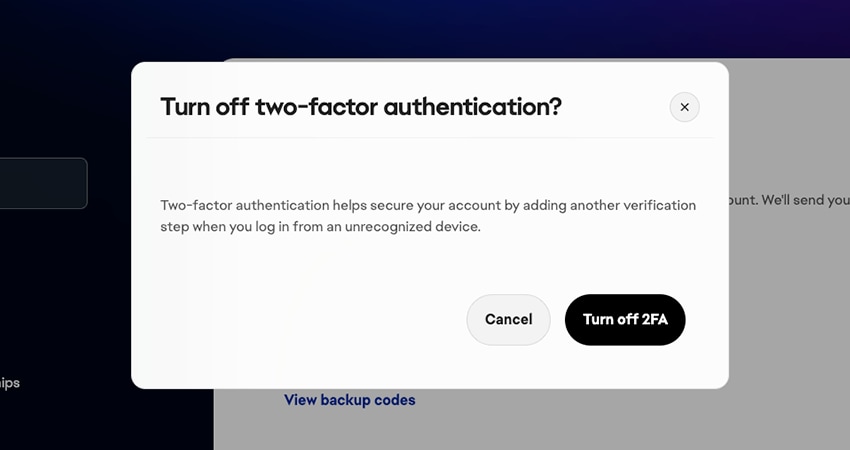
We recommend leaving 2FA on to help secure your account, but if you want to turn it off:- 1Go to your EA Account Security and Privacy page.
- 2Scroll down and select Two-factor authentication.
- 3Select Turn off at the bottom of your screen.
- 4Read the on-screen prompt and confirm your choice by selecting Turn off Two-Factor Authentication.
Can I change my 2FA method?
You can manage and change your 2FA methods in the EA Account portal.- 1Go to your EA Account Security and Privacy page.
- 2Select Two-factor authentication.
- 3Select Edit next to your verification method(s).
- view all available 2FA methods in one place
- set a preferred 2FA method.
- choose from multiple enabled verification methods if you can't access your primary option.