Overview
Find out if your PC or Mac meets the minimum and recommended system requirements to run The Sims 4. Plus, learn about Memory Boost, an opt-in feature that helps improve game performance on PC.
PC requirements for The Sims 4
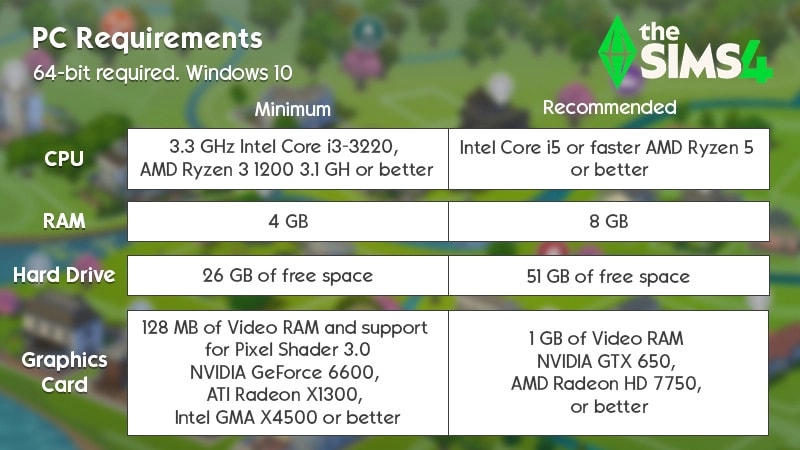
Minimum requirements
- Operating system: 64-bit required. Windows 10.
- Processor (CPU): 3.3 GHz Intel Core i3-3220 (2 cores, 4 threads), AMD Ryzen 3 1200 3.1 GHz (4 cores) or better.
- Memory (RAM): at least 4 GB RAM.
- Hard drive (free space): at least 25 GB of free space and at least 1 GB additional space for custom content and saved games.
- Disc drive: DVD-ROM drive required for installation from disc only, for physical copies of the game.
- Graphics card (video): 128 MB of Video RAM and support for Pixel Shader 3.0.
- Supported Graphics cards: NVIDIA GeForce 6600 or better, ATI Radeon X1300 or better, Intel GMA X4500 or better.
- DirectX version: DirectX 11 Compatible.
- Input: keyboard and mouse, or touchpad.
- Internet connection: required for game activation and optional for game updates.
Recommended requirements
- Operating system: 64-bit Windows 10.
- Processor: Intel Core i5 (4 cores) or faster, AMD Ryzen 5 or better.
- Memory (RAM): 8 GB RAM.
- Hard drive (free space): at least 50 GB of free space and at least 1 GB additional space for custom content and saved games.
- DVD drive: DVD-ROM drive required for installation from disc only.
- Graphics card (video): 1 GB of Video RAM, NVIDIA GTX 650, AMD Radeon HD 7750, or better.
- Direct X version: DirectX 11 Compatible.
- Input: keyboard and mouse, or touchpad.
- Internet connection: required for game activation and optional for game updates.
How to check if your PC meets the requirements
- 1Right-click This PC and choose Properties.
- If you’re playing on Windows 10, search for This PC, then right-click it in the search results.
- 2A window will pop up showing your processor, RAM, and operating system information. Open Device Manager.
- 3Click the > icon beside Display adapters. You should see your graphics card information.
- You might see one or two graphics cards listed, depending on whether you have a dedicated graphics card or not.
To check if your computer can run The Sims 4, visit the System Requirements Lab site and run their Can You RUN it tool for The Sims 4.EA does not own or operate System Requirements Lab's Can You RUN It page, nor can we make any changes to their page or system. Any use of the site and tools is at your own risk.
Mac requirements for The Sims 4
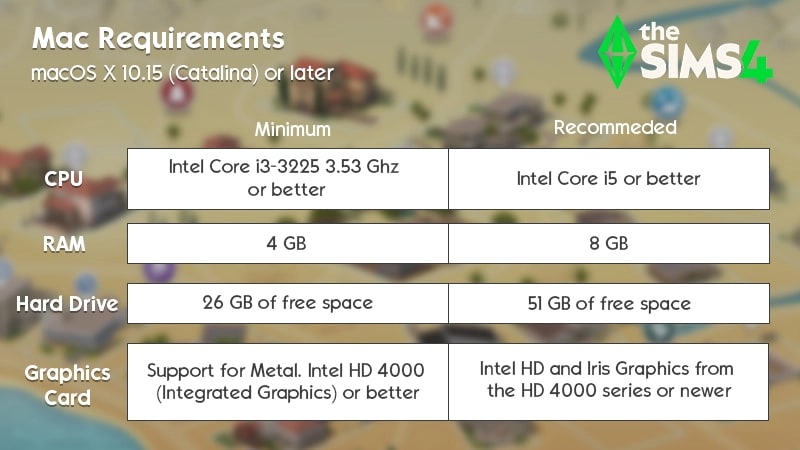
Minimum requirements
- Mac OS version: Metal required. macOS 10.15 (Catalina).
- Processor: Intel Core i3-3225 3.53 Ghz (2 cores, 4 threads) or better.
- Memory (RAM): at least 4 GB RAM.
- Hard drive (free space): at least 25 GB of free space and at least 1 GB additional space for custom content and saved games.
- Graphics card (video): support for Metal. Intel HD 4000 (Integrated Graphics) or better.
- Input: keyboard and mouse, or touchpad.
- Internet connection: internet connection required for product activation.
- Video RAM: 256 MB or better.
Recommended requirements
- Mac OS version: macOS X 10.11 (El Capitan) or later.
- Processor: Intel Core i5 (4 cores) or better.
- Memory (RAM): 8 GB.
- Hard drive (free space): at least 50 GB of free space with at least 1 GB additional space for custom content and saved games.
- Graphics card (video): Intel HD and Iris Graphics from the HD 4000 series or newer.
- Input: keyboard and mouse.
- Internet connection: internet connection required for product activation.
How to check if your Mac meets the requirements
Use About this Mac to check how your Mac matches up with the minimum and recommended requirements.Laptop Mode for The Sims 4
If your PC or Mac is at or near the minimum requirements, or if you’re playing on a laptop, you might want to run your game in Laptop Mode. This improves your frame rate (for smoother graphics) and makes the game run more efficiently (for longer battery life).Here’s how to set up Laptop Mode on PC or Mac:- 1Click the … icon in-game.
- 2Select Game Options.
- 3Check the box next to Laptop Mode to turn it on.
- If you want to turn Laptop Mode off, uncheck the box.

Memory Boost
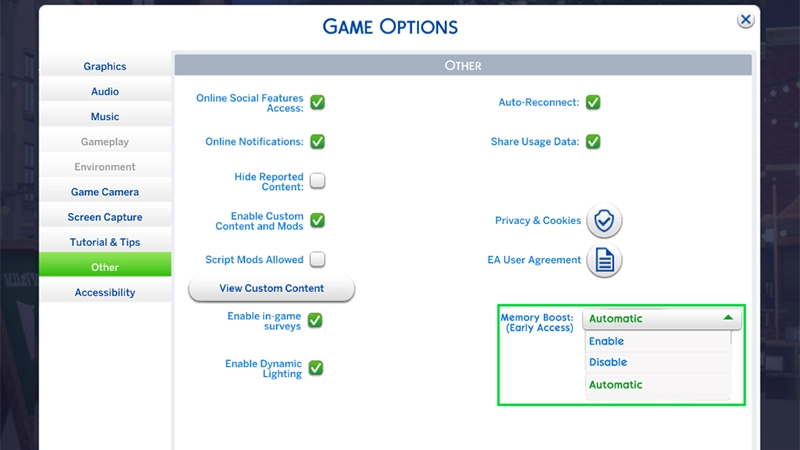
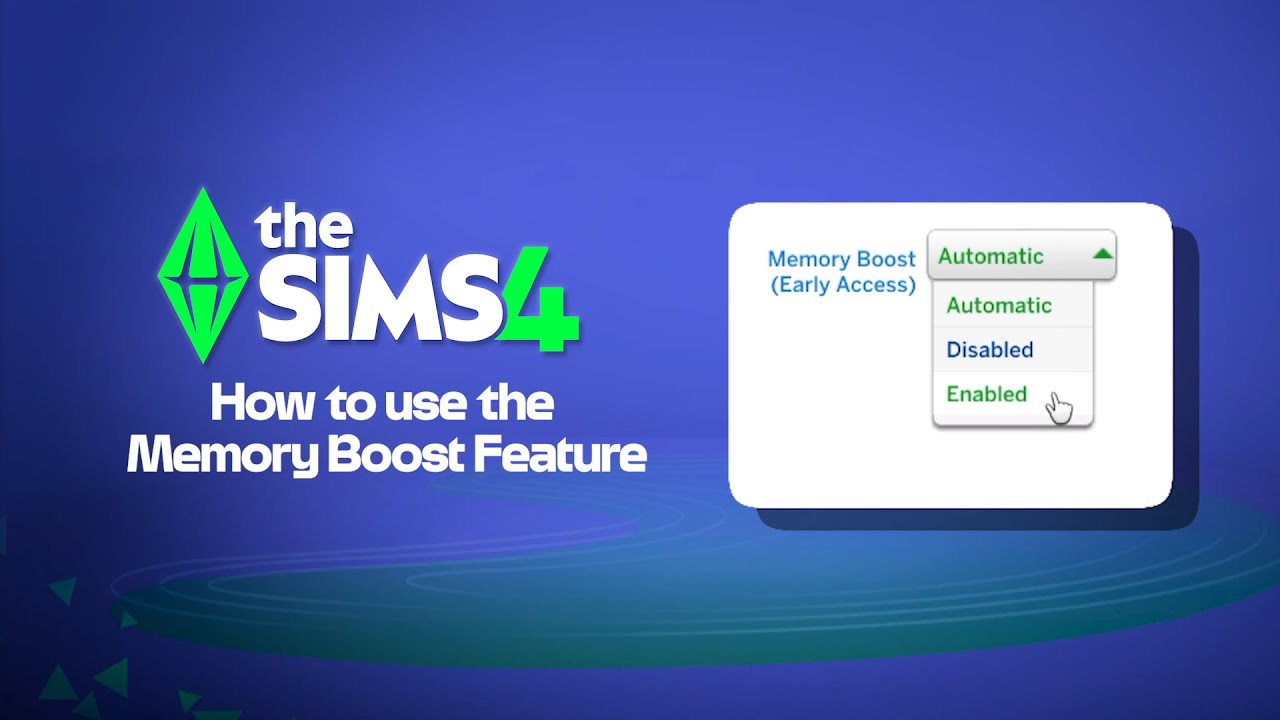
Memory Boost is an opt-in feature that enhances your gameplay experience by optimizing memory usage. It helps reduce lag, improve frame rates, and prevent crashes. It’s currently in the Early Access phase and is available on PC only. There are three Memory Boost options.- Enable: turn on Memory Boost
- Disable: turn off Memory Boost
- Automatic: lets the game choose the best setting for your system capabilities
How to enable or disable Memory Boost
Here’s how to enable Memory Boost:- 1Open the Main Menu.
- 2Select the three dots to open Game Options.
- 3Select Other.
- 4Select the drop-down beside Memory Boost. Choose between Enable, Disable, or Automatic.
- 1Press Control + Shift + C to open the cheat dialogue box.
- 2Type version into the cheat dialogue box and press Enter.
- If you see (FPB) in the Summary Line, Memory Boost is enabled.
How does Memory Boost affect game saves?
Once Memory Boost is enabled, it won’t affect your existing saves. Any new recover saves created while Memory Boost is active have a Memory Boost tag to show they were created with the feature turned on. You’ll always have at least one original and untagged recovery save available. This means you can always revert to a save from before you enabled Memory Boost, if needed.If you turn off Memory Boost later, save files created when you had it on will still display the Memory Boost tag, but this won’t affect your gameplay.If you can’t see the Memory Boost option
If you can’t see the Memory Boost option, first make sure your game is updated. Memory Boost won’t work if you’re running DX9—you need to be on DirectX 11. To access DX9, disable Memory Boost. To check which DirectX version you’re running, check the bottom left of the Main Menu screen.