Overview
Customize your EA SPORTS™ College Football team from the ground up using Team Builder, and learn how to import your creation into the game.
What’s Team Builder?
In Team Builder, you can customize your EA SPORTS™ College Football team's brand, uniform, stadium, and programs. You can use premade designs, upload your own creations, or browse the download center to see teams created by the community.Whether you’re playing as your favorite real-life school, crafting a throwback squad, or building your own fantasy university, Team Builder gives you creative control.
Check out our video guide for a full overview.
How to access Team Builder
You can access Team Builder on ea.com using a desktop browser. Here’s some important information to know before you access and use Team Builder.- Team Builder works on desktop browsers with traditional operating systems like Windows and macOS. It isn’t supported on phones, tablets, or devices like Chromebooks.
- Content created in Team Builder can be used in Play Now Mode, Dynasty Mode, and Road to Glory.
- You need an EA Account and an internet connection to use Team Builder.
- You may need an account on the console or service you play on.
- Age restrictions may apply.
How to use Team Builder
- 1Go to the Team Builder website using a desktop browser.
- Keep in mind that you won’t be able to use Team Builder while you’re logged in to EA SPORTS™ College Football.
- 2Select Get Started and sign in using your EA Account details.
- 3Choose an existing team to customize, or select Create to build one from scratch.
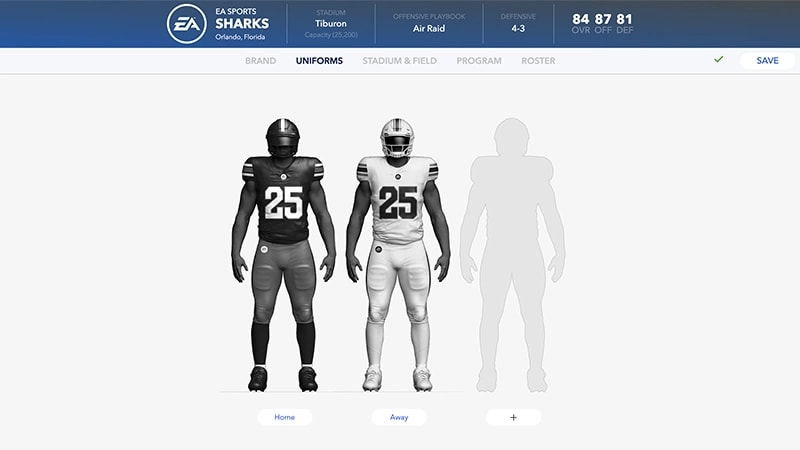
- 4Go through the Brand, Uniforms, Stadium, Program, and Roster tabs to choose your preferences for customizing your team.
- 5When you’re finished, select Save.
- 6Select Submit. All the customization choices you made will be summarized on-screen.
- 7To confirm your choices, choose Submit. To go back and customize again, select Cancel.
What can be customized in Team Builder?
Team Builder has five tabs, each with its own set of customization options.- Brand
- Choose your logos, color palette, apparel brand, and fonts.
- Uniform
- Create uniforms for both home and away games. Choose from different styles, textures, and colors to design your helmet, jersey, and pants.
- Stadiums
- Choose your stadium’s name, capacity, crowd, atmosphere, and style.
- Program
- Get an overview of your entire team and customize each player's appearance, physical attributes, college year, and skill ratings. Use the Strategy menu to choose your Offensive and Defensive Playbooks.
- Roster
- Build your team and adjust dealbreakers, ratings, abilities and appearances, hometowns, and names.
By using Team Builder, you’re agreeing to EA’s Rules of Conduct. Any content that violates our User Agreement will be taken down.
How to import a team from Team Builder
Before you can import a team, you need to download it to your platform's local storage.- 1From the main menu, select the Create and Share tab.
- 2Select Download Center.
- 3Make sure you’re in the Schools category. Use the Triangle or Y button to search for the name of the team you created.
- 4Press X on PlayStation® or A on Xbox to download your team.
Use an imported team in EA SPORTS™ College Football 26
After downloading your team, you can use it in Play Now Mode, Dynasty Mode, or Road to Glory.Play Now Mode
Dynasty Mode
Road to Glory
- 1From the main menu, go to the Game Modes tab.
- 2Select Play Now.
- 3Scroll or hold R2 (PlayStation®) or RT (Xbox) to find and select the team you downloaded.