Overview
Learn how to tune your car setup for high-speed straights or tight corners and tackle different track demands in F1® 25.
Why car setup matters
When setting up your car in F1® 25, remember that every track has its own challenges. Some prioritize top speed, while others demand precision and grip. Customizing your car setup to meet the demands of the track you’re racing on can make the difference between pole position and spinning out.This guide takes you through car setup options and how to adjust them for different tracks.How to access Car Setup in F1® 25
In Career Mode
In F1® World
- 1From the main menu, select Career.
- 2Start a session, then pause it.
- 3Select Return to Garage.
- 4Select Garage and choose the Car Setup tab.
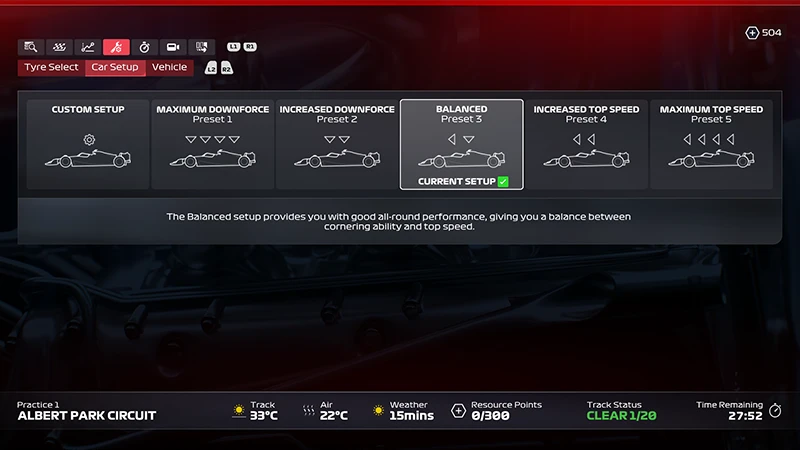
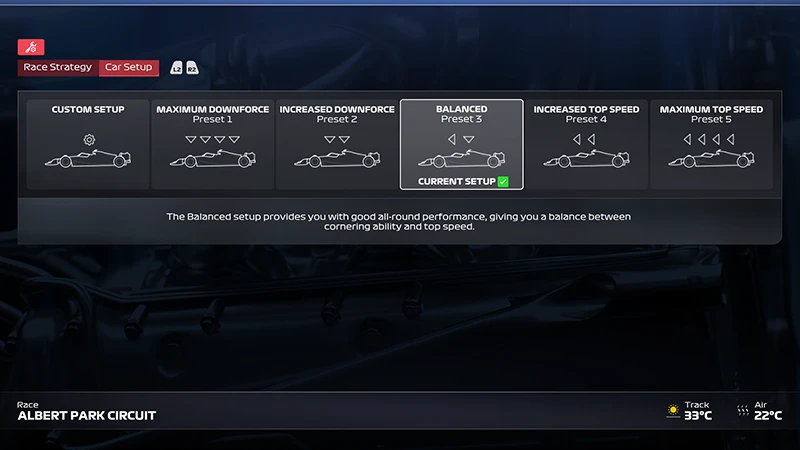
Ranked mode and some F1® World events use fixed setups to keep the competition balanced and fair. If the Car Setup option is missing or grayed out, it means setup changes aren’t available for that event.
How each Car Setup option works
Each Car Setup option affects how your car behaves on the track. Here are some of the setup options you can tweak and how they impact performance.- Controls how much the car sticks to the track.
- More downforce gives better grip in corners, but lowers top speed.
- Affects how smoothly the car puts power down.
- Can improve traction when accelerating out of corners.
- Adjusts how your tires align with the track.
- Can improve grip or reduce how fast tires wear out.
- Sets how soft or firm the car feels.
- Softer setups help with curbs and bumps, while firmer ones give more precise handling in corners.
- Determines brake strength and how braking is split between front and rear tires.
- Crucial for control and influences speed, handling, and overall race strategy.
- Controls tire pressure.
- Lower pressure gives more grip, but higher pressure makes tires last longer.
- Determines how much fuel you start with.
- Less fuel makes the car lighter and faster, but it won’t last as long in a race.
How to set up a car by track type
Different tracks require different car setups. Use these starting points to help your car handle more predictably, based on track conditions and characteristics.High-speed tracks
Tracks with long straights and fast corners need speed and stability. Here are some car setup options to consider.- Lower downforce (Aerodynamics)
- Less drag means more top speed on straights.
- Firmer suspension
- Helps keep the car stable at high speeds.
- Brake bias toward the front
- Gives better braking control at the end of a long straight.
Tight or twisty tracks
Slow corners and narrow sections need grip and responsiveness. Try these setup options to help you stay in control.- Higher downforce (Aerodynamics)
- Adds grip, which helps in low-speed corners..
- Softer suspension
- Makes it easier to handle curbs and sharp turns.
- Lower tire pressure
- Gives better grip, especially in tight sections.
Wet tracks
When there are wet weather conditions and the track is slippery, you’ll need more control and grip.- Higher downforce (Aerodynamics)
- Helps the car stay planted in the rain..
- Softer suspension
- Improves traction and control on wet surfaces.
- Brake bias slightly to the rear
- Helps prevent the front tires from locking up when braking.
Struggling with control even in dry conditions? A wet-weather setup might give you more stability.
How to download other car setups
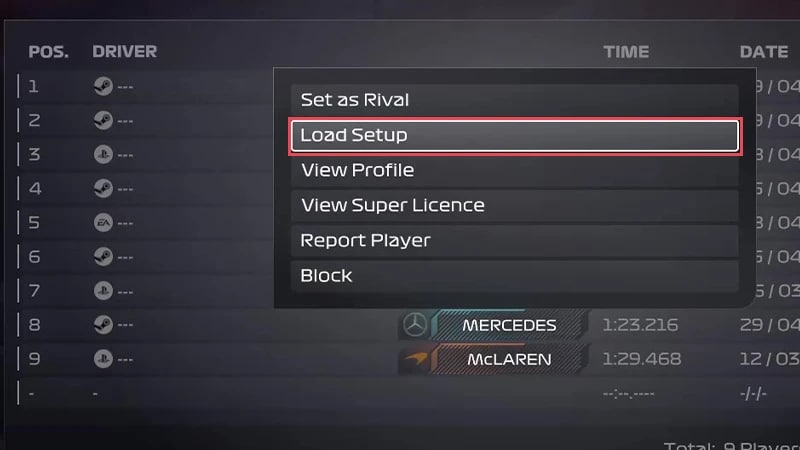
Not sure where to start? Here’s how to download and test car setups created by other players on Time Trial leaderboards.- 1Go to the main menu and select F1® World.
- 2Select Play and choose Time Trial.
- 3Choose from F1® 2025 or F2™ 2024.
- 4Pick a track and team.
- 5Select the name of the driver whose car setup you want to try, and choose Load Setup.