Overview
Everything you need to know about re-enabling Mods after a game update and troubleshooting common Mod error codes.
When downloading Mods for The Sims 4, be careful to only download from a trusted source or creator.
Maxis and EA don’t pre-screen, endorse, or support specific Mods or Custom Content. Use Mods and Custom Content with caution and understand there may be risks.
Maxis and EA don’t pre-screen, endorse, or support specific Mods or Custom Content. Use Mods and Custom Content with caution and understand there may be risks.
Why does The Sims 4 disable Mods after an update?
Since we don’t screen or support any Mods, it’s possible a Mod that didn’t cause any issues for players before could cause them after an update. By disabling Mods when we update, we try to limit any issues or problems with your gameplay. You can check with Mod creators to find out if they’re still compatible after a patch or update. A Mod may need to be fully reinstalled to be compatible with the latest game patch. Keep in mind that it can take time for Mod creators to upgrade their content after an update.How to re-enable Mods in The Sims 4 after an update
You can re-enable Mods that were disabled during an update through the Options Menu. Be sure to use caution and understand there may be risks if you re-enable a Mod that hasn’t been updated by its creator yet.- 1Launch The Sims 4 with Mods disabled. Choose Resume or Load Game and play in Live Mode to make sure everything is working correctly.
- When you check if your game is working correctly with Mods disabled, any Custom Content you have installed won’t appear in-game.
- 2Close the game without saving by opening the Menu from the top-right in Live Mode and selecting Exit Game. Confirm you want to exit without saving by selecting Exit Game again.
- If you select Save and Exit before re-enabling Custom Content and Mods, content may be removed from your saved game.
- 3Check the Mod creator’s site to verify that the Mod works with the latest The Sims 4 Update. If there’s an updated version of the Mod, follow the Mod creator’s instructions for replacing the outdated version.
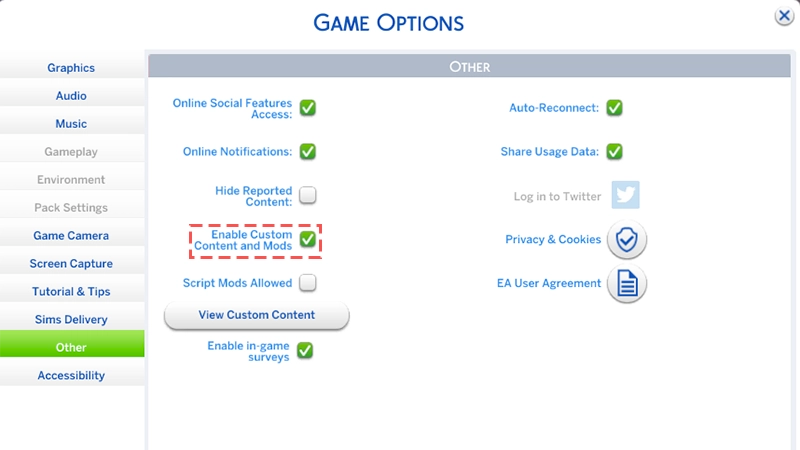
- 4Re-enable Mods through the Options Menu by selecting Game Options > Other > Enable Custom Content and Mods.
- 5Exit the game and relaunch it. Check that the Mod is working correctly. If you need help troubleshooting, use our steps to find out which Mod is causing problems.
- 6If there are Mods causing problems, remove them and check the Mod creators’ site for an updated version.
- As a member of The Sims Community, you can also contact the Mod creator to let them know their Mod is causing issues.
- Be sure to include your current game version number when you let them know. You’ll find this on the lower left side of the Main Menu.
How to tell if Mods are causing problems
Mods can cause issues and conflict with The Sims 4 in many different ways. If you’re having problems with your game, there’s no single way to determine if Mods are the cause. The easiest way to see if there’s an issue is to play the game. There may be very obvious problems, such as the game failing to boot or load saves, but other, smaller issues may also mean a Mod is causing problems.- If you’re using Custom Content, check content like items or clothing to make sure it’s working normally. For example, if your Sim’s hat is floating above them, it’s usually a sign that something’s wrong with that Custom Content item.
- If you’re using Game Mods, make sure everything is functioning like it’s supposed to. While Sims love to ignore us, if they’re walking up walls or have been eating dinner for 24 hours, that may be a clue the Game Mod is causing an issue.
Common The Sims 4 Mod error codes
Some error codes that appear in-game are directly related to Mods. Here’s more info about some of the most common Mod-related error codes and what causes them.102, 123, 125, 127, 129, or 131This error code usually appears if there’s an issue with the game’s script, so a script Mod could be the cause. 110This error code usually appears after a game update, and is caused by outdated Mods.How to find Mods causing issues in The Sims 4
Once you’ve identified that one or more of your Mods are creating issues, you need to figure out which Mods are the problem. If you have a lot of Mods in your Mods folder, this could take time.Remove all your Mods from the “Mods” folder and add them back in batches. Remove Game Mods from your Mods folder before Custom Content.
- 1After adding each batch, launch the game to see if the problem persists.
- 2If you add a batch and the game runs without problems, it’s unlikely the Mods in that batch are causing the problem.
- 3If you add another batch and the issue returns, it usually means at least one problematic Mod is in that batch. Be sure to keep track of the Mods you’re adding to each batch.
- 4Once you determine that a particular batch contains a problematic Mod, remove half of that batch. Launch the game again to see if the problem still exists.
- 5If it does, then remove another half of the batch and try again.
- 6If it doesn’t, add back half of the removed Mods and try again.
- 7Repeat this process until the problem Mod is identified. This type of searching is sometimes referred to in The Sims community as the 50/50 method.
- 1Game Mods, which add features or change the game's functionalities, are more likely to cause issues than Custom Content.
- 2To narrow down your search, start by removing only Game Mods, then launch the game to see if the problem persists.
- 3If the problem persists after removing only Game Mods, it might be Custom Content that’s causing issues.
- If the game works correctly and you don’t experience any issues after removing only Game Mods, one of the removed Game Mods is likely to be the cause.
Struggling to find the Mod that’s causing issues? It’s worth learning more about what each Mod you have does. For example, if you have a Mod that adds menus to an item or Sim and the menu won’t open, it’s a good indicator it’s that Mod causing the issue. These gameplay clues can be a good place to start when deciding which Mods to remove from the game first.
Mod-related performance issues in The Sims 4
If you use a lot of Mods, it may lead to performance issues. We don’t limit the amount you can install, but since Mods may require more memory and CPU resources, running them can impact your game.How to turn off the Show at Startup setting
To speed up how long it takes your game to load, try turning off the Show at Startup option. When this setting is turned on, it lists the Mods you currently have installed, which can slow down the process of opening up your game.- 1Launch The Sims 4. Once the game loads, you’ll get a pop-up notification listing all Mods you use.
- 2Uncheck the box beside Show at Startup in the bottom left of the pop-up notification so your Mods list no longer appears at startup.