Overview
You can enable two-factor authentication (2FA) for extra account security. After you set up 2FA, we’ll send you a code to make sure it’s you any time a new device tries to log in to your EA Account.
How to turn on 2FA
After you set up 2FA, click View backup codes and write them in a safe place. If you can’t access your chosen verification method, backup codes are the only way to sign in to your EA Account from a new device.
- 1Go to your EA Account Security and Privacy page.
- 2Scroll down and select Two-factor authentication.
- 3Select Turn On.
- 4Choose the Email, Authenticator app, or Text Message tab.
- If you choose to use an authenticator app, select Set up and follow the on-screen steps to connect it to your EA Account.
- 5Select Send Code.
- 6Enter the code sent to the email address associated with your EA Account, authenticator app, or phone number to verify.

If you’re not getting codes sent to your email, try resending the code. If that doesn’t work, make sure: If you’re still not getting your codes, look for a past email from ea@e.ea.com and allow images to be displayed. Then, resend the code.If you can’t access or remember the email address you used to make your EA Account, try these account recovery steps.
- your inbox isn’t full
- you checked the spam folder
- you or your service provider haven’t blocked us
- you’re logged in to the right EA Account.
- If you’re logged in to a different EA Account, your codes might go to the wrong email.
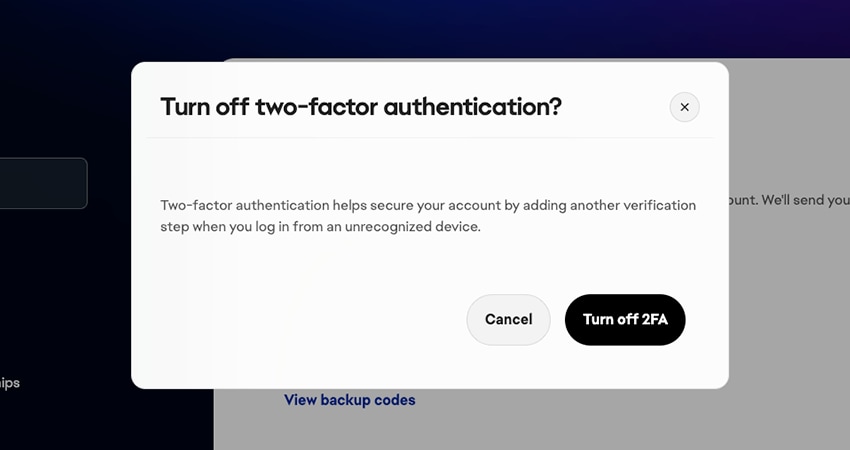
How to turn off 2FA
We recommend leaving 2FA on to help secure your account, but if you want to turn it off:- Go to your EA Account Security and Privacy page.
- Scroll down and select Two-factor authentication.
- Select Turn off at the bottom of your screen.