Overview
The MySims: Cozy Bundle includes retro re-releases of two games: MySims and MySims Kingdom. Find out how button and touch screen controls work for both games on Nintendo Switch™.
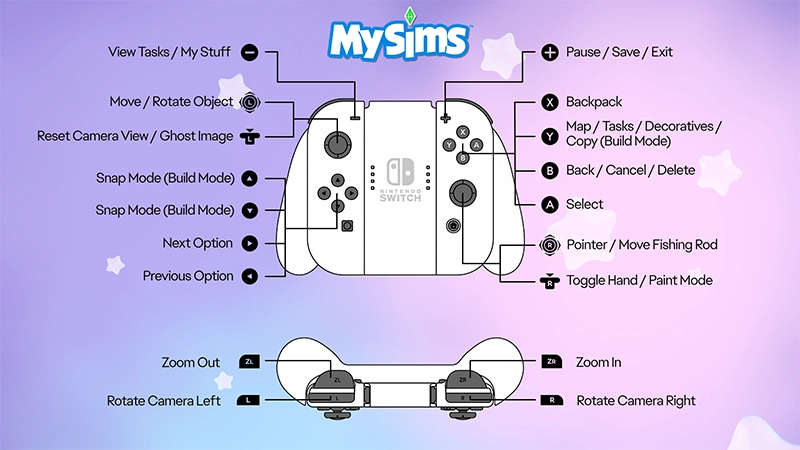
How to use Nintendo Switch™ controls in MySims
Playing MySims: Cozy Bundle on PC? Check out our PC control guide.If you need some beginner tips, learn how to get started in MySims: Cozy Bundle.
- - Button
- View Tasks/My Stuff
- Left Stick
- Move/Rotate object
- Hold L Button
- Reset camera view/Ghost image
- Up Button
- Snap Mode (Build Mode)
- Down Button
- Snap Mode (Build Mode)
- Right Button
- Next option
- Left Button
- Previous option
- ZL Button
- Zoom out
- L Button
- Rotate camera left
- + Button
- Pause/Save/Exit
- X Button
- Backpack
- Y Button
- Map/Tasks/Decoratives/Copy (Build Mode)
- B Button
- Back/Cancel/Delete
- A Button
- Select
- Right Stick
- Pointer/Move fishing rod
- Hold R Button
- Toggle Hand/Paint Mode
- ZR Button
- Zoom in
- R Button
- Rotate Camera right
How to use Nintendo Switch™ controls in MySims Kingdom
- - Button
- Travelogue/Previous step
- Left Stick
- Move
- Hold L Button
- Reset camera/Slide under mode
- Up Button
- Select tool (up)
- Down Button
- Select tool (down)
- Right Button
- Next option
- Left Button
- Previous option
- ZL Button
- Zoom out
- L Button
- Rotate camera left
- + Button
- Pause/Save
- X Button
- Jump
- Y Button
- Map/Copy (Build Mode)
- B Button
- Back/Cancel/Delete
- A Button
- Select
- Right Stick
- Pointer/Move fishing rod
- Hold R Button
- Toggle Hand/Paint Mode
- ZR Button
- Zoom in
- R Button
- Rotate Camera right

How to use touch controls in MySims: Cozy Bundle
You can use Nintendo Switch™ touch screen controls for some features, such as:- accessing menus in-game (My Stuff, Inventory, Map)
- creating or editing your Sim
- interacting with other Sims
- harvesting and fishing
- Workshop, House Decoration, and Build Mode.