Overview
Learn which Xbox buttons control movement, building, and camera actions in MySims™ and MySims™ Kingdom. Whether you’re restoring your town or exploring new islands, this guide shows every control you’ll need on Xbox consoles.
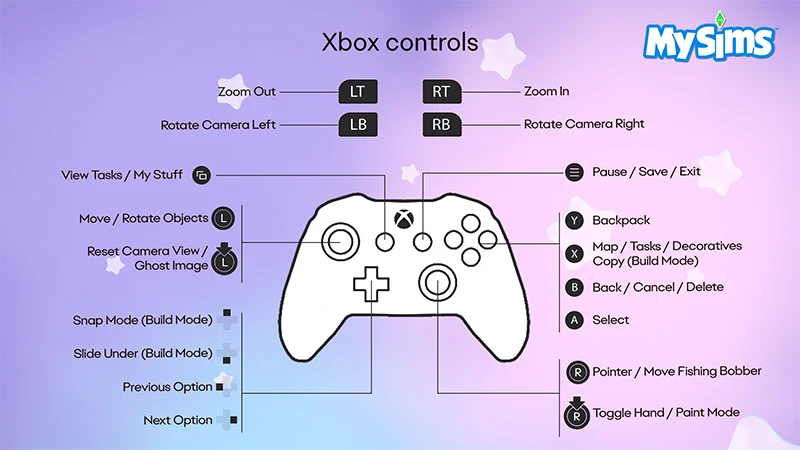
How to use Xbox controls in MySims
- Left Trigger (LT)
- Zoom Out
- Right Trigger (RT)
- Zoom In
- Left Bumper (LB)
- Rotate Camera Left
- Right Bumper (RB)
- Rotate Camera Right
- Back Button
- View Tasks/My Stuff
- Start Button
- Pause/Save/Exit
- Left Thumbstick
- Move/Rotate Objects
- Left Thumbstick (Push Down)
- Reset Camera View/Ghost Image
- Y Button
- Backpack
- X Button
- Map/Tasks/Decoratives/Copy (Build Mode)
- B Button
- Back/Cancel/Delete
- A Button
- Select
- Directional Pad Up
- Snap Mode (Build Mode)
- Directional Pad Down
- Slide Under (Build Mode)
- Directional Pad Left
- Previous Option
- Directional Pad Right
- Next Option
- Right Thumbstick
- Pointer/Move Fishing Bobber
- Right Thumbstick (Press Down)
- Toggle Hand/Paint Mode
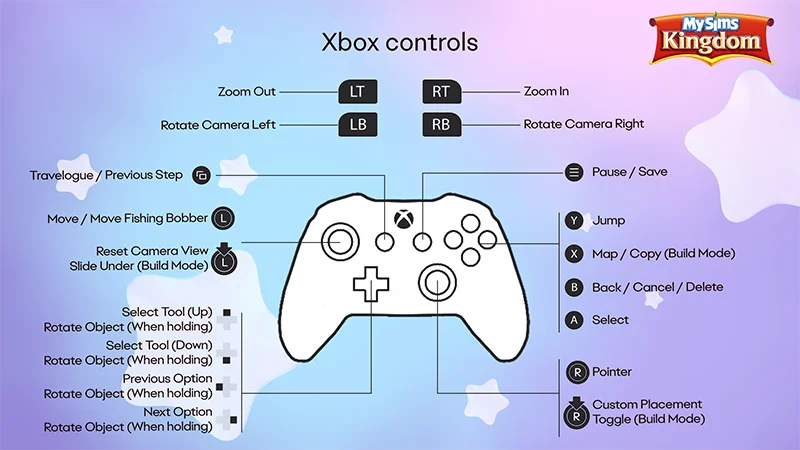
How to use Xbox controls in MySims Kingdom
- Left Trigger (LT)
- Zoom Out
- Right Trigger (RT)
- Zoom In
- Left Bumper (LB)
- Rotate Camera Left
- Right Bumper (RB)
- Rotate Camera Right
- Back Button
- Travelogue/Previous Step
- Start Button
- Pause/Save
- Left Thumbstick
- Move/Move Fishing bobber
- Left Thumbstick (Push Down)
- Reset Camera View/Slide Under (Build Mode)
- Y Button
- Jump
- X Button
- Map/Copy (Build Mode)
- B Button
- Back/Cancel/Delete
- A Button
- Select
- Directional Pad Up
- Select Tool (Up)
- Rotate Object (When holding)
- Directional Pad Down
- Select Tool (Down)
- Rotate Object (When holding)
- Directional Pad Left
- Previous Option
- Rotate Object (When holding)
- Directional Pad Right
- Next Option
- Rotate Object (When holding)
- Right Thumbstick
- Pointer
- Right Thumbstick (Press Down)
- Custom Placement Toggle (Build Mode)
Playing MySims™: Cozy Bundle on another platform? Check out our control guides:
If you need some beginner tips, learn how to get started in MySims: Cozy Bundle.