Overview
Find help for common troubleshooting issues for The Sims 3 on PC and Mac.
Minimum specs
Before troubleshooting, make sure your computer meets the minimum requirements for The Sims 3 and for the most recent Expansion Pack you have installed.To keep everything running smoothly, we also recommend keeping your graphics drivers up-to-date. For Mac users, macOS does this automatically with each new version of the operating system.Need to check what kind of graphics card is in your PC? Read our article to find out how to check what graphics card you have.Graphics troubleshooting
If your PC or Mac meets the minimum specs, but the game is slow or choppy, try turning down some of your graphics settings:- 1Open The Sims 3.
- 2Select the … (options) button or press F5 on your keyboard.
- 3In the Graphics tab, move all the sliders under Graphics details to low.
- 4Select the check mark to save your changes.
- 1Open The Sims 3.
- 2Select the … (options) button or press F5 on your keyboard.
- 3In the Graphics tab, check the box beside Enable Fullscreen Mode.
- 4Select the check mark to save your changes.
PC
Check Advanced Rendering is switched on:- 1Open The Sims 3.
- 2Select the … (options) button or press F5 on your keyboard.
- 3In the Graphics tab, check the box beside Advanced Rendering.
- 4Select the check mark to save your changes.
Mac
Check your Energy Saver settings:Some Macs have two graphics cards in them, one that’s built into the processor and used for standard tasks, and another that’s used for high-performance applications, like games.Use About this Mac to check what kind of graphics cards you have.If your Mac has a dedicated graphics card and you notice your Mac slowing down when you’re playing The Sims 3, check your Energy Saver settings.- 1From the Apple menu, choose System Preferences.
- 2Select Energy Saver.
- 3Check these two things:
- Graphics options: if you see this, select Higher Performance.
- You’ll need to log off and log back on to your Mac to apply this change.
- Automatic graphics switching: turn this off to force your Mac to use the dedicated graphics card all the time.
Custom content troubleshooting
If you’re still seeing glitchy graphics, there could be a problem with custom content you have installed. Disable or remove custom content and try loading the game again.Other troubleshooting steps for PC
Game crashes when it’s loading
Custom content can cause The Sims 3 to crash when you’re loading into the game. To check if this is the cause, disable custom content in the launcher and try loading the game again.- 1Exit the Sims 3 launcher.
- 2Restart it, then select Installed Content.
- 3Check the box beside Run without custom content. Select OK on the pop-up warning to continue.
Version incompatible error in the launcher
This error can appear if you’ve uninstalled a Pack and a leftover file causes an issue. To troubleshoot this:- 1Go to My Documents > Electronic Arts.
- 2Open The Sims 3 folder.
- 3Look for a file named Version.tag, and delete it (the game will automatically remake it the next time you play).
- 4Restart the launcher.
Other troubleshooting steps for Mac
Disk authorization failure error
If you’re playing on macOS X Yosemite or earlier, repairing your disk permissions can help with this error. Follow the steps in this Apple support article to run Disk Utility on your Mac.Newer versions of macOS automatically maintain and protect system file permissions, so there’s no need for you to repair file permissions.Clearing your cache
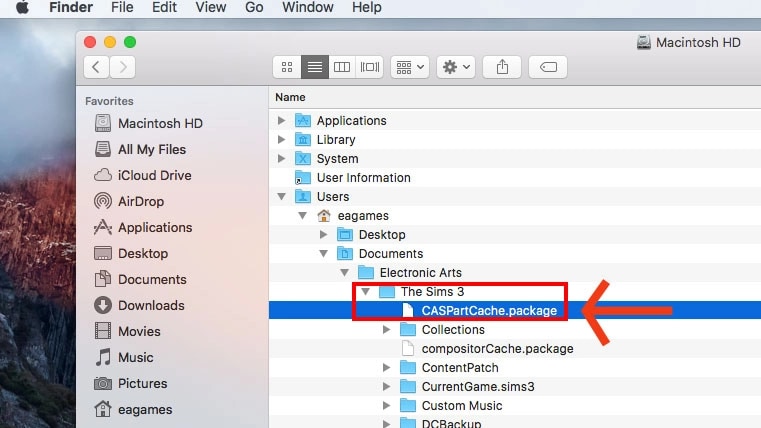
If there’s a problem with a corrupted save file or a piece of custom content, try clearing The Sims 3 cache on your Mac.- 1In Finder, select your hard drive (usually Macintosh HD unless you renamed it).
- 2Select Users, then your username.
- On older Macs, this can be called Places.
- 3Open Documents > Electronic Arts > The Sims 3.
- 4Delete these files (they’re safe to remove, the game will create them again when it relaunches):
- CASPartCache.package
- compositorCache.package
- scriptCache.package
- simCompositorCache.package
- 5Open the Thumbnails folder and delete the files inside it.
- 6Empty your Trash and try loading The Sims 3 again.
Removing custom content and mods
Before removing any custom content and mods make sure you back them up by copying their folders to your desktop.- 1In Finder, select your hard drive (usually Macintosh HD unless you renamed it).
- 2Select Users, then your username.
- On older Macs, this can be called Places.
- 3Open Documents > Electronic Arts > The Sims 3.
- 4Delete these files (they’re safe to remove, the game will create them again when it relaunches):
- CASPartCache.package
- compositorCache.package
- scriptCache.package
- simCompositorCache.package
- 5Open the Thumbnails folder and delete the files inside it.
- 6Open the Mods folder and delete the files inside it.
- 7Open the Packages folder and delete the files inside it.
- 8Empty your Trash and try loading The Sims 3 again.
Changing your language
To change your language in The Sims 3:- 1Open Finder, then the Applications folder.
- 2Select The Sims 3 > TheSims™3.app.
- 3Select the cog icon and choose Show Package Contents.
- 4In the new window that opens, select Contents.
- 5Select Resources, then Preferences.
- 6Choose the update_always.reg file, then select the cog again.
- 7Select Open With and choose Other.
- 8In the Choose Application window, select TextEdit.app , then Open.
- 9Change the Locale to match the language you want to use, using the list of languages below.
- 10Save and close the file. Launch The Sims 3 and check that it’s now running in the correct language.
To change your language in The Sims 3, replace the locale in the text file with the locale code for your preferred language.
- English: en-US
- Chinese (Simplified): zh-CN
- Chinese (Traditional): zh-TW
- Danish: da-DK
- Dutch: nl-NL
- Finnish: fi-FI
- French: fr-FR
- German: de-DE
- Greek: el-GR
- Hungarian: hu-HU
- Italian: it-IT
- Japanese: ja-JP
- Korean: ko-KR
- Norwegian: no-NO
- Polish: pl-PL
- Portuguese: pt-PT
- Portuguese (Brazilian): pt-BR
- Russian: ru-RU
- Spanish: es-ES
- Spanish (Mexican): es-MX
- Swedish: sv-SE
- Thai: th-TH