Přehled
Potřebujete pomoct s instalací nebo správou balíčků v The Sims 4? Použijte tohoto průvodce k instalaci rozšíření, herních balíčků a kolekcí do The Sims 4 a získejte plnou kontrolu díky funkci výběru balíčků.
Instalace balíčků The Sims 4 na systémech PC a Mac
Před instalací dodatečného obsahu do The Sims 4 se ujistěte, že je základní hra nainstalovaná a aktualizovaná. Přečtěte si našeho průvodce instalací základní hry The Sims 4.Digitální balíčky by se měly po zakoupení nainstalovat automaticky. Pokud k tomu nedojde, instalovat je můžete ručně, a to podle tohoto návodu.Digitální nákup v EA app
- 1Spusťte EA app.
- 2Pokud k tomu budete vyzváni, zadejte své přihlašovací údaje k účtu EA.
- 3Otevřete knihovnu Librarya klikněte na The Sims 4.
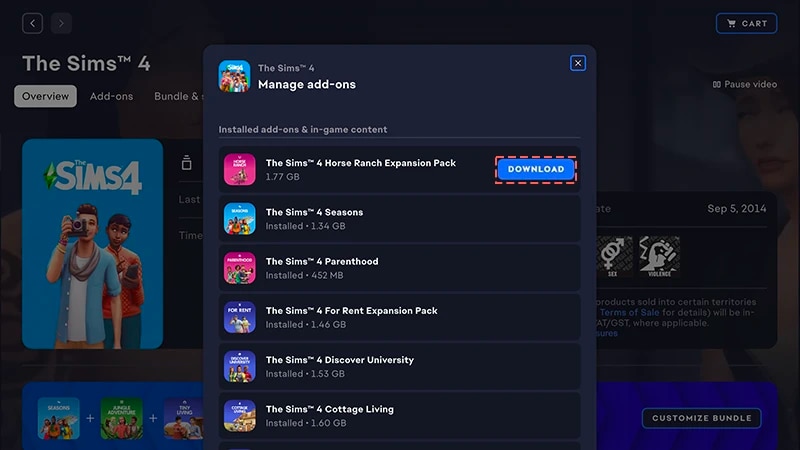
- 4Po kliknutí na Add-ons (Doplňky) uvidíte, které balíčky momentálně vlastníte.
- 5Pokud vlastníte balíček, který se automaticky nenainstaluje, klikněte na ikonu Download (Stáhnout).
Instalace zakoupeného produktového kódu v EA app
- 1Spusťte EA app.
- 2Pokud k tomu budete vyzváni, zadejte své přihlašovací údaje k účtu EA.
- 3Otevřete knihovnu Library.
- 4Klikněte na Redeem Code (Uplatnit kód).
- 5Zadejtekód produktu a klikněte na Next (Další) a poté na Confirm (Potvrdit).
- 6Klikněte na Download (Stáhnout)v EA app.
EA app nahradila Origin a stala se hlavní platformou pro stahování a spouštění The Sims 4 na platformách PC i Mac. Uživatelé systémů Mac musí ke spuštění použít macOS Catalina nebo novější. Další informace o upgradu macOS najdete v našem průvodci macOS.
Pokud jste balíček zakoupili na fyzickém médiu (jen PC)
- 1Vložte médium s hrou do mechaniky a postupujte podle instrukcí na obrazovce.
- 2Po vyžádání zadejte produktový kód, který byl přiložený k instalačnímu médiu.
- 3Jakmile uplatníte kód balíčku, objeví se vám na stránce podrobností hry The Sims 4 na kartě Library (Knihovna).
- 4Po dokončení instalace vyberte The Sims 4 a poté Play (Hrát), čímž hru spustíte.
Jak zjistit, zda je balíček The Sims 4 nainstalovaný
- 1Otevřete v EA app Library (Knihovnu).
- 2Klikněte na obrázek hry The Sims 4.
- 3Vyberte Manage (Spravovat).
- 4Vyberte Manage add-ons (Spravovat doplňky).
- 5Ve vyskakovacím okně se zobrazí seznam vlastněných doplňků. Nainstalované doplňky a herní obsah jsou ty, které vlastníte a již máte nainstalované. Doplňky ke stažení jsou ty, které vlastníte, ale ještě jste je nenainstalovali.
- 6Klikněte na ikonu Download (Stáhnout)u všech dosud nenainstalovaných doplňků.
Výběr balíčků The Sims 4
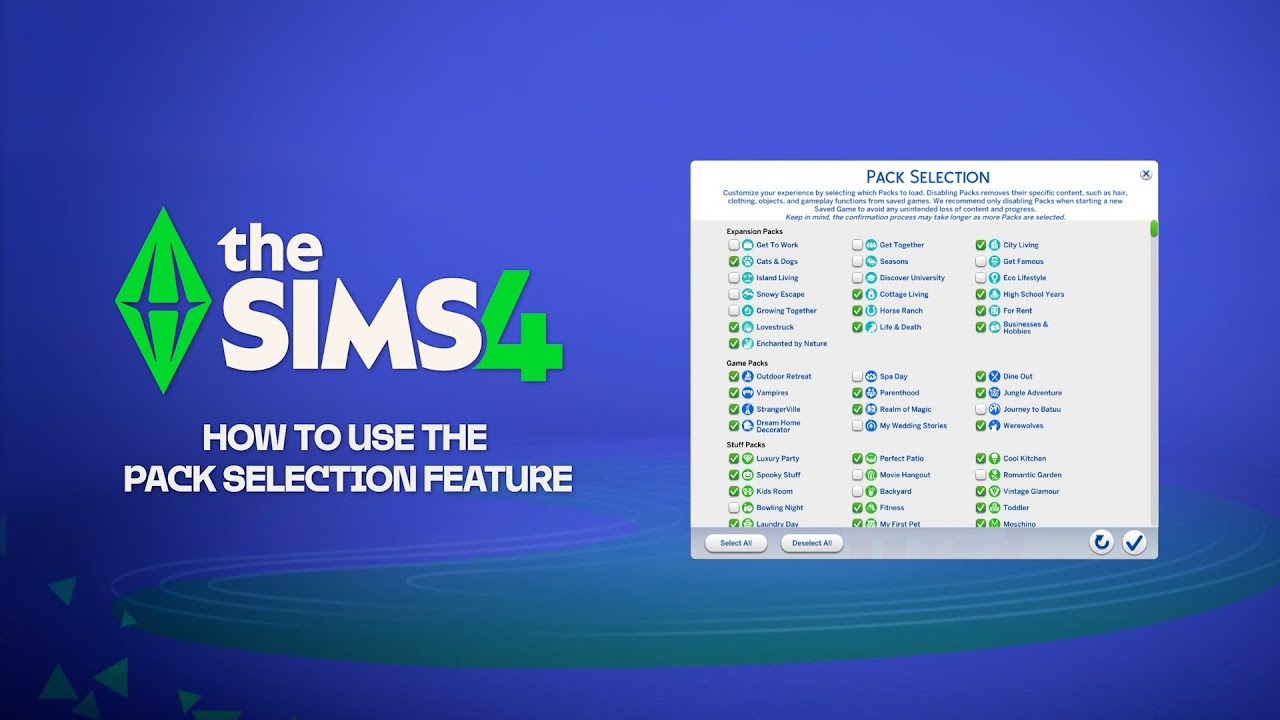
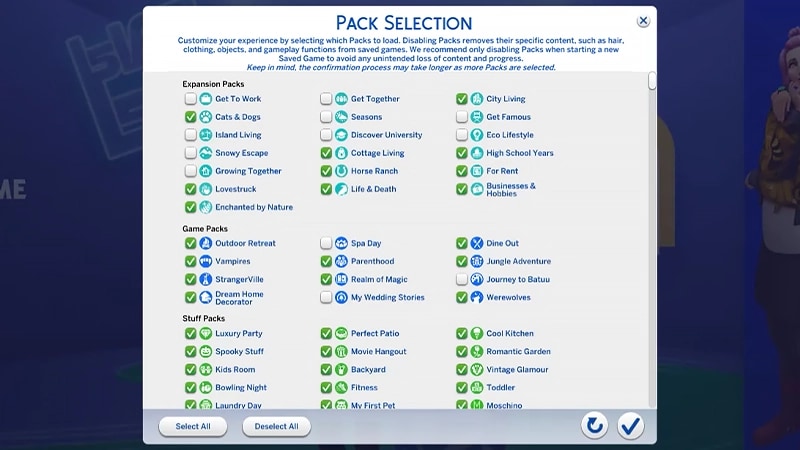
Výběr balíčků je funkce, která vám umožňuje nastavit si, které balíčky chcete mít nainstalované. To se hodí pro vyprávění příběhů a vaše herní zážitky. Také je to vhodné pro uvolnění zdrojů, aniž byste museli odinstalovat balíčky, které momentálně nepoužíváte. Výběr balíčků je k dispozici na všech platformách: PC, Mac i konzole. Níže najdete postup, jak ve hře načíst balíčky nebo je odebrat:- 1Otevřete hlavní nabídku a zvolte Výběr balíčků.
- 2Vyberte nebo zrušte výběr balíčků, které chcete ve hře načíst nebo z ní odebrat.
- 3Výběrem zatržítka volby potvrďte.
Odebrání balíčků může ovlivnit stávající uložené pozice, proto je nejlepší tuto funkci používat při vytváření nové uložené pozice, abyste předešli ztrátě obsahu nebo postupu.Před odebráním nebo opětovným načtením balíčků doporučujeme deaktivovat všechny mody. Přečtěte si náš článek o tom, jak vypnout mody. Vždy se ujistěte, že máte své uložené pozice zálohované. Pokud s tím potřebujete pomocí, projděte si našeho průvodce.
Načítání uložené pozice s chybějícími balíčky
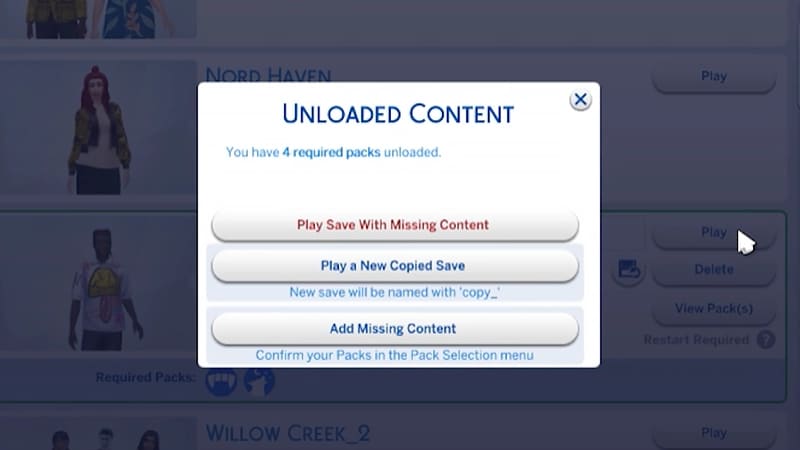
Podle následujících příznaků poznáte, že v uložené pozici chybí balíčky.- Když se pokusíte načíst uloženou pozici, zobrazí se před hraním upozornění, že chybí balíčky nebo obsah.
- Platí, že všechny balíčky v nabídce Výběru balíčků, které nemají vedle sebe zaškrtnutí, nejsou momentálně načtené.
- Na PC se u každé uložené pozice s chybějícím obsahem zobrazí, zda jsou balíčky potřebné ke hře načtené, a to pomocí ikon vyžadované balíčky.
Pokud vaši Simíci žili ve světě specifickém pro určitý balíček, který jste ze hry odebrali, vaše domácnost bude stále k dispozici v nabídce Úprava domácností. Odtud ji můžete přestěhovat na nový pozemek nebo sloučit s jinou domácností.Poznámka: Všechny položky a vlastnosti z režimu Vytvořit Simíka, které jsou specifické pro konkrétní balíček, budou odstraněny, pokud daný balíček znovu nepřidáte do hry.