Overview
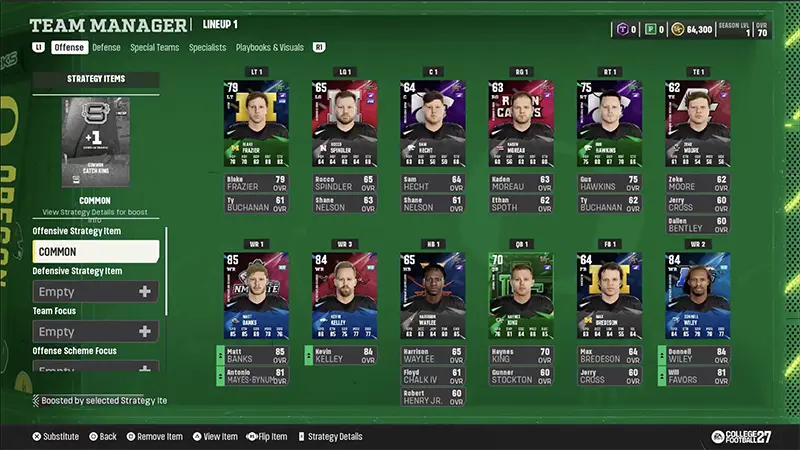
Learn how to manage your roster in Ultimate Team™, replace and move players, improve your team, and prepare for game day. You can also create multiple lineups, adjust chemistry, abilities, and strategy items, and automatically generate your best available lineup.
How to manage a Lineup
Getting an "Invalid Lineup" message? This happens when your lineup is missing one or more required positions. To solve this, go back to Lineup, fill any empty required positions, then try again. You can also use Generate Best Lineup to quickly fill empty lineup positions.
- create a new lineup
- select which lineup is active
- rename saved lineups
- delete lineups you no longer need.
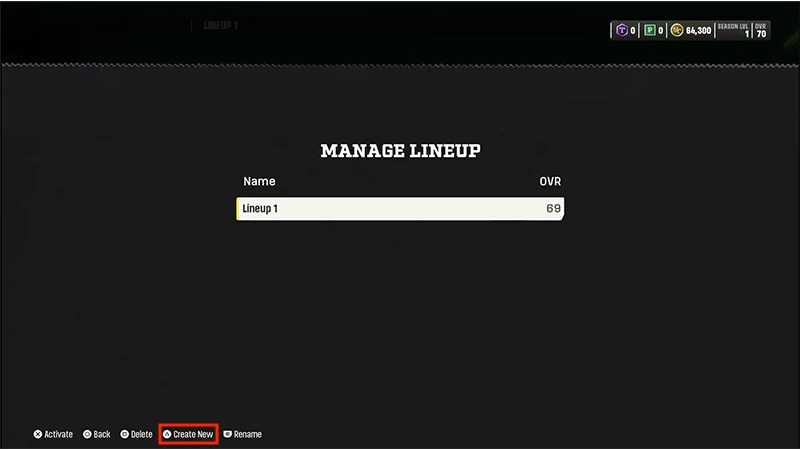
- 1Open Lineup.
- 2Select Change Active Lineup.
- 3Select Create New Lineup.
- 4Choose whether to create a new lineup or copy an existing lineup.
- New (empty) to start a lineup from scratch
- Copy active lineup to use one of your saved lineups as a starting point.
- 5Enter a name for your lineup and save it.
Save alternative lineups for events with specific lineup requirements. You can easily switch between your standard lineup and your event lineup for limited time events.
How to change players in a Lineup
You can use the lineup screen to substitute players, compare players, and move players to eligible positions in your lineup.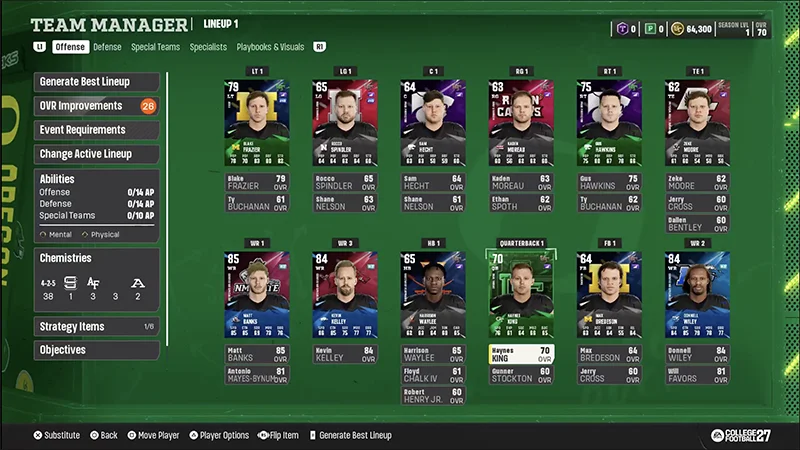
You can substitute a player from the lineup screen.
- 1From the College Ultimate Team™ hub, select Lineup
- 2Highlight the position you want to update.
- 3Select the player currently assigned to that position.
- 4Choose Substitute this position
- 5Select an eligible player from your collection and add them to your lineup.
You can compare eligible players before making a substitution to help decide which player is the best fit for your team.
- 1From the College Ultimate Team™ hub, select Lineup.
- 2Highlight the position you want to update.
- 3Select the player currently assigned to that position.
- 4Highlight another eligible player.
- 5Compare their attributes before making a substitution.
You can move players to eligible positions or different spots in the depth chart directly from the lineup screen.When you move a player, other players in the depth chart automatically shift to fill available positions.
- 1From the College Ultimate Team™ hub, select Lineup.
- 2Select the player you want to move and confirm your choice
- 3Highlight the position you want to move to.
- 4Move the player to an eligible position or depth chart slot.
How to optimize a Lineup
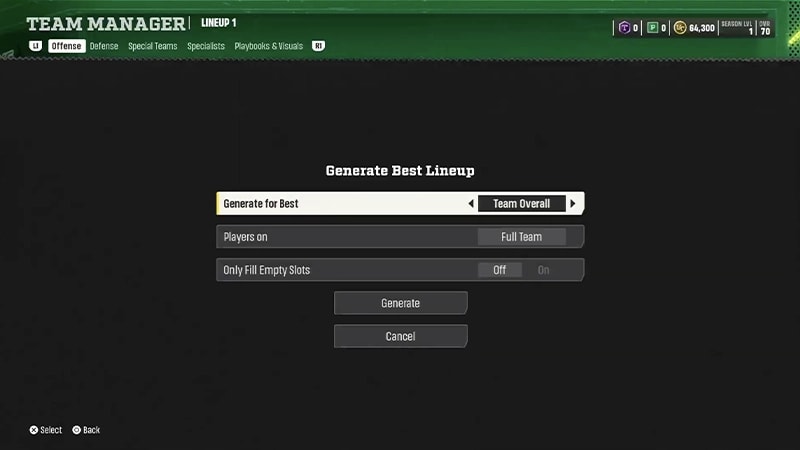
Generate Best Lineup
If you want to build a lineup quickly, use Generate Best Lineup. It automatically fills Lineup positions with eligible items from your collection to help build the highest overall lineup possible.This can be useful when you've already chosen a few favorite players and want the game to fill the remaining positions for you.Generate Best Lineup can update:- your entire Lineup
- offense only
- defense only
- special teams only
- specialists only
Ability Management
Use Ability Management to activate, deactivate, and review abilities on players in your lineup.From Ability Management, you can:- view active abilities.
- view active Ability Points (AP).
- activate or deactivate player abilities.
- activate or deactivate eligible superstar abilities.
- view AP costs for equipped abilities.

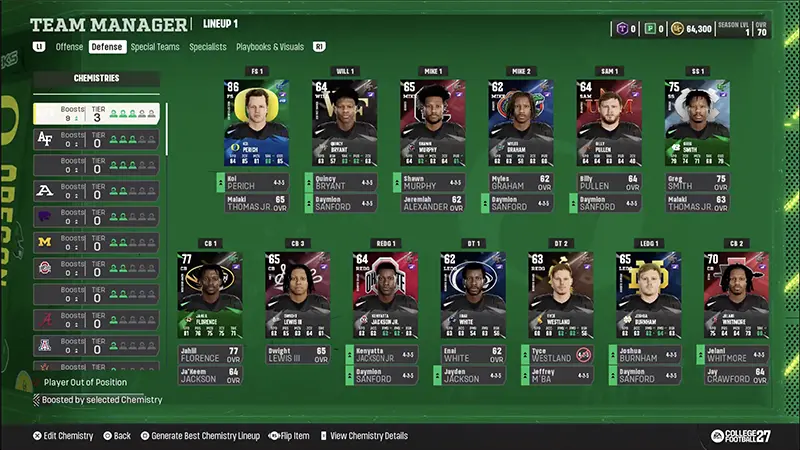
Chemistry Management
Chemistry boosts can improve player attributes when enough players contribute to the same chemistry.From Chemistry Management, you can:- view available chemistries.
- see your current chemistry progress.
- view active chemistry tiers.
- see which players contribute to the chemistry.
- see which players receive chemistry boosts.
Strategy Items
Strategy Items can provide boosts that affect players on your team.You can use Strategy Item Management to:- view equipped Strategy Items.
- change or remove Strategy Items.
- see which players are affected by a Strategy Item's boosts.