Übersicht
Brauchst du Hilfe bei der Installation oder Verwaltung von Packs in Die Sims 4? Erfahre in diesem Leitfaden alles über die Installation von Erweiterungs-, Gameplay- und Accessoires-Packs in Die Sims 4 und das neue Pack-Auswahl-Feature.
Installation von Packs für Die Sims 4 auf PC und Mac
Bevor du zusätzliche Inhalte für Die Sims 4 installierst, musst du zunächst sicherstellen, dass das Basisspiel installiert und aktualisiert wurde. Lies dir unseren Leitfaden für die Installation des Die Sims 4-Basisspiels durch.Digitale Packs sollten nach dem Kauf automatisch installiert werden. Andernfalls erfährst du hier, wie du sie manuell installieren kannst.Digitaler Kauf über EA app
- 1Starte die EA app.
- 2Melde dich mit deinen EA-Kontodaten an, wenn du dazu aufgefordert wirst.
- 3Öffne deine Bibliothek und klicke auf Die Sims 4.
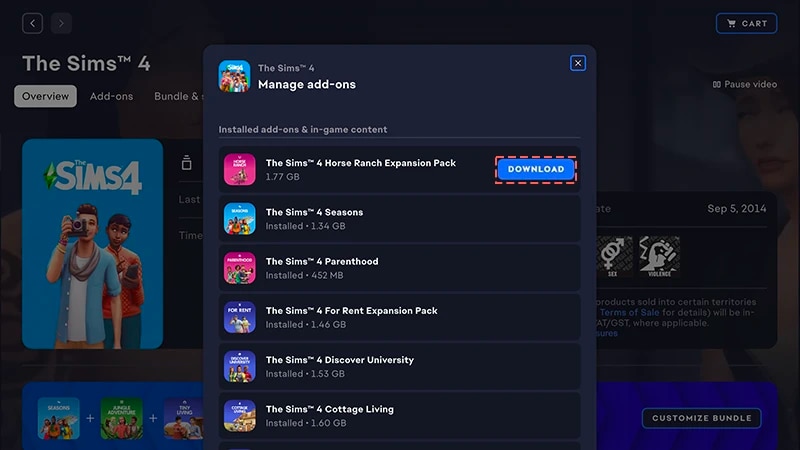
- 4Klicke auf Add-Ons, um zu erfahren, welche Packs du derzeit besitzt.
- 5Wenn du ein Pack besitzt, das nicht automatisch installiert wurde, klicke auf das Herunterladen-Symbol.
Installation mit einem Produktcode für EA app
- 1Starte die EA app.
- 2Melde dich mit deinen EA-Kontodaten an, wenn du dazu aufgefordert wirst.
- 3Öffne die Bibliothek.
- 4Klicke auf Code einlösen.
- 5Gib deinen Produktcode ein, klicke auf Weiter und dann auf Bestätigen.
- 6Klicke auf Mit der EA app herunterladen.
EA app hat Origin als Hauptplattform für den Download und Start von Die Sims 4 auf Mac und PC ersetzt. Mac-Nutzer:innen benötigen macOS Catalina oder höher, um EA app auszuführen. In unserem macOS-Leitfaden erfährst du mehr darüber, wie du dein macOS aktualisieren kannst.
Beim Kauf eines Packs auf Disc (nur PC)
- 1Lege die Spiel-Disc in dein Disc-Laufwerk ein und folge den Bildschirmanweisungen.
- 2Wenn du dazu aufgefordert wirst, gib den Produktcode ein, der der Installations-CD beiliegt.
- 3Nachdem du das Pack eingelöst hast, kannst du es auf der Die Sims 4-Spieldetails-Seite der Registerkarte Bibliothek anzeigen.
- 4Wähle nach Abschluss der Installation Die Sims 4 aus und dann Spielen, um das Spiel zu starten.
So überprüfst du, ob ein Pack in Die Sims 4 installiert ist
- 1Öffne deine Bibliothek in der EA app.
- 2Klicke auf das Die Sims 4-Spielsymbol.
- 3Wähle Verwalten.
- 4Wähle Add-Ons verwalten.
- 5Im Popup-Fenster erscheint eine Liste der Add-Ons, die du besitzt. Es handelt sich um installierte Add-Ons und Ingame-Inhalte, die du besitzt und bereits installiert hast. Herunterladbare Add-Ons sind Add-Ons, die du besitzt, aber noch nicht installiert hast.
- 6Klicke auf das Herunterladen-Symbol für alle Add-Ons, die noch nicht installiert wurden.
Die Sims 4 Pack-Auswahl
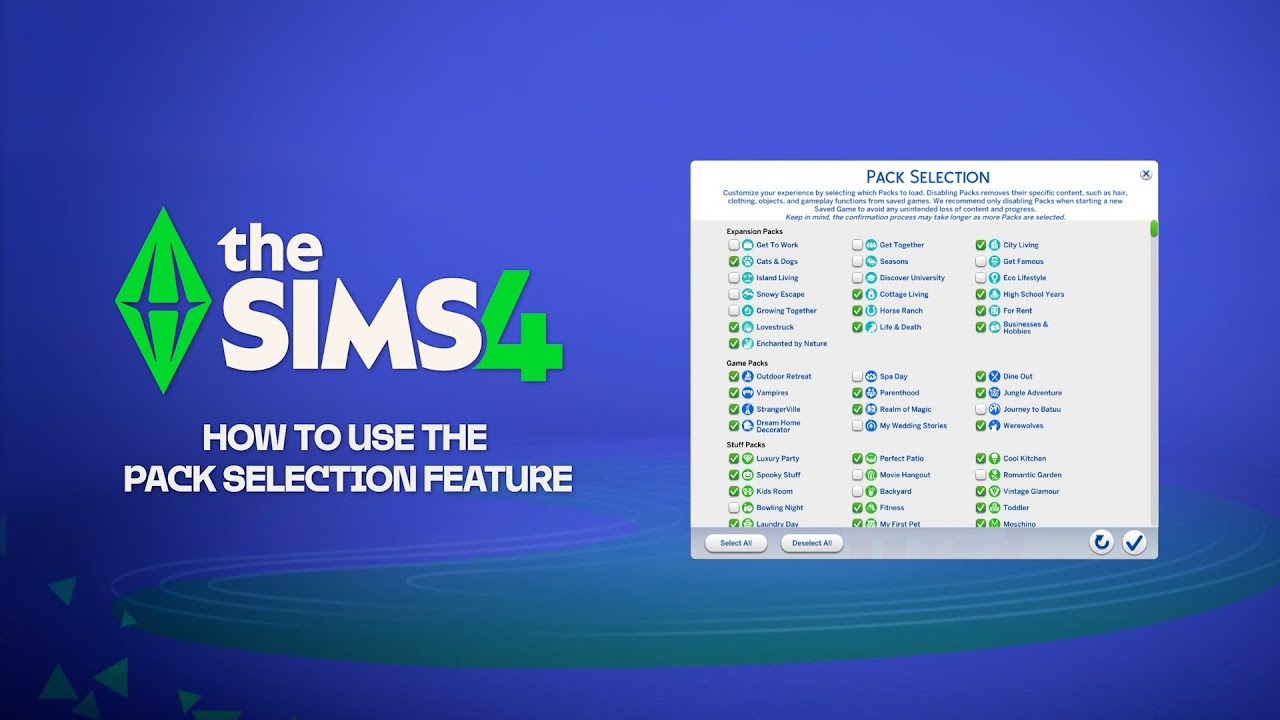
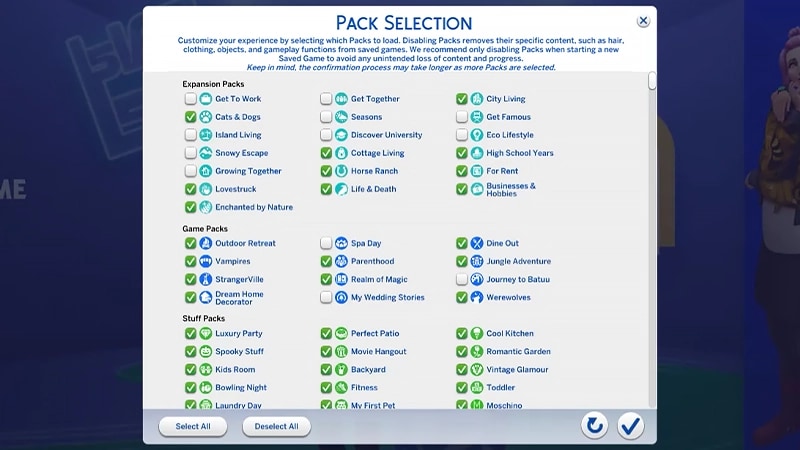
Die Pack-Auswahl ist ein Feature, mit dem du bestimmen kannst, welche Packs installiert werden sollen. Das ist besonders nützlich für bestimmte Geschichten und für deine Gameplay-Erfahrung. Zudem werden so Ressourcen frei, ohne dass du Packs, die du gerade nicht verwendest, deinstallieren musst. Die Pack-Auswahl ist auf allen Plattformen verfügbar: PC, Mac und Konsole. So kannst du Packs laden oder deaktivieren:- 1Öffne das Hauptmenü und wähle Pack-Auswahl.
- 2Wähle Packs aus, die du in deinem Spiel laden willst.
- 3Wähle das Häkchen, um deine Auswahl zu bestätigen.
Wenn du Packs entfernst, kann das Einfluss auf bestehende Spielstände haben. Nutze dieses Feature also am besten, wenn du einen neuen Spielstand anlegst, um keine Inhalte und Fortschritte zu verlieren.Wir empfehlen, alle Mods zu deaktivieren, bevor du Packs lädst oder deaktivierst. Lies unseren Artikel zur Deaktivierung von Mods. Stelle immer sicher, dass ein Back-Up deines Spielstands besteht. Wenn du dabei Hilfe brauchst, sieh dir unseren Leitfaden an.
Einen Spielstand mit fehlenden Packs laden
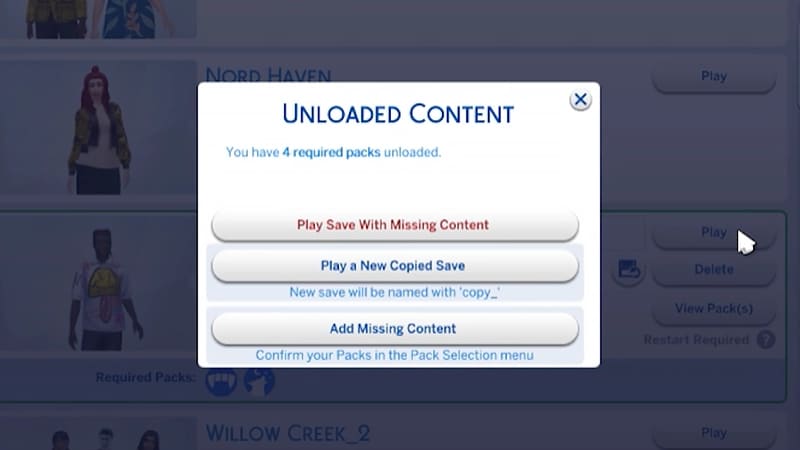
Ob Packs aus einem Spielstand entfernt wurden, erkennst du an folgenden Indikatoren.- Wenn du versuchst, den Spielstand zu laden, erhältst du eine Warnung, die dich darüber informiert, dass Packs oder Inhalte fehlen.
- Wenn du das Pack-Auswahl-Menü öffnest, sind alle Packs, bei denen kein Häkchen gesetzt ist, nicht geladen.
- Auf PC zeigen Spielstände mit fehlenden Inhalten an, ob die erforderlichen Packs, die du zum Spielen brauchst, aktuell geladen sind.
Wenn deine Sims in einer packspezifischen Welt leben und du diese Packs entfernt hast, findest du deinen Haushalt trotzdem noch im Haushalte verwalten-Menü. Darüber kannst du ihn auf ein neues Grundstück bewegen oder mit einem anderen Haushalt zusammenfügen.Hinweis: Alle Erstelle einen Sim-Objekte und Merkmale, die packspezifisch sind, werden ebenfalls entfernt, bis du das jeweilige Pack erneut lädst.