
Overview
Log in to your EA Account and go to Connected Accounts to link accounts or authorize apps. Linking lets you sync progress across platforms, claim in-game rewards from streams, and get help faster if you lose access to your account.
EA Account linking on EA Help
EA Help makes it easy to link accounts. Just log in to your EA Account and enter the credentials of the platform account you want to link.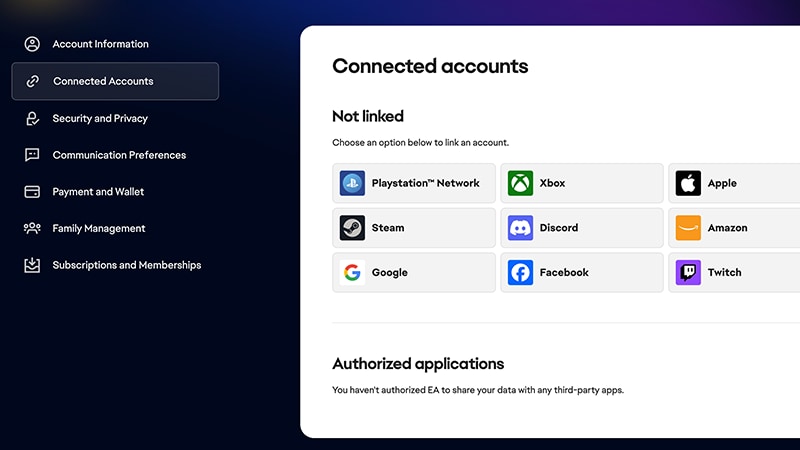
You can switch your linked accounts up to 3 times in a rolling year, but choosing the right account from the start is still the safest way to keep your account secure. Always link to an account you'll keep long-term to preserve your progress and purchases.
How to link an EA Account to XBOX, PlayStation®, or Switch
If you used the same email address to create your EA Account and console account, your accounts should automatically connect when your game loads on your console. Otherwise, you’ll need to link your account.- 1Open your EA game on your XBOX, PlayStation®, or Nintendo Switch console.
- 2Log in with your primary EA Account.
Sub-accounts
Sub-accounts, like child accounts or other limited accounts that share XBOX or PlayStation® subscriptions, can’t connect to EA Accounts to play online.PlayStation®
XBOX
Nintendo Switch
Watch our video to learn how to link your EA Account to PlayStation®. 
How to recover or unlink an old or expired EA Account
Make sure you understand the risks of unlinking an old or expired EA Account before you relink your Steam account or console to a new EA Account.Recover
Unlink
- 1Start your game.
- 2If you know your previous login details, select Recover my account.
- 3Enter your details and proceed with the recovery process.
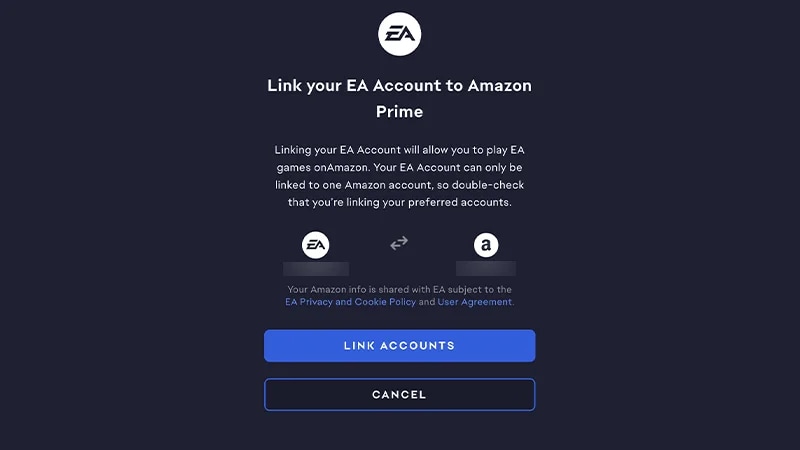
How to link an EA Account to Amazon
- 1
- 2Go to Connected Accounts.
- 3Select Amazon Prime Gaming.
- 4Select Continue to sign in to Amazon and complete the steps to link your account.
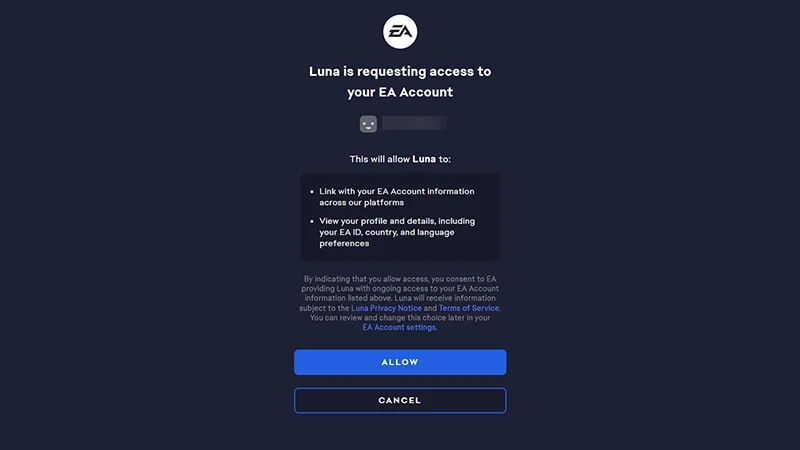
- 1Log in to Amazon Luna using your Amazon account info.
- 2Select any EA title.
- 3Log in with your EA Account.
- If you don’t have one, you’ll need to create an EA Account.
- 4Follow the on-screen instructions to link your Amazon Luna to your EA Account.
- Check the Connected Accounts tab of your EA Account settings to make sure Amazon Luna is authorized.
How to link an EA Account to Discord
If you haven’t already, install the EA app before linking your accounts.- 1Open the EA app and go to Settings.
- 2Go to Connected Accounts and select Connect next to Discord.
- 3Log in with your Discord account and Authorize your account.
- 4In the confirmation window, select Link accounts.
- 5Log in to the EA app with your EA Account.
- 6If the account connection is successful, you’ll see your Discord username with a green checkmark next to it. To unlink your accounts at any time, click the Disconnect button.
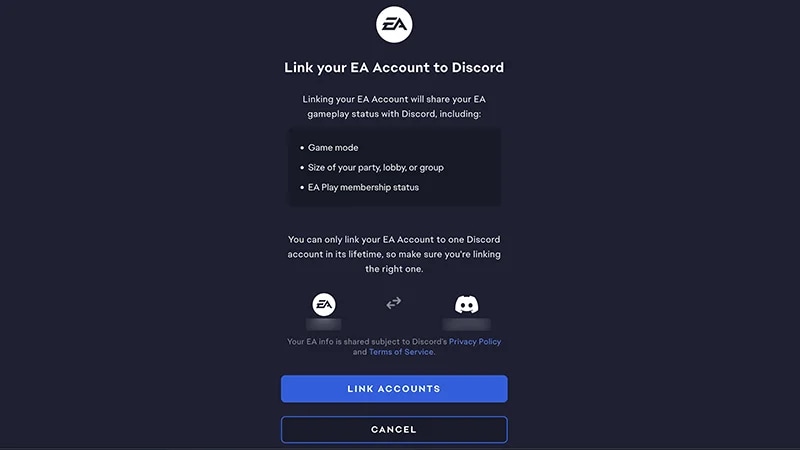
- current status (if you’re waiting in a lobby or currently playing)
- game mode details
- party size
- EA membership status (EA Play or EA Play Pro).
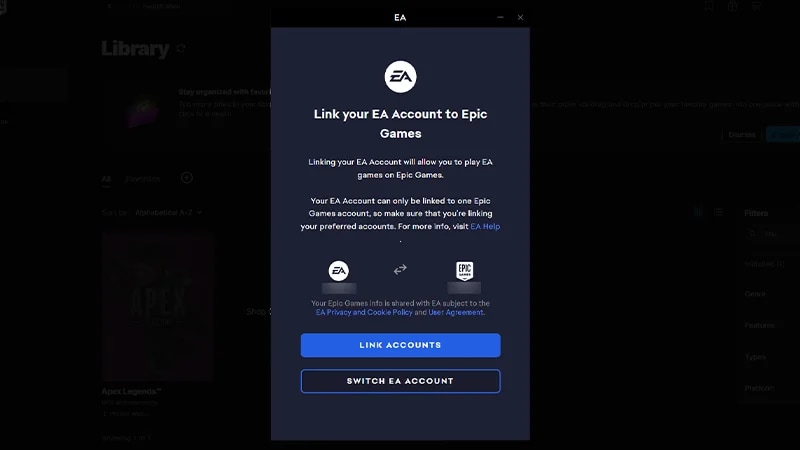
How to link an EA Account to Epic Games
You’ll only be asked to link your accounts the first time you play an EA game on Epic Games. If you haven’t already, install the EA app before linking your accounts.- 1
- 2Go to your Library, choose your EA game, and select Install.
- The EA app will launch and ask you to link your Epic Games account and your EA Account.
- 3Log in to the EA app with your EA Account.
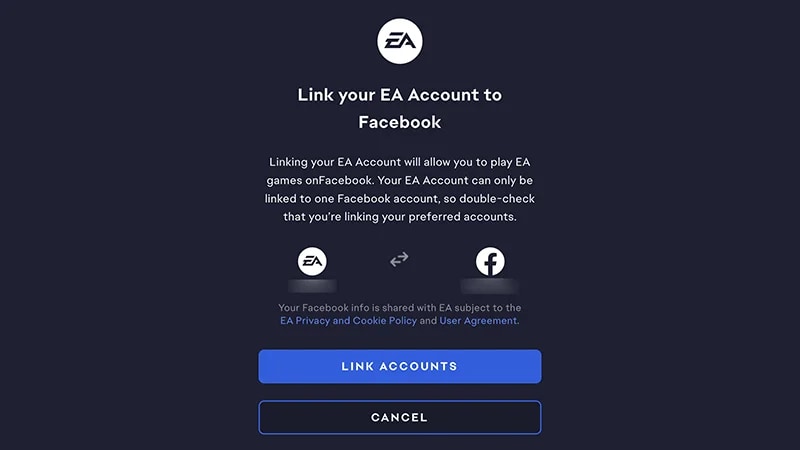
How to link an EA Account to Facebook
- 1
- 2Go to Connected Accounts.
- 3Select Facebook.
- 4Select Continue to sign in to Facebook and complete the steps to link your account.
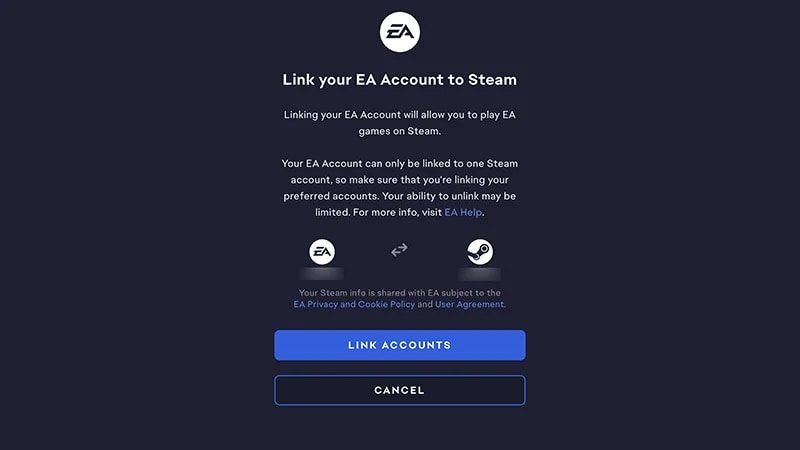
How to link an EA Account to Steam
You only need to link your accounts the first time you play an EA game on Steam. If you haven’t already, install the EA app before linking your accounts.- 1
- 2Go to Connected Accounts.
- 3Select Steam.
- 4Select Continue to sign in to Steam and complete the steps to link your account.
How to link an EA Account to Twitch
Link your EA Account to Twitch to share your gaming experiences with your audience and watch select live streams for a chance to unlock in-game rewards.- 1
- 2Go to Connected Accounts.
- 3Select Twitch.
- 4Select Continue to sign in to your Twitch account and complete the steps to link your account.
Make sure you’ve linked the right Twitch account to your EA Account and that you followed Twitch’s steps for claiming Drops.If you can’t find your rewards, check that you met the criteria for the Twitch Drop. Some streams may enter you in a draw for a Drop, but that doesn’t guarantee you’ll get rewards.
Need help with missing in-game content? Use our Missing Content Tool. For more help, check out our missing content article.
How to link an EA Account to YouTube
- 1Go to the Connected Apps tab in YouTube Settings.
- 2Select Connect next to Electronic Arts.
- 3You’ll be asked if you want to allow Electronic Arts to connect accounts. To continue, select Connect.
- 4Confirm your EA Account. If it’s not the account you want to link, select Not your account? to switch to the right one.
- 5Select Continue. If you have two-factor authentication (2FA) turned on, you’ll be asked to verify your identity.
- 6Select Link Accounts.
- 7Select Return to YouTube.
- 1Link your EA Account to YouTube.
- 2Open a YouTube reward-enabled stream.
- 3Watch the stream for the required length of time to earn the reward.
- 4Log in to your game to find your rewards.
Need help with missing in-game content? Use our Missing Content Tool. For more help, check out our missing content article.