Voice chat will automatically turn on when you join a party with voice chat enabled. Learn how to set up party voice chat, plus how you can edit your voice chat settings and mute or block other players.
Party voice chat lets you talk and listen to your party members. To start using it:
1
Join a party.
To join a party, select a player from your Friends or San Van list, then scroll down to either Invite to Party or Join Party if it’s open.
You can also join a player’s party or invite them to a party by going near them in-game, selecting them, then scrolling to find the option you want.
2
If it’s your first time joining a party with voice chat enabled, a pop-up will appear asking you to accept the voice chat terms and enable the feature.
3
Select Confirm.
4
Voice chat will automatically turn on.
As long as your mic is active and unmuted, your party members will hear you in real time.
You can edit your voice chat settings by going to Social & Spectate > Settings. Here’s an overview of what you can change.
Enable and disable voice chat: when voice chat’s enabled, you can talk to party members who have voice chat turned on.
Mute or unmute your mic: turn your microphone on or off.
Voice Chat Volume: change the volume of voice chat.
Input Device: the microphone you use for party voice chat.
Output Device: voice chat audio plays through this device.
When you enable voice chat and have your mic unmuted, you agree that recordings of your voice may be used by EA to investigate and respond to potential violations of our User Agreement.If you don’t agree to this, you can disable voice chat or mute your mic at any time in Social & Spectate > Settings or under the Audio tab of the general settings menu.
To leave your party, go to Social & Spectate > Party or select the party leader and scroll to Leave Party.Voice chat turns off automatically when you leave a party. When you rejoin a party, it’ll reactivate as long as it’s still enabled in your settings.
How to check your mic status
Your mic status
Your mic status
Your party’s mic status
Your party’s mic status
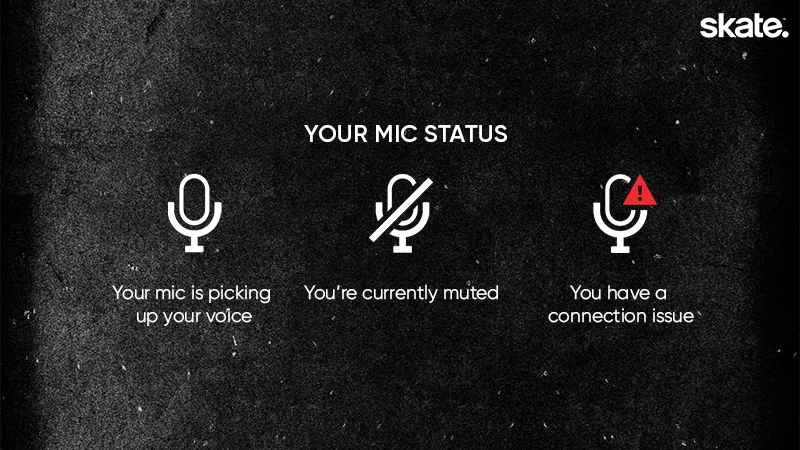
When you’re in a party with voice chat enabled, you’ll see a mic icon attached to the party widget on the right side of your screen. This icon shows your mic’s status.
Active icon: you’ll see audio feedback when your mic is picking up your voice.
Muted icon: You’re currently muted. To unmute, go to Social Menu > Settings > My Mic and toggle to unmute.
Error icon: You have a connection issue. Try our troubleshooting steps for help.
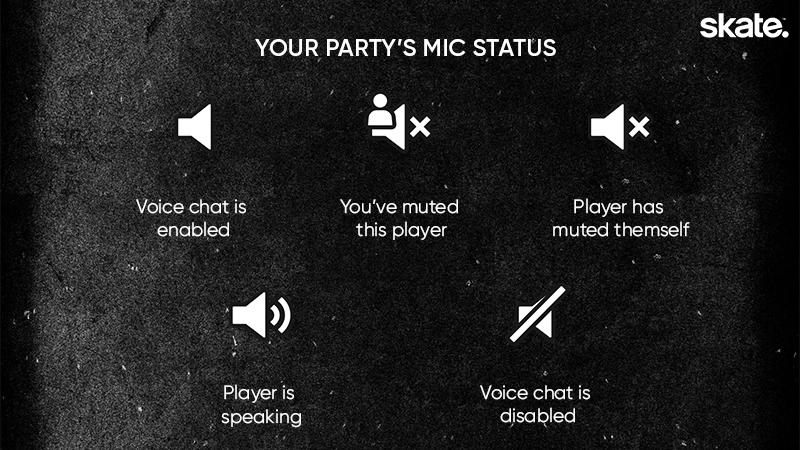
To check your party’s mic status, go to the Social Menu > Party tab and check the audio icon next to each party member’s name.
Active icon: voice chat is enabled.
Player muted icon: You’ve muted this player. To unmute, select the player and scroll down to Unmute.
Muted icon: this player has muted themself.
Speaking icon: this player is speaking.
Voice chat disabled icon: Voice chat is disabled. This means this player can’t hear or speak to anyone in the party.
If you don’t see the player in the San Van, Friends, or Party lists, search for their username in the Search tab.
You can also go near a player in-game, select them, and open their inspectionpanel.
4
Scroll until you see the mutebutton.
5
Select Mute.
You’ll get a notification confirming the player has been muted, and the icon next to their name will change to the muted icon. You won’t be able to hear them, but they can hear you.If you want to unmute a player, follow the same steps and select Unmute.
To block somebody:
1
Open the main menu
2
Open the Social & Spectate menu.
3
Select the player you want to block.
If you don’t see the player in the San Van, Friends, or Party lists, search for their username in the Search tab.
You can also go near a player in-game, select them, and open their inspectionpanel.
4
Scroll until you see the block button.
5
Select Block.
You’ll get a notification confirming the player has been blocked.
If a blocked player is in your party, you’ll automatically be muted for each other.
If they’re not in your party, a blocked player won’t be able to send you party invites or directly join your party.
If you want to unblock a player, follow the same steps and select Unblock.
Troubleshoot party voice chat
If you’re having trouble with party voice chat, try these steps.
Check your voice chat settings
1
Open the Social & Spectate menu.
2
Go to Settings.
3
Make sure voice chat is enabled.
4
Check your Input and Output settings are correct for your platform.
Check your mic and console settings
1
Check your device’s microphone settings to make sure it isn’t muted or disconnected.
2
Check your output settings to make sure sound is coming through the right speaker.
3
If your controller has a mute button, make sure it’s not turned on.
4
Make sure your speaker and microphone are connected.
5
Check your console or operating system is set to unmute.
6
If you’re playing on PC, check that your selected input and output devices match the devices set in skate.
If you edit your settings but they don’t change immediately, restart the game.
Make sure you’ve got the latest updates
Make sure you’ve got the most recent version of Skate downloaded.Party voice chat and other social features were added to Skate in Season 2, so your game needs to be up to date to use them.