Overview
Your The Sims 4 Packs should install automatically. If they don’t, this guide explains how to install Packs on PC, Mac, and console. Plus, learn how to check if a Pack is installed using the Manage Storage feature, and how to activate or deactivate Packs with the Pack Selection feature.
How do I install The Sims 4 Packs on PC and Mac?
The EA app has replaced Origin as the main platform for downloading and launching The Sims 4 for both Mac and PC. Mac users need to use macOS Catalina or later to run the EA app. Check out our macOS guide to learn more about upgrading your macOS.
- 1Launch the EA app.
- 2If prompted, log in using your EA Account info.
- 3Open your Library and select The Sims 4.
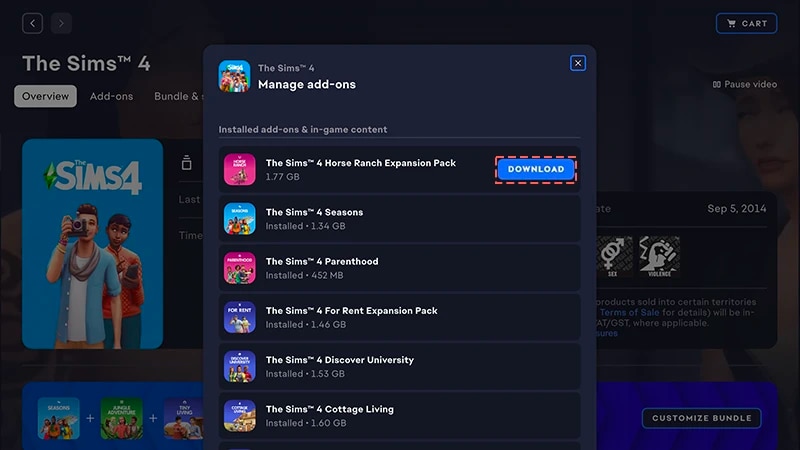
- 4To check which Packs you currently own, select Manage and then Manage Add-ons underneath.
- 5If you own a Pack and it hasn’t automatically installed, select the Download icon beside it.

How do I install a Pack I got in the Marketplace?
Check out our guide to learn more about The Sims 4 Marketplace and how it works.
- Expansion Packs
- Game Packs
- Stuff Packs
- Kits.
- 1Launch The Sims 4 and go to the Marketplace.
- From the Main Menu, select Marketplace at the top of the screen.
- Or, select the shopping cart icon in the top-right corner while in Live Mode, Build Mode, or Create a Sim.
- 2Select the My Collection tab and choose Manage Storage.
- 3Find the Pack you bought and check the label in the bottom-left corner of the Pack tile to confirm its installation status.
- a green Installed label means the Pack is already installed.
- a grey Not Installed label means the Pack isn’t installed.
- 4If your Pack didn’t install automatically, select the checkbox in the top-left corner to add a check mark.
- 5Select Install, then select the check mark button in the pop-up notification to confirm you want to install the Pack.
How do I install a Pack with a product code on the EA app?
- 1Launch the EA app.
- 2If prompted, log in using your EA Account info.
- 3Open your Library and select the + Redeem Code button.
- 4Enter the product code, select Next, and then Confirm.
- 5Select Download with the EA app.
How do I install a Pack on disc on PC?
- 1Insert the game disc into your disc drive and follow the on-screen instructions.
- 2If prompted, log in to the EA app using your EA Account info.
- 3When prompted, enter the product code included with the installation disc.
How do I install The Sims 4 Packs on console?
Learn more about how to play The Sims 4 on console, including tips on using controls and troubleshooting missing content.
To install a Pack for The Sims 4 on PlayStation®4, you’ll need to manually download it first.If you’re playing on PlayStation®5 or want to download your Pack from the PlayStation® Store online, the steps for manual downloads will vary. Visit the PlayStation® support site to learn how to download add-ons for games.
- 1Open the PlayStation® menu and select Library.
- 2Select Purchased and choose The Sims 4.
- 3Select Game Library and choose Your Collection.
- 4From the Add-Ons section, select The Sims 4 Pack you want to download.
- 5Select the download button (an icon of an arrow pointing downwards). The Pack will install automatically after your download completes.
Packs will install automatically after downloading on XBOX unless you’ve turned off the Keep my games & apps up to date setting. This setting is turned on by default.If a Pack for The Sims 4 didn’t install automatically, follow these steps to manually install it.Visit the XBOX support site to learn more about how to find your games and add-ons.
- 1Press the XBOX button on your controller and select My games & apps.
- 2Select See all and go to Full library > Owned games.
- 3Highlight The Sims 4 and press the Menu button on your controller.
- 4Select Manage game & add ons. Then, select the checkbox of the Pack you want to install.
- 5Select Install.
- 1Launch The Sims 4 and go to the Marketplace.
- From the Main Menu, select Marketplace at the top of the screen.
- Or, select the shopping cart icon in the top-right corner while in Live Mode, Build Mode, or Create a Sim.
- 2Select the My Collection tab and choose Manage Storage
- 3If you own a Pack and it didn’t automatically install, find the Pack and select the checkbox in the top-left corner to add a check mark.
- 4Select Confirm.
How do I check if a Sims 4 Pack is installed?
If you play The Sims 4 on PC or Mac through the EA app, you can check whether a Pack is installed in the EA app without launching the game.If you play The Sims 4 on PC, Mac, PlayStation®, or XBOX, you can check whether a Pack is installed in-game using the Marketplace. If you recently downloaded a Pack, you can also check if it’s installed in Download Manager.On the EA app
In-game
If you play The Sims 4 on PC or Mac on the EA app, here’s how to check if a Pack is installed.
- 1Launch the EA app and open your Library.
- 2Select The Sims 4 and choose Manage.
- 3Select Manage add-ons. A pop-up list of your owned add-ons will appear.
- You’ll find content you own and already have installed under Installed add-ons & in-game content.
- You’ll find content you own but haven’t installed yet under Owned add-ons.
- 4To install a Pack that isn’t currently installed, find it under Owned add-ons and select the Download icon beside it.
How does The Sims 4 Pack selection work?
Pack selection is a Marketplace feature that lets you customize which Packs you want active in The Sims 4. This is helpful for storytelling and your gameplay experience, as well as freeing up resources without needing to uninstall Packs you’re not currently using. Pack selection is available on all platforms: PC, Mac, PlayStation® and XBOX.How do I use Pack selection to activate or deactivate Packs?
Here’s how to load or unload Packs from your game:- 1Launch The Sims 4 and go to the Marketplace.
- From the Main Menu, select Marketplace at the top of the screen.
- Or, select the shopping cart icon in the top-right corner while in Live Mode, Build Mode, or Create a Sim.
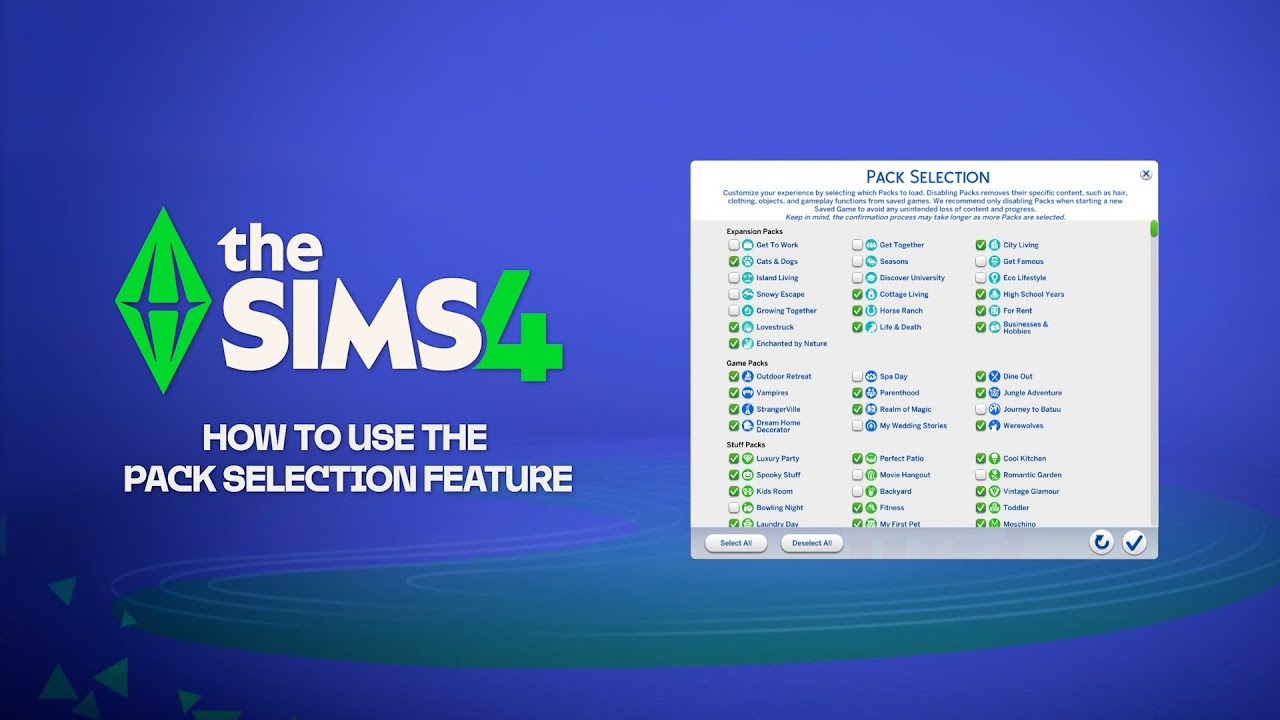
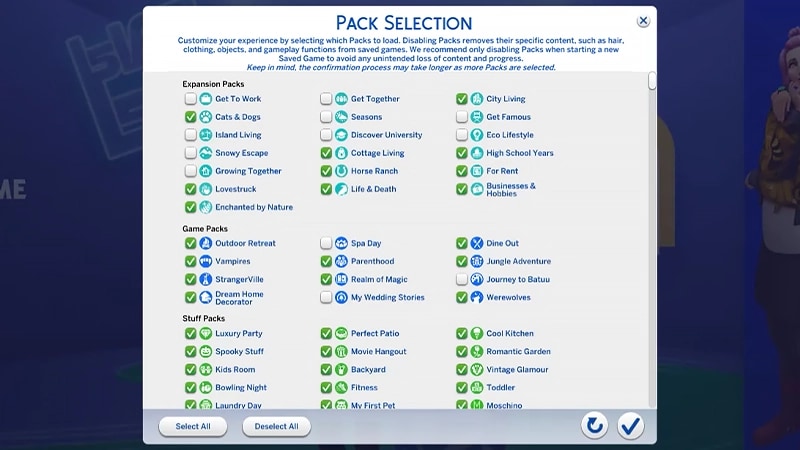
- 2Select the My Collection tab and choose Pack Selection.
- 3Use the checkbox at the top-left corner of each Pack to select or deselect the Packs you want in your game.
- If a Pack is currently active, the checkbox in the top-left corner is selected. There’s also a green Active label in the bottom-left corner of the Pack tile.
- If a Pack isn’t currently active, the checkbox in the top-left corner isn’t selected. There’s also a grey Deactivated label in the bottom-left corner of the Pack tile.
- 4Select Confirm.
If you deactivate a Pack, your saved game will lose access to any Pack-specific content it uses, including hair, clothing, traits, and objects.Deactivating Packs can also impact existing save files. To avoid losing any content or progress, it’s best to use Pack Selection only when creating a new save.We recommend disabling all Mods before activating or deactivating any Packs. Check out our article on how to disable Mods. Always make sure your save files are backed up. For help with this, learn how to back up and reset The Sims 4.
How do I know if my saved game is missing Packs?
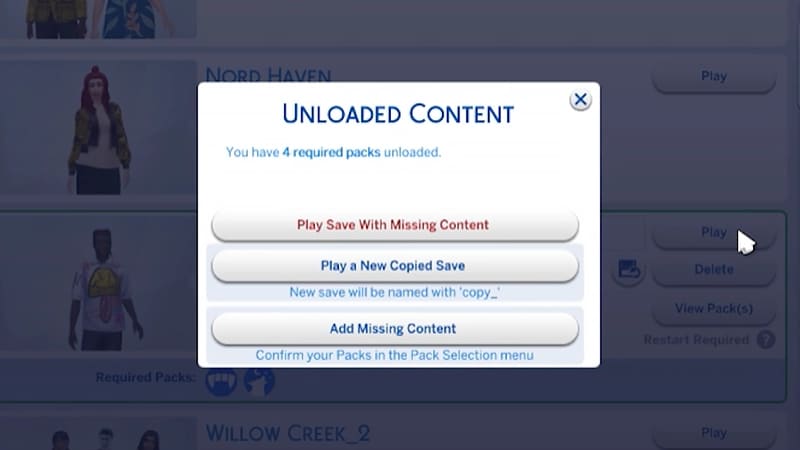
If you try to load a saved game that uses Packs you’ve deactivated since you last played, it’ll be flagged as missing required Packs. This happens because your game save uses content from a deactivated Pack.Here’s how to check whether a saved game uses content from a deactivated Pack:- 1Launch The Sims 4 and go to the Main Menu.
- 2Select Resume Game or Load Game, then choose the saved game you want to play.
- Required Packs in the bottom-left corner of the saved game tile.
- Hover over the Pack icons to check which Packs are used in your saved game. If the Pack is not currently active, it’ll say Deactivated.
- View Pack(s) on the right side of the saved game tile.
- Select this button to check which currently deactivated Packs are used in your saved game.
If your Sims were living in a world that’s specific to a Pack you deactivated, your Household will still be available in the Manage Households menu. From here, you can move them into a new Lot or merge them with another Household.Note: Any Create a Sim Items or Traits that are Pack-specific will be removed unless you reload that Pack into your game.