Resumen
Si compraste un mundo para Los Sims 3, pero no aparece en tu juego, es posible que primero tengas que descargarlo de la tienda de Los Sims 3 o canjear tu código de producto. En esta guía te explicamos cómo encontrar los mundos que te faltan, dónde descargar tu mundo en la tienda de Los Sims 3 y cómo instalarlo. Además, descubre cómo canjear códigos de producto para los mundos de Los Sims 3 y cómo obtener más ayuda si nuestros pasos de solución de problemas no arreglan el tuyo.
¿Cómo encuentro un mundo que falta en Los Sims 3?
Los mundos de Los Sims 3 deben descargarse a través del sitio web de la tienda de Los Sims 3, incluso si compraste el mundo a través de la EA app.Para evitar problemas de descarga o sincronización, te recomendamos comprar los mundos de Los Sims 3 directamente en la tienda de Los Sims 3 si es posible.
¿Cómo descargo e instalo los mundos de Los Sims 3?
Si compraste un mundo para Los Sims 3 en la EA app, tendrás que canjear el código de producto en el sitio web de la tienda de Los Sims 3 antes de poder descargarlo.
- 1Ve al sitio web de la tienda de Los Sims 3 e inicia sesión con la misma Cuenta EA que usaste para hacer la compra.
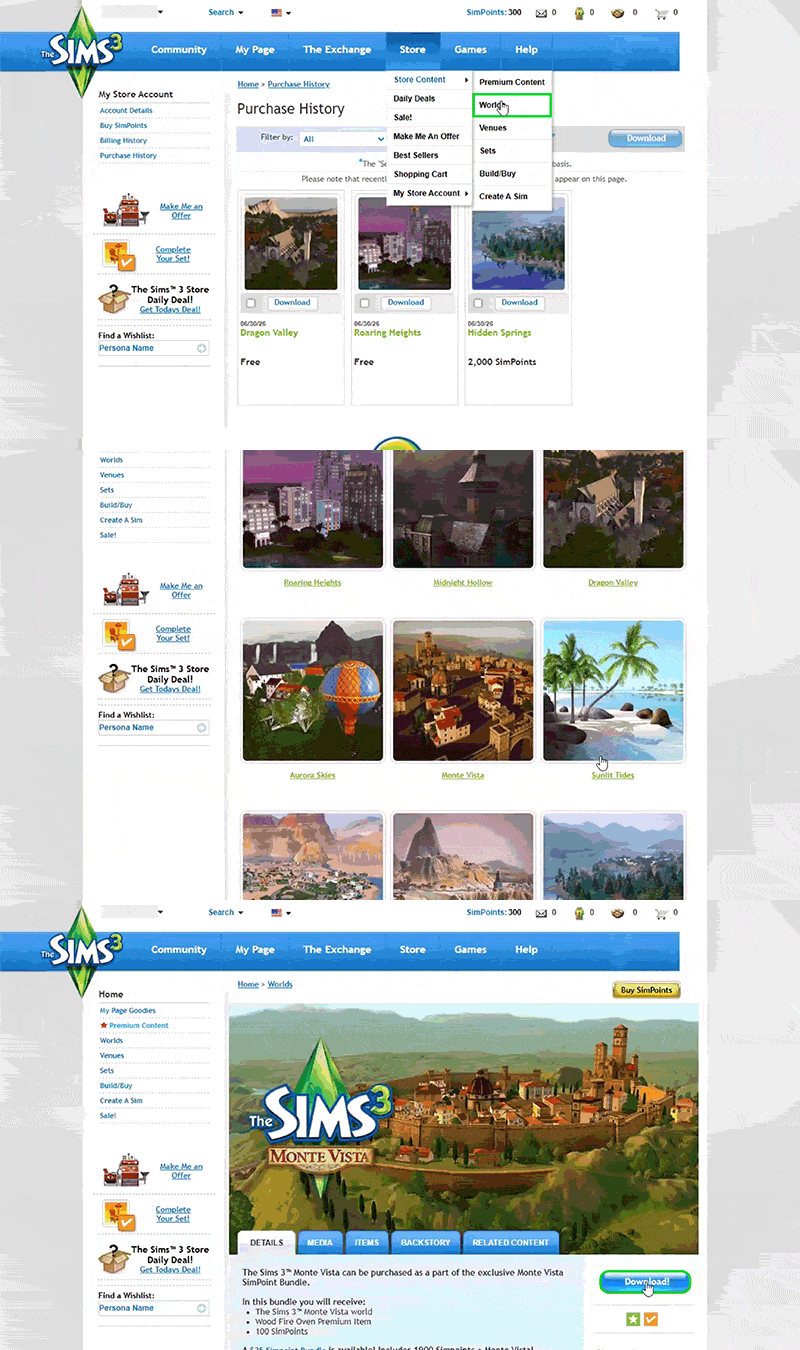
- 2Selecciona Tienda y elige Mi cuenta de la tienda > Historial de compras.
- 3Encuentra el mundo que te falta en el juego y selecciona Descargar.
- 4Abre la EA app e inicia Los Sims 3.
- 5Selecciona Descargas, busca el mundo que quieres instalar y usa la casilla de verificación para seleccionarlo.
- 6Selecciona Instalar.
¿Qué pasa si el mundo no está en mi Historial de compras?
Si revisaste Mi cuenta de la tienda > Historial de compras en la tienda de Los Sims 3, pero aún no puedes encontrar el mundo que compraste, prueba estos pasos.- 1Ve al sitio web de la tienda de Los Sims 3 e inicia sesión con la misma Cuenta EA que usaste para hacer la compra.
- 2Selecciona Tienda y elige Contenido de la tienda > Mundos.
- 3Busca y selecciona el mundo que te falta en el juego.
- 4En la página de productos de mundos, selecciona el botón azul Descargar .
- 5Abre la EA app e inicia Los Sims 3.
- 6Selecciona Descargas, busca el mundo que quieres instalar y usa la casilla de verificación para seleccionarlo.
- 7Selecciona Instalar.
¿Qué sucede si no hay una opción de descarga en la página de productos de mundos?
Si no hay una opción de descarga para el mundo que te falta en tu Historial de compras o en la página de productos de mundos en la tienda de Los Sims 3, es posible que primero tengas que canjear el código de producto.¿Cómo canjeo un código de mundo para Los Sims 3?
Si compraste un mundo para Los Sims 3 en la EA app, tienes que canjear tu código de producto en el sitio web de la tienda de Los Sims 3 antes de poder descargar el mundo o usarlo en el juego. Para comenzar, anota o copia tu código de producto.¿Dónde puedo encontrar mi código de producto?
Puedes encontrar tu código de producto de mundo:- en el correo electrónico de confirmación de tu pedido de EA
- en los detalles de tu Cuenta EA
- dentro de la caja del juego, si tienes una copia física.
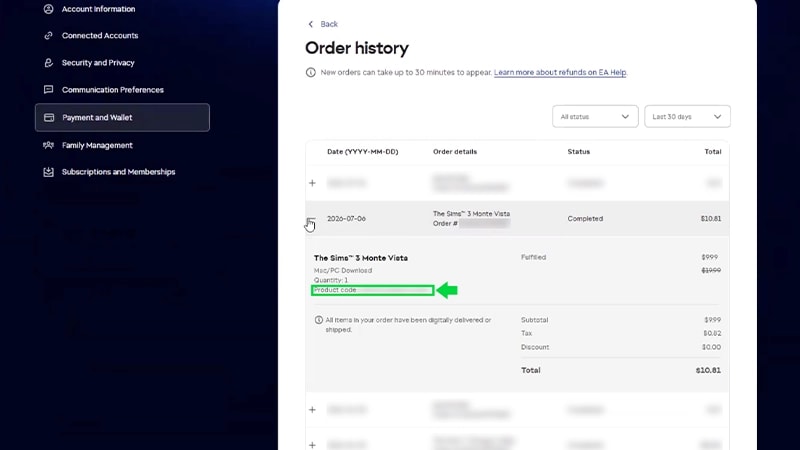
- 1Inicia sesión en tu Cuenta EA con los mismos datos que usaste para comprar el mundo de Los Sims 3.
- 2Selecciona la pestaña Pago y Monedero y elige Historial de pedidos.
- 3Busca tu pedido de mundo de Los Sims 3 y selecciona el símbolo + más para expandir los detalles del pedido.
- 4Anota o copia tu código de producto.
¿Cómo utilizo mi código de producto?
Cuando tengas tu código de producto, sigue estos pasos para canjearlo en el sitio web de la tienda de Los Sims 3.- 1Ve al sitio web de la tienda de Los Sims 3 e inicia sesión con la misma Cuenta EA que usaste para hacer la compra.
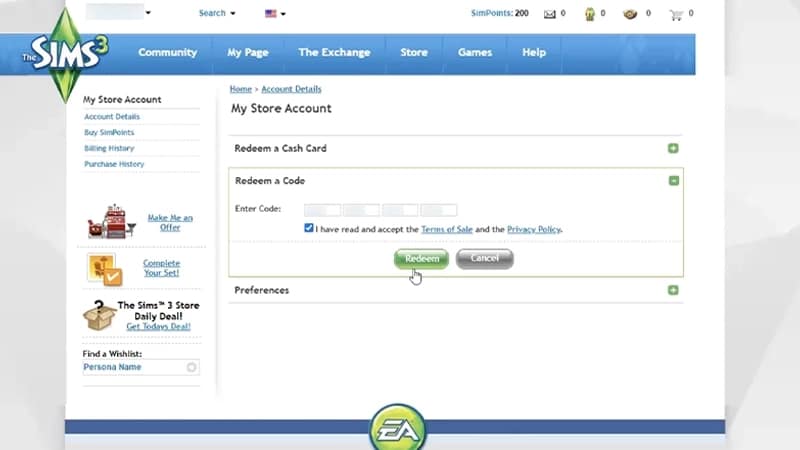
- 2Desplázate hasta la parte inferior de la página. En Mi cuenta, elige Canjear un código.
- 3Ingresa tu código de producto y selecciona la casilla de verificación para confirmar que aceptas los Términos de venta y la Política de privacidad.
- 4Selecciona Canjear.
- tu Historial de compras
- la página de productos de mundos.
¿Qué puedo hacer si sigo sin encontrar los mundos de Los Sims 3 que compré?
Si no puedes canjear un código de producto de mundo en la tienda de Los Sims 3 o aún no encuentras un mundo que compraste, prueba estas soluciones.- Revisa si iniciaste sesión en la tienda de Los Sims 3 con la Cuenta EA correcta. Tienes que usar los mismos datos de la Cuenta EA que usaste para comprar el mundo de Los Sims 3.
- Reinicia tu dispositivo.
- Visita la página de estado del servidor de EA para verificar si la EA app no está disponible. Si es así, es posible que no puedas descargar, instalar o usar tu mundo de Los Sims 3 hasta que se solucionen los problemas con el servidor.
- Asegúrate de que tu compra se realizara correctamente.
- Revisa si recibiste un correo electrónico de confirmación del pedido.
- Revisa tu cuenta bancaria para asegurar que la transacción se realizó.
- el correo electrónico de tu Cuenta EA
- el nombre del mundo de Los Sims 3 que te está dando problemas
- si compraste el mundo de Los Sims 3 en la EA app o en la tienda de Los Sims 3
- la fecha y hora aproximadas en que compraste el mundo
Mundos que faltan en Los Sims 3: preguntas frecuentes
Si obtuviste un mundo para Los Sims 3 a través de la EA app, es posible que el código de producto se haya canjeado automáticamente después de que lo compraste.Los indicios de que esto puede haber sucedido pueden incluir:Si crees que tu código de producto de mundo se canjeó automáticamente en la EA app, ponte en contacto usando el botón Contáctanos al final de esta página.
- tu mundo no está disponible para descargar en tu Historial de compras o en la página de productos de mundos en la tienda de Los Sims 3
- recibes un mensaje que dice que ya se canjeó un código al intentar canjear el código de producto en la tienda de Los Sims 3.
Si intentas canjear un código de producto de mundo en la tienda de Los Sims 3, pero recibes un mensaje que dice que no tienes el mundo que compraste, prueba a:Si probaste estos pasos para solucionarlo, pero sigues teniendo problemas, ponte en contacto a través del botón Contáctanos en la parte inferior de esta página.
- actualizar la página de la tienda de Los Sims 3
- borrar la caché de tu navegador
- usar otro navegador, de preferencia Firefox
- apagar tu VPN, si estás usando uno
- reiniciar tu computadora.
Los mundos de Los Sims 3 deben descargarse a través del sitio web de la tienda de Los Sims 3, incluso si compraste el mundo a través de la EA app.Antes de descargarlo, primero tendrás que canjear tu código de producto de mundo de Los Sims 3 .
Sí. Después de canjear correctamente un código, puedes volver a descargar tu mundo para Los Sims 3 desde la tienda de Los Sims 3 si quieres reinstalarlo.Nota: Un código de producto solo se puede canjear una vez, pero puedes volver a descargar el mundo tantas veces como necesites.
Sí, pero para evitar problemas de instalación, te recomendamos instalar un mundo a la vez.