When you play STAR WARS Zero Company™ for the first time, you’ll customize Hawks during the character creation process. Start by choosing an Origin, before customizing Hawks’ physical appearance, outfit and selecting their Specialization and Weapon Class. Follow the steps in this guide to learn what options you can choose from in each category and how to make selections that suit your preferred playstyle. Many customization options can also be changed later after you unlock the Den.
Hawks is the main character you play as in STAR WARS Zero Company™. A former Republic officer, Hawks leads Zero Company, an unconventional outfit of professionals for hire hailing from across the galaxy. When you start a new Campaign, you’ll customize Hawks to create a character that matches your preferred playstyle.This guide takes you though what customization options are available for Hawks and how to complete the character creation process step by step.
1. Select an Origin
The first step is to pick an Origin for Hawks. This determines which species Hawks belongs to and the appearance options available during customization. Check out each available Origin to learn more about its species and background, then choose one that best matches the character you want to create.
Column 1
Column 2
Species
Description
Human
Humans are the most common sentient species in the galaxy. They can be found on countless worlds, making their original home world hard to determine.
Devaronian
Devaronians come from the jungle planet of Devaron. They’re known for the distinctive horns or bumps on their forehead.
Mirialan
Mirialans come from the desert planet of Mirial. They’re known for their traditional geometric facial tattoos.
Togruta
Togruta are native to the world of Shili. They’re recognizable by the two montrals and three lekku on their skulls.
Twi'lek
Twi’leks are native to the Outer Rim planet of Ryloth. They’re one of the most common species in the galaxy and are known for their unique lekku head-tails.
Zabrak
Zabraks come from the planet Iridonia, though they’re also also found on Dathomir. They’re recognizable by their cranial horns.
2. Pick a preset
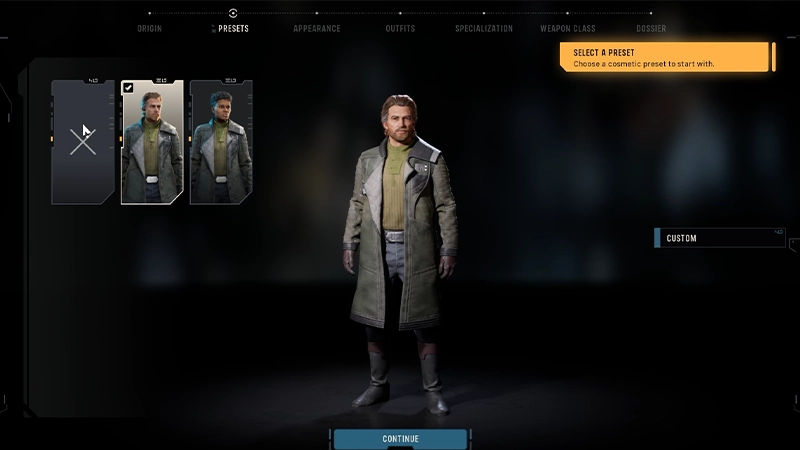
After you’ve chosen an Origin for Hawks, select Continue to pick a Preset.A preset is a ready-made character that gives you a starting point for customization.Choose one of the two presets, or select the empty slot to build a Custom preset.
3. Customize your Appearance
The following Appearance customization options are for Hawks’ default Origin in STAR WARS Zero Company™: Human. If you chose a different Origin, the customization options might vary. For example:
Devaronians have a Horns category, but no Hair Style option.
Mirialans have no Facial Hair option.
Togruta have a Lekku category, but no Hair category or Eyebrows, Freckles, Vitiligo, Tattoo, Eye Shadow, Eyeliner options.
Twi'leks have a Lekku category, but no Hair category
Zabraks have a Horns category, but no Hair category or Vitiligo option.
After you’ve chosen a preset for Hawks, select Continue to customize their Appearance. You’ll find these customization categories on the Appearance screen.
Body
Body
Face
Face
Facial Details
Facial Details
Hair
Hair
Body Art
Body Art
Choose a Body Type for Hawks.
Some aspects of Hawks’ body, like their height, build, and shape, are influenced by the Origin you chose.
Face
1
Select the Face thumbnail to choose your face shape.
2
Select the color thumbnail to choose a Skin Tone.
Eyebrows
1
Select the Eyebrow thumbnail to choose your eyebrow shape.
2
Select the color thumbnail to choose your eyebrow color.
If you don’t want Hawks to have eyebrows, select the empty thumbnail with the X icon. Eyes
1
Select the Eyes thumbnail.
2
Choose your eye color.
Freckles
Use the Freckles slider to adjust the amount of freckles on Hawks’ face.
Move the slider to the right to add more freckles, or leave it at the far left if you don’t want Hawks to have any.
Vitiligo
Use the Vitiligo slider to adjust the amount of Vitiligo on Hawks’ face.
Move the slider to the right to add more vitiligo, or leave it at the far left if you don’t want Hawks to have any.
Scarring
Scroll through the facial scar options and select one to add it to Hawks’ face.
If you don’t want Hawks to have a facial scar, select the empty thumbnail with the X icon.
Hair
1
Select the Hair thumbnail to choose a hair style.
2
Select the color thumbnails to choose a root and tip color.
Facial Hair
1
Select the Facial Hair thumbnail to choose a facial hair style.
2
Select the color thumbnail to choose a facial hair color.
If you don’t want Hawks to have facial hair, select the empty thumbnail with the X icon.
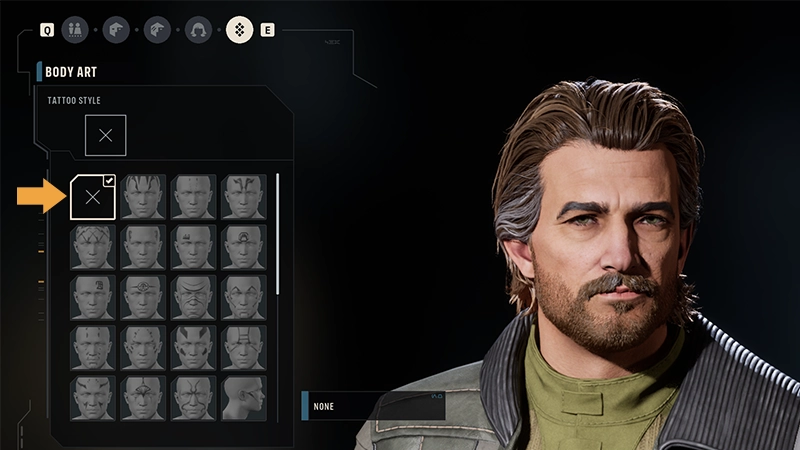
Tattoo
Add a tattoo to Hawks’ face.
Eye Shadow
Apply eye shadow to Hawks’ eyes.
Eyeliner
Apply eyeliner to Hawks’ eyes.
Lipstick
Apply lipstick to Hawks’ lips
To customize these options:
1
Select the Tattoo, Eye Shadow, Eyeliner, or Lipstick thumbnail.
2
Scroll through the available styles and select one to apply it.
3
Select the color thumbnail to customize the color.
If you don’t want Hawks to have a tattoo, eyeshadow, eyeliner, or lipstick, select the empty thumbnail with the X icon for each option.
4. Choose your Outfits
The following Outfits customization options are for Hawks’ default Origin in STAR WARS Zero Company™: Human. If you chose a different Origin, the customization options might vary.
Here’s what you can customize on the Outfits screen.
Headwear
Choose a hat, helmet, or headpiece for Hawks.
Tops
Choose a top or outfit for Hawks.
Armwear
Choose some gloves for Hawks.
Lowerbody
Choose pants or legwear for Hawks.
Boots
Choose some boots for Hawks.
How do I choose and customize Hawks’ outfit?
1
Select the Headwear, Tops, Armwear, Lowerbody, or Boots thumbnail.
2
Scroll through the available styles and select one to equip it.
3
Select the color thumbnail to customize the colors.
You must equip Hawks with an item from Tops, Lowerbody, and Boots, but Headwear and Armwear are optional.If you don’t want Hawks to wear headwear:
go to Headwear
select the empty thumbnail with the X icon.
If you don’t want Hawks to wear gloves:
go to Armwear
select the thumbnail that shows an arm with no armwear equipped.
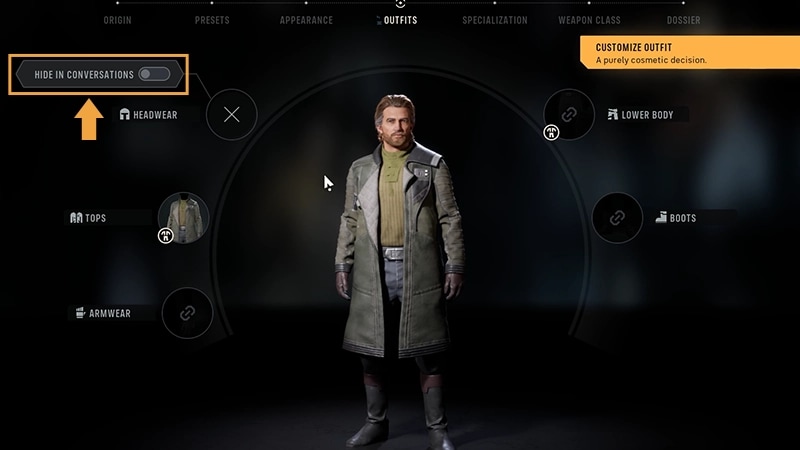
You can also hide equipped headgear so it doesn’t appear in-game while Hawks is having conversations with other characters.
1
Go to the Outfits screen.
2
Above Headwear, you’ll find a Hide in Conversations option.
3
Toggle it on.
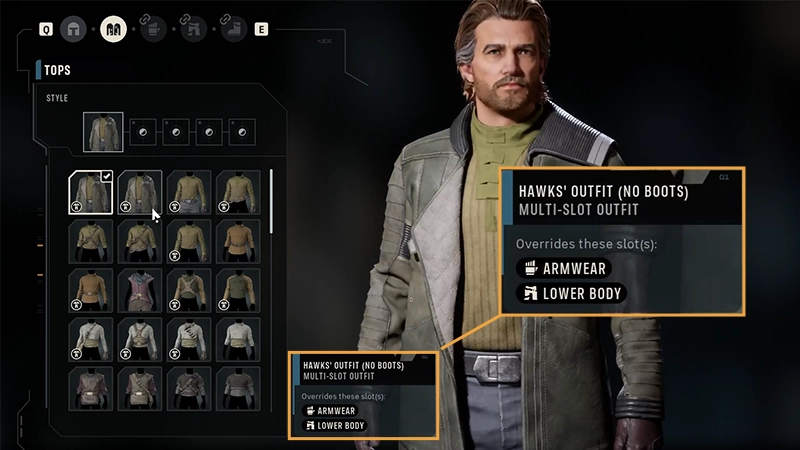
Some Outfits category items are multi-slot outfits, which combine clothing items from multiple Outfits categories into a single styled look.This means that if you select a multi-slot outfit, it’ll automatically replace any applicable selections you made in other Outfits categories.For example, if you choose a multi-slot outfit in Tops, it might replace items you have equipped in the Armwear or Boots slots.If an item is a multi-slot outfit, you’ll find a pop-up box beside it that lets you know what other Outfits categories it overrides.
Next, pick a Specialization for Hawks. The Specialization you choose defines Hawks’ combat style and abilities.Here’s how Specialization abilities work in STAR WARS Zero Company™ and the Specializations you can choose from.
How do abilities work in STAR WARS Zero Company™?
Each Specialization has a unique set of abilities. This includes one Ultimate ability, one Standard ability, and, depending on the Specialization you choose, at least two Passive abilities.
Ultimate Ability
This is your most powerful ability.
They can have a major impact on the battle and are best used at the right moment.
Standard Ability
This is an active ability you can use during combat to attack enemies, support allies, or gain a tactical advantage.
Passive Ability
These are always-active abilities.
They provide bonuses or effects that automatically apply during battle without needing to be activated.
What Specializations can I choose from?
Assault is a frontline Specialization that excels at staying mobile in battle. Operators with this Specialization can take out enemies at medium-to close-range, even when those enemies are protected by cover.Abilities:
Sweeping Salvo
Bull Rush
Fleet of Foot
Strike the Flanks
Gunslingers specialize in fast blaster attacks that can hit multiple enemies. They excel at dealing damage across several targets at once.Abilities:
Open Fire
Quick Draw
Keen Eye
Onslaught
Heavy is a frontline Specialization with heavy armor, built to withstand enemy attacks. Operators with this Specialization have high survivability and excel at absorbing enemy attacks, even while fighting in the open.Abilities:
Bulwark
Unstoppable
Conditioning
Heavy Armor Training
Intimidating Posture
Medics help keep teammates in the fight by healing injuries and preventing new ones. They can also provide other squad members with physical and psychological boosts.Abilities:
Morale Boost
Combat Stim
Lifesaving Measures
First Responder
Scoundrels are wildcards that specialize in adapting to changing situations. They can take advantage of opportunities in combat with little preparation.Abilities:
Easy Mark
Identify Weakness
Never Play Fair
Scoundrel’s Instinct
Scouts specialize in reconnaissance and tactical support. They can help the entire squad create opportunities through careful planning and timing.Abilities:
Ambush
Combat Recon
Tactical Timing
The Spotter
Sharpshooters specialize in long-range combat and are focused on precision. They excel at targeting and eliminating enemies from a distance.Abilities:
Precision Shot
Zero In
Pick Them Off
Sharpshooter Training
Soldiers specialize in close to medium range combat. They use melee attacks, grenades, heavy blaster fire, and a rocket launcher to take on enemies.Abilities:
After you’ve picked a Specialization for Hawks, it’s time to choose a weapon.Weapons belong to a Weapon Class that determines how it performs in battle. Every Weapon Class has its own strengths and weaknesses that influence performance factors, like how much damage it can cause and its attack range.Using your weapon in combat costs Action Points (AP).
Action Points (AP) determine what each Operator can do during their turn in battle. Every squad member starts their turn with three AP to spend.You’ll need to spend AP to use your weapon in battle, but the AP cost depends on its Weapon Class. Some weapons leave you with enough AP to move or use abilities after firing. Other weapons might use most or all of your available AP when fired.You also spend AP when you:
Move around the battlefield
Moving farther uses more AP.
Use Overwatch to automatically attack enemies that move through or take an action within a targeted area during the enemy’s turn
Use Utility items, such as Medpacs and grenades
Activate abilities, including attacks, buffs, and other Specialization abilities.
Sometimes, you’ll need to use special abilities to defeat more powerful enemies. Using these special abilities costs Advantage instead of AP. To earn Advantage, your squad needs to land successful attacks. Each time one of your Operators damages an enemy, your squad gains 1 x Advantage.Check out our turn-based tactics and combat basics guide to learn how Advantage works in STAR WARS Zero Company™.
What Weapon Class options can I choose from?
Here are the Weapon Class options you can choose from in STAR WARS Zero Company™.
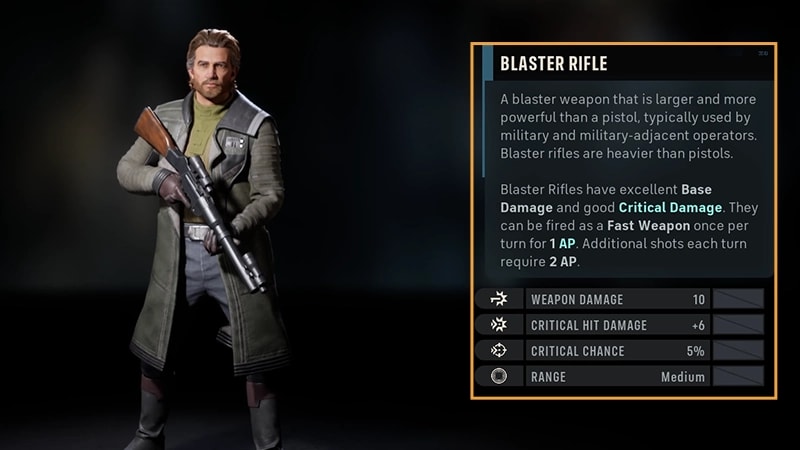
The Blaster Rifle is a versatile weapon designed for medium-range combat.
It deals high base damage and has good critical damage, making it a reliable choice for consistent attacks.
The Repeater is a large and powerful blaster weapon with sustained fire power.
It will deal significantly more damage if you invest moreAP while firing it.
Often used as a personal sidearm, the Blaster Pistol is a fast weapon for close-range combat.
It deals less damage than other blaster weapons, but can be fired repeatedly using fewer AP.
The Longarm Blaster is a high-powered weapon with excellent accuracy, ideal for long-range combat. But a heads-up; Longarm Blasters can be more difficult to handle.
It deals high base damage and critical damage, making it a strong choice for taking out enemies from a distance.
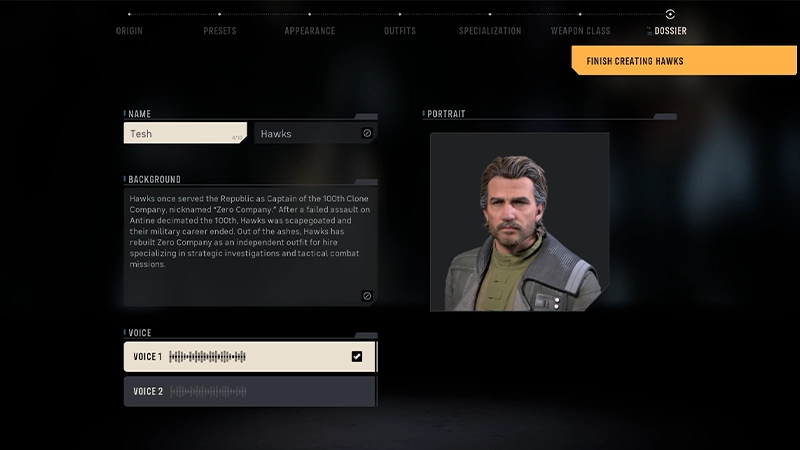
7. Review your Dossier
On the Dossier screen, finish creating and customizing Hawks by:
entering a first name in the Name box
selecting a Voice.
Note: Hawks is your character's surname, which you can’t change. After you’ve made your choices, select Continue to meet your Squad and jump into battle.
How do I know which options to choose when creating Hawks?
Unsure which customization options to choose? Don’t worry; you can change many of the choices you made while creating Hawks after you finish the initial battle tutorial. After you unlock The Den, go to the Customization Facility to edit Hawks’:
Origin and Voice (from the Profile tab)
Appearance
Outfits.
Most of Hawks’ customization options are based on your personal preferences. You should also consider your preferred playstyle and level of experience with turn based tactics games.Here’s what to consider when choosing each category.
Choose whichever species you like best, or the one that appeals to you the most.
Each Origin changes the Appearance options available during character creation, but doesn’t determine Hawks’ combat style.
Pick one of the two available presets if you want a quick starting point, or want to jump into the game faster.
Choose Custom if you want to create a personalized and unique Hawks from scratch.
These are purely cosmetic choices that don’t affect how Hawks work in-game
Customize Hawks’ facial features, hair, body art, and other visual details to create the look you want.
These are purely cosmetic choices that don’t affect how Hawks work in-game
Mix and match clothing items to create your preferred outfit style.
Your Specialization determines how Hawks fights in battle.
Before choosing one, think about the role you want to play in your squad.