Overview
Learn how to use Apple Arcade iOS touch controls to play MySims™ and MySims™ Kingdom on iPhone and iPad. This guide lists every tap, swipe, and gesture so you can build, explore, and play seamlessly on mobile.
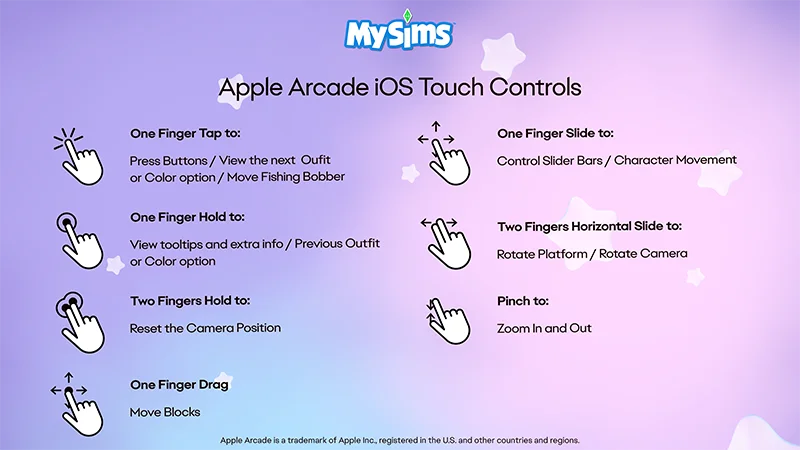
iOS controls for MySims
Playing MySims™ and MySims™ Kingdom on another platform? Check out our control guides:
If you need some beginner tips, learn how to get started in MySims™: Cozy Bundle.
- One Finger Tap
- Press Buttons
- View the next Outfit or Color option
- Move Fishing Bobber
- One Finger Hold
- View tooltips and extra info
- Previous Outfit or Color option
- Two Finger Hold
- Reset the Camera Position
- One Finger Drag
- Move Blocks
- One Finger Slide
- Control Slider Bars
- Character Movement
- Two Fingers Horizontal Slide
- Rotate Platform
- Rotate Camera
- Pinch
- Zoom In and Out
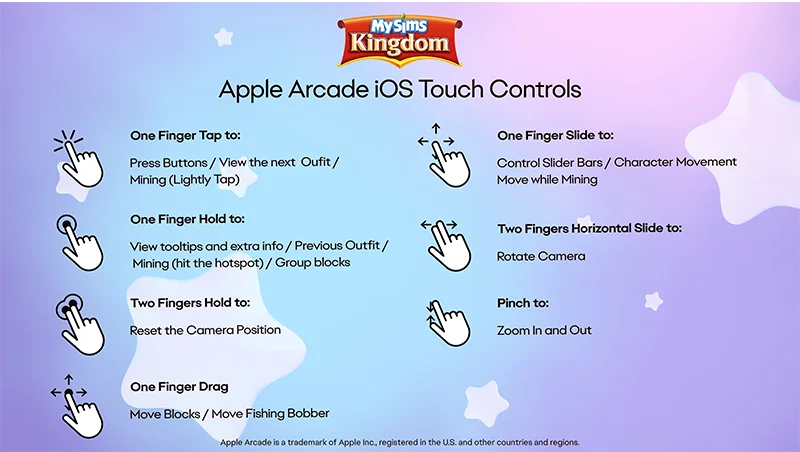
iOS controls for MySims Kingdom
- One Finger Tap
- Press Buttons
- View the next Outfit
- Mining (Lightly Tap)
- One Finger Hold
- View tooltips and extra info
- Previous Outfit
- Mining (hit the hotspot)
- Group blocks
- Two Finger Hold
- Reset the Camera Position
- One Finger Drag
- Move Blocks
- Move Fishing Bobber
- One Finger Slide
- Control Slider Bars
- Character Movement
- Move while Mining
- Two Finger Horizontal Slide
- Rotate Camera
- Pinch
- Zoom In and Out