Want to step up the competition in WRC? Cross-play lets you compete with friends and other players across different platforms.For example, if you’re playing WRC on a PlayStation®5, turning on cross-play lets you play against players using Xbox Series X|S.Cross-play for WRC is available on:
PC
PlayStation®5
Xbox Series X|S.
When WRC cross-play is turned off, only players using the same platform as you will be available to compete with
What WRC modes have cross-play?
Cross-play is available in WRC for Quick Play Multiplayer mode and Clubs mode.
Quick Play Multiplayer connects you to our online multiplayer lobby and is a great way to find fun, competitive action right away. With Quick Play Multiplayer cross-play, you can compete in real-time with up to 32 other players.
With Clubs cross-play, you can access cross-platform multiplayer events powered by EA Racenet. Instead of rallying in a lobby in real-time with other players, you can start these events whenever you want. There’s no limit on how many players can compete in Clubs events. It also makes cross-network Clubs visible which allows all players to appear on Moments and Time Trial leaderboards.
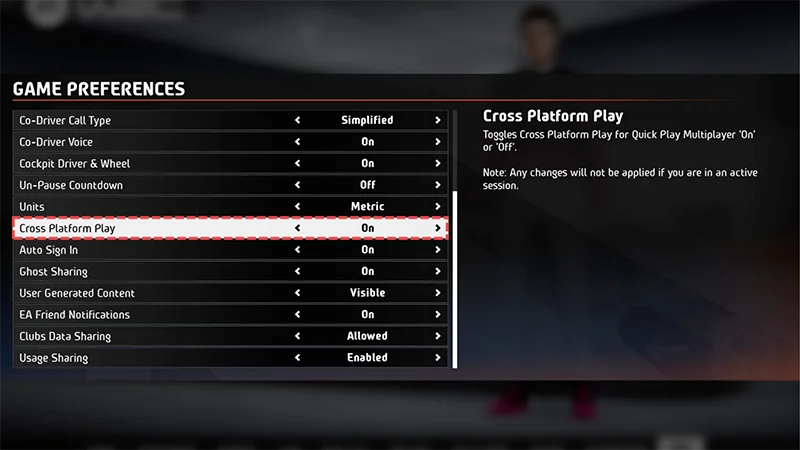
When you launch WRC for the first time, you can turn cross-play on or off during the set-up steps. You can turn cross-play on or off at any time by following these steps.
1
From the main WCR menu, choose Options & Extras.
2
Select Game Preferences.
3
Scroll down to the Cross Platform Play option.
4
Toggle cross-play On or Off.
How to build a WRC car in Builder mode
In Builder mode, you can create a customized rally car before hitting the track. You can choose from car parts of different quality, cost, and appearance across five categories.
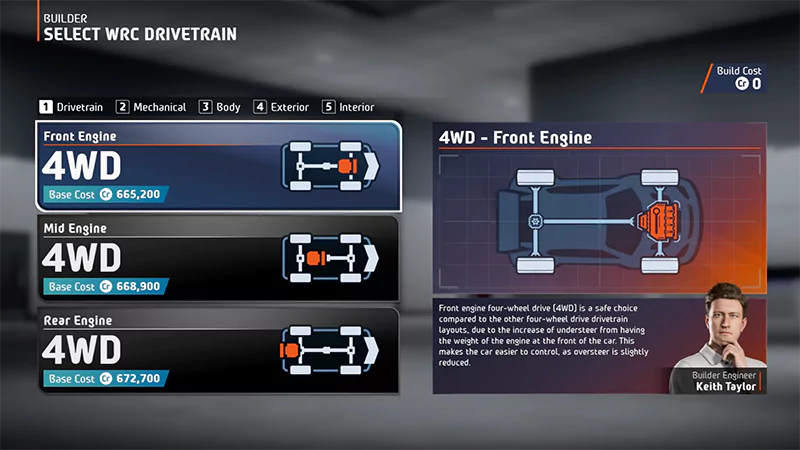
Drivetrain
Mechanical
Body
Exterior
Interior
1
From the main menu, select Builder.
2
Choose a Vehicle Class. Once you’ve finished building your car, it’ll be saved to the Vehicle Select list of whichever class you choose. The vehicle classes are:
WRC
WRC2
Junior WRC.
3
Select the drivetrain for your car.
1
In the Mechanical Hub, toggle through the mechanical categories to build your car:
Engine
Differentials
Gearbox
Clutch
Radiator
Suspension
Brakes
Exhaust
2
In each category choose a car part from the options listed.
3
Select Confirm Parts.
1
In the Body section, choose your Front Bodywork.
2
Scroll through the options to select your Rear Bodywork.
1
Go to the Exterior Hub.
2
Go through each category and select a part to customize elements of your car’s exterior, like the bumper, lights, and exhaust.
1
Go to the Interior Hub.
2
Go through each category and select a part to customize elements of your car’s interior, like the steering wheel, seats, and gear shifter.
3
Select Confirm Parts.
Once you've built your car using the steps above, you’ll see a Build Breakdown. The breakdown shows all the car part choices you made and the cost of the build.
The overall cost of your WRC rally car build will depend on the quality of the car parts you choose. The higher the quality of the parts, the more your car will cost.
To save your car build, follow these steps.
1
Select Confirm Build.
2
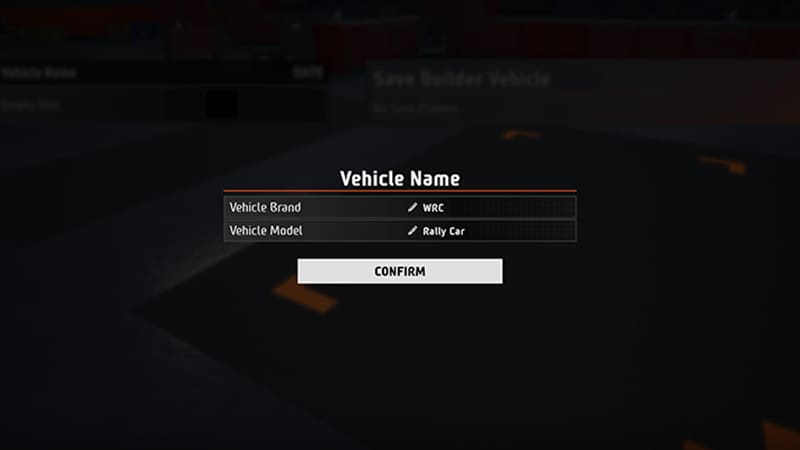
Below Vehicle Name, select Empty Slot.
3
Choose a name for both the Vehicle Brand and Vehicle Model.
4
Select Confirm.
How to find your missing WRC content
Can’t find your Rally Pass content in WRC? Here’s how to make sure your content is unlocked and that you’re looking for apparel or livery items in the right place.
How to check if your missing WRC content is unlocked
1
From the main WRC menu, choose Customization.
2
Select Rally Pass. Scroll through the items to make sure your missing content is unlocked.
3
Take note of whether your missing content falls under the apparel or livery category.
If you’re missing driver apparel items, go to the Where to find driver apparel items section below.
If you’re missing livery items, go to the Where to find livery items section below.
Where to find driver apparel items
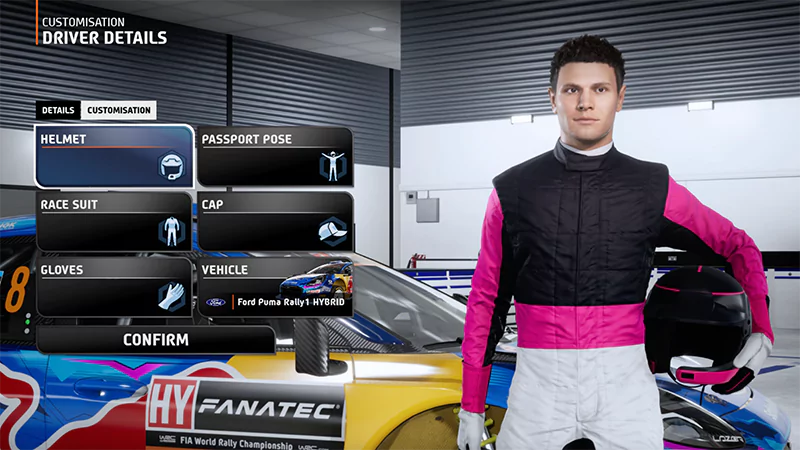
Check Driver Details for missing bought or earned driver apparel items, like helmets, race suits, gloves, or caps.
1
From the main menu, choose Customization.
2
Select Driver Details and choose the Customization tab.
3
Scroll through the items to check for your missing content.
Where to find livery items
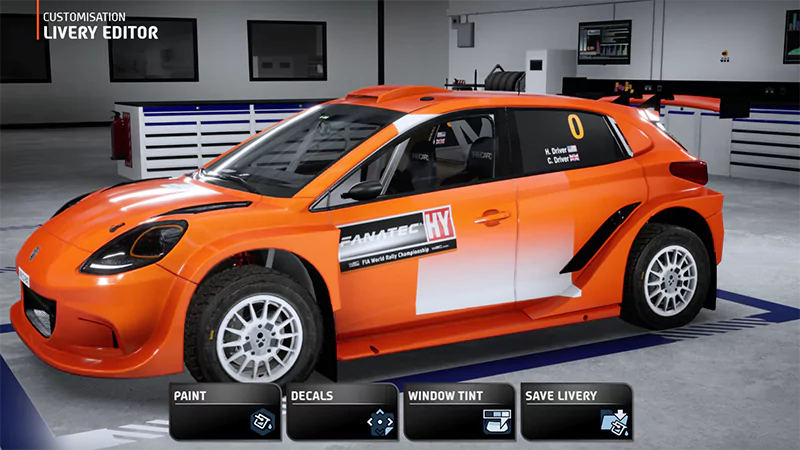
If you’re missing car customization content, look for it in the Livery Editor.
1
From the main WCR menu, choose Customization.
2
Select Livery Editor.
3
Select the vehicle class, then choose the vehicle you want to customize with your bought or earned livery.
4
Select the category your missing content belongs to:
Paint
Decals
Window tint.
5
Scroll through the items to check for your missing content.
Still can’t find your missing content?
EA Advisors can only help with missing Rally Passes purchased on PC through the EA app. If you bought your Rally Pass on PlayStation® or Xbox, you’ll need to contact them directly about your missing content.
If you’ve looked for your missing apparel or livery items in the right place but still can’t find them, try our additional steps for finding missing content.