EA SPORTS NHL® 27 Connected Franchise: Guide for Commissioners
9 최소 읽기
개요
As a Commissioner, you can set up and manage your NHL 27 Connected Franchise League from Pre-League through the Offseason. You can oversee Managers, trades and free agent claims, rosters, and game results. You can also advance season phases and prepare your League for the next season.
A Commissioner in NHL 27 manages a Connected Franchise League and has more control and influence than Managers.
What can I do as a Commissioner?
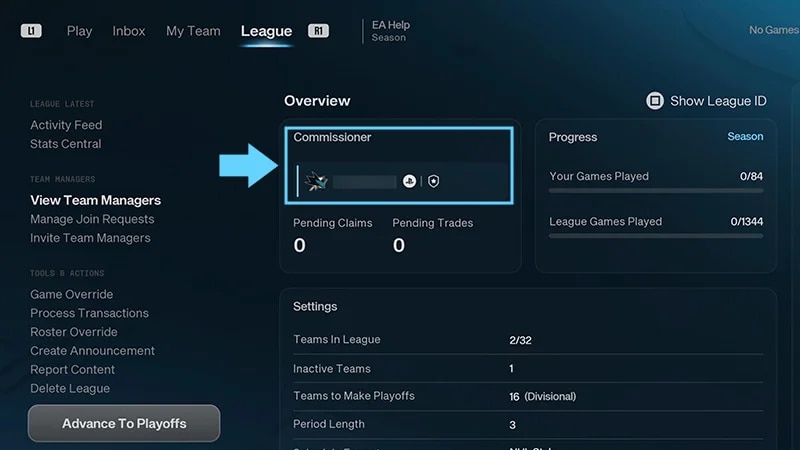
From the League tab, you can:
invite Team Managers and handle join requests
create announcements for your League
approve trades and process free agent claims
move players across League rosters
override game results
swap Managers between teams
advance your League through season phases
delete your League.
Some Commissioner tools are only available during specific League phases.
How do I create and set up a League?
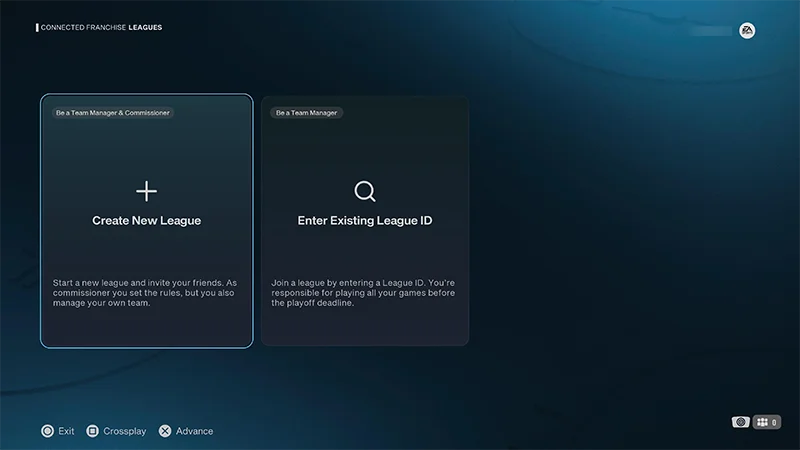
You can create and set up a Connected Franchise League from the Create New League screen.
1
Go to Connected Franchise and select Create New League.
2
Choose your roster: EA Roster, Custom Roster, or Roster Sharing.
3
Enter your League name.
4
Customize your League Settings (teams, schedule, salary cap, playoff qualification, and gameplay sliders).
5
Select your team and manage your Team Select options.
You can change division, conference alignments, or swap teams.
6
Go to League Overview to review your League settings and adjust gameplay rules and sliders.
Check your League settings before you create your League. Some settings can’t be changed after your League has been finalized and created, but you can adjust gameplay rules and sliders during the:
Pre League
Regular Season
Playoffs
Offseason.
How do I oversee Managers in my League?
You can invite players, review join requests, and manage existing Managers from the League tab.
Invite a friend
Invite a friend
Manage join requests
Manage join requests
Manage Team Managers
Manage Team Managers
After you’ve created your first League, you can invite friends to join as Managers.
1
Select Invite Now to invite friends.
2
Select the friends you want to invite to join your League.
Your friends list is based on your EA Friends.
When you’ve sent a friend an invite, Invite Sent will appear next to their name. How do I invite friends later?
1
Go to the League tab.
2
Select Invite Team Managers from the left side of your screen.
3
Choose the friends you want to invite.
Where can I find my League ID?
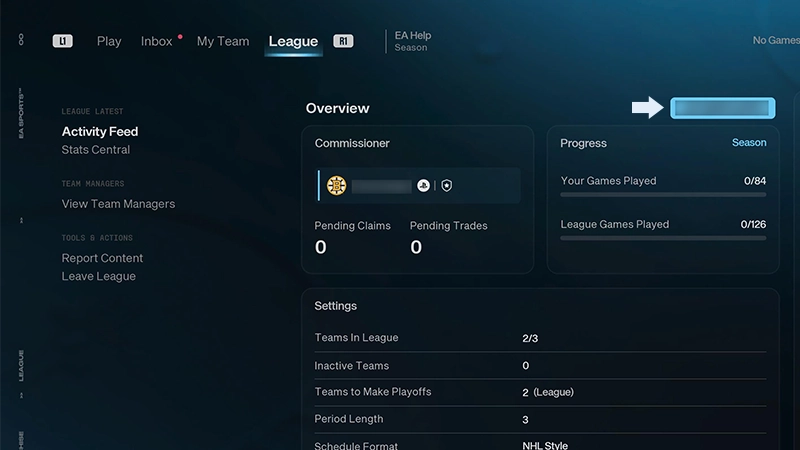
Players can also join your League if you share your League’s unique code with them. To find it:
1
Go to the League tab.
2
Select Show League ID.
1
Go to the League tab.
2
Choose Manage Join Requests from the left side of your screen to review any open requests.
3
Select a join request and choose Accept or Reject.
You can also choose to View Profile or Report a player here.
If you move a Manager to a team that's already controlled by another Manager, the two Managers will swap teams.
You can use announcements to share information with everyone in your League.Go to the League tab and select Create Announcement to write an announcement. New announcements are shared through your League's Activity Feed and Inbox.Announcements are useful for things like League updates, upcoming deadlines, games, or transaction reminders.
How do I process trades and free agent claims?
As a Commissioner, you can approve accepted trades, process free agent claims, or process both at once from Process Transactions. No trade goes through without your stamp of approval. When free agency heats up, you can step in to process blind Free Agent bidding for the entire League.
Trades
Trades
Free agent claims
Free agent claims
1
Open the League tab.
2
Go to Tools & Actions and select Process Transactions.
3
From here, you can bulk process or manually review trades.
Select Approve Trades to bulk approve all accepted trades across the League simultaneously.
Select Process All Transactions to bulk approve all accepted trades and pending claims simultaneously.
Select Manually Approve Trades to open the inbox and manually review each individual trade offer before choosing to approve or veto it.
1
Open the League tab.
2
Go to Tools & Actions and select Process Transactions.
3
From here, you can bulk process claims or process all transactions:
Select Process Claims to execute all pending free agent claims submitted by Managers across the entire League.
Select Process All Transactions to execute all pending claims and approve all accepted trades in one step.
When claims are processed, all blind bids are resolved at the same time, using each Manager's bid amount and set priority order.
Trades are processed from oldest to newest. When trades and free agent claims are processed together, trades are processed first.
Processing transactions can affect other pending moves. Check the confirmation message before continuing.
How do I override rosters and game results?
Use Roster Override to manually assign players to teams. If a Manager is ducking an opponent, you can reset results or force-win matches at any time.
Roster
Roster
Game results
Game results
1
Go to the League tab and select Roster Override.
2
Select the player you want to move.
3
Reassign the player to another team's active roster or move them to Free Agency.
1
Go to the League tab and select Game Override.
2
Select the scheduled match.
3
Choose Force Win For <Team> (Home/Away/Random) or Reset Game Result.
How do I manage season phases and offseason rollover?
You manage season phases from the League tab in Connected Franchise. Here, you can advance the League to the next state or prepare it for the next season during the Offseason. You need to have at least one other Manager in your League before you can move on to the Regular Season. When you're ready to leave the Pre League, select Start Regular Season.
What are the season phases?
Pre-League
Invite Managers and tweak the rules before starting your Regular Season.
You can’t play games during this phase.
You need at least two Managers in the League to advance to the next phase.
Regular Season
Play games, make trades, and process free agent claims.
Starting the Regular Season locks some League settings, including playoff format and Salary Cap limits.
Playoffs
Qualifying teams compete in the postseason elimination phase.
Trades and free agent claims are locked during this phase.
Offseason
Adjust League settings, including reducing team size, changing the schedule format, and revising the playoff structure.
Advance from the Offseason to start the next Regular Season.
When you roll your League over, it keeps its existing rosters, Managers, League ID, and settings. Your existing Managers keep their teams, and pending join requests and League invites remain active.
You can only make your League size smaller. If you reduce your League size, it can’t be increased the following year.
If a League is removed, all players from that League automatically enter free agency when you advance to the new Regular Season.
How do I delete my Connected Franchise League?
Deleting a League permanently removes it for everyone in the League.
You can delete a Connected Franchise League from the League tab by selecting Delete League. You'll be asked to confirm before the League is deleted. Check you’re deleting the correct League before proceeding.