Overzicht
Heb je hulp nodig bij het installeren of beheren van een pack in De Sims 4? Gebruik deze gids om Expansion Packs, Game Packs en Accessoirespakketten te installeren in De Sims 4 en neem de controle met de functie Packselectie.
De Sims 4 packs op pc of Mac installeren
Voordat je aanvullend materiaal voor De Sims 4 installeert, moet je er eerst voor zorgen dat de basisgame is geïnstalleerd en bijgewerkt. Lees voor hulp hierover onze gids over het installeren van de basisgame De Sims 4.Digitale packs worden automatisch geïnstalleerd na aanschaf. Zo niet, dan kun je ze als volgt handmatig installeren.Digitale aankoop in de EA app
- 1Start de EA app.
- 2Meld je aan met je EA-accountgegevens als je hierom wordt gevraagd.
- 3Open je Bibliotheeken klik op De Sims 4.
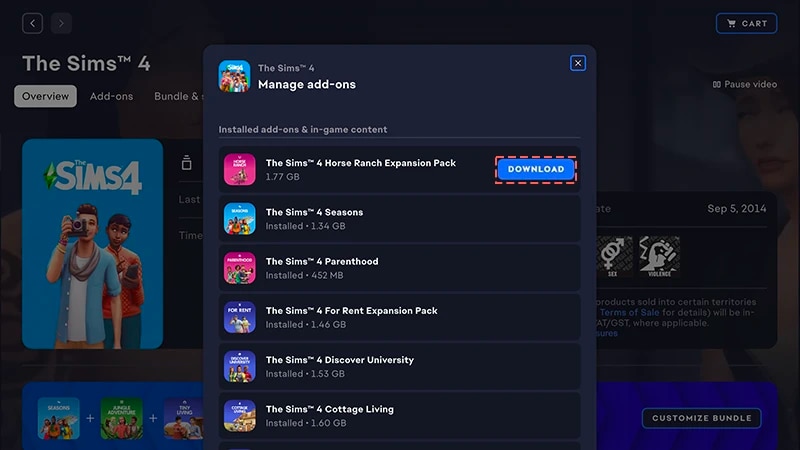
- 4Klik op Add-ons om te zien welke packs je momenteel bezit.
- 5Als je een pack bezit en het niet automatisch is geïnstalleerd, klik dan op het Downloaden-icoontje.
Een aankoop met een productcode voor de EA app installeren
- 1Start de EA app.
- 2Meld je aan met je EA-accountgegevens als je hierom wordt gevraagd.
- 3Open je Bibliotheek
- 4Klik op Code verzilveren.
- 5Voer de productcode in, klik op Volgende en dan op Bevestigen.
- 6Klik op Downloadenmet de EA app.
De EA app heeft Origin vervangen als het primaire platform voor het downloaden en starten van De Sims 4 op zowel de pc als Mac. Mac-gebruikers moeten macOS Catalina of nieuwer gebruiken om de EA app uit te voeren. Raadpleeg onze gids voor meer informatie over het upgraden van macOS.
Als je een pack op disk hebt gekocht (alleen pc)
- 1Stop de disk in de speler en volg de instructies op het scherm op.
- 2Voer de productcode in die op de installatiedisks staan als daarom wordt gevraagd.
- 3Zodra je het pack hebt verzilverd, kun je het bekijken op de Speldetails weergeven-pagina van De Sims 4 op het tabblad Bibliotheek.
- 4Nadat de installatie is voltooid, selecteer je De Sims 4 en dan Spelen om de game op te starten.
Zo controleer je of een De Sims 4 pack is geïnstalleerd
- 1Open de bibliotheek van je EA app.
- 2Klik op de gametitel van De Sims 4
- 3Selecteer Beheren.
- 4Kies Add-ons beheren.
- 5In het pop-up venster verschijnt een lijst met de add-ons die je bezit. Geïnstalleerde add-ons en in-game content zijn de bestanden die je bezit en al geïnstalleerd hebt. Downloadbare add-ons zijn add-ons die je bezit, maar nog niet geïnstalleerd hebt.
- 6Klik op het Download-icoontje voor add-ons die nog niet geïnstalleerd zijn.
De Sims 4 Packselectie
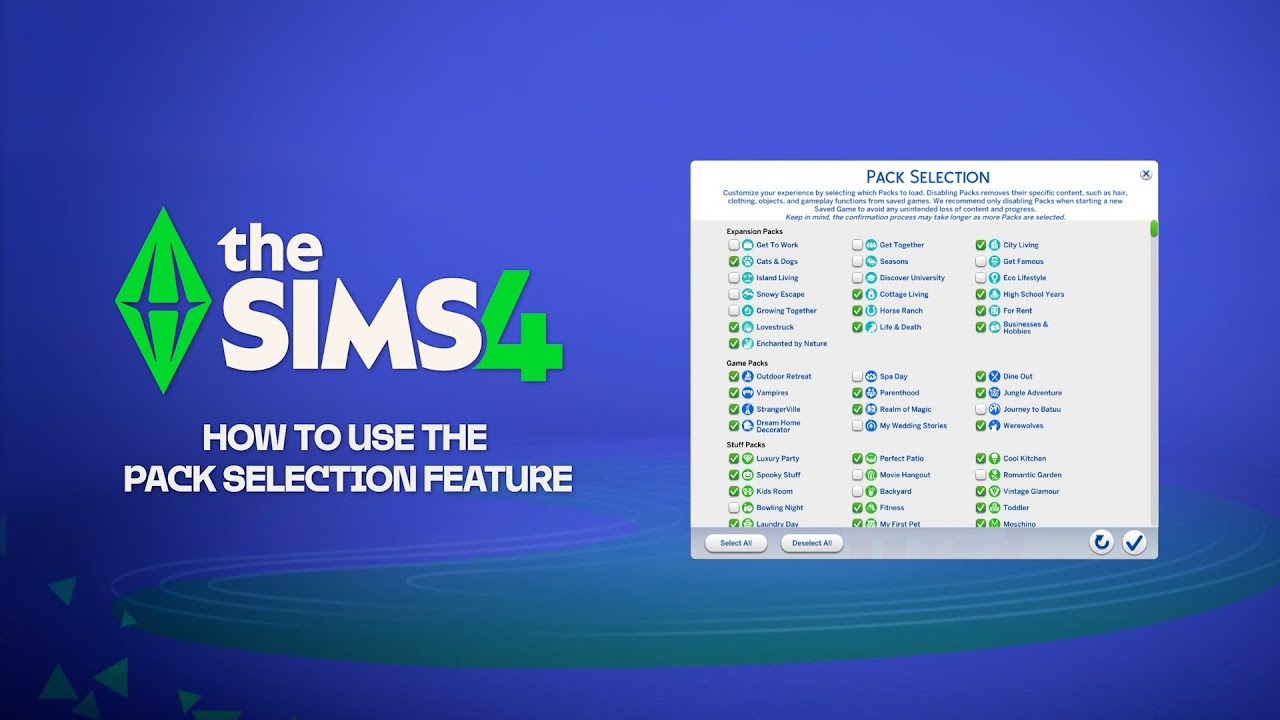
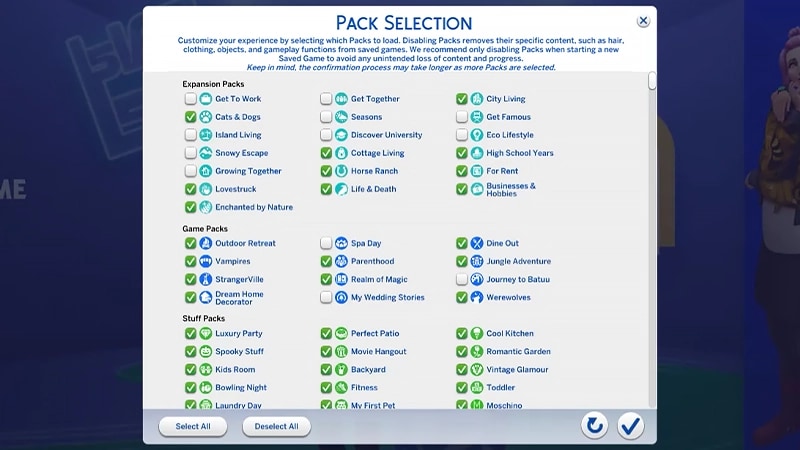
Je kunt zelf bepalen welke packs je geïnstalleerd wilt hebben. Dit is handig voor het vertellen van verhalen en je gameplay-ervaring, maar het maakt ook middelen vrij zonder dat je packs hoeft te verwijderen die je momenteel niet gebruikt. Packselectie is beschikbaar op alle platforms: pc, Mac en console. Zo kun je packs laden of verwijderen uit je game:- 1Open het hoofdmenu en kies Packselectie.
- 2Selecteer of deselecteer de packs die je in de game wilt laden of verwijderen.
- 3Selecteer het vinkje om je keuzes te bevestigen.
Het verwijderen van packs kan bestaande opslagbestanden beïnvloeden, dus je kunt deze functie het beste gebruiken als je een nieuw opslagbestand maakt om te voorkomen dat je content of voortgang verliest.We raden je aan om alle mods uit te schakelen voordat je packs verwijdert of opnieuw laadt. Lees ons artikel over hoe je mods kunt uitschakelen. Zorg er altijd voor dat je een back-up van je opgeslagen games hebt. Bekijk onze gids voor hulp hierbij.
Een opslagbestand met ontbrekende packs laden
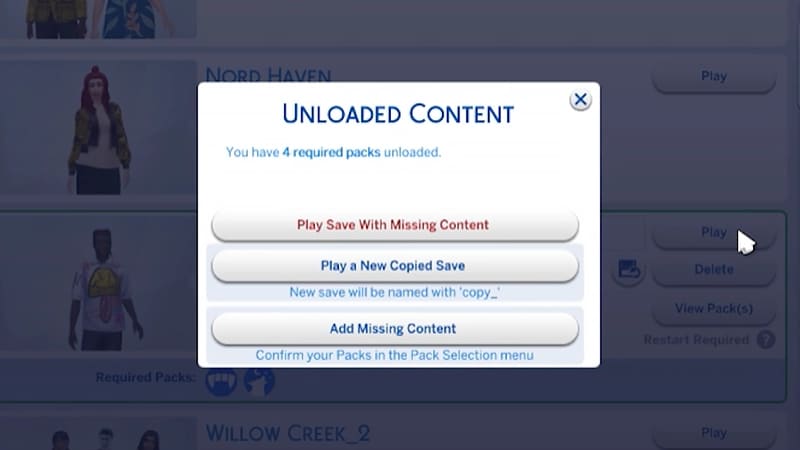
Je weet dat er packs ontbreken in een opslagbestand door de volgende indicatoren.- Wanneer je het opslagbestand probeert te laden, krijg je voor je gaat spelen een waarschuwing dat er packs of content ontbreken.
- Als je Packselectie opent, zijn packs waar geen vinkje naast staat momenteel niet geladen.
- Op de pc worden opslagbestanden met ontbrekende content weergegeven als de gewenste packs zijn geladen via de vereiste packs-icoontjes.
Als je Sims in een packspecifieke wereld leefden die jij uit de game hebt gehaald, dan is je huishouden nog steeds beschikbaar in het menu Huishoudens beheren. Je kunt ze naar een nieuwe kavel verhuizen of ze samenvoegen met een ander huishouden.Let op: items of eigenschappen uit Creëer-een-Sim die bij een bepaald pack horen, worden verwijderd, tenzij je dat pack opnieuw in je spel laadt.