Overview
New to the Battlefield Discord server? Learn how to use it, report players, and dispute bans.
What's the Battlefield Discord server?
The Battlefield Discord server is built to help players connect, form squads, join events, and stay up to date on all things Battlefield. Head over to the Battlefield Discord server to:- get the latest news and updates straight from the Battlefield team
- connect and share feedback with developers
- track your Battlefield history with stats from past games
- squad up with other players
- join a chat with your squad to boost your performance and stay connected.
How to link your EA Account to Discord
You can link to your Discord account from Battlefield 6.- 1Open the Friends menu.
- 2Select Connect to Discord under the Friends tab.
- 3Scan the QR code or open the link.
- 4Choose Authorize.
- 5After linking your accounts, go back to Battlefield 6 and select I’ve connected my accounts. This will load your Discord friends to your in-game friend’s list.
- Linking Discord to your EA Account doesn’t give you access to the Battlefield Discord server. If you want to join, go to the server and follow the steps.
How to report a player on the Battlefield Discord server
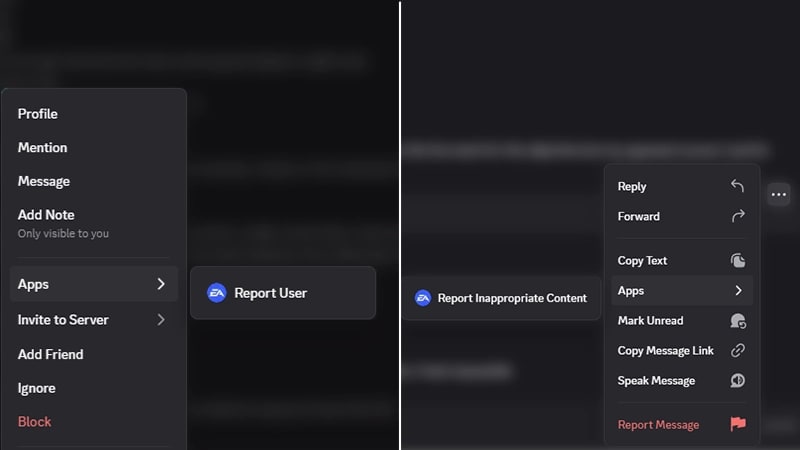
You can report a player or a message that a player sent on the Battlefield Discord server by following these steps.- 1In a text channel, right-click on the username or message you want to report. If you’re using Discord on your phone or tablet, tap and hold the username or message.
- 2In the pop-up menu, go to Apps.
- 3If you’re reporting a player, select Report User to EA. If you’re reporting a message, select Report Message to EA.
- A banned player can’t post messages in the Discord server or accept invitations to new channels.
- Reports are processed by automation tools and sent to our team for review.
- Our team looks into the context of each report before deciding whether it broke our rules and what action to take. You’ll get a DM with an update on the outcome of your report, including whether EA took action.
- For privacy reasons, we can’t share information about our investigation or what actions we take on another player’s account.
How to appeal a ban on the Battlefield Discord server
If you think you were banned by mistake, you can appeal in your Discord direct messages (DMs) or on EA Help. After following the steps below to submit your appeal, someone from our Moderation team will review your submission.Appeal on Discord
Appeal on EA Help
- 1Open your DM from EA Moderator.
- 2Select the Appeals button directly from the DM.
- 3Fill out the form.
- Your case reference number will be filled out for you. Add a description of your issue, if you've done an account recovery recently, and your email.
- 4Select Submit.
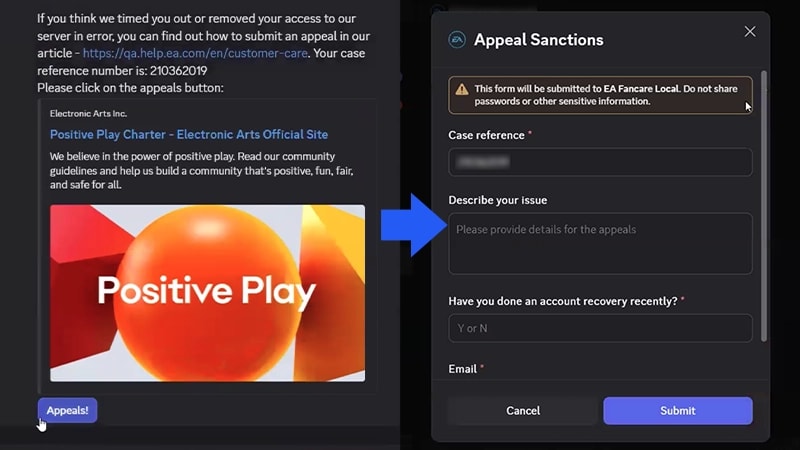
To fill out the appeals form in your DMs, make sure you have direct messages in Discord enabled.
Where to find your case reference number
You can find your case reference number in the Discord message sent to you by EA Moderator. Make sure to enter the case reference number exactly as it appears in the message, or we won’t be able to help with your appeal.How to unlink your EA and Discord accounts
You can unlink Discord from your EA Account from the Connected Accounts tab of your EA Account settings portal.- 1Select Discord from your Connected Accounts.
- 2Select Unlink.
- 3Read the disclaimer and make sure you want to unlink. You can read about the risks here.
- 4If you’re asked to, verify your identity.
If you unlink your EA Account from the Discord app through Discord, your Discord username might still appear as a connected account in EA Connect.To remove Discord as a connected account, unlink Discord from your EA Account settings.