EA Connect is an in-game menu that supports cross-platform and group play across EA games and platforms. You can find friends, join their lobby, jump into active games, and customize social settings to keep your online gaming experience fun and fair.
Which games have EA Connect?
Battlefield 6
EA SPORTS™ College Football
EA SPORTS FC™
FIFA
EA SPORTS™ Madden NFL
EA SPORTS™ NHL
How to launch EA Connect in-game
If your game supports EA Connect, here’s how to launch it in-game.
1
Go to the game’s main menu.
2
Locate the EA Connect icon.
It’s usually found on the bottom-right of your screen, though its location and design might vary depending on the game you’re playing.
3
Select the EA Connect icon to launch it.
EA Connect features and settings
You need an EA Account and an internet connection to use EA Connect. If you’re having connectivity issues, check the server status for your game on EA Help.Not every game will have all of the features listed below. As we develop and improve EA Connect, more features may be added to games in the future.
1
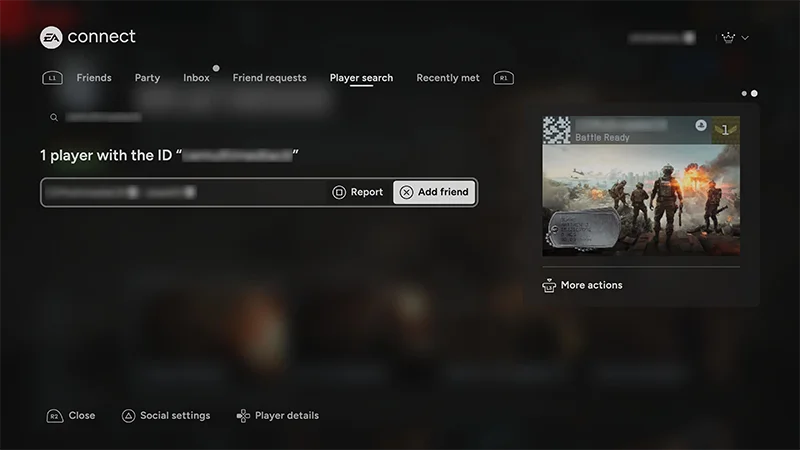
Launch EA Connect and go to the Player search tab.
2
Enter your friend’s EA ID or platform username into the search bar.
3
Select their name and choose Add friend.
Use the Friend requests tab to review, accept, or decline friend requests you received. You can also check the status of or cancel friend requests you’ve sent.In the Recently met tab, you can find other players you’ve recently played with. You can take action on players in this list, including adding them as a friend or blocking them.
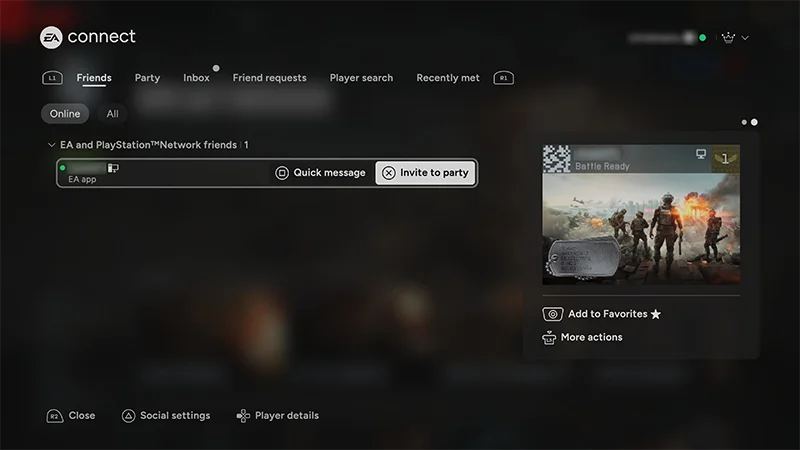
When you open EA Connect, you’ll start on the Friends tab. This is where you can see which friends are online or offline.You can also check what platform they’re on, what game and mode they’re playing, and when they were last online. Friends with someone on EA Connect but not on your platform network?
You’ll see an EA logo next to their name.
Friends with someone on your platform network but not EA Connect?
You won’t be able to see details about their activity, including when they were last online.
1
Select their name.
2
Choose Remove as EA friend.
3
Choose Confirm.
If you’re still friends with someone on your platform network, they’ll still show up in the Friends tab even after you remove them as an EA friend.
1
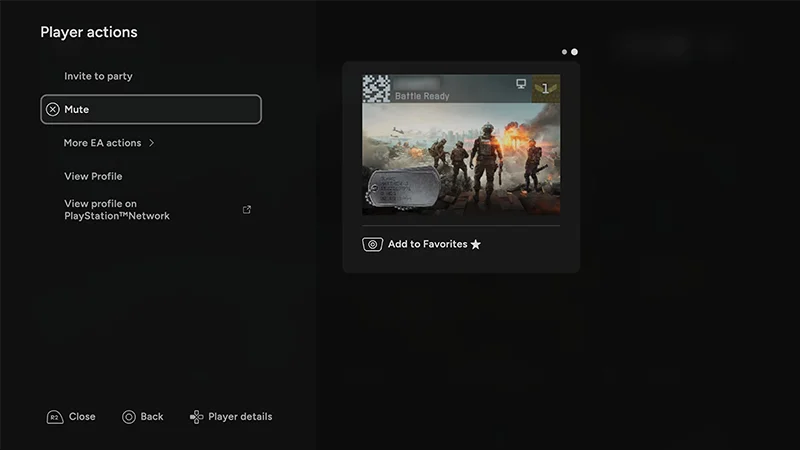
In EA Connect, find and select the player you want to take action on.
2
From the Player actions menu, choose Mute, Block, or Report.
If you choose Report, you’ll be prompted to share more information about the specific behavior or content that you’re flagging.
Team up with a friend in a lobby to jump into the same game mode together. View your invitesChoose the Game invites tab to see the invitations you’ve received. If you’ve got an active invite, select it to view more details, like what game it’s for, who sent it, and player actions. You’ll find these details on the right side of your screen.Accept or decline an inviteSelect the invitation to open it. Choose either Join lobby to accept it or Decline to refuse it.Invite someone to a lobbyOnce you’re in the game mode you want to play, go to the Friends tab, choose the online friend you want to invite, and select Invite to lobby.Cross-play restrictionsYou won’t be able to join a friend in a lobby if:
you’ve disabled cross-play
your friend has disabled cross-play
the game mode doesn’t support cross-play.
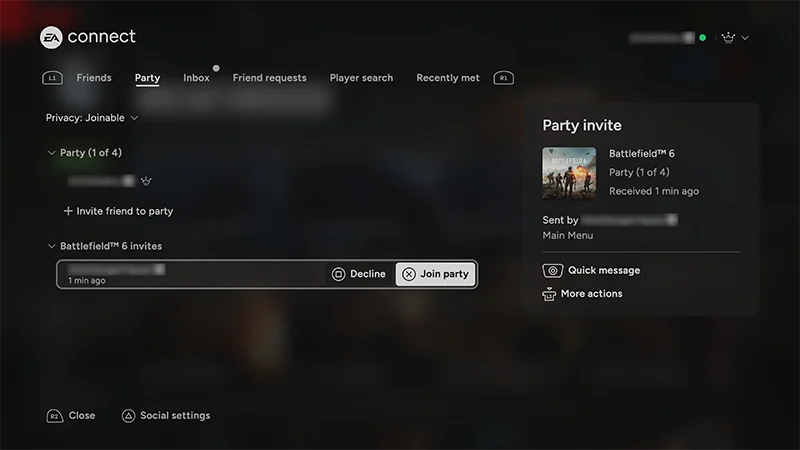
In the EA Connect Party tab, you can start a party with other players and communicate through chat. When you’re the party owner, there’ll be a crown icon next to your EA ID.Add players to a party
1
From the Party tab, select Add players to party. This brings you to the Friends tab.
2
From the Friends tab, find and select the name of the player you want to invite, and select Invite to party.
You can invite both online or offline players to your party. Players who are offline will get your invite when they log on.Promote a player to party leader
1
From the Party tab, go to the name of the player you want to promote to Party Leader.
2
Select See player actions.
3
Select Promote to Party Leader.
Manage voice chat preferences
1
From the Party tab, use your controller to select Chat: Party at the bottom of your screen (depending on your settings, it might say something else like Chat:Team).
2
Choose which channel you want to chat in (Party, team, or turn voice chat off entirely).
You can also use EA Connect to engage with members of clubs that you belong to or manage. Add a club member as a friend
1
Go to the Club tab of the game you’re playing.
2
Choose the name of the player you want to invite.
3
Select Add friend.
Invite a club member to a party
1
Go to the Club tab of the game you’re playing.
2
Choose the name of the player you want to invite.
3
Select Invite to party.
Promote a club memberIf you’re the General Manager (GM) of your club, you can promote other club members to GM, Club Captain, or Club UGC owner.
1
Go to the Club tab of the game you’re playing.
2
Choose the name of the player you want to promote, and select See player actions.
3
Choose the type of promotion you want to give and select that option.
Game to Community Messages are in-game updates sent directly from EA to you. These messages show up while you’re playing and can include event info, patch notes, new features, or community highlights, which you can see without leaving your game.
You can use Discord in-game while you play Battlefield 6. This lets you see and chat with your Discord friends in-game and means you can invite Battlefield 6 players to your Discord.You need to link your EA Account and Discord account to get started. When you link your accounts, you can:
Friend Recommendations help you grow your in-game squad by suggesting players you might know or want to team up with. We never suggest people outside of your networks, and you can always turn this off in your privacy settings.Your suggestions are based on:
your EA Account connections
teammates you’ve recently played with
platform friends who also play EA games.
You’ll see recommendations in your friends list or social hub, with quick options to add or invite them.
Quick Message friends in EA Connect
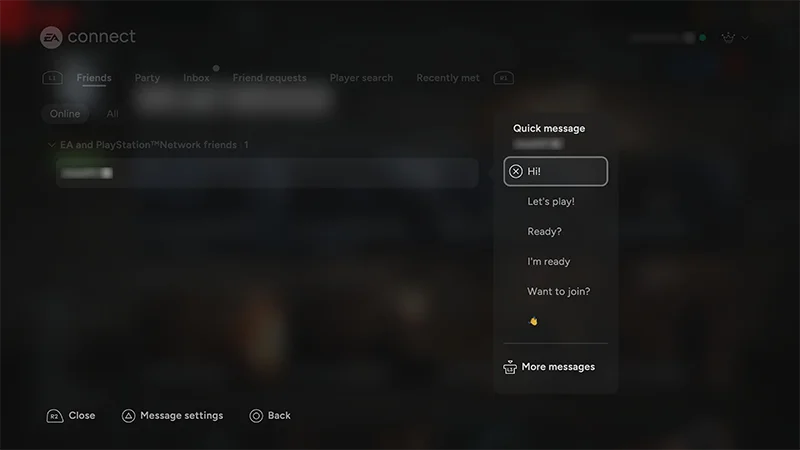
The Quick Message feature lets you send other players pre-written messages, like “Play another?” or “GG.” You can send messages to players on the EA app, the EA Connect mobile app, and EA Connect on console.To send a Quick Message, find your friend’s username in any of these tabs and select Quick Message next to their name:
Friends
Party
Game invites
Player List
Recently Met.
If you get a Quick Message while you’re playing, it’ll pop up in the bottom right corner of your screen. Make sure you have notifications turned on to receive Quick Messages from other players. To view your Quick Message conversations from the last 29 days, go to the Inbox tab.
EA Connect social and accessibility settings
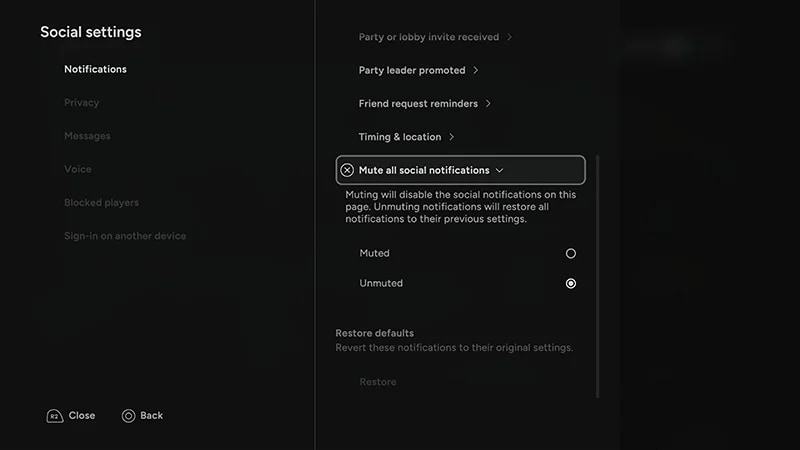
Select the Social settings option on the bottom-left side of your screen.From here, you can change your notification preferences and privacy settings, turn voice chat on or off, and adjust accessibility settings.
Still having issues?
Get in touch with our customer support team for more help.