Podsumowanie
Potrzebujesz pomocy z instalacją lub zarządzaniem pakietami w The Sims 4? Skorzystaj z tego poradnika, aby zainstalować Dodatki, Pakiety rozgrywki i Akcesoria The Sims 4 oraz przejąć kontrolę dzięki funkcji wyboru pakietów.
Instalacja pakietów The Sims 4 na PC i Macu
Zanim zainstalujesz dodatkową zawartość do The Sims 4, upewnij się, że gra podstawowa jest zainstalowana i zaktualizowana. Przeczytaj nasz przewodnik po instalacji gry podstawowej The Sims 4.Pakiety cyfrowe powinny zainstalować się automatycznie bezpośrednio po zakupie. Jeśli tak się nie stanie, poniżej znajduje się instrukcja ręcznej instalacji.Zakup cyfrowy w EA app
- 1Uruchom EA app.
- 2Jeśli pojawi się prośba o zalogowanie, zrób to, używając swoich danych z konta EA.
- 3Otwórz swoją Bibliotekęi kliknij The Sims 4.
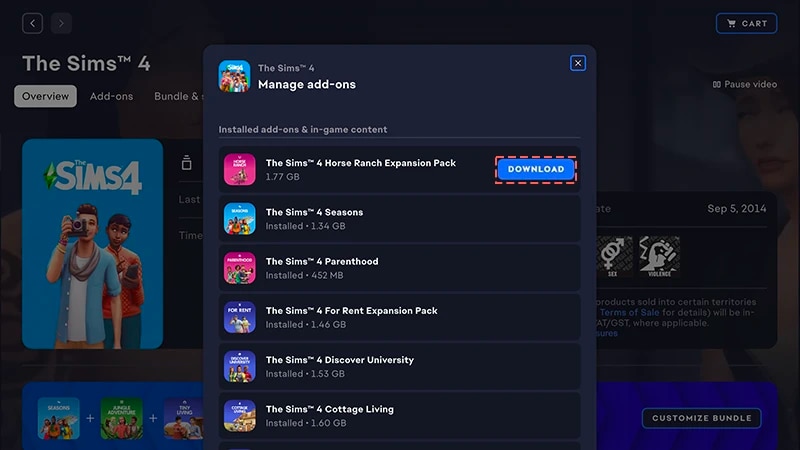
- 4Kliknij Dodatki, aby zobaczyć, które pakiety posiadasz.
- 5Jeśli posiadasz pakiet, który nie zainstalował się automatycznie, kliknij ikonę Pobierz.
Instalacja zakupu poprzez kod produktu w EA app
- 1Uruchom EA app.
- 2Jeśli pojawi się prośba o zalogowanie, zrób to, używając swoich danych z konta EA.
- 3Otwórz swoją Bibliotekę.
- 4Kliknij opcję Wykorzystaj kod.
- 5Wprowadź kod produktu, kliknij przycisk Dalej, a następnie Potwierdź.
- 6Kliknij Pobierzw EA app.
Aplikacja EA app zastąpiła Origin w roli głównej platformy do pobierania i uruchamiania The Sims 4 na Macu oraz PC. Aby uruchomić EA app, użytkownicy Maca muszą posiadać system macOS Catalina lub nowszy. Zapoznaj się z naszym poradnikiem dotyczącym macOS, by dowiedzieć się więcej o aktualizacji macOS.
Jeśli posiadasz pakiet w wersji pudełkowej (tylko PC)
- 1Umieść płytę z grą w napędzie i postępuj zgodnie z instrukcjami pojawiającymi się na ekranie.
- 2Gdy pojawi się prośba o podanie kodu produktu, wpisz kod z pudełka.
- 3Po aktywacji pakietu możesz go zobaczyć na stronie szczegółów gry The Sims 4 w zakładce Biblioteka w Origin.
- 4Po zakończeniu instalacji wybierz The Sims 4, a następnie „Graj”, aby uruchomić grę.
Jak sprawdzić, czy pakiet The Sims 4 jest zainstalowany
- 1Otwórz bibliotekę EA app.
- 2Kliknij kafelek gry The Sims 4.
- 3Wybierz opcję Zarządzaj.
- 4Wybierz opcję Zarządzaj dodatkami.
- 5W okienku pojawi się lista posiadanych dodatków. Zainstalowane dodatki i zawartość w grze to zainstalowana zawartość, którą już posiadasz. Dodatki do pobrania to te, które posiadasz, lecz nie zostały jeszcze zainstalowane.
- 6Kliknij ikonę Pobierz przy każdym dodatku, który chcesz zainstalować.
Wybór pakietów The Sims 4
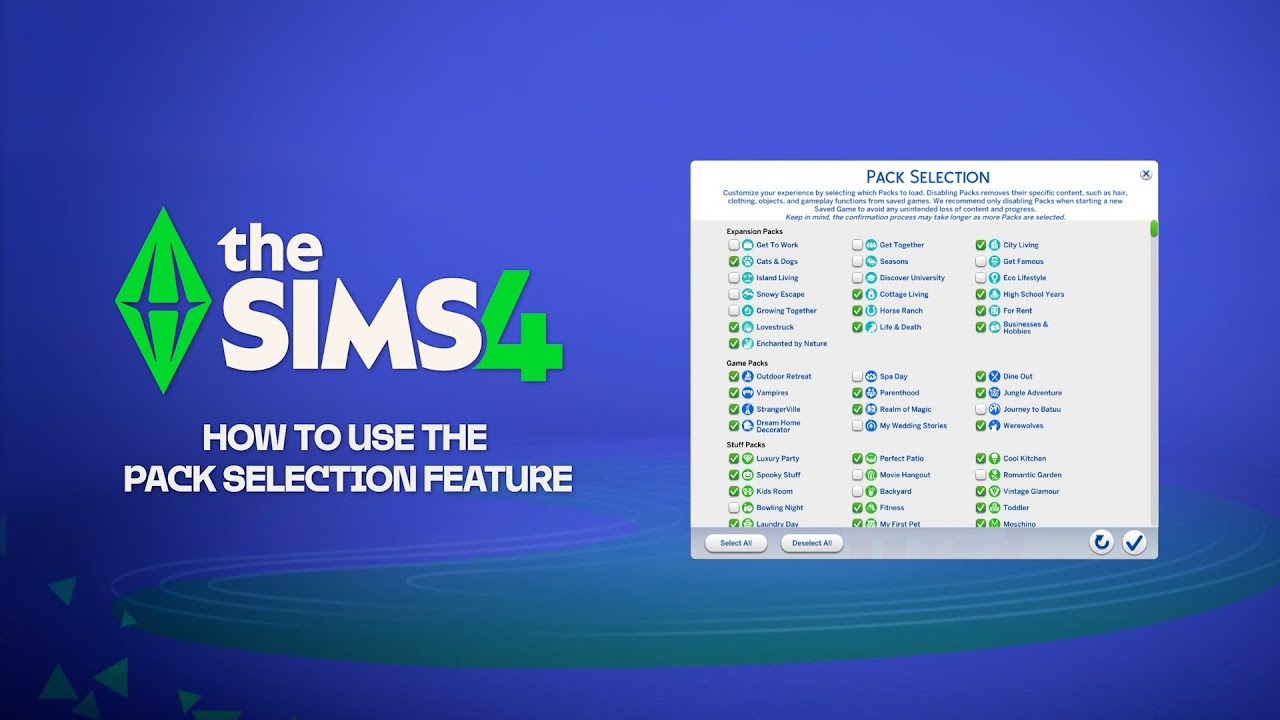
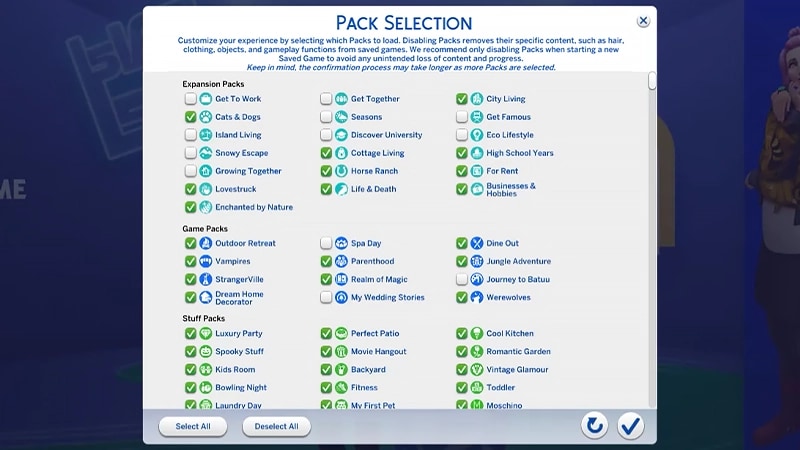
Wybór pakietów to funkcja, która pozwala wskazać i dostosować pakiety do instalacji. Przydaje się w trybie fabularnym i poprawia wrażenia z rozgrywki, a także pomaga zwolnić zasoby bez konieczności odinstalowywania nieużywanych pakietów. Wybór pakietów jest dostępny na wszystkich platformach: komputerach PC i Mac oraz na konsolach. Oto jak wczytać lub wykluczyć pakiety w grze:- 1Otwórz menu główne i wybierz opcję „Wybór pakietów”.
- 2Zaznacz lub odznacz pakiety, które chcesz wczytać w grze lub je wykluczyć.
- 3Wybierz ikonę haczyka, aby potwierdzić swoją decyzję.
Usunięcie pakietów może mieć wpływ na istniejące pliki zapisu. Jeśli chcesz uniknąć utraty zawartości i postępów, najlepiej skorzystaj z tej funkcji podczas tworzenia nowego pliku zapisu.Przed wykluczeniem lub ponownym wczytaniem pakietów zaleca się dezaktywację wszystkich modyfikacji. Zapoznaj się z artykułem na temat wyłączania modyfikacji. Zawsze upewnij się, że masz kopie zapasowe zapisanych stanów gry. Jeśli potrzebujesz pomocy w tym zakresie, zapoznaj się z naszym przewodnikiem.
Wczytywanie pliku zapisu z brakującymi pakietami
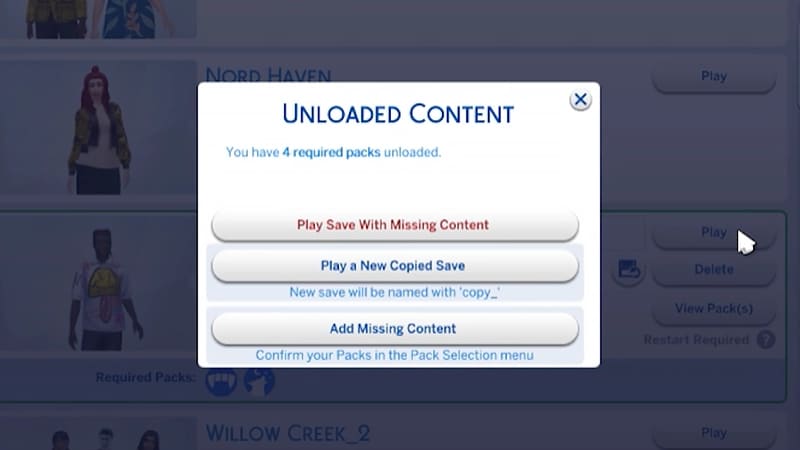
Poniższe wskaźniki informują, że plik zapisu wykorzystuje brakujące pakiety.- Kiedy spróbujesz wczytać plik zapisu, przed rozpoczęciem gry otrzymasz ostrzeżenie o braku pakietów lub zawartości.
- Pakiet, którego nie zaznaczono w menu wyboru pakietów, nie zostanie wczytany.
- W przypadku komputerów PC dzięki ikonom wymaganych pakietów dowiesz się, czy pakiety wykorzystywane do gry przez plik zapisu z niekompletną zawartością są wczytane.
Jeśli Twoi Simowie mieszkali w świecie przypisanym do konkretnych pakietów, które wykluczono z gry, nadal znajdziesz ich w menu zarządzania rodzinami. Na tym etapie możesz wprowadzić ich na nową parcelę lub dodać do innej rodziny.Uwaga: Wszystkie przedmioty lub cechy wybrane w trybie Stwórz Sima, które stanowiły zawartość konkretnych pakietów, ulegną usunięciu, chyba że pakiety te zostaną wczytane ponownie.