Overview
Learn how to download and play the Command & Conquer Remastered Collection on PC.
How to download the Command & Conquer Remastered Collection
Connection issues can cause problems with installation and online multiplayer modes. Get help with your connection here.
EA app
Steam
- 1Launch the EA App.
- 2Log in to your EA Account.
- 3Go to Library.
- 4Select the Command & Conquer Remastered Collection game tile.
- 5Select the arrow in the bottom-right corner.
- 6Confirm your Install location and Language preferences, then click Next.
- 7Read and accept the EA Terms of Play.
- 8Choose Download.
How to start your game
After you launch the game, you’ll have three options to choose from:- Command & Conquer: Remastered
- Command & Conquer: Red Alert Remastered
- Map Editor, where you can build your own custom maps.
- Start New Game: start a new Campaign.
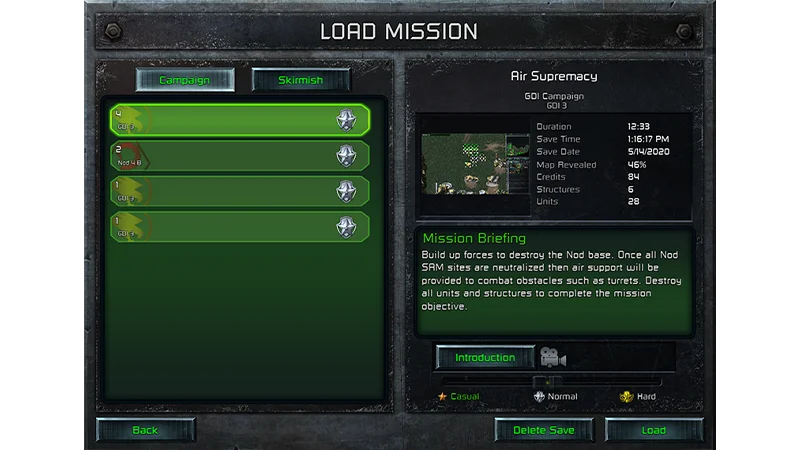
- Load Game: go back to your Campaign or Skirmish save.
- Mission Select: choose a specific mission from the games or expansions.
- Skirmish & Online: go head-to-head against AI opponents or other players.
- Replay/Observer: rewatch your victories or watch other players in action.
- Bonus Gallery: extra video content you can unlock through Campaign mode.
You can use the Options/Accessibility option to change settings like your screen resolution, audio settings, or add your own key bindings. You’ll also find your Mods here.
For more on Mod Support and what you can create, check out this Mod Support page.
For more on Mod Support and what you can create, check out this Mod Support page.
Command & Conquer tips
On most missions, your aim is the same: build Structures, Infancy, and Vehicles and take control of the map by destroying the other team and all their Structures. Building costs Credits, so you’ll need a source of income. Use Harvesters to collect Tiberium and bring it to your Refinery to earn more. Remember—your enemy wants that Tiberium too, so get ready to fight for it. You’ll start on a small patch of the map. To start exploring, move Infantry and Vehicles into unrevealed territory to make it visible.- To build units, select the Unit or Infantry tab and click on a unit portrait.
- By default, left-click to select units and give commands.
- You can change this to right-click in the Options menu.
- Left-click and drag a box to select Infantry and Vehicles, then left-click on the map to move them.
- Click an enemy to attack, or hold CTRL and left-click the map to attack an area.
- To make Infantry and Vehicles defend, select them and press G.
- To defend a specific spot on the map, select your Infantry and Vehicles, hold CTRL and ALT, and left-click the spot you want to defend.
- Hover near the edge of the screen to move the map or use the direction keys.
- Build a Communication Center or Radar Dome to get a minimap.
Build your base
To build your base, you have to deploy a Mobile Construction Vehicle (MVC). This gives you a Construction Yard and lets you build Structures.- Double-click on a MVC to deploy it.
- To deploy an MVC, you have to have enough space, free of obstacles and other units.
- Your base requires Power to operate efficiently. Make sure to build enough Power Plants so you don’t fall into Low Power.
- Destroying enemy Power Plants will disrupt their base.
Build Structures
To build Structures, select the Structures tab from the Sidebar and click on a Structure portrait.- You can only build one Structure at a time.
- Right-click on a Structure to put it On Hold and right-click again to cancel building it.
- To gain resources, build a Refinery and harvest Tiberium or Ore. You might eventually need Silos to store excess resources.
How to use the in-game Sidebar
The Sidebar is where you control options like building Structures, Infantry, and Vehicles. At the top, you’ll see the number of Credits you have, along with other key features.- Radar Map: after you build and deploy a Comm Center or Radar Dome, you’ll get a radar view of the entire map.
- Toggle Repair Mode (spanner icon): fix damaged Structures by clicking on them, and right-click anywhere on the map to toggle off. Repairing Structures costs Credits.
- Toggle Sell Mode (dollar icon): click on Structures to sell them and get some Credits back. Right-click anywhere on the map to toggle off.
- Toggle Radar Map (map icon): choose to see Infantry only, terrain only, or both.
- Structures tab: click on a Structure to build it. When it’s ready, click on it again and click on the map where you want to deploy it.
- Infantry tab: build a Barracks to get access.
- Vehicles tab: you’ll need to build a Weapons Factory before you can see this tab.
How to save your game
You can save your progress during a mission in Campaign mode and Skirmish mode.- 1Click the three bars at the top of the sidebar to open the Options menu.
- 2Choose Save Game from the Options menu.
- 3Enter a name, then click Save.
Troubleshoot issues playing online
If you need help with stuttering gameplay or framerate issues while you play online, try these steps.- Close any open browser windows and other programs.
- If you have a solid-state drive (SSD), try installing the game there.
- Start a mission, then reload it after a few seconds.