Genel Bakış
The Sims 4’te bir Paketi yükleme veya yönetme konusunda yardıma mı ihtiyacınız var? The Sims 4’te Expansion, Game ve Stuff Pack’leri yüklemek için bu rehberi kullanın ve Paket Seçimi özelliğiyle kontrol edin.
PC ve Mac’te The Sims 4 Paketlerini yükleme
The Sims 4'e herhangi bir ek içerik yüklemeden önce Temel Oyunun yüklü ve güncel olduğundan emin olun. The Sims 4 Temel Oyunu yükleme rehberimizi okuyun.Dijital Paketler, satın aldıktan sonra otomatik olarak yüklenecektir. Yüklenmezse, bu şekilde manuel olarak yükleyebilirsiniz.EA app’te dijital satın alım
- 1EA app’i başlatın.
- 2İstenirse EA Hesabı bilgilerinizi kullanarak giriş yapın.
- 3Library’yi açın ve The Sims 4’e tıklayın.
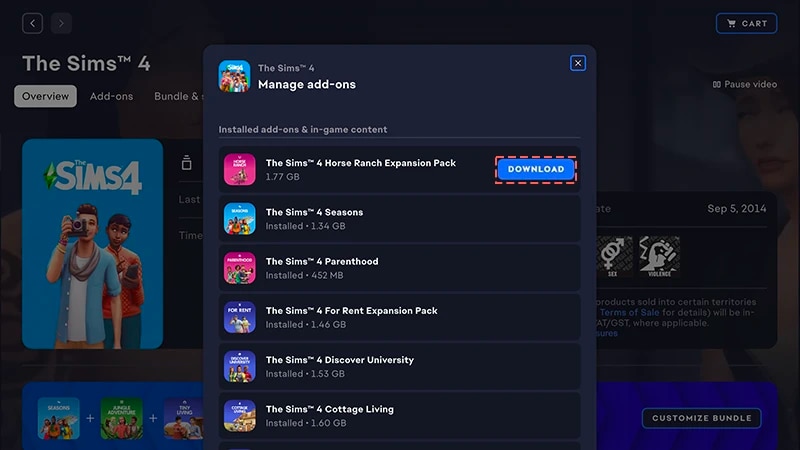
- 4Şu anda sahip olduğunuz paketleri görmek için Add-ons’a tıklayın.
- 5Bir Pakete sahipseniz ve otomatik olarak yüklenmemişse Download simgesine tıklayın.
EA app için ürün kodu satın alımı yükleme
- 1EA app’i başlatın.
- 2İstenirse EA Hesabı bilgilerinizi kullanarak giriş yapın.
- 3Library’yi açın.
- 4Redeem Code’a tıklayın.
- 5Ürün kodunu girin, Next'i seçin ve ardından Confirm'ü seçin.
- 6EA app’te Download’a tıklayın.
EA app, Mac ve PC için The Sims 4’ü indirmenin ve başlatmanın ana platformu olarak Origin’in yerine geçti. Mac kullanıcılarının EA app’i çalıştırması için macOS Catalina ve üstünü kullanması gerekiyor. macOS’inizi yükseltme hakkında daha fazla bilgi edinmek için macOS rehberimize göz atın.
Paketi disk olarak satın aldıysanız (yalnızca PC)
- 1Oyun diskini disk sürücünüze yerleştirin ve ekrandaki talimatları izleyin.
- 2İstendiğinde yükleme diskiyle verilen ürün kodunu girin.
- 3Paketi aldıktan sonra Library sekmesinde The Sims 4 oyun ayrıntıları sayfasından görüntüleyebilirsiniz.
- 4Yükleme tamamlandıktan sonra The Sims 4’ü seçin, ardından oyunu başlatmak için Play’i seçin.
Bir Sims 4 Paketinin yüklü olup olmadığı nasıl kontrol edilir?
- 1EA app Library’nizi açın.
- 2The Sims 4 oyun karesine tıklayın.
- 3Manage’ı seçin.
- 4Manage add-ons’u seçin.
- 5Açılır pencerede, sahip olduğunuz eklentilerin bir listesi görüntülenecektir. Installed add-ons ve In-game content, sahip olduğunuz ve daha önce yüklediğiniz içeriklerdir. Downloadable add-ons sahip olduğunuz fakat henüz yüklemediğiniz eklentilerdir.
- 6Henüz yüklenmeyen tüm eklentiler için Download simgesine tıklayın.
The Sims 4 Paket seçimi
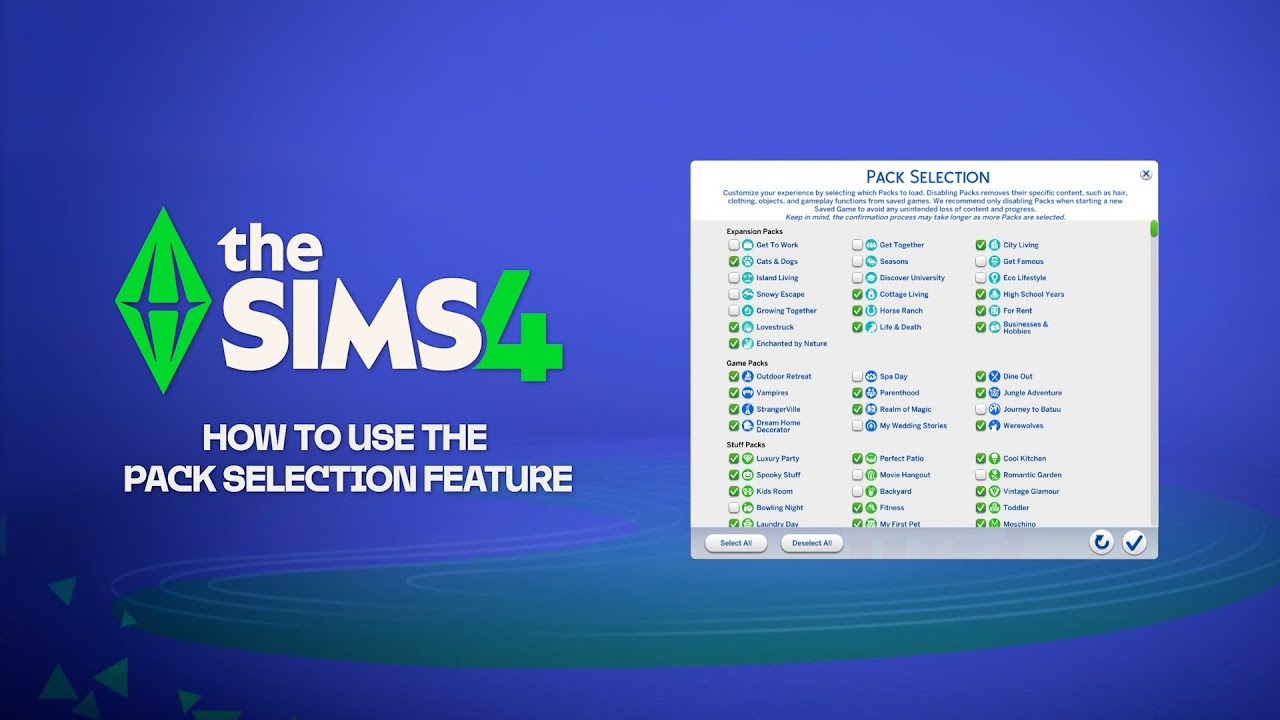
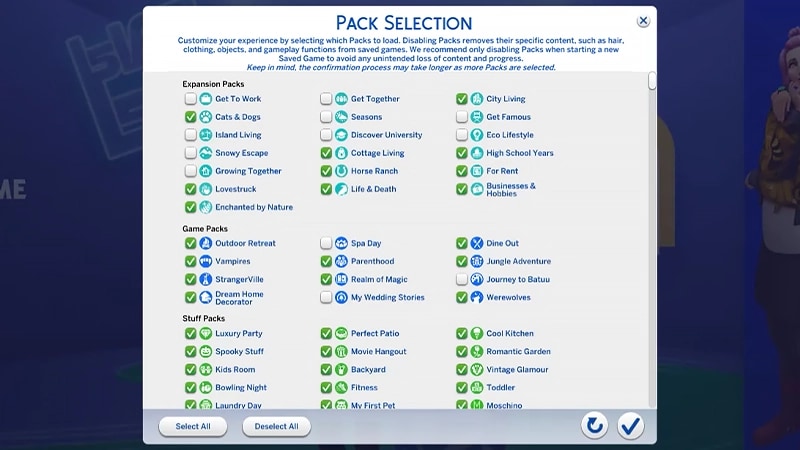
Paket seçimi, yüklemek istediğiniz Paketleri özelleştirmenizi sağlayan bir özelliktir. Bu özellik, hikaye anlatımı ve oynanış deneyiminiz için faydalı olmasının yanı sıra, o anda kullanmadığınız Paketleri kaldırmaya gerek kalmadan yer açmaya da yarar. Paket seçimi tüm platformlarda mevcuttur: PC, Mac ve konsol. Oyununuzdaki Paketleri şu şekilde yükleyebilir veya yüklemelerini kaldırabilirsiniz:- 1Ana Menüyü açın ve Pack Selection’ı seçin.
- 2Oyununuza yüklemek veya yüklemesini kaldırmak istediğiniz Paketleri seçin veya seçimlerini kaldırın.
- 3Seçimlerinizi onaylamak için onay işareti düğmesini seçin.
Paketleri kaldırmak, mevcut kayıt dosyalarını etkileyebilir, bu nedenle herhangi bir içeriğinizi veya ilerlemenizi kaybetmekten kaçınmak için yeni bir kayıt oluştururken bu özelliği kullanmak en doğru seçimdir.Paketlerin yüklemesini kaldırmadan veya onları yeniden yüklemeden önce tüm Modları devre dışı bırakmanızı öneririz. Modları devre dışı bırakma konusundaki makalemizi okuyun. Kayıt dosyalarınızın daima yedeklendiğinden emin olun. Bu konuda yardım için rehberimize göz atın.
Eksik Paketler olan bir kayıt dosyasını yükleme
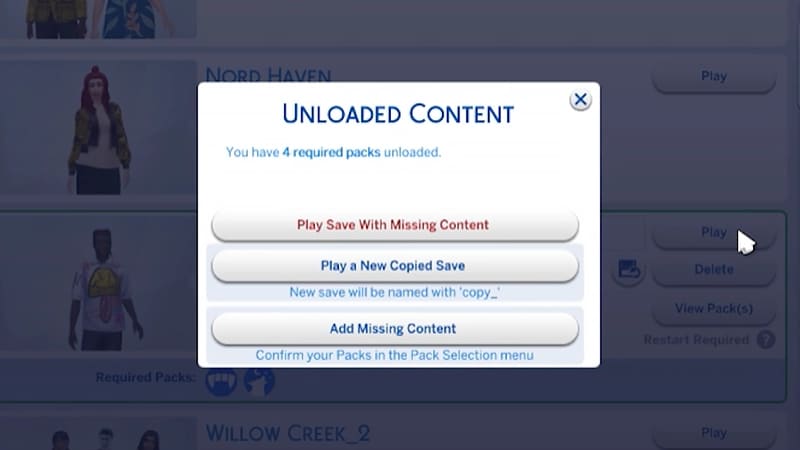
Bir kayıt dosyasında paketlerin eksik olduğunu, aşağıdaki göstergelerle öğrenebilirsiniz.- Kayıt dosyasını yüklemeyi denediğinizde, oynamadan önce Paketlerin veya içeriklerin eksik olduğunu ifade eden bir uyarı alırsınız.
- Pack Selection menüsünü açarsanız, işaretli olmayan Paketler o anda yüklü değildir.
- PC’de eksik içeriklerin olduğu kayıt dosyaları, oynamak için gereken Paketlerin yüklü olup olmadığını Required Packs simgeleriyle gösterir.
Sim’leriniz, oyununuzdan yüklemesini kaldırdığınız bir Pakete özel dünyada yaşıyorsa, Eviniz Manage Households menüsünde yer almaya devam eder. Oradan onu yeni bir Arsaya taşıyabilir veya başka bir Ev ile birleştirebilirsiniz.Not: Pakete özel tüm Create a Sim Ögeleri veya Özellikler, Paketi oyuna yeniden yüklemediğiniz sürece kaldırılır.