نظرة عامة
هل تحتاج إلى المساعدة في تثبيت حزمة أو إدارتها في The Sims 4؟ استخدم هذا الدليل لتثبيت حزمتي Expansion Game و Stuff Packs في The Sims 4 والتحكم مع ميزة اختيار الحزمة.
تثبيت حزم The Sims 4 على الكمبيوتر الشخصي و Mac
حل EA app محل Origin كمنصة رئيسية لتنزيل وطرح The Sims 4 لجهاز Mac والكمبيوتر الشخصي على حد سواء. يحتاج مستخدمو Mac إلى استخدام macOS Catalina أو إصدار أحدث لتشغيل EA app. ألق نظرة على دليل macOS الخاص بنا لمعرفة المزيد حول ترقية نظام macOS الخاص بك.
عملية شراء رقمية على EA app
- 1قم بتشغيل EA app.
- 2إذا تمت المطالبة، فسجل الدخول باستخدام معلومات حساب EA الخاص بك.
- 3افتح مكتبتك واضغط على The Sims 4.
- 4اضغط على الإضافات لمعرفة الحزم التي تمتلكها حالياً.
- 5إذا كنت تمتلك حزمة ولم يتم تثبيتها تلقائياً، فاضغط على أيقونة التنزيل.
تثبيت عملية شراء رمز منتج تخص EA app
- 1قم بتشغيل EA app.
- 2إذا تمت المطالبة، فسجل الدخول باستخدام معلومات حساب EA الخاص بك.
- 3افتح المكتبةالخاصة بك.
- 4اضغط على استرداد الرمز.
- 5أدخلرمز المنتج، واضغط على التالي، ثم بعد ذلك تأكيد.
- 6اضغط على تنزيل مع EA app.
حل EA app محل Origin كمنصة رئيسية لتنزيل وطرح The Sims 4 لجهاز Mac والكمبيوتر الشخصي على حد سواء. يحتاج مستخدمو Mac إلى استخدام macOS Catalina أو إصدار أحدث لتشغيل EA app. ألق نظرة على دليل macOS الخاص بنا لمعرفة المزيد حول ترقية نظام macOS الخاص بك.
إذا قمت بشراء حزمة على القرص (الكمبيوتر الشخصي فقط)
- 1أدخل قرص اللعبة في محرك الأقراص واتبع التعليمات الظاهرة على الشاشة.
- 2عند المطالبة، أدخل رمز المنتج المرفق مع قرص التثبيت.
- 3بمجرد أن تسترد الحزمة، يمكنك عرضها على صفحة تفاصيل لعبة The Sims 4 في علامة تبويب المكتبة.
- 4بعد اكتمال التثبيت، حدد The Sims 4، ثم العب لتشغيل اللعبة.
كيفية التحقق من تثبيت حزمة Sims 4
Learn more about how to play The Sims 4 on console, including tips on using controls and troubleshooting missing content.
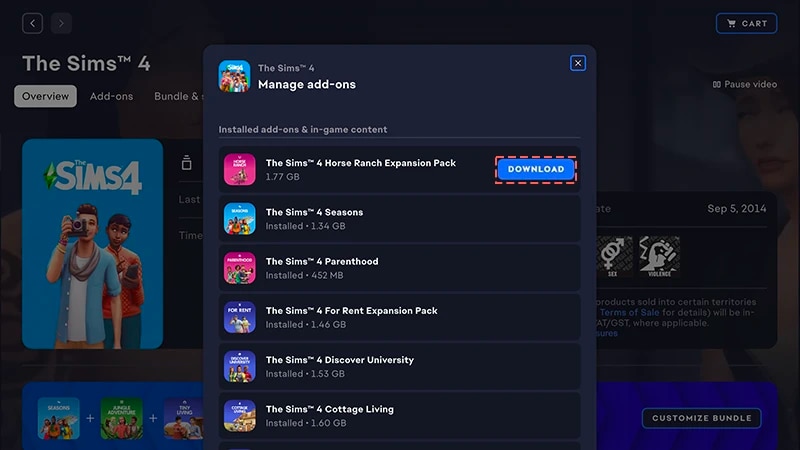
- 1افتح EA app وانتقل إلى المكتبة.
- 2اضغط على لوحة لعبة The Sims 4.
- 3حدّد إدارة.
- 4اختر إدارة الإضافات.
- 5في القائمة المنبثقة، ستظهر قائمة باللاعبين الإضافية الخاصة بك. الإضافات المثبتة والمحتوى داخل اللعبة هي التي تمتلكها وقمت بتثبيتها بالفعل. الإضافات القابلة للتنزيلالتي تمتلكها ولكن لم يتم تثبيتها بعد.
- 6اضغط على رمز التنزيل لأي إضافات لم يتم تثبيتها بعد.
To install a Pack for The Sims 4 on PlayStation®4, you’ll need to manually download it first.If you’re playing on PlayStation®5 or want to download your Pack from the PlayStation® Store online, the steps for manual downloads will vary. Visit the PlayStation® support site to learn how to download add-ons for games.
- 1Open the PlayStation® menu and select Library.
- 2Select Purchased and choose The Sims 4.
- 3Select Game Library and choose Your Collection.
- 4From the Add-Ons section, select The Sims 4 Pack you want to download.
- 5Select the download button (an icon of an arrow pointing downwards). The Pack will install automatically after your download completes.
Packs will install automatically after downloading on XBOX unless you’ve turned off the Keep my games & apps up to date setting. This setting is turned on by default.If a Pack for The Sims 4 didn’t install automatically, follow these steps to manually install it.Visit the XBOX support site to learn more about how to find your games and add-ons.
- 1Press the XBOX button on your controller and select My games & apps.
- 2Select See all and go to Full library > Owned games.
- 3Highlight The Sims 4 and press the Menu button on your controller.
- 4Select Manage game & add ons. Then, select the checkbox of the Pack you want to install.
- 5Select Install.
- 1Launch The Sims 4 and go to the Marketplace.
- From the Main Menu, select Marketplace at the top of the screen.
- Or, select the shopping cart icon in the top-right corner while in Live Mode, Build Mode, or Create a Sim.
- 2Select the My Collection tab and choose Manage Storage
- 3If you own a Pack and it didn’t automatically install, find the Pack and select the checkbox in the top-left corner to add a check mark.
- 4Select Confirm.
How do I check if a Sims 4 Pack is installed?
If you play The Sims 4 on PC or Mac through the EA app, you can check whether a Pack is installed in the EA app without launching the game.If you play The Sims 4 on PC, Mac, PlayStation®, or XBOX, you can check whether a Pack is installed in-game using the Marketplace. If you recently downloaded a Pack, you can also check if it’s installed in Download Manager.On the EA app
In-game
If you play The Sims 4 on PC or Mac on the EA app, here’s how to check if a Pack is installed.
- 1Launch the EA app and open your Library.
- 2Select The Sims 4 and choose Manage.
- 3Select Manage add-ons. A pop-up list of your owned add-ons will appear.
- You’ll find content you own and already have installed under Installed add-ons & in-game content.
- You’ll find content you own but haven’t installed yet under Owned add-ons.
- 4To install a Pack that isn’t currently installed, find it under Owned add-ons and select the Download icon beside it.
How does The Sims 4 Pack selection work?
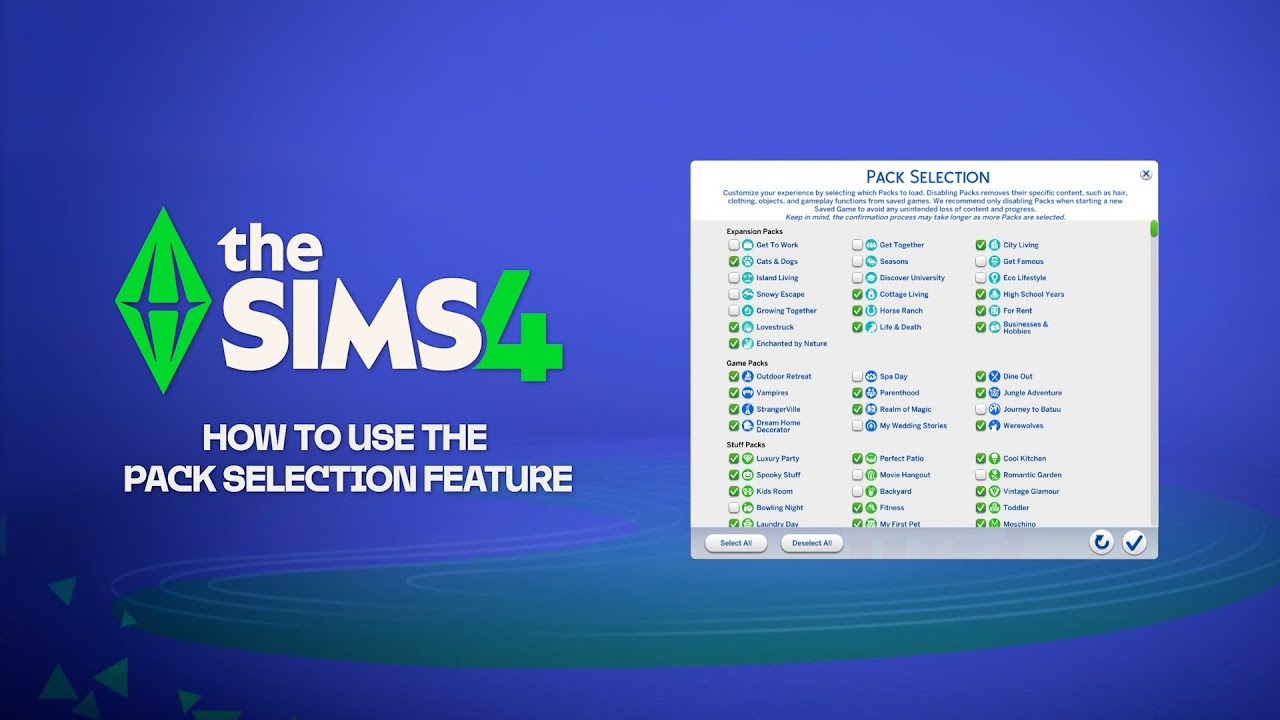
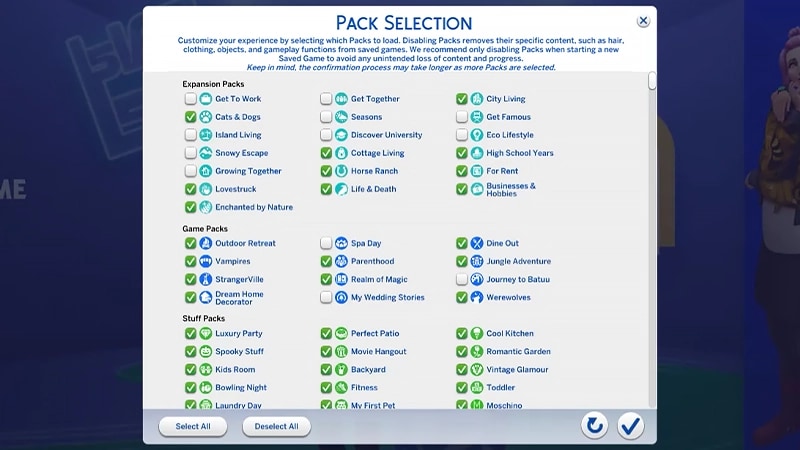
Pack selection is a Marketplace feature that lets you customize which Packs you want active in The Sims 4. This is helpful for storytelling and your gameplay experience, as well as freeing up resources without needing to uninstall Packs you’re not currently using. Pack selection is available on all platforms: PC, Mac, PlayStation® and XBOX.How do I use Pack selection to activate or deactivate Packs?
Here’s how to load or unload Packs from your game:- 1Launch The Sims 4 and go to the Marketplace.
- From the Main Menu, select Marketplace at the top of the screen.
- Or, select the shopping cart icon in the top-right corner while in Live Mode, Build Mode, or Create a Sim.
- 2Select the My Collection tab and choose Pack Selection.
- 3Use the checkbox at the top-left corner of each Pack to select or deselect the Packs you want in your game.
- If a Pack is currently active, the checkbox in the top-left corner is selected. There’s also a green Active label in the bottom-left corner of the Pack tile.
- If a Pack isn’t currently active, the checkbox in the top-left corner isn’t selected. There’s also a grey Deactivated label in the bottom-left corner of the Pack tile.
- 4Select Confirm.
If you deactivate a Pack, your saved game will lose access to any Pack-specific content it uses, including hair, clothing, traits, and objects.Deactivating Packs can also impact existing save files. To avoid losing any content or progress, it’s best to use Pack Selection only when creating a new save.We recommend disabling all Mods before activating or deactivating any Packs. Check out our article on how to disable Mods. Always make sure your save files are backed up. For help with this, learn how to back up and reset The Sims 4.
How do I know if my saved game is missing Packs?
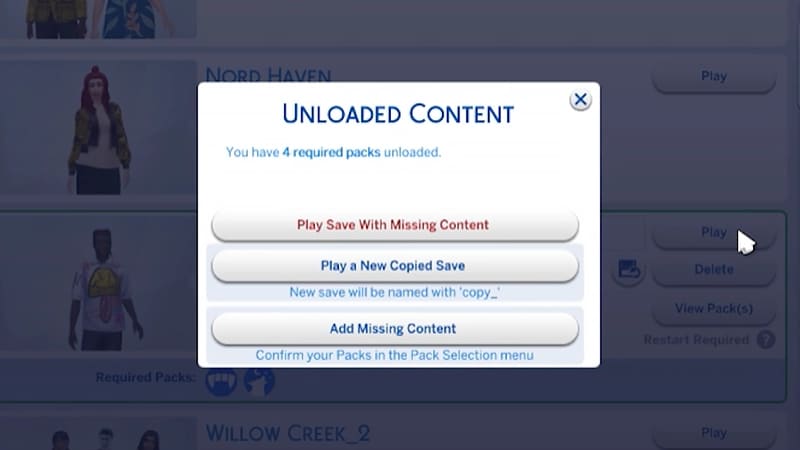
If you try to load a saved game that uses Packs you’ve deactivated since you last played, it’ll be flagged as missing required Packs. This happens because your game save uses content from a deactivated Pack.Here’s how to check whether a saved game uses content from a deactivated Pack:- 1Launch The Sims 4 and go to the Main Menu.
- 2Select Resume Game or Load Game, then choose the saved game you want to play.
- Required Packs in the bottom-left corner of the saved game tile.
- Hover over the Pack icons to check which Packs are used in your saved game. If the Pack is not currently active, it’ll say Deactivated.
- View Pack(s) on the right side of the saved game tile.
- Select this button to check which currently deactivated Packs are used in your saved game.
If your Sims were living in a world that’s specific to a Pack you deactivated, your Household will still be available in the Manage Households menu. From here, you can move them into a new Lot or merge them with another Household.Note: Any Create a Sim Items or Traits that are Pack-specific will be removed unless you reload that Pack into your game.