How to change your PC and controller settings in Battlefield 6
4 min read
Overview
You can adjust Battlefield 6 graphics, mouse and keyboard, and controller settings from the Settings menu. Use this guide to optimize your game’s FPS and FOV, troubleshoot issues like crashing, freezing, and lag, check Battlefield 6’s system requirements, and more.
How do I change my Battlefield 6 PC graphic settings?
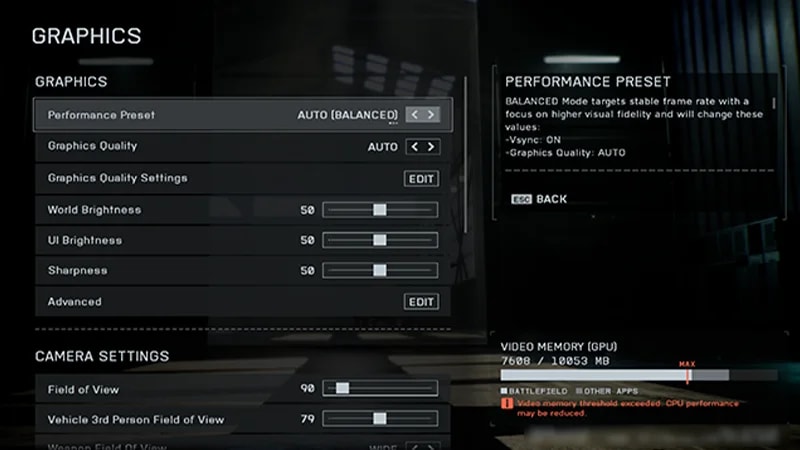
To edit your graphics settings in Battlefield 6, select the Settings cog, then choose Graphics. From here, you can adjust different visual settings for your game.
To change your graphics settings, select Modify next to Graphics. How you optimize your settings depends on your PC and how it balances performance with quality. Turning down graphics settings helps your PC maintain a good frames-per-second (FPS).To optimize your FPS, we recommend turning these less noticeable settings to Low.
Undergrowth Quality
Effects Quality
Volumetric Quality
Lighting Quality
Local Light & Shadow Quality
Sun Shadow Quality
Post Process Quality
If you want to improve your FPS further after turning down these settings, try setting everything to Low.
Some players find it easier to spot enemies in buildings or through water with Screen Space Reflections turned Off.
To change your graphics settings, scroll down to Camera Settings in the Graphics menu. You can change your field of view (FOV) and motion blur here. Here are some camera settings tips and recommendations.
For a competitive experience, try turning settings like World Motion Blur, Weapon Motion Blur, and Camera Shake Amount as low as possible so they don’t interfere with your vision.
Turning settings like Chromatic Aberration, Vignette, and Film Grain off can help keep the game as clear as possible.
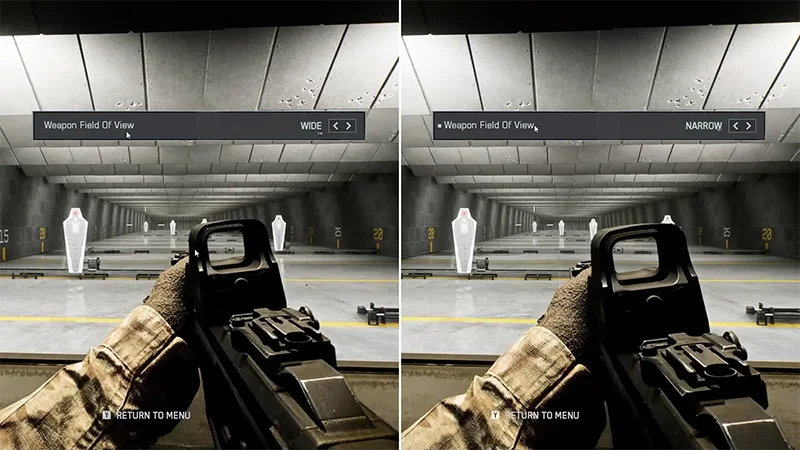
You can also change your Field Of View, Vehicle 3rd Person Field Of View, and Weapon Field of View in this menu. What works best for you depends on your preference: when FOV is higher, you can see more of your surroundings, but far-off enemies and objects will appear smaller.
Try editing your settings and then testing them in the Firing Range to see what settings you prefer. A FOV of 110 is a good place to start. We also recommend starting with your Weapon Field Of View turned to Wide so you can see as much around you as possible.
There are a few settings you can adjust under Display and Interface And HUD to optimize your game.
Under Display, toggle Vertical Sync to Off to avoid lag. You should also make sure your Fullscreen Resolution and Refresh Rate match your PC’s settings.
If your screen size doesn’t seem right, try changing your Aspect Ratio, but remember this will change your resolution.
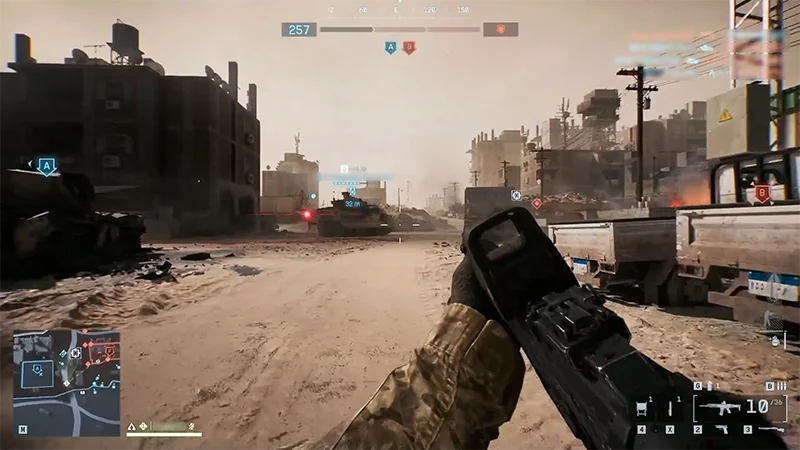
Under Interface And HUD, toggle Soldier HUD Motion and Vehicle HUD Motion to Off so they don’t disturb your game.
Your HUD refers to your Heads-Up Display, which shows essential info at the top of your screen. If HUD motion is turned on, the HUD will move around more while you play.
You can find your crosshair settings under Icons & Indicators. Choose Modify next to Crosshairs and Indicators to edit your settings. You can edit factors like crosshair and hit indicator opacity, intensity, thickness, and color to suit your preferences and make these icons more noticeable.
Battlefield 6 doesn’t support a split-screen view. To learn how to play with friends, check out our cross-play guide.
How do I change my Battlefield 6 PC mouse and keyboard settings?
To customize your mouse and keyboard settings, select the Settings cog, then choose Mouse & Keyboard.
You can edit your mouse sensitivity settings to match your preference. Low sensitivity gives you more control, while high sensitivity lets you aim more quickly. Test your sensitivity while you play and readjust as needed. You can change your:
Infantry Mouse Aim Sensitivity under Infantry
Vehicle Mouse Aim Sensitivity under Vehicles.
You can edit these in detail by selecting Modify next to Control Settings under each menu. The best way to find your ideal sensitivity is by testing different settings in the Firing Range. Here are some settings we recommend as a starting point.
Column 1
Column 2
Infantry Mouse Aim Sensitivity
20
Zoom Sensitivity Coefficient
178
Vehicle Mouse Aim Sensitivity
20-40
Battlefield 6 PC controller guide
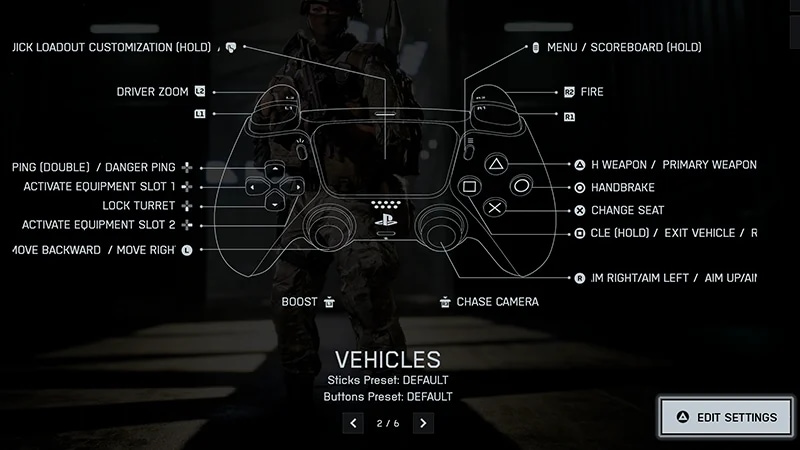
In the controller menu, you can choose between presets or customize your own controller settings. There are preset controller settings for Soldier, Vehicles, Aircraft, Gunner, Transport, and Helicopters.
To start, go to Settings, then Controller. Toggle through the categories, then select Edit Preset to tweak the existing setup. You can choose between Default, Alternate, or Lefty presets. If you make a change to a controller category, we recommend changing it across all categories so your inputs are consistent.For example, if you make changes to your Vehicle controls, consider making the same edits across your other controller settings.
If the presets don’t work for you, you can completely customize your settings by selecting Edit Settings.
Keep an eye on your preferred Infantry Aim Sensitivity, Zoom Sensitivity Coefficient, and Aiming Left / Right Acceleration. You can test out different values in the Firing Range.
Try out different Soldier Aim Input Curve settings to adjust how your stick movements affect aim response in-game. If you’ve played previous Battlefield games, you can pick a setting that matches older titles.
Go through each menu to change the controller input for key actions, like sprinting, crouching, and sliding.
Here are some settings we recommend as a starting point.
Column 1
Column 2
Infantry Aim Sensitivity
30-40
Field Of View
110
Zoom Sensitivity Coefficient
178
Infantry Aim Assist, Slowdown, and Zoom Snap
100
Aiming Left / Right Acceleration
50 - 70
Vertical Aim Ratio
56
A controller’s deadzone is a small area where movement doesn’t register, even if it’s moved. Adjusting your controller deadzone settings can help you avoid unwanted movements in-game and make your controller feel more responsive.To adjust your deadzone settings:
1
Go to Controller in your Settings.
2
Select Edit Settings.
3
Under Other, select Modify next to Controller Tuning.
Here, you can edit how much input is needed for each controller stick. If your controller has no or little stick drift, we recommend setting each deadzone between zero and five. If you like, you can also change your Max Input Threshold in this menu. Lowering this setting means you’ll have to move the control stick less for maximum input.
Gyro aiming lets you aim in-game by tilting or rotating your controller. To turn on gyro aiming, go to the Firing Range, then use the steps below.
1
Open your Controller settings.
2
Choose Edit Settings.
3
Under Infantry, select Infantry/Passenger Control Mapping.
4
Scroll down to Movement & Aiming.
5
Select Look Up and move your controller up to rebind the movement.
6
Follow the same steps for Look Right, Look Left, and Look Down.
You can rebind other inputs to complement your gyro controls, like your flick stick settings and motion sensor aim.
If you want to turn off haptic triggers for your controller in Battlefield 6, you need to do it through your system settings.
On Steam, make sure your controller’s connected to your PC. Then go to Settings > Controller and make sure Game Rumble is turned off.
On PlayStation, go to Settings > Accessibility > Controllers. You can edit or turn off your Trigger Effect Intensity here.
On Xbox, go to Settings > Devices & connections > Accessories. Choose a controller to Configure, select the edit icon, then make sure Turn on vibration is turned off.
These settings will turn off haptic triggers for all your games, so remember to turn them back for other games.
Console players automatically have aim assist in Battlefield 6. You can’t turn aim assist off. If you want to change how aiming feels in-game, try adjusting your custom controller settings and controller deadzone settings.If you want to change your aim speed, try adjusting sensitivity settings like:
Infantry Aim Sensitivity (how far your crosshairs move in response to inputs)
Zoom Sensitivity Coefficient (your sensitivity while zoomed)
Vertical Aim Ratio (how fast your aim moves up and down compared to left and right).
If you want to change how aiming down sights feels, try adjusting settings like:
Infantry Aim Assist (how much your aim slows or sticks when over a target)
Infantry Aim Assist Slowdown (how much your crosshairs slow down near enemy targets)
Zoom Snap (how much your aim snaps to nearby enemy targets).
Audio settings guide
You can change your audio settings to make certain sounds easier to hear in-game. To get started, go to your Settings and select Audio.Under the Volume menu, we recommend:
lowering your Music Volume so it doesn’t distract from your game
putting Sound Effects Volume, Commander VO Volume, and UI SFX Volume to max, so you don’t miss any enemy footsteps, comms, or sound effects
turning your Hit Indicator on, so you can tell when you’ve been hit.
If you need to change your audio settings for accessibility reasons, check out Accessibility in the Settings menu.
To enable or disable voice chat in Battlefield 6:
1
Go to your Audio settings.
2
Scroll down to Voice Chat.
3
Make sure Enable Voice Chat is toggled on.
Once voice chat’s enabled, you can edit settings like your volume and microphone settings. There are three different microphone modes to choose from.
Off: you’ll be muted.
Open Mic: your voice will be transmitted if it’s above your Microphone Threshold setting.
Push To Talk: your voice will be transmitted when you’re holding your assigned push to talk button.
You can mute the game’s voice over narration by going to Settings > Accessibility and toggling Menu Narration to off.
How do I change Battlefield 6’s language settings?
EA app
EA app
Steam
Steam
Consoles
Consoles
1
Find Battlefield 6 in your EA app Library.
2
Select Manage.
3
Choose View properties.
4
Under Language, choose the language you want, then select Save.
5
Select Close, and your game will start updating.
Your new language will be available when you relaunch the game.
1
Select Battlefield 6 from your Steam library.
2
Select Properties.
3
Next to Language, choose the language you want.
4
Your game will start updating.
Your new language will be available when you relaunch the game.
If you play on a console, you’ll need to change your console’s language settings to change your language in-game. You can usually find language settings under your system settings.
No, you can’t disable Battlefield 6’s profanity filter.
How do I reset your settings?
You can reset your settings to default at any time in each of the settings screens. Once you’ve chosen a particular menu, like your Graphics or Audio settings, the Reset Category option will appear at the bottom-right of your screen. Choosing this resets all edits in your chosen menu, letting you readjust your settings from the default.