Battlefield 6 vehicles guide: vehicle types, controls, progression, and tips
5 min read
Overview
Battlefield 6 has six main vehicle types: anti-air, helicopters, jets, tanks and ground-based attack vehicles, transports, and naval vehicles. Use them to engage in combat, transport soldiers, defend objectives, and cover infantry. Read this guide for controls, tips, and help getting started.
Battlefield 6 has six main vehicle types: anti-air, helicopters, jets, tanks and ground-based attack vehicles, transports, and naval vehicles.Each vehicle type has a different purpose and features, like seat numbers, weaponry, and coverage.
Anti-air vehicles let you counter and engage airborne vehicles from the ground. Use them to defend positions and objectives against incoming enemy missiles and aircraft.
Helicopters are your aerial backup. Use them to attack infantry and vehicles from above, deploy your troops in new locations faster, or supply your squad.
Attack helicopters have two seats. Use them to attack infantry and other targets on the ground.
Transport helicopters have five seats, including a gunner seat with access to the helicopter’s miniguns. Transport helicopters are primarily used to relocate soldiers.
Although speed is on their side, helicopters are vulnerable to attacks from tanks, anti-air vehicles, jets, and other aircraft. Bring a gunner with you to add extra firepower.We’ve partnered with players around the world to share Battlefield 6 tips and tricks. Check out this YouTube guide to learn more about using helicopters.
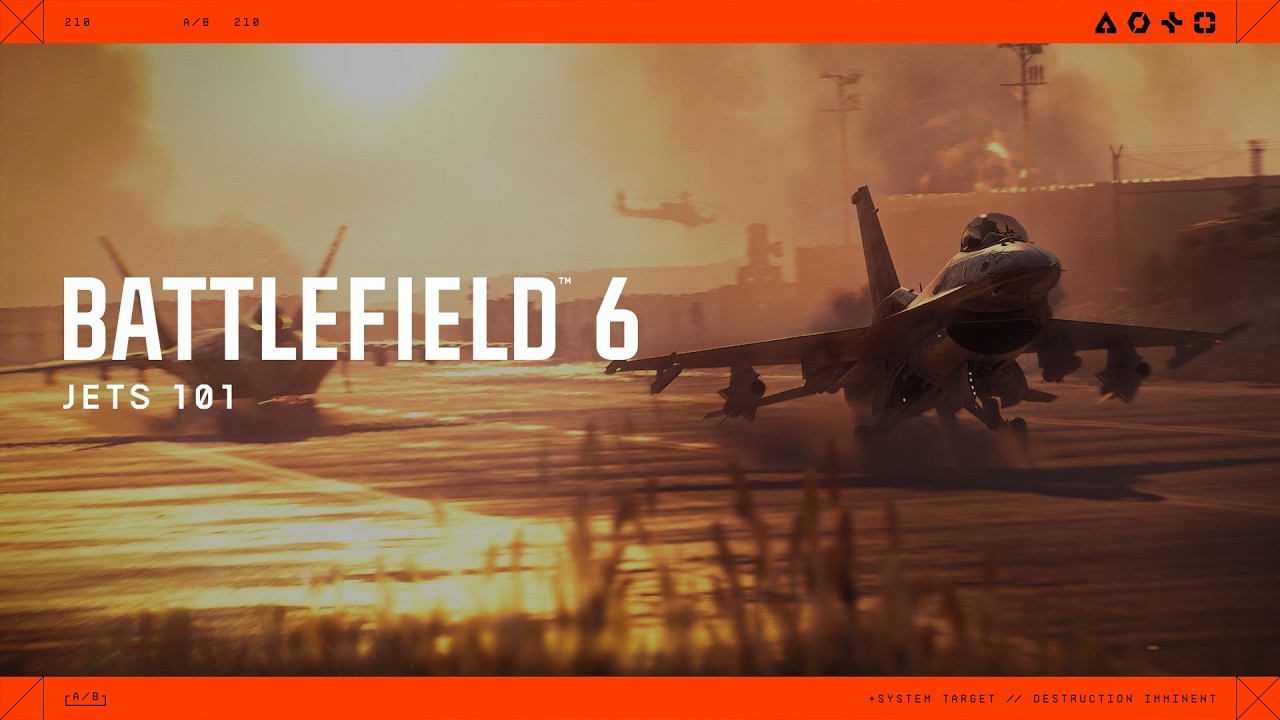
Jets are ideal for aerial combat. Command the battlefield by destroying enemy aircraft and targeting the ground to support your squad.
When you start a match, you need to wait 60 seconds for jets to spawn. Jets mostly spawn on headquarter runways, but on some maps, they spawn in the air and must be accessed from the deploy screen.Jets can either have one or two seats.
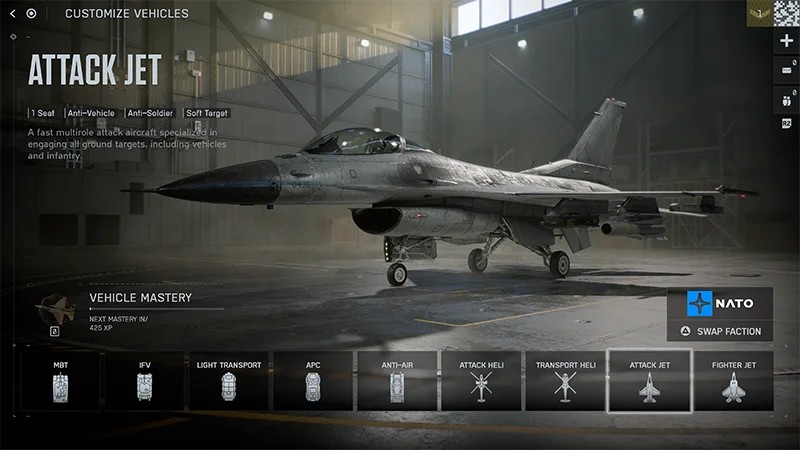
Use attack jets for ground strikes against vehicles, key targets, and infantry.
Use fighter jets to secure the skies and destroy enemy aircraft.
Season 4 introduces two new jets: the F-74A Seacat, which specializes in air-to-air combat, and the F/A-81F Super Spectre, which is suitable for aerial and air-to-ground combat.
Tanks are powerful armored vehicles that can bulldoze through the map. Use them to rob enemies of cover by destroying buildings and protect your soldiers from ranged attacks.Tanks spawn at deployment bases or captured objectives.
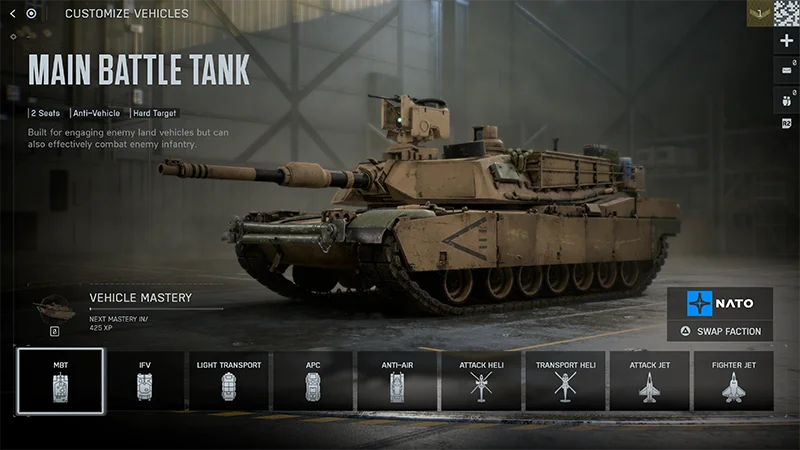
Main battle tanks are heavily armored and powerful vehicles with two seats. Use them to destroy enemy vehicles.
Infantry fighting vehicles are lighter and have six seats. Use them to take out infantry and redeploy soldiers.
Transport vehicles help infantry move rapidly across the map. They’re the lightest type of vehicle and should be used to deploy infantry in new areas or flank enemies.If you’re using transports, remember to keep an eye out for enemies, as you’ll be less protected.
There are two types of naval vehicles in Battlefield 6: the RCB-90 patrol boat and the 7.7M NSW RHIB light transport boat.Learn more about how naval combat works in our naval vehicle guide.
This guide uses default settings for all vehicles.
1
Get close to a vehicle.
2
Press E on PC or use the square or X button on controllers to Enter.
Vehicles must be unoccupied or have enough seats available for you to enter them.On certain maps, you can also deploy into vehicles from the map deployment screen.
You can choose to deploy within a vehicle from your team’s HQ zone. Select an available vehicle to enter it.
If another player is actively using a vehicle on the battlefield, you can choose to deploy in it. You’ll be placed in one of the available free seats.
1
Hold E on PC or use the square or X button on controllers.
2
You’ll Exit the vehicle on the side you’re looking towards.
If you’re having trouble exiting a vehicle:
1
Go to Settings > Gameplay > Infantry.
2
Check your Interact & Reload setting. This lets you choose if you interact or reload when you hold, so you can pick the input you prefer.
If you can’t exit vehicles at all, you should also check:
If you think you’re experiencing a bug, try and test the specific conditions where the bug occurs. For example, whether your bug only happens on mouse and keyboard, or when you spawn into a vehicle.
How do I use tanks in Battlefield 6?
Tanks are key to ground combat. Use them to support infantry, destroy buildings, and cut off vital routes.
If you use a controller, you can use the left stick to direct the tank. On PC, use these controls to guide your vehicle.
Column 1
Column 2
Action
PC
Accelerate
W
Brake or reverse
S
Turn left
A
Turn right
D
If you can’t enter a tank, there are certain tanks you can grip onto the back of. You can also move soldiers or supplies by putting them on top of the tank. Remember to use an Engineer to repair your tank between engagements so it isn’t destroyed.
Column 1
Column 2
Column 3
Action
PC
Controller
Speed boost
Left shift
Press the left stick
Handbrake
Z
B or circle button
As the driver, you’ll guide the tank and use its weaponry to attack.
Column 1
Column 2
Column 3
Action
PC
Controller
Aim vehicle weapon
Arrow keys
Right stick
Fire vehicle weapon
Space or click your mouse’s left button
RT/R2
Zoom
Click your mouse’s right button
LT/L2
Switch weapon
F or scroll middle mouse up
Y or triangle button
Lock your turret
V
D-pad down
When you’re driving, you can switch between first-and third person views.
Third-person is better for navigating the map and seeing what’s around you.
First-person is better for engaging in combat.
Press C on PC or the right stick on your controller to toggle between views.
As the gunner, you’ll use a mounted weapon to kill enemy soldiers.
To change the seat you’re in, press A or X on your controller.
If you’re playing on PC, F1, F2, F3, and so on represent the seat you choose, with F1 being vehicle seat one.
Fire your weapon with space or by clicking the mouse’s left button, or use RT/R2 on your controller.
Flying is a balance of managing your aircraft’s nose position, your throttle, and the direction you want to move in. The faster you fly, the harder it gets to control your aircraft. Try to stay level and keep an eye on your speed. Here’s a guide to the default flying controls.
Throttle will raise or lower your aircraft.
Column 1
Column 2
Column 3
Action
PC
Controller
Throttle up
W
Left stick up
Throttle down
S
Left stick down
To take off in a jet, you need to get up to speed. Using your afterburners (shift or press left stick) can help you accelerate.
Pitching your aircraft’s nose up or down changes your direction.
Column 1
Column 2
Column 3
Action
PC
Controller
Pitch down: go forwards
Down arrow key
Right stick up
Pitch up: go backwards
Up arrow key
Right stick down
Heads-up: when your nose is pitched down, you’ll lose some height. Counteract this by throttling.
Yaw moves your aircraft’s nose to the left or the right.
Column 1
Column 2
Column 3
Action
PC
Controller
Yaw left
A
Left stick left
Yaw right
D
Left stick right
Rolling tilts your aircraft left or right.
Column 1
Column 2
Column 3
Action
PC
Controller
Roll left
Left arrow key
Right stick left
Roll right
Right arrow key
Right stick right
Yes, you can change your view in most aircraft. In some vehicles, the pilot will always use the forward-facing cockpit view.
Column 1
Column 2
Column 3
Action
PC
Controller
Switch between first-and third person view
C
Press your right stick
Activate freelook
V
D-Pad down
Freelook lets you move the third-person camera around your vehicle.
How can I make flying easier?
Both jets and helicopters have simplified controls you can use to make flying easier. Here’s how to find and use them.
To turn on simplified flying controls:
1
Go to the Gameplay menu and scroll to Vehicles.
2
Make sure Airplane Control Assists and Helicopter Control Assist are turned On.
Airplane controls are for jets, and helicopter controls are for helicopters.
You can use simplified controls for one aircraft and not another.
When you use simplified controls, your aircraft will follow the direction of your camera. For example, when you aim the camera up, your vehicle will go up.You’ll be in control of all your aircraft’s movements apart from pitch, yaw, and rolling, which will be controlled automatically.
How do I use jets and helicopters in Battlefield 6?
You can use jets and helicopters in Battlefield 6 for air-to-air and air-to-ground combat. Use aircraft to support troops on the ground, target key objectives, and dominate the skies.
The default controls for firing your aircraft are space or right mouse on PC or RT/R2 on controllers.You can switch your aircraft’s weapon with F or scroll middle mouse up on PC or Y/Triangle on controllers. To reload, press R on PC Square/X.Some aircraft also have a gunner seat, which uses the same controls as a tank’s gunner seat.
To change the seat you’re in, press A or X on your controller.
If you’re playing on PC, F1, F2, F3, and so on represent the seat you choose, with F1 being vehicle seat one.
Fire your weapon with space or by clicking the mouse’s left button, or use RT/R2 on your controller.
If you’re new to air combat, here are the basics of dogfighting, strafing runs, and using your vehicle’s missiles.
Dogfighting is a term for engaging other aircraft in combat. Make shooting down other aircraft your priority.
If you’re in a jet, try to stay on top of helicopters, as they can cause a lot of damage.
Strafing runs are a method of flying close to the ground at high-speed to attack ground targets. Try to maximise your time firing at the enemy without risking your aircraft.
Use missiles for locking on to and destroying ground targets. You can fire one missile at a time, so try to create the most damage you can by targeting tanks, buildings, and areas where your squad needs support.
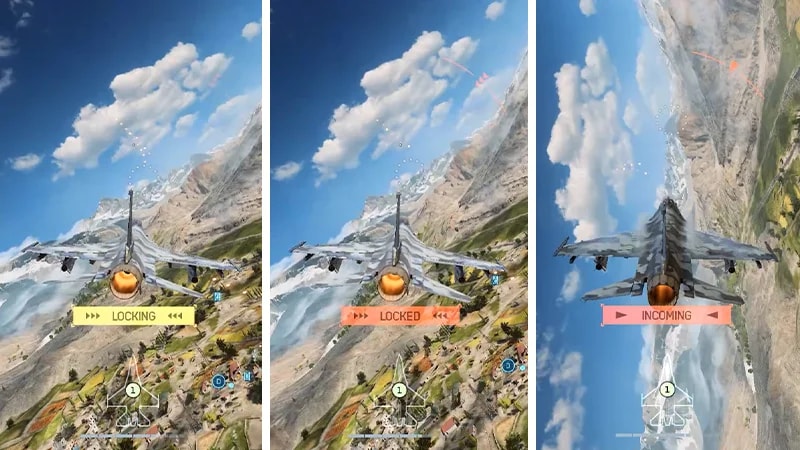
If someone locks onto your aircraft, you’ll be notified on-screen.
Locking will appear first.
Locked will appear when you’ve been locked onto.
Incoming will appear when a projectile is coming towards your aircraft.
When a weapon is locking onto you, you can try to make it harder for missiles to lock on.
Flying very low to the ground makes it harder to lock on, as you can get under the radar. However, this makes you vulnerable to other types of attack or crashing.
You can use afterburners for a speed boost.
Press shift on PC or the left stick on your controller to use your afterburners.
Avoid flying in straight lines, or try using the map’s terrain to block incoming projectiles.
When a weapon locks onto you, you’ll also get the option to perform a Countermeasure. Use your flares when missiles are incoming so you don’t fire them too soon.If you do take damage, make it a priority to repair your vehicle so you can keep using it.
How do I change my vehicle settings?
You can find controls for Vehicles, Aircraft, Gunner, Transport, and Helicopters in the Settings menu, where you can adjust the input sensitivity of your controls.
Select Controller or Mouse & Keyboard to see your current setup and choose between different presets or keybinds for each type.
If you’re playing with a controller, you can choose between Default, Alternate, and Lefty settings. If you’re playing with a mouse and keyboard, you can choose your own keybinds.
If you make an input change to one vehicle type, we recommend changing it across all of them so your inputs are consistent. You might also prefer using different inputs for different categories, like using mouse and keyboard for soldiers but a controller for vehicles.
You can change key vehicle settings under Settings > Gameplay.What works best for you will depend on your personal preference. If you’re not sure what to change, we recommend starting with these settings as your baseline.Vehicles
Column 1
Column 2
Setting name
Recommended setting
Vehicle Aim Sensitivity
30 - 50
Vehicle Mouse Aim Sensitivity
20 - 40
Aircraft Control Sensitivity
100
Helicopter Control Sensitivity
100
Aim Assist
Column 1
Column 2
Setting name
Recommended setting
Vehicle Aim Assist Zoom Snap
100
Vehicle Aim Input Curve
If you’ve played a Battlefield game before, pick a game with controls you liked.
Vehicle Aim Assist
100
Vehicle Zoom Aim Input Curve
If you’ve played a Battlefield game before, pick a game with controls you liked.
How does vehicle progression work in Battlefield 6?
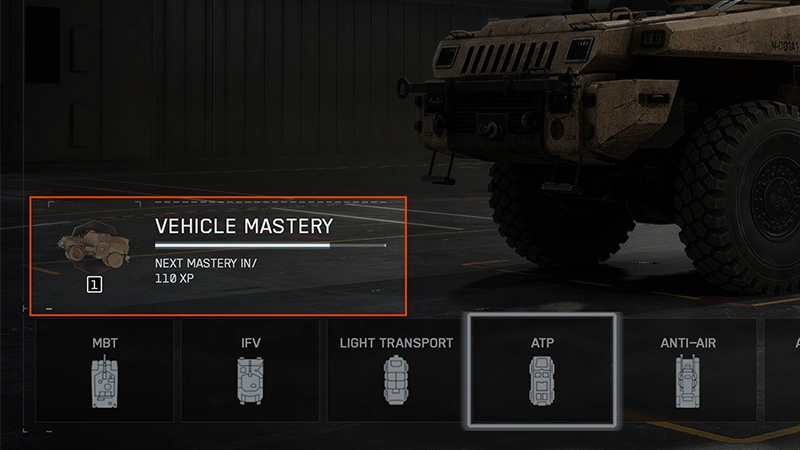
You can gain XP for vehicles in Battlefield 6. As you earn XP for a specific vehicle, you’ll unlock more content for it, like skins, camouflages, and weapons. You can earn XP for a specific vehicle by using it and performing specific actions in-game, like using your vehicle and its equipment, completing objectives with a vehicle, and getting kills and assists.You can also activate Hardware Boosters to earn more experience for weapons and vehicles.
You can see a vehicle’s progression under Loadouts > Vehicles. Select the vehicle type you want to look at, then select a specific vehicle to see its Vehicle Mastery.
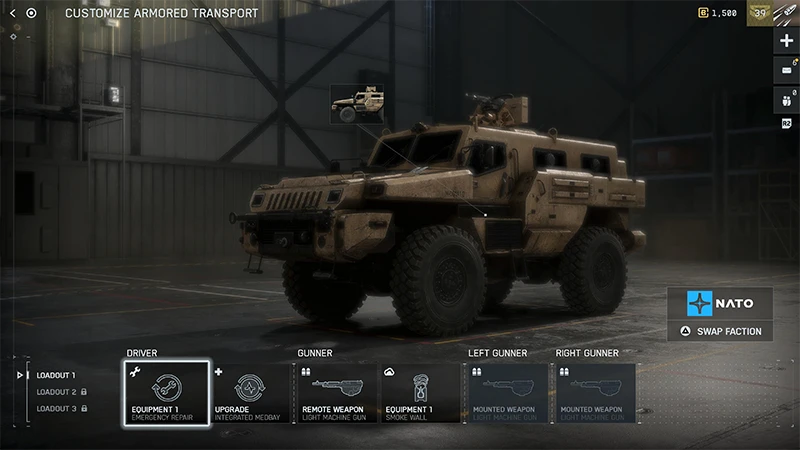
How do I customize vehicles?
1
Go to Loadouts, then Vehicles.
2
Choose the vehicle type you want to look at.
3
Select a specific vehicle to make changes.
4
Select weapon and equipment types, like Primary or Equipment 1, to see what’s available and choose what you want to equip.
5
Select the image of the vehicle to see your Cosmetic Customization and change what’s equipped.
If something is greyed out and has a lock icon over it, you’ve not unlocked that item yet. A message will tell you what you need to do to unlock it.
Why can’t I use vehicles?
Some Portal servers may include rules that disable some or all vehicles or change how they’re used in-game. Before you join a Portal server, select Experience Info to learn more about the server’s specific rules. If vehicles are available on a map, a limited number of each can be deployed by each team.Each vehicle has a respawn timer. If a vehicle remains unavailable after the timer has expired, the vehicle is likely still in use and will only become available again once it’s been neutralized.
If you think you’re experiencing an in-game bug related to vehicles, you can get help on EA Forums. Before you post, make sure to search for your issue in the forums—there might already be a solution or active thread.Learn how to report a bug on EA Forums.
 When you start a match, you need to wait 60 seconds for jets to spawn. Jets mostly spawn on headquarter runways, but on some maps, they spawn in the air and must be accessed from the deploy screen.Jets can either have one or two seats.Season 4 introduces two new jets: the F-74A Seacat, which specializes in air-to-air combat, and the F/A-81F Super Spectre, which is suitable for aerial and air-to-ground combat.