Overview
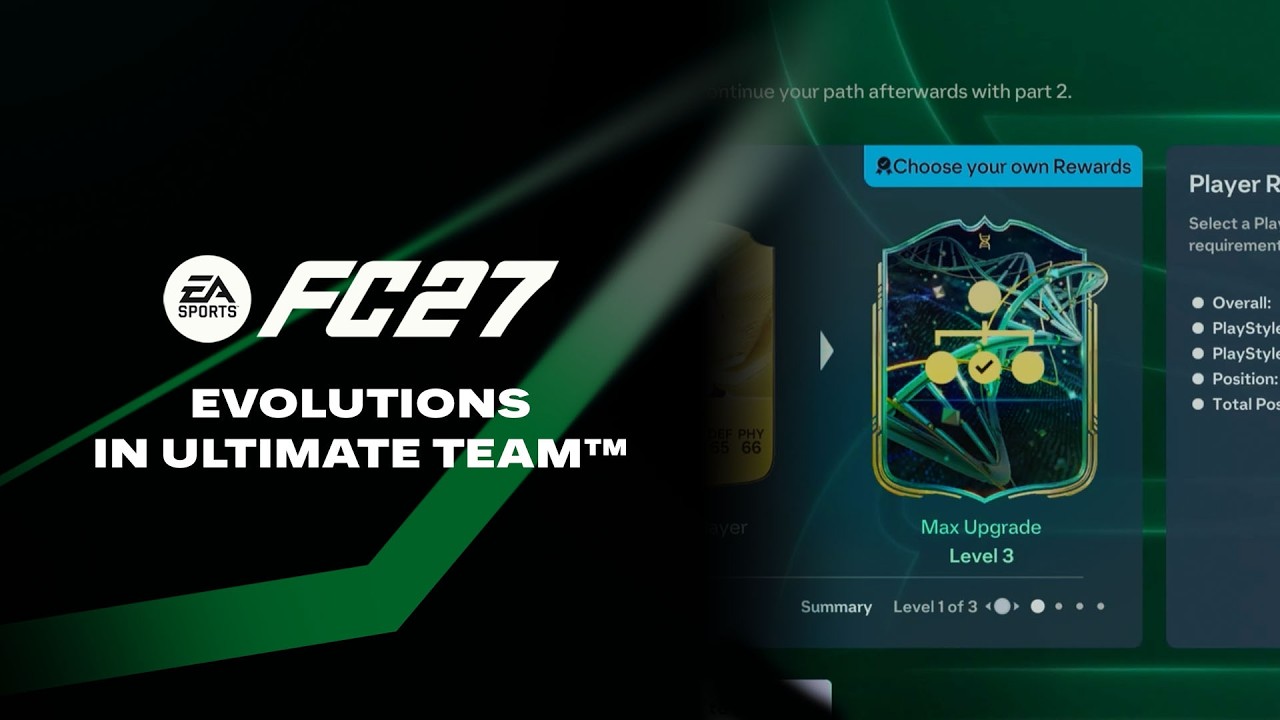
Use Ultimate Team™ Evolutions to level up, tweak, or customize your Players. Once you submit a Player to a standard Evolution slot in Ultimate Team™, you can complete gameplay challenges to get permanent upgrades for your Player.
How to submit a Player Item into an Evolution
When you submit a Player Item to a standard Evolution slot, it becomes untradeable while the Evolution is applied. Some Evolutions may remove the Chemistry bonuses from Special ItemsWhile the Evolution is in progress, you can't discard the Player Item or use it in Squad Building Challenges (SBCs).
- 1Open Ultimate Team™.
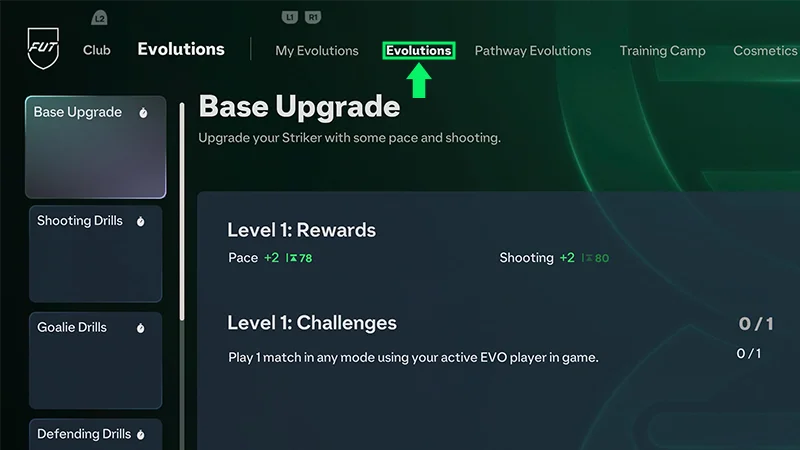
- 2Go to the Club tab, then select Evolutions.
- 3Select Available Evolutions, then choose the Evolution you want to start.
- Check the Evolution requirements and any unlock cost before continuing.
- 4Submit an eligible Player Item to the Evolution.
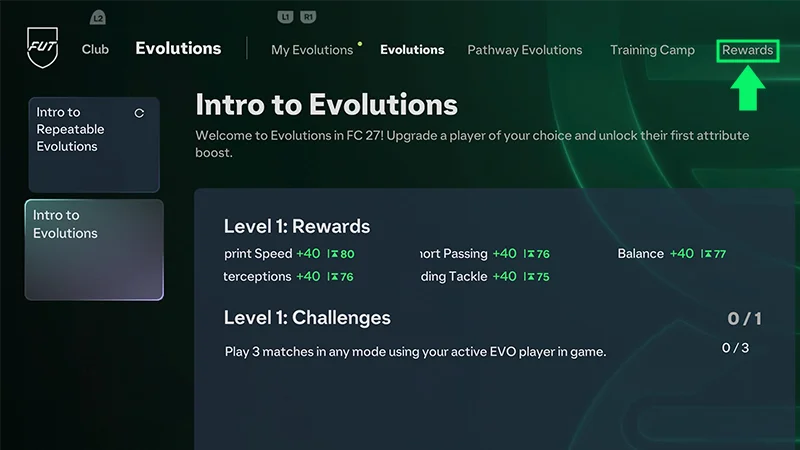
How to manage your active Evolutions
- 1Open Ultimate Team™
- 2Go to the Club tab then Evolutions.
- 3Select My Evolutions.
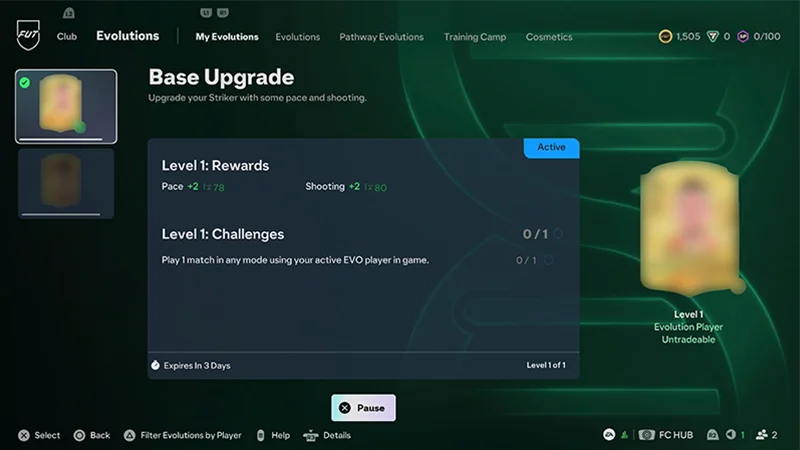
- 4To make progress toward its Objectives, set the Evolution to Active.
- 5Complete the challenges, then claim your upgrades.
How to remove Evolutions from a Player Item
Removing an Evolution is final and can’t be undone.
- 1Open the Player Item's action menu.
- 2Choose whether to remove the last Evolution or all Evolutions.
- 3View the downgrade details to check which upgrades will be removed.
- 4Hold the confirmation control to remove the Evolution.
How to choose Evolution rewards
Some Evolutions let you choose between multiple rewards at a level, giving you more control over how you develop your Player.You can preview the available choices and move between them before deciding which upgrade works best for your playstyle.Rewards choices can be changed at any time, and your choice is only locked when you complete the Evolution level and claim its rewards.How to preview and chain Evolutions
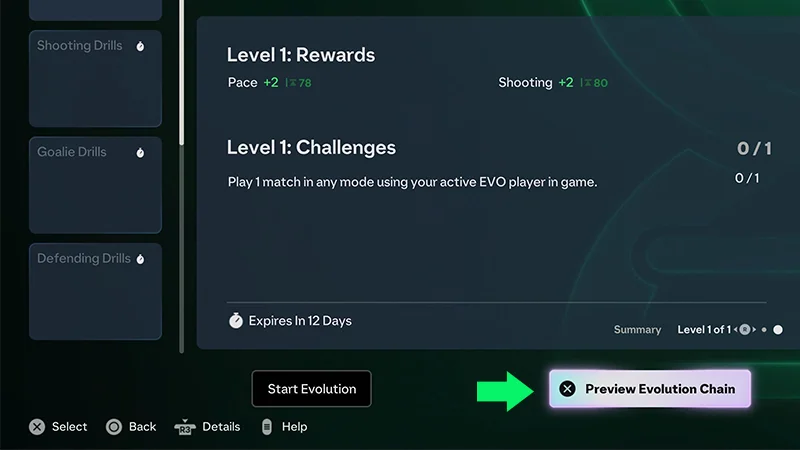
- 1Select the Evolution you want to preview.
- 2Select a Player.
- 3Select Preview Evolution.
- 4Select another Evolution to preview.
- 5Confirm the Evolution to continue previewing your Evolution path.
You can preview multiple Evolutions together to see how they could affect your Player Item before committing. Use the preview to explore different Evolution combinations before applying them.
Frequently asked questions about Evolutions
Training Camp Evolutions let you passively upgrade your Players. They work differently from standard Evolutions.When you submit a Player to a Training Camp Evolution, your Player is unavailable for a set amount of time. You can still view them in your Club.After the set amount of time has passed, you can claim your upgrades and use your Player again in another Evolution.
Yes, you can remove an Evolution from a Player item, including an Evolution that’s still in progress. You can only submit one Player per Evolution, and you can’t withdraw your Player or forfeit the Evolution. You can also cancel Training Camp Evolutions, but you won't get any unearned upgrades. If you cancel, you won't get rewards for the remaining levels or receive back any FC Points or Ultimate Team™ Coins used to access the Evolution.After you've applied Evolutions to a Player Item, you can remove the last applied Evolution or all applied Evolutions using the Player Item's action menu.
You can’t submit Evolution Players in Squad Building Challenges (SBCs) while they’re still in progress. However, once a Player Item is fully upgraded and the Evolution is complete, you can use them in SBCs. Learn how to Player Items into SBCs.
Evolutions can have two separate time limits. Look for Get Within X Days and Expires In X Days in-game. Not all Evolution Slots have both time limits—they might have one, both, or neither.If Expires In X Days runs out, you’ll keep the upgrades from any levels you completed. You won’t get upgrades from levels that are incomplete or partially complete.Training Camp Evolutions can last from a few hours to more than 30 days.The rewards generally reflect the time needed to complete the Training Camp Evolution, so Evolutions with higher-level rewards might take longer to complete.
- Get Within X Days shows how long you have to activate the Evolution Slot.
- Expires In X Days shows how long you have to complete the Evolution and earn its upgrades.
Some Evolutions can be completed more than once.You can submit the same Player Item to the same Repeatable Evolution again if the Player Item still meets its entry requirements.If an Evolution slot requires payment, each repeat requires a separate payment. Paying for the slot gives you one entry, not every available repeat.Some Repeatable Evolutions can also have a cooldown. After completing the Evolution, you'll need to wait for the cooldown to end before starting it again.
Yes. The Gallery counts the original version of your Player Item..If you apply an Evolution, the Evolution upgrades don’t increase its Gallery Item Score or add another version of the Player Item to the Gallery. Loan Player Items also don't count toward Gallery items.