Resumen
¿Necesitas ayuda para instalar o gestionar un pack en Los Sims 4? Usa esta guía para instalar Packs de expansión, Contenido y Accesorios en Los Sims 4 y toma el control con la función de selección de packs
Instalación de packs de Los Sims 4 en PC y Mac
Antes de instalar cualquier contenido adicional para Los Sims 4, asegúrate de que el juego base esté instalado y actualizado. Lee nuestra guía para instalar el juego base de Los Sims 4.Los packs digitales deberían instalarse automáticamente después de comprarlos. Si eso no pasa, aquí te explicamos cómo hacer la instalación manual.Compra digital en EA app
- 1Abre la EA app.
- 2Si se te solicita, inicia sesión con la información de tu Cuenta EA.
- 3Abre tu Biblioteca y haz clic en Los Sims 4.
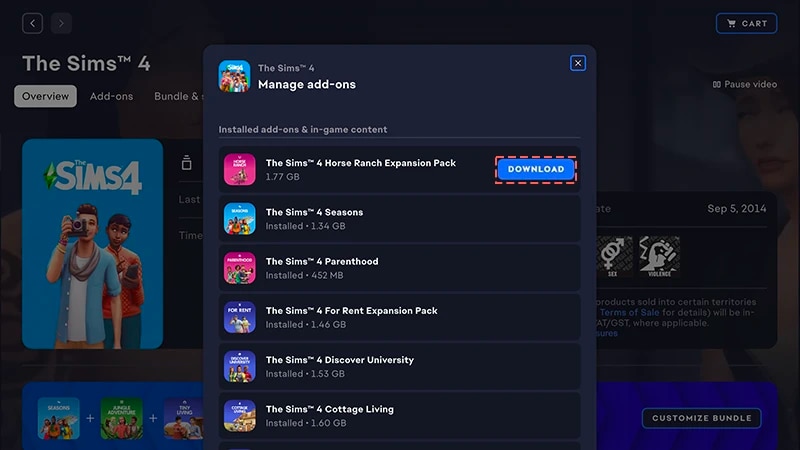
- 4Haz clic en Complementos para ver los packs que tienes actualmente.
- 5Si tienes un pack y no se instaló automáticamente, haz clic en el ícono Descargar.
Instalación de una compra con código de producto para EA app
- 1Abre la EA app.
- 2Si se te solicita, inicia sesión con la información de tu Cuenta EA.
- 3Abre tu Biblioteca.
- 4Haz clic en Canjear código.
- 5Escribe el código de producto, haz clic en Siguiente y, a continuación, Confirmar.
- 6Haz clic en Descargar con EA app.
EA app reemplazó a Origin como plataforma principal para descargar e iniciar Los Sims 4 tanto en Mac como en PC. Si usas Mac necesitas macOS Catalina o una versión posterior para ejecutar EA app. Consulta nuestra guía de macOS para obtener más información sobre cómo actualizar tu macOS.
Si compraste un pack en disco (solo para PC)
- 1Inserta el disco de juego en tu unidad y sigue las instrucciones que aparecen en pantalla.
- 2Cuando se te solicite, ingresa el código de producto incluido con el disco de instalación.
- 3Cuando hayas canjeado el pack, podrás verlo en la página de detalles del juego de Los Sims 4, en la pestaña Biblioteca.
- 4Cuando se haya completado la instalación, selecciona Los Sims 4, luego Jugar para iniciar el juego.
Cómo comprobar si está instalado un pack de Los Sims 4
- 1Abre tu Biblioteca de EA app.
- 2Haz clic en el título del juego de Los Sims 4.
- 3Selecciona Administrar.
- 4Elige Gestionar complementos
- 5En la ventana emergente, aparecerá una lista de los complementos que tienes. Los complementos y el contenido del juego instalados son los que tienes y ya están instalados. Los complementos descargables son los que tienes pero que aún no instalaste.
- 6Haz clic en el ícono Descargar para ver los complementos que aún no están instalados.
Selección de packs de Los Sims 4
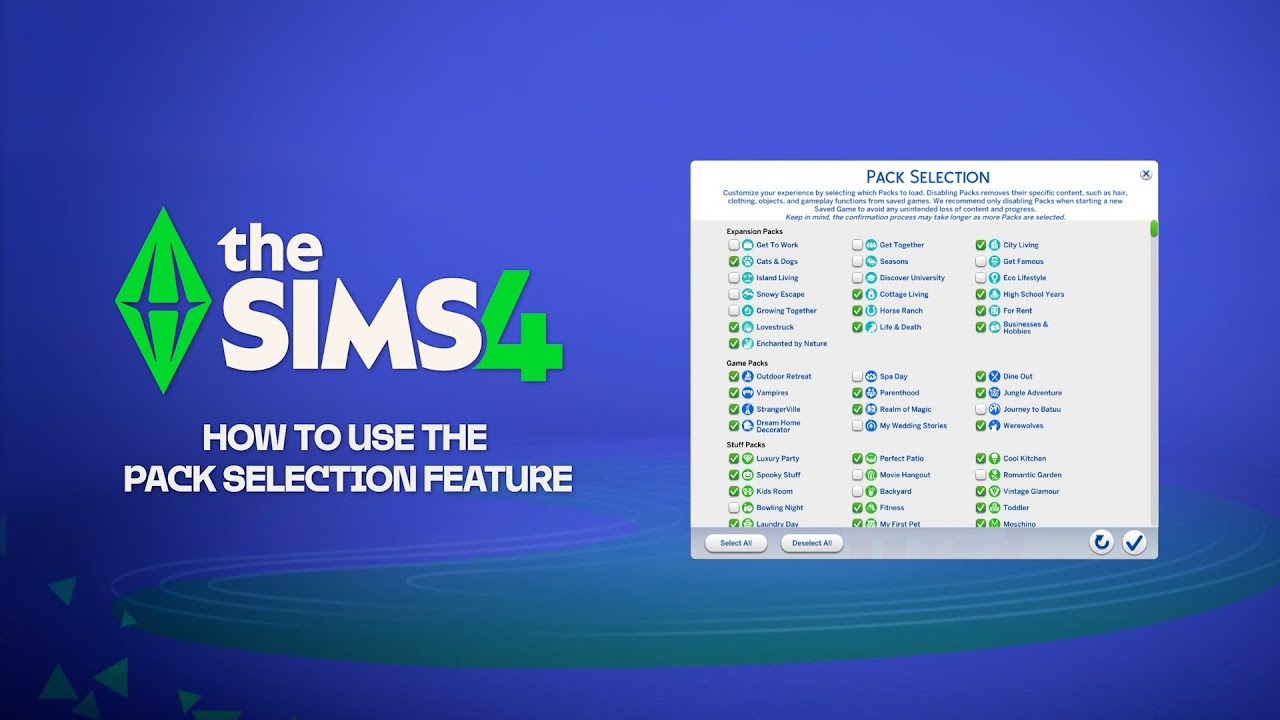
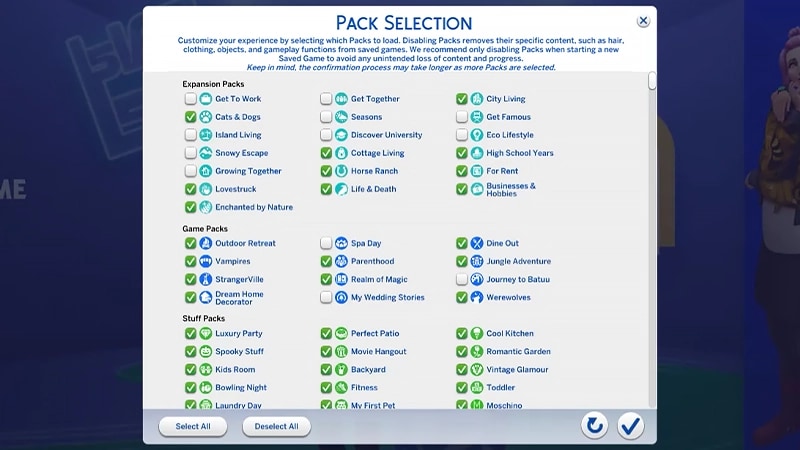
La selección de packs es una función que te permite personalizar los packs que quieres que se instalen. Esto es útil para el desarrollo de la historia y tu experiencia de juego, además de liberar recursos sin necesidad de desinstalar packs que no estés usando. La selección de packs está disponible en todas las plataformas: PC, Mac y consola. A continuación, te mostramos cómo cargar o retirar packs de tu juego:- 1Abre el Menú principal y escoge Selección de packs.
- 2Selecciona o anula la selección de los packs que quieres cargar o retirar de tu juego.
- 3Selecciona el botón de marca de verificación para confirmar tus elecciones.
Eliminar packs puede repercutir en las partidas guardadas existentes, así que es mejor usar esta función al crear una nueva partida guardada para evitar perder contenido o progreso.Recomendamos desactivar todos los mods antes de retirar o volver a cargar cualquier pack. Lee nuestro artículo sobre cómo desactivar los mods. Asegúrate siempre de que se haya realizado una copia de seguridad de tus partidas guardadas. Para obtener ayuda con esto, consulta nuestra guía.
Cargar un archivo guardado faltando packs
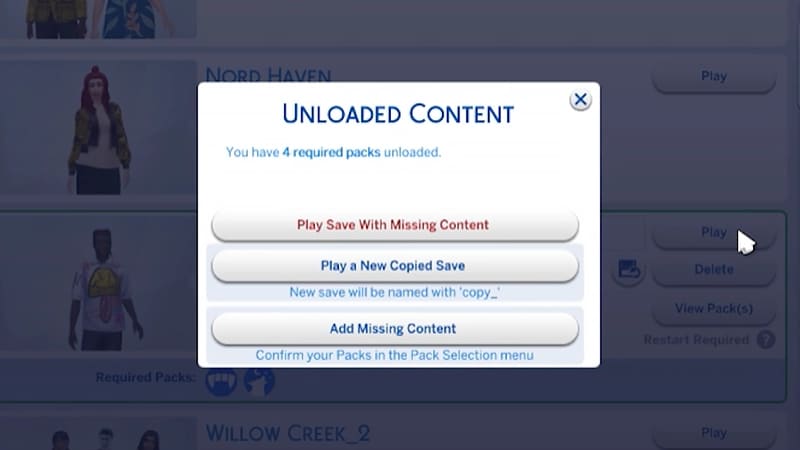
Sabrás que a un archivo guardado le faltan packs por los siguientes indicadores.- Cuando intentes cargar el archivo guardado, recibirás una advertencia antes de jugar que te indicará que faltan packs o contenido.
- Si abres el menú Selección de packs, los packs que no tengan una marca junto a ellos no estarán cargados.
- En PC, cualquier archivo guardado al que falte contenido se mostrará si los packs necesarios para jugar están cargados a través de los íconos de Packs requeridos .
Si tus Sims vivían en un mundo específico de un pack que retiraste del juego, tu unidad doméstica seguirá estando disponible en el menú Administrar unidades domésticas . Desde aquí, puedes trasladarles a una nueva parcela o fusionarles con otra unidad doméstica.Nota: cualquier artículo o rasgo de Crear un Sim que sea específico de un pack se eliminará a menos que vuelvas a cargar ese pack en tu juego.