Información general
¿Necesitas ayuda para instalar o gestionar un pack de Los Sims 4? Usa esta guía para instalar packs de expansión, contenido y accesorios de Los Sims 4 y toma el control con la función Selección de packs.
Instalación de packs de Los Sims 4 para PC y Mac
Antes de instalar cualquier contenido adicional de Los Sims 4, asegúrate de tener el juego básico instalado y actualizado. Lee nuestra guía para instalar el juego básico de Los Sims 4.Los packs digitales deberían instalarse automáticamente después de haberse comprado. Si eso no sucede, aquí te explicamos cómo realizar la instalación manual.Compra digital en la EA app
- 1Inicia la EA app.
- 2Si es necesario, inicia sesión usando los datos de tu Cuenta EA.
- 3Abre tu bibliotecay haz clic en Los Sims 4.
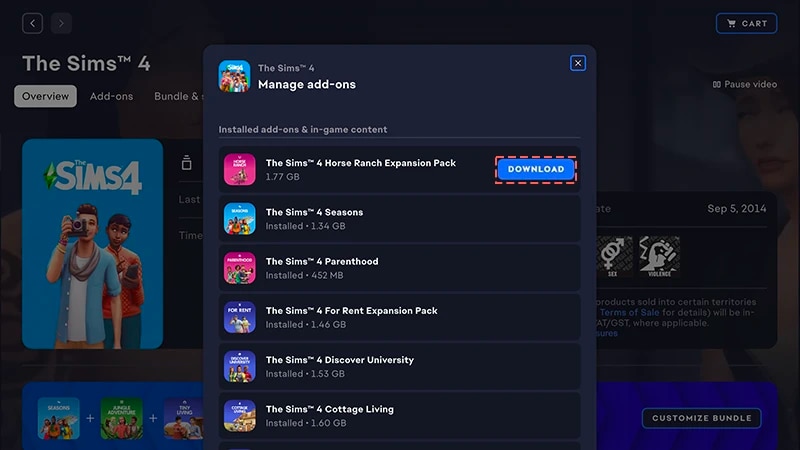
- 4Haz clic en Complementos para ver qué packs tienes.
- 5Si alguno de ellos no se ha instalado automáticamente, haz clic en el icono Descargar.
Instalación de una compra con código de producto para la EA app
- 1Inicia la EA app.
- 2Si es necesario, inicia sesión usando los datos de tu Cuenta EA.
- 3Abre tu biblioteca.
- 4Haz clic en Canjear código.
- 5Introduceel código de producto y haz clic en Siguiente y, a continuación, en Confirmar.
- 6Haz clic en Descargarcon la EA app.
La EA app ha sustituido a Origin como plataforma principal para descargar y ejecutar Los Sims 4 para Mac y PC. Para ejecutar EA app en Mac se necesita macOS Catalina o superior. Consulta nuestra guía de macOS para obtener más información sobre cómo actualizar tu macOS.
Si has comprado un pack físico (solo para PC)
- 1Introduce el disco del juego en la unidad de disco y sigue las instrucciones que aparecen en pantalla.
- 2Cuando se te solicite, introduce el código del producto que se incluye con el disco de instalación.
- 3Una vez canjeado el pack, podrás verlo en la página de información de Los Sims 4, dentro de la pestaña Biblioteca.
- 4Cuando se haya completado la instalación, selecciona Los Sims 4 y, a continuación, Jugar para ejecutar el juego.
Cómo comprobar si hay algún pack de Los Sims 4 instalado
- 1Abre tu biblioteca de EA app.
- 2Haz clic en la imagen de Los Sims 4.
- 3Selecciona Gestionar.
- 4Elige Gestionar complementos.
- 5En la ventana emergente, aparecerá una lista de los complementos que tienes. El contenido del juego y los complementos instalados son los que ya tienes y están instalados. Los complementos descargables son los que ya tienes pero aún no has instalado.
- 6Haz clic en el icono Descargarde cualquiera de los complementos aún sin instalar.
Selección de packs de Los Sims 4
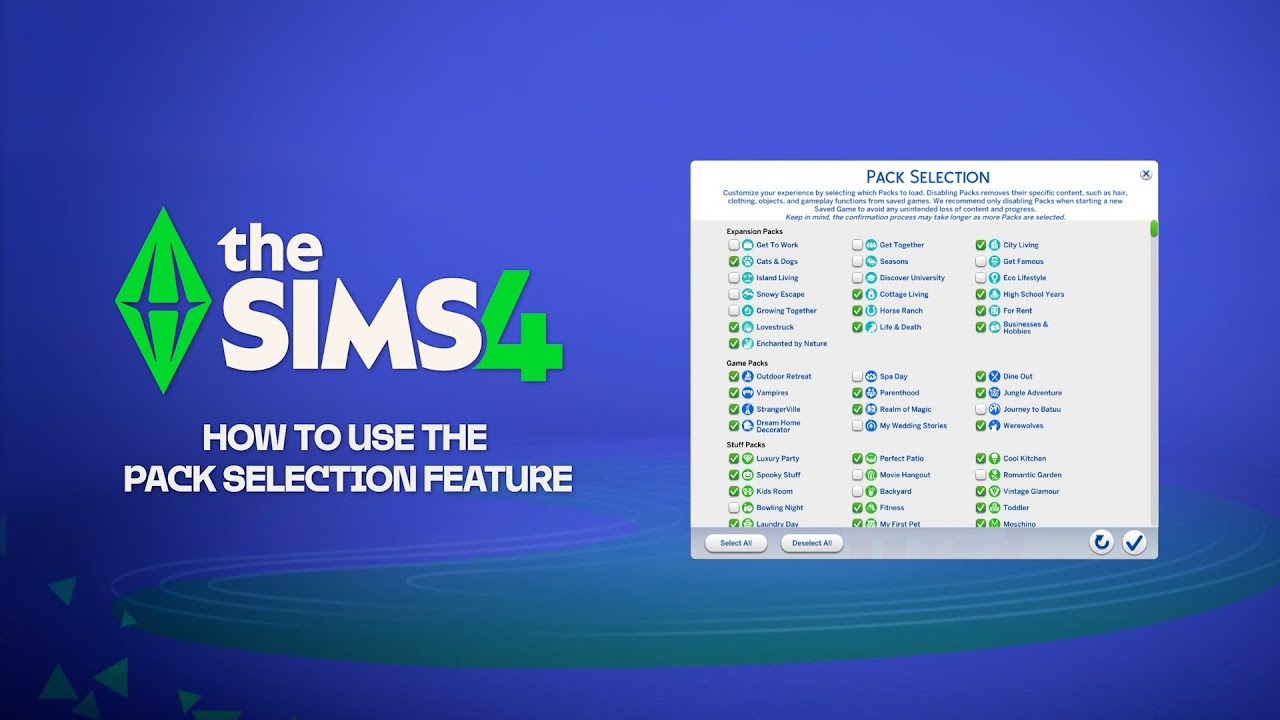
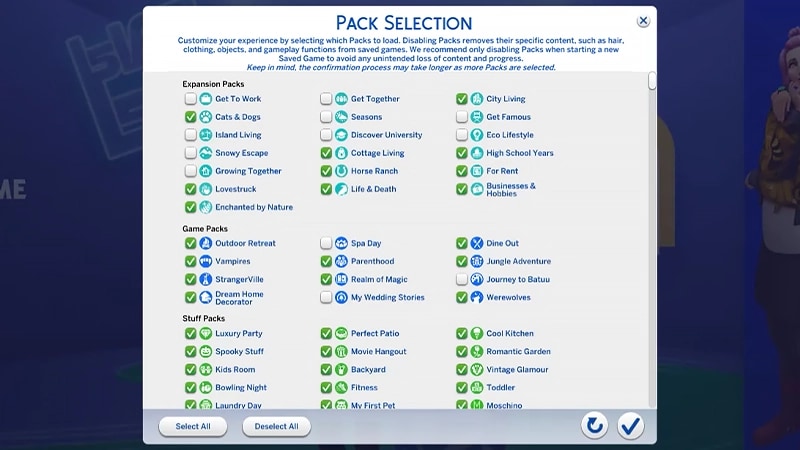
Selección de packs es una función que te permite personalizar qué packs quieres cargar. Se trata de una opción útil para la narración y la experiencia de juego, además de para liberar recursos sin necesidad de desinstalar packs que no estés usando en este momento. Selección del pack está disponible para todas las plataformas: PC, Mac y consola. A continuación, te indicamos cómo incluir o no packs en tu partida:- 1Abre el menú principal y elige Selección de packs.
- 2Selecciona o desmarca los packs que quieres cargar o no en tu partida.
- 3Usa el botón de marca de verificación para confirmar tus elecciones.
Eliminar packs puede dañar partidas guardadas existentes, por lo que es mejor que utilices esta función a la hora de crear una nueva partida guardada para evitar perder contenidos o progreso.Recomendamos desactivar todos los mods antes de descargar o volver a cargar cualquier pack. Lee nuestro artículo sobre cómo desactivar mods. Asegúrate de hacer una copia de seguridad de las partidas guardadas. Si necesitas ayuda, echa un vistazo a nuestra guía.
Cargar una partida guardada sin determinados packs
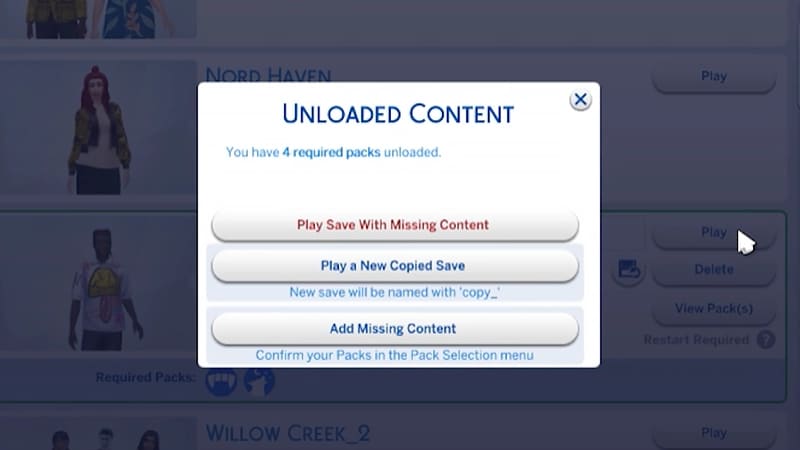
Sabrás que a una partida guardada le faltan packs por los siguientes indicadores.- Cuando intentes cargarla, antes de jugar, recibirás un aviso de que faltan packs o contenido.
- Si abres el menú de Selección de packs, los packs sin una marca de verificación al lado no estarán cargados.
- En PC, las partidas guardadas sin determinado contenido te indicarán si los packs necesarios para jugar se han cargado mediante los iconos Packs necesarios.
Si tus Sims vivían en un mundo específico de packs que hayas decidido no cargar en la partida, tu unidad doméstica seguirá estando disponible en el menú Gestionar unidades domésticas. Desde ahí, podrás trasladarla a un nuevo solar o fusionarla con otra unidad doméstica.Nota: Los artículos o rasgos de Crear un Sim específicos de cada pack se eliminarán a menos que vuelvas a cargar el pack en cuestión en la partida.