Aperçu
Vous avez besoin d'aide pour installer ou gérer un pack dans Les Sims 4 ? Suivez ce guide pour l'installer des packs d'extension, des packs de jeu et des kits d'objets dans Les Sims 4 et apprendre à utiliser la Sélection de packs
Installer des packs Les Sims 4 sur PC et Mac
Avant d'installer du contenu supplémentaire pour Les Sims 4, assurez-vous que le jeu de base est installé et mis à jour. Lisez notre guide pour installer le jeu de base Les Sims 4.Les packs numériques devraient s'installer automatiquement après leur achat. Si ce n'est pas le cas, voici comment les installer manuellement.Achat numérique sur EA app
- 1Lancez EA app.
- 2Connectez-vous à l'aide des informations de votre compte EA si nécessaire.
- 3Ouvrez votre Bibliothèque et cliquez sur Les Sims 4.
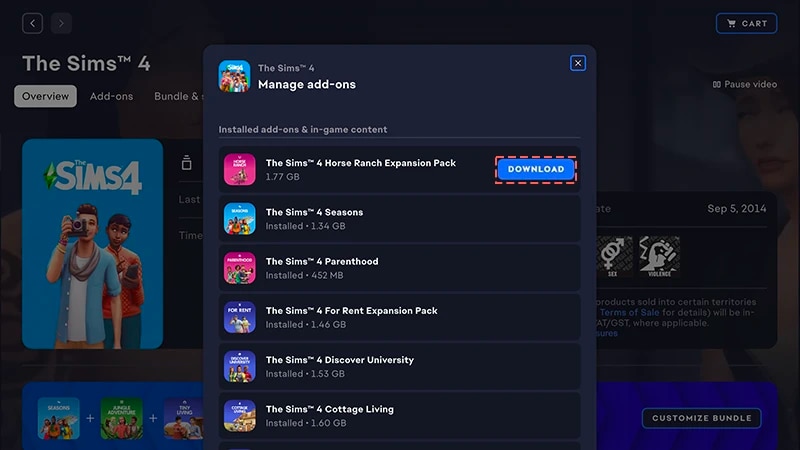
- 4Cliquez sur Extensions pour voir les packs que vous possédez actuellement.
- 5Si vous possédez un pack et qu'il ne s'est pas installé automatiquement, cliquez sur l'icône Télécharger.
Installer un achat de code produit pour EA app
- 1Lancez EA app.
- 2Connectez-vous à l'aide des informations de votre compte EA si nécessaire.
- 3Ouvrez votre Bibliothèque
- 4Cliquez sur Utiliser un code.
- 5Saisissez le code produit et cliquez sur Suivant, puis sur Confirmer.
- 6Cliquez sur Téléchargeravec EA app.
EA app a remplacé Origin comme plateforme principale pour télécharger et lancer Les Sims 4 sur Mac et PC. Les utilisateurs et utilisatrices de Mac doivent utiliser macOS Catalina ou une version ultérieure pour exécuter EA app. Consultez notre guide de MacOS pour en savoir plus sur la mise à niveau de votre macOS.
Si vous avez acheté un pack sur disque (PC uniquement)
- 1Insérez le jeu dans votre lecteur de disque et suivez les instructions à l'écran.
- 2Lorsqu'on vous le demande, saisissez le code produit inclus avec le disque d'installation.
- 3Une fois que vous avez récupéré le pack, vous pouvez le voir sur la page Détails du jeu Les Sims 4 dans l'onglet Bibliothèque.
- 4Une fois l'installation terminée, sélectionnez Les Sims 4 puis Jouerpour lancer le jeu.
Vérifier si un pack Les Sims 4 est installé
- 1Ouvrez votre Bibliothèque dans EA app.
- 2Cliquez sur le jeu Les Sims 4.
- 3Sélectionnez Gérer.
- 4Choisissez Gérer les extensions.
- 5Une liste des extensions que vous possédez apparaît. Les extensions et contenus de jeu installés sont ceux que vous possédez et que vous avez déjà installés. Les extensions téléchargeables sont celles que vous possédez mais que vous n’avez pas encore installées.
- 6Cliquez sur l’icône Télécharger pour voir les extensions qui n’ont pas encore été installées.
Sélection de packs dans Les Sims 4
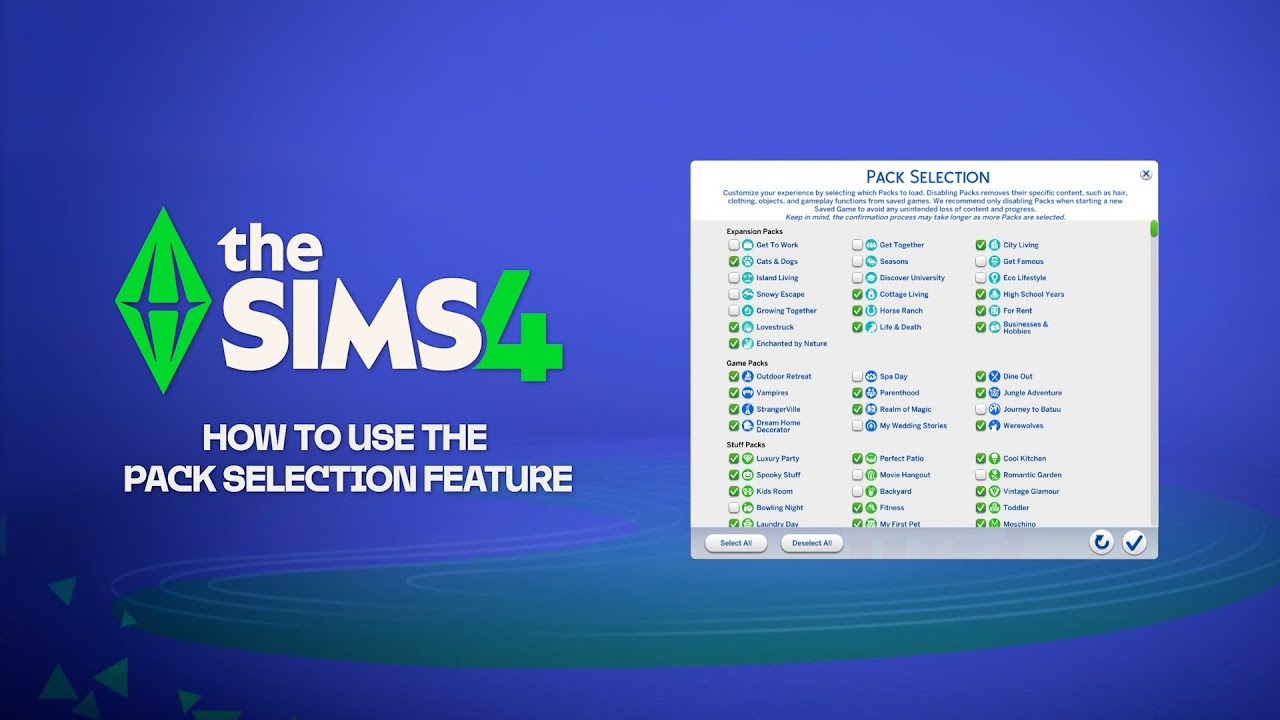
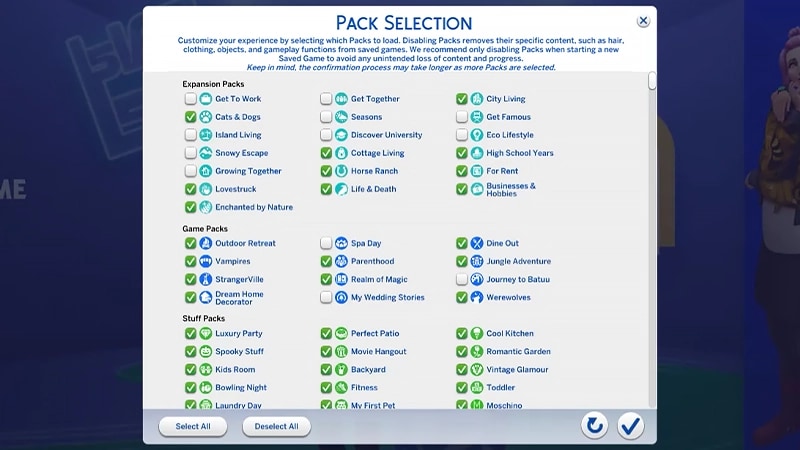
La sélection de packs est une fonctionnalité vous permettant de choisir les packs que vous voulez installer. Cela permet non seulement de personnaliser votre gameplay et vos histoires, mais également de libérer des ressources sans avoir à désinstaller complètement les packs que vous n'utilisez pas. La sélection de packs est possible sur toutes les plateformes : PC, Mac et console. Pour charger ou désactiver des packs dans votre partie :- 1Ouvrez le menu principal et choisissez Sélection de packs.
- 2Sélectionnez ou désélectionnez les packs que vous souhaitez charger ou désactiver dans votre partie.
- 3Sélectionnez le bouton coche pour confirmer votre choix.
Supprimer des packs risque de corrompre les fichiers de sauvegarde existants. Nous vous recommandons de n'utiliser cette fonctionnalité que lors de la création d'une nouvelle sauvegarde pour éviter une perte de contenu ou de progression.Nous conseillons également de désactiver tous vos mods avant de charger ou désactiver des packs. Consultez notre article dédié pour apprendre comment désactiver les mods. Assurez-vous de toujours créer des copies de secours de vos fichiers de sauvegardes. Pour vous y aider, consultez notre guide.
Charger une partie avec des packs manquants
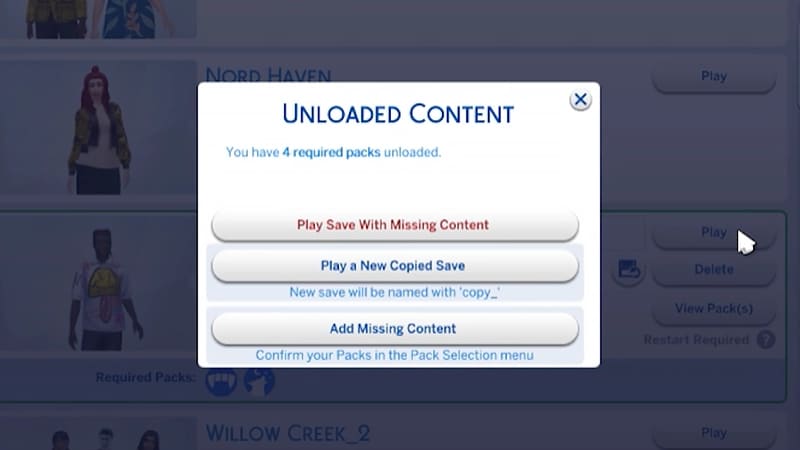
Si vous tentez de charger une partie commencée avec des packs maintenant désactivés, vous pouvez rencontrer les alertes suivantes :- Un message d'avertissement s'affichera au moment de charger la partie, indiquant que du contenu ou des packs sont manquants.
- Dans le menu Sélection de packs, si des packs ne sont pas marqués d'une coche, cela signifie qu'ils ne sont pas chargés.
- Sur PC, vous avez la possibilité d'afficher les packs nécessaires au chargement de la partie (si du contenu est manquant par rapport au fichier de sauvegarde) grâce aux icônes Packs nécessaires.
Même si vos Sims évoluaient dans un monde spécifique à un pack qui est désormais désactivé, votre foyer restera accessible dans le menu Gérer les foyers. Depuis ce menu, vous pouvez déplacer vos Sims vers un nouveau terrain ou les fusionner avec un autre foyer.Remarque : tous les objets de Créer un Sim et les traits spécifiques à un pack seront supprimés si le pack n'est pas chargé dans la partie.