Overview
Learn how to download, install, and start playing your games using the EA app on PC or Mac.
How to download games to your Library
You can add EA games you buy outside of the EA app to your Library, including physical copies.Learn how to redeem product and promo codes in the EA app.
- 1Launch the EA app.
- 2Log in to your EA Account.
- 3Go to Library.
- 4Find the game that you want to download and select the arrow in the bottom-right corner.
- 5Confirm your Install location and Language preferences, then select Next.
- 6Read and accept the EA Terms of Play.
- 7Select Download.
How to download DLC
- 1Launch the EA app.
- 2Log in to your EA Account.
- 3Go to Library.
- 4Find the game that you want to download DLC for and select the three dots in the top-right corner.
- 5Choose Manage add-ons.
- 6Find the DLC you want to download and select Download.
- 7Select Download.
How to make the EA app download faster
If your download speed is slow, try these steps to make the EA app faster.- Disable all background programs on your system, including Steam.
- You can also do this with a clean boot.
- Temporarily disconnect all other devices you don’t need from your network.
- Use a wired connection.
- Make sure the EA app is accepted in your antivirus and firewall.
Game download limits
You can only install your game on up to five computers in a 24-hour period. Using a different computer, changing the hardware in your current computer, or using a virtual machine to play can all count as a new computer.If you get an error message saying “Too many computers have accessed this account’s version of [game title] recently. Please try again later.”, you’ve gone over this allowance and installed your game on more than five computers within a 24-hour period. It may take up to 24 hours before you can relaunch the game.Learn more about game download limits in our Terms of Service.How to cancel a download
If you start downloading a game on the EA app but want to cancel it, select the X button, then choose Yes to cancel your download.If that doesn’t work:- 1Close the EA app.
- 2Clear the EA app’s cache. Clearing your cache should remove everything from the download queue.
- 3If you’re still having trouble and you’re on PC, you can also try running the EA app as an administrator.
How to connect your controller to play EA games
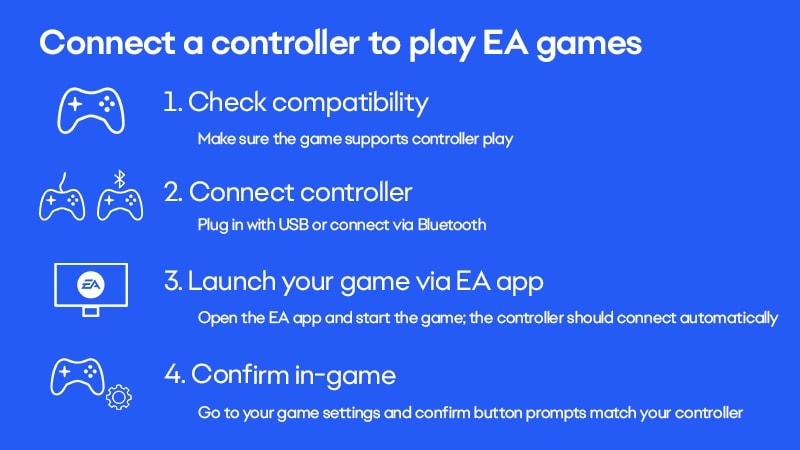
- 1Connect your controller to your device using a USB cable.
- You might be able to pair via Bluetooth. Check your Bluetooth settings.
- 2Open the EA app and sign in to your EA Account.
- 3Go to Library and select your game.
- 4Select Play to launch your game, then go to your game settings to confirm the button prompts match your controller.
How to download games in the background
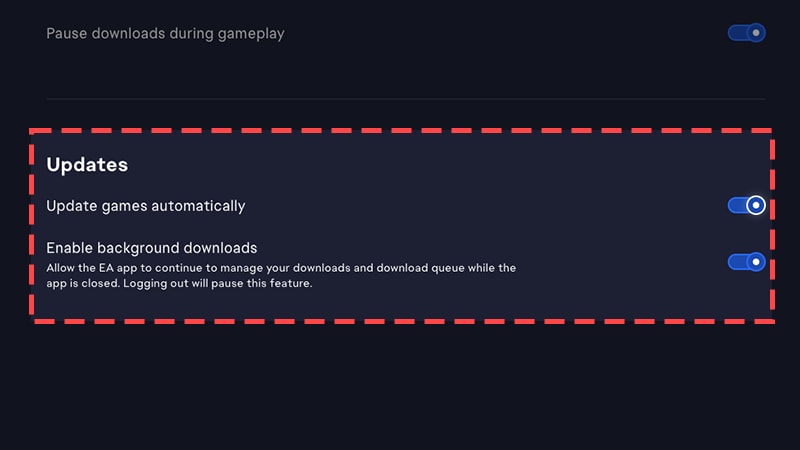
You can automatically update your games by turning on game updates and enabling background services. This lets the EA app download queued games even when it’s closed.- 1On PC: select the menu icon (three horizontal lines) in the top-left corner of the app and choose Application settings.
On Mac: select EA app from the menu bar (next to the Apple symbol) in the top-left corner of your screen and choose Settings. - 2Choose the Download tab.
- 3In the Updates section, toggle the switches next to Update games automatically and Enable background downloads to on.
EA Game Hub
When you select a game in the EA app, you’ll be taken to the Game Hub, a page where you can download or buy the game and find out more about it.Where is the EA Game Hub?
To find the Game Hub:- choose any game tile on the Home or Browse pages
- select a game from the left panel under Installed games
- select a game in your Library.
Error: an update is required to launch this game
If you see the error message “An update is required to launch this game. Visit the Game Hub to begin your update”:- 1Open the Task Manager.
- On PC, press Ctrl + Shift + Esc.
- On Mac, press Command + Option + Esc.
- 2Check if any game processes are running. If they are, close them.
- 3Try launching your game again.
- 4If that doesn’t work, find out how to report an error.
How to find advanced launch options in the EA app
Advanced launch options can help you change the technical settings of how your game launches. Here’s how to view them.- 1Select the three-dot menu in the top right-hand corner of the game tile.
- 2Select View Properties. You can view input launch commands in the Advanced launch options text box.
How to use offline mode in the EA app
If you want to use the EA app in offline mode:- 1Open the EA app.
- 2Select the top-left menu (three horizontal lines) or Account on Mac.
- 3Select Go offline. To use offline mode, you need to have launched your game at least once online.
How to play Ubisoft games in the EA app
You need to connect to your Ubisoft account to play your Ubisoft games through the EA app. You need to link to your Ubisoft account for every Ubisoft game or DLC you buy that requires Ubisoft Connect.- Not all Ubisoft games need Ubisoft Connect. The EA app Store will let you know if a game needs Ubisoft Connect when you buy it.
- When you buy downloadable content (DLC) for your Ubisoft games on the EA app, you’ll need to download it in Ubisoft Connect. You’ll be able to do this after you’ve linked to your Ubisoft account.
Link to your Ubisoft account
After you buy your game, go to your EA app Library. You’ll be asked to connect to your Ubisoft account before you can download the game. Log in with your Ubisoft account, download the game, and you’ll be ready to play.Make sure to log in with the account where you have all of your Ubisoft games. You’ll be asked to confirm the account you’re logging in with.- If you log in to the wrong account, select Use Another Account to log in to a different one.
- If you don’t already have an account with Ubisoft, select I don’t have a Ubisoft account.
How to play EA app games on Steam
- You can play EA games on Steam if you buy them through Steam. You might still need the EA app to launch your game on Steam.
- If you buy a game through the EA app, you can’t transfer it to Steam. You have to play it through the EA app.
Is the EA app available on Steam Deck?
To find out if an EA game is compatible with the Steam Deck:- 1Go to the game’s Steam store page.
- 2Scroll to Steam Deck Compatibility, where you can learn more.
Error code: link2ea
If you’re trying to play on Steam but getting the error link2ea, try these steps.- 1Relaunch the EA app.
- 2Select the three-dot menu on the game tile, then choose Repair.
- 3Uninstall, then reinstall the EA app.
- 4Restart your computer, then run Steam and the EA app as an administrator.
- Right-click each one’s desktop shortcut and select Run as an administrator.
- Try to launch your game again.