Ringkasan
Perlu bantuan menginstal atau mengelola Paket di The Sims 4? Gunakan panduan ini untuk menginstal Ekspansi, Game, dan Paket Stuff di The Sims 4 dan mengambil kendali dengan fitur Pilihan Paket.
Menginstal The Sims 4 Pack di PC dan Mac
Sebelum menginstal konten tambahan apa pun untuk The Sims 4, pastikan Game Dasar sudah terinstal dan diperbarui. Baca panduan kami untuk menginstal Game Dasar The Sims 4.Paket Digital akan terinstal secara otomatis setelah dibeli. Jika tidak, berikut cara menginstalnya secara manual.Pembelian digital di EA app
- 1Jalankan EA app.
- 2Jika diminta, login-lah menggunakan info Akun EA-mu.
- 3Buka Pustaka laluklik The Sims 4.
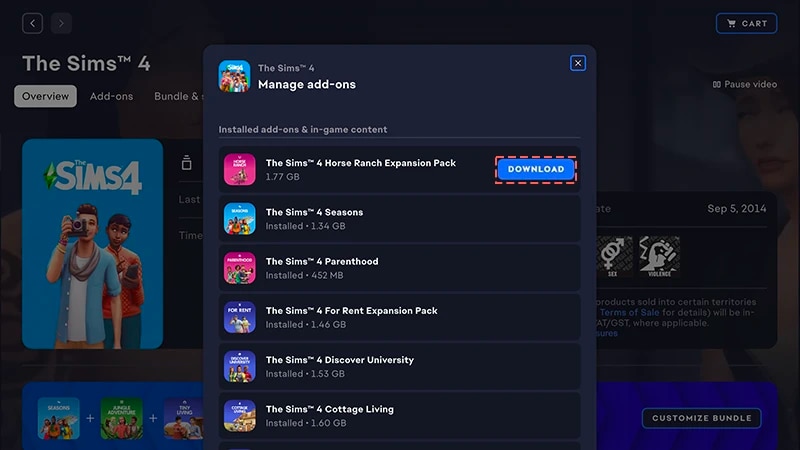
- 4Klik Add-on untuk melihat paket mana yang kamu miliki saat ini.
- 5Jika kamu memiliki Paket dan paket belum terinstal secara otomatis, klik ikon Unduhan.
Menginstal kode produk yang dibeli untuk EA app
- 1Jalankan EA app.
- 2Jika diminta, login-lah menggunakan info Akun EA-mu.
- 3Buka Pustaka.
- 4Klik Tukarkan Kode.
- 5Masukkankode produk, klik Berikutnya, lalu Konfirmasi.
- 6Klik Unduh dengan EA app.
EA app telah menggantikan Origin sebagai platform utama untuk mengunduh dan meluncurkan The Sims 4 untuk Mac dan PC. Pengguna Mac harus menggunakan macOS Catalina atau lebih baru untuk menjalankan EA app. Lihat panduan macOS kami untuk mempelajari lebih lanjut tentang meningkatkan macOS kamu.
Jika kamu membeli Paket dalam bentuk disk (khusus PC)
- 1Masukkan disk game ke disk drive lalu ikuti instruksi di layar.
- 2Saat diminta, masukkan kode produk yang disertakan dalam disk instalasi.
- 3Setelah kamu menebus paketnya, kamu bisa melihatnya di halaman detail game The Sims 4 di tab Pustaka.
- 4Setelah instalasi selesai, pilih The Sims 4, lalu Play untuk meluncurkan game.
Cara memeriksa apakah Sims 4 Pack terinstal
- 1Buka Pustaka EA app-mu.
- 2Klik petak game The Sims 4.
- 3Pilih Kelola.
- 4Pilih Kelola add-on.
- 5Pada pop-up, daftar add-on yang kamu miliki akan muncul. Add-on terinstal dan konten dalam game adalah yang kamu miliki dan telah terinstal. Add-on yang bisa diunduh adalah add-on yang kamu miliki, tetapi belum terinstal.
- 6Klik ikon Unduh untuk add-on apa pun yang belum terinstal.
Pilihan paket The Sims 4
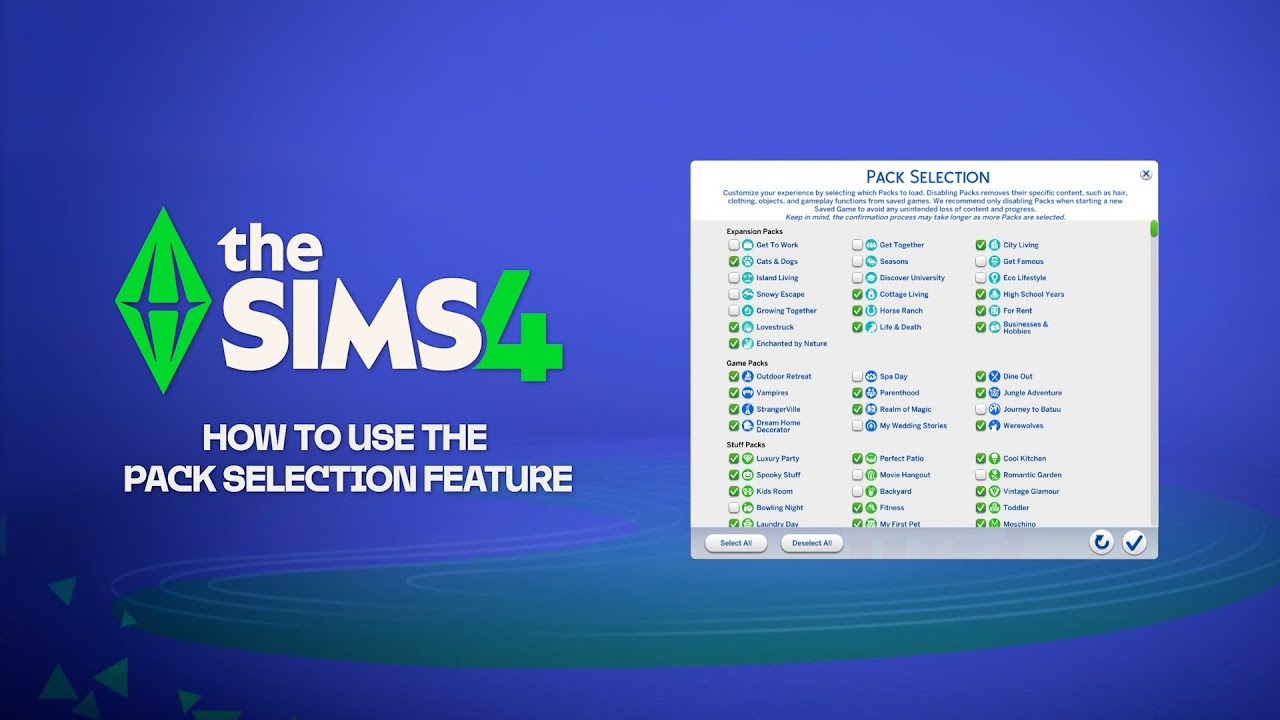
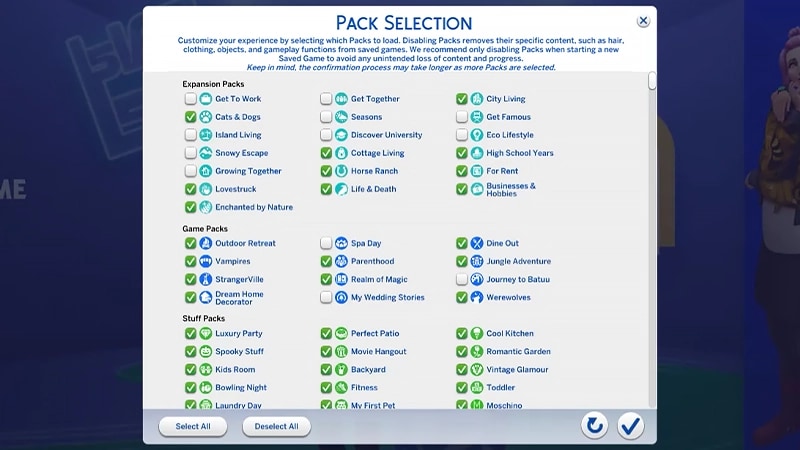
Pilihan paket adalah fitur yang memungkinkanmu menyesuaikan Paket yang ingin diinstal. Ini berguna untuk storytelling dan pengalaman gameplay-mu, serta mengosongkan sumber daya tanpa perlu menghapus instalasi Paket yang saat ini tidak kamu gunakan. Pilihan paket tersedia di semua platform: PC, Mac, dan konsol. Berikut cara memuat atau melepas Paket dari game:- 1Buka Menu Utama lalu pilih Pilihan Paket.
- 2Pilih atau batal pilih Paket yang ingin dimuat ke game atau dilepas.
- 3Pilih tombol centang untuk mengonfirmasi pilihanmu.
Menghapus Paket bisa merusak file tersimpan saat ini, jadi sebaiknya gunakan fitur ini saat membuat file tersimpan baru untuk menghindari kehilangan konten atau perkembangan.Sebaiknya nonaktifkan semua Mod sebelum membongkar atau memuat ulang Paket apa pun. Baca artikel kami tentang cara menonaktifkan Mod. Selalu pastikan file tersimpanmu dicadangkan. Untuk bantuan terkait hal ini, lihat panduan kami.
Memuat file tersimpan dengan Paket yang hilang
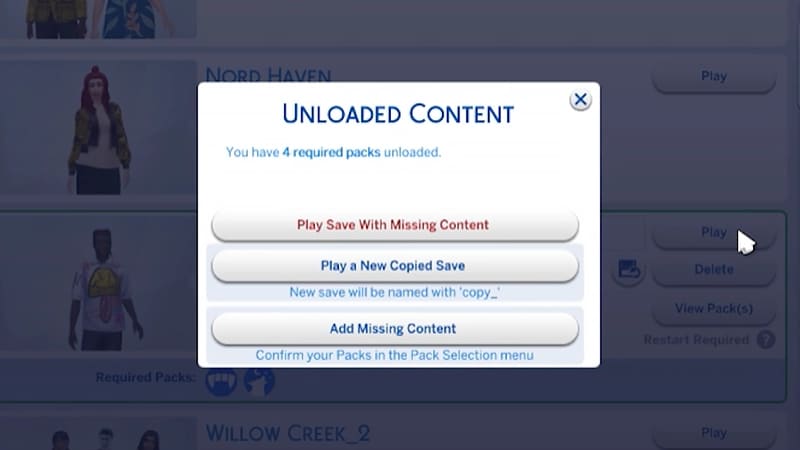
Kamu akan tahu bahwa file tersimpan tidak memiliki Paket dengan indikator berikut.- Saat mencoba memuat file tersimpan, kamu akan mendapatkan peringatan sebelum memainkan Paket atau konten yang hilang.
- Jika kamu membuka menu Pilihan Paket, Paket yang tidak dicentang berarti saat ini tidak termuat.
- Di PC, semua file tersimpan dengan konten yang hilang akan ditampilkan jika Paket yang diperlukan untuk bermain dimuat melalui ikon Paket Wajib.
Jika Sim-mu tinggal di dunia khusus Paket yang telah dibongkar dari game, Rumah-mu akan tetap tersedia di menu Kelola Rumah. Dari sini, kamu bisa memindahkannya ke Lot baru atau menggabungkannya dengan Rumah lain.Catatan: Setiap Buat Item Sim atau Sifat khusus Paket tertentu akan dihapus kecuali kamu memuat ulang Paket itu ke dalam game.