Panoramica
I pacchetti di The Sims 4 dovrebbero installarsi automaticamente. In caso contrario, questa guida spiega come installare i pacchetti su PC, Mac e console. Inoltre, scopri come controllare se hai installato un pacchetto usando la funzione "Gestisci lo spazio" e come attivare o disattivare i pacchetti con la funzione "Selezione dei pacchetti".
Come faccio a installare i pacchetti di The Sims 4 su PC e Mac?
EA app ha sostituito Origin come piattaforma principale per scaricare e avviare The Sims 4 sia su Mac che su PC. Gli utenti di Mac devono disporre di macOS Catalina o successivo per eseguire EA app. Per saperne di più sull'aggiornamento di macOS, consulta la nostra guida a macOS.
- 1Avvia EA app.
- 2Se richiesto, accedi digitando le credenziali del tuo account EA.
- 3Apri la Libreria e seleziona The Sims 4.
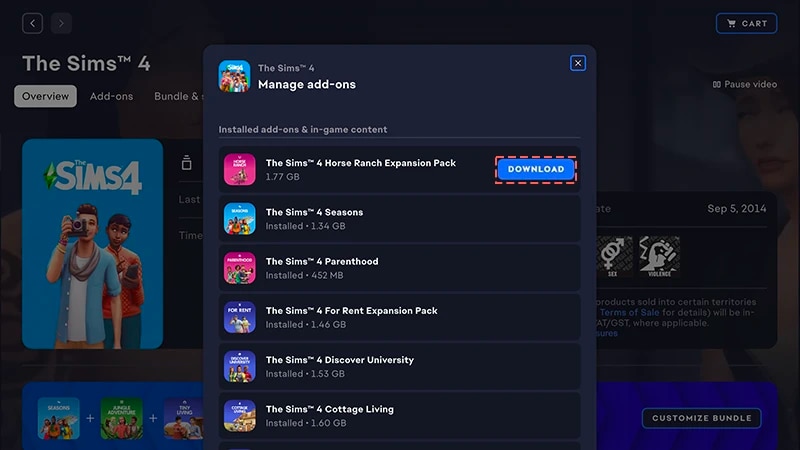
- 4Per controllare quali pacchetti possiedi al momento, seleziona Gestisci e poi Gestisci add-on subito sotto.
- 5Se possiedi un pacchetto che non è stato installato automaticamente, seleziona l'icona Download accanto al pacchetto.
Come faccio a installare un pacchetto ottenuto sul Marketplace?
Consulta la nostra guida per saperne di più sul Marketplace di The Sims 4 e su come funziona.
- Expansion Pack
- Game Pack
- Stuff Pack
- Kit.
- 1Avvia The Sims 4 e visita il Marketplace.
- Dal menu principale, seleziona Marketplace nella parte superiore dello schermo.
- In alternativa, seleziona l'icona del carrello della spesa nell'angolo superiore destro della modalità Vivi, della modalità Costruisci o di Crea un Sim.
- 2Seleziona la scheda La mia collezione e scegli Gestisci lo spazio.
- 3Trova il pacchetto che hai acquistato e controlla l'etichetta nell'angolo inferiore sinistro del riquadro del pacchetto per verificare lo stato di installazione.
- L'etichetta verde Installato indica che il pacchetto è già installato.
- L'etichetta grigia Non installato indica che il pacchetto non è installato.
- 4Se il pacchetto non si installa automaticamente, seleziona la casella nell'angolo superiore sinistro.
- 5Seleziona Installa, quindi l'icona con il segno di spunta nella notifica a comparsa per confermare di voler installare il pacchetto.
Come faccio a installare un pacchetto con un codice prodotto su EA app?
- 1Avvia EA app.
- 2Se richiesto, accedi digitando le credenziali del tuo account EA.
- 3Apri la Libreria e seleziona l'icona + Riscatta codice.
- 4Inserisci il codice prodotto, seleziona Avanti e poi Conferma.
- 5Seleziona Download con EA app.
Come faccio a installare un pacchetto su PC da un supporto ottico?
- 1Inserisci il supporto ottico del gioco nel lettore e segui le istruzioni sullo schermo.
- 2Se richiesto, accedi a EA app digitando le credenziali del tuo account EA.
- 3Quando richiesto, inserisci il codice prodotto incluso con il supporto ottico di installazione.
Come faccio a installare i pacchetti di The Sims 4 su console?
Scopri come giocare a The Sims 4 su console, con suggerimenti sull'uso dei comandi e sulla risoluzione dei problemi relativi ai contenuti mancanti.
Per installare un pacchetto di The Sims 4 su PlayStation®4, dovrai prima scaricarlo manualmente.Se stai giocando su PlayStation®5 o vuoi scaricare il tuo pacchetto da PlayStation®Store online, i passaggi per il download manuale possono variare. Visita il sito di assistenza PlayStation® per scoprire come scaricare gli add-on dei giochi.
- 1Apri il menu PlayStation® e seleziona Raccolta.
- 2Seleziona Acquistato e scegli The Sims 4.
- 3Seleziona Raccolta giochi e scegli La tua raccolta.
- 4Nella sezione Contenuti aggiuntivi, seleziona il pacchetto di The Sims 4 che vuoi scaricare.
- 5Seleziona l'icona di download (raffigura una freccia rivolta verso il basso). Il pacchetto si installerà automaticamente una volta scaricato.
Su Xbox i pacchetti si installeranno automaticamente una volta scaricati, a meno che tu non abbia disattivato l'opzione Mantieni i miei giochi e app aggiornati. L'opzione è attiva per impostazione predefinita.Se un pacchetto di The Sims 4 non si installa automaticamente, segui questi passaggi per installarlo manualmente.Visita il sito del supporto Xbox per scoprire come trovare i giochi e gli add-on.
- 1Premi il pulsante Xbox sul controller e seleziona I miei giochi e app.
- 2Seleziona Vedi tutti e vai in Raccolta completa > Giochi di proprietà.
- 3Evidenzia The Sims 4 e premi il pulsante Menu sul controller.
- 4Seleziona Gestisci gioco e componenti aggiuntivi. Quindi, seleziona la casella del pacchetto che vuoi installare.
- 5Seleziona Installa.
- 1Avvia The Sims 4 e visita il Marketplace.
- Dal menu principale, seleziona Marketplace nella parte superiore dello schermo.
- In alternativa, seleziona l'icona del carrello della spesa nell'angolo superiore destro della modalità Vivi, della modalità Costruisci o di Crea un Sim.
- 2Seleziona la scheda La mia collezione e scegli Gestisci lo spazio.
- 3Se un pacchetto che possiedi non è stato installato automaticamente, trova il titolo e seleziona la casella nell'angolo superiore sinistro.
- 4Seleziona Conferma.
Come faccio a controllare se ho installato un pacchetto di The Sims 4?
Se giochi a The Sims 4 su PC o Mac tramite EA app, puoi verificare se un pacchetto è installato su EA app senza dover avviare il gioco.Se giochi a The Sims 4 su PC, Mac, PlayStation® o Xbox, puoi verificare se un pacchetto è installato nel gioco servendoti del Marketplace. Se hai scaricato un pacchetto di recente, puoi verificare se è installato anche nel Gestore dei download.Su EA app
All'interno del gioco
Se giochi a The Sims 4 su PC o Mac tramite EA app, ecco come verificare se un pacchetto è stato installato.
- 1Avvia EA app e apri la Libreria.
- 2Seleziona The Sims 4 e scegli Gestisci.
- 3Seleziona Gestisci add-on. Nella finestra a comparsa, apparirà un elenco degli add-on che possiedi.
- Nella sezione Add-on installati e contenuti di gioco troverai i contenuti che possiedi e che hai già installato.
- Troverai i contenuti che possiedi ma non hai ancora installato in Add-on posseduti.
- 4Per installare un pacchetto al momento non installato, cercalo in Add-on posseduti e seleziona l'icona Download accanto al pacchetto.
Come funziona la selezione dei pacchetti di The Sims 4?
La selezione dei pacchetti è una funzione del Marketplace che ti permette di decidere quali pacchetti attivare in The Sims 4. È utile per la narrazione e per l'esperienza di gioco, oltre che per liberare risorse senza il bisogno di disinstallare i pacchetti che al momento non stai usando. La selezione dei pacchetti è disponibile su tutte le piattaforme: PC, Mac, PlayStation® e Xbox.Come faccio a scegliere i pacchetti da attivare o disattivare?
Ecco come includere o escludere i pacchetti dal gioco:- 1Avvia The Sims 4 e visita il Marketplace.
- Dal menu principale, seleziona Marketplace nella parte superiore dello schermo.
- In alternativa, seleziona l'icona del carrello della spesa nell'angolo superiore destro della modalità Vivi, della modalità Costruisci o di Crea un Sim.
- 2Seleziona la scheda La mia collezione e scegli Selezione dei pacchetti.
- 3Usa la casella nell'angolo superiore sinistro di ciascun pacchetto per selezionare o deselezionare i pacchetti che desideri includere o escludere dal gioco.
- Se al momento un pacchetto è attivo, vedrai selezionata la casella nell'angolo superiore sinistro. Vedrai anche l'etichetta verde Attivo nell'angolo inferiore sinistro del riquadro del pacchetto.
- Se al momento un pacchetto non è attivo, vedrai deselezionata la casella nell'angolo superiore sinistro. Vedrai anche l'etichetta grigia Disattivato nell'angolo inferiore sinistro del riquadro del pacchetto.
- 4Seleziona Conferma.
Se disattivi un pacchetto, la partita salvata perderà l'accesso ai contenuti specifici di quel pacchetto che utilizza, inclusi capelli, abiti, tratti e oggetti.Disattivare i pacchetti può influire anche sui file di salvataggio esistenti. Per evitare di perdere contenuti o progressi, è consigliabile utilizzare la selezione dei pacchetti solo quando si crea un nuovo salvataggio.Consigliamo di disattivare tutte le mod prima di attivare o disattivare qualsiasi pacchetto. Leggi l'articolo su come disattivare le mod. Assicurati sempre di aver creato una copia di sicurezza dei file di salvataggio. Per aiutarti, scopri come creare una copia di sicurezza e reimpostare The Sims 4.
Come faccio a sapere se mancano dei pacchetti alla mia partita salvata?
Se provi a caricare una partita salvata che utilizza pacchetti che hai disattivato dall'ultima volta in cui hai giocato, vedrai un avviso che segnala la mancanza dei pacchetti richiesti. Ciò accade perché il tuo salvataggio utilizza contenuti di un pacchetto disattivato.Ecco come verificare se una partita salvata utilizza dei contenuti inclusi in un pacchetto disattivato:- 1Avvia The Sims 4 e vai nel menu principale.
- 2Seleziona Riprendi o Carica una partita, quindi scegli la partita salvata che vuoi giocare.
- Pacchetti richiesti nell'angolo inferiore sinistro del riquadro della partita salvata.
- Sposta il puntatore sopra le icone dei pacchetti per controllare quali pacchetti vengono utilizzati nella partita salvata. Se al momento il pacchetto non è attivo, viene contrassegnato come Disattivato.
- Visualizza i pacchetti sul lato destro del riquadro della partita salvata.
- Seleziona l'icona per controllare quali pacchetti al momento disattivati vengono utilizzati nella partita salvata.
If your Sims were living in a world that’s specific to a Pack you deactivated, your Household will still be available in the Manage Households menu. From here, you can move them into a new Lot or merge them with another Household.Note: Any Create a Sim Items or Traits that are Pack-specific will be removed unless you reload that Pack into your game.