「The Sims 4」のパックのインストール方法

12 分で読めます

概要

「The Sims 4」でパックのインストールや管理についてサポートが必要ですか?このガイドを使って、「The Sims 4」に拡張パック、ゲームパック、アイテムパックをインストールし、パック選択機能で管理しましょう。

PCまたはMacに「The Sims 4」のパックをインストールする

「The Sims 4」をダウンロードして起動するためのメインプラットフォームは、MacおよびPCともに、OriginからEA appに変更されました。 Macユーザーは、EA appを実行するには、macOS Catalina以降を使用する必要があります。macOSのアップグレードの詳細については、macOSガイドをご覧ください。
「The Sims 4」の追加コンテンツをインストールする前に、ゲーム本編が完全にインストールおよびアップデートされていることを確認してください。「The Sims 4」ゲーム本編のインストールに関するガイドをお読みくださいデジタルパックは購入後に自動的にインストールされます。インストールされていない場合は、以下の手順で手動でインストールしてください。

EA appでのデジタル購入

  1. 1
    EA appを起動します。
  2. 2
    ログイン画面が表示されたら、お使いのEAアカウント情報でログインします。
  3. 3
    ライブラリ」を開いて「The Sims 4」をクリックします。 
  4. 4
    追加コンテンツ」をクリックして、現在所有しているパックを確認します。
  5. 5
    所有しているパックが自動的にインストールされていない場合は、「ダウンロード」アイコンをクリックします。 
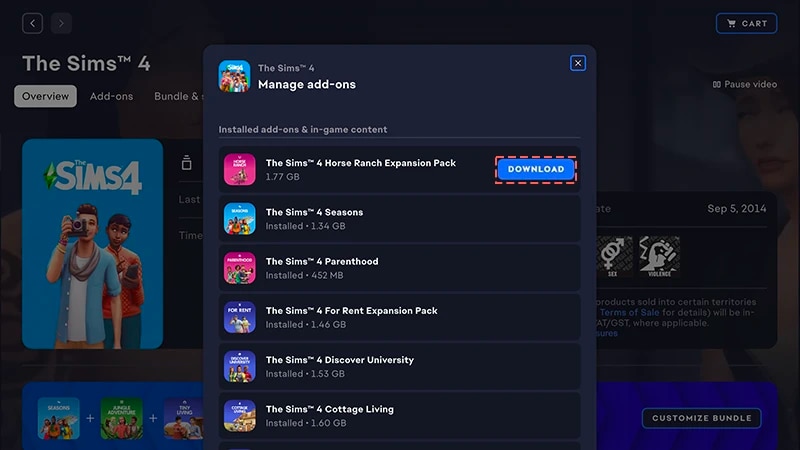
EA Appで「The Sims 4」のパックをインストールするための「ダウンロード」ボタンを示す画像。

EA appで製品コードを使ってインストールする

  1. 1
    EA appを起動します。
  2. 2
    ログイン画面が表示されたら、お使いのEAアカウント情報でログインします。
  3. 3
    ライブラリ」を開きます。
  4. 4
    コードを利用」をクリックします。
  5. 5
    製品コード/プロダクトコードを入力し、「次へ」をクリックしたあと、「確定」をクリックします。
  6. 6
    EA appで「ダウンロード」をクリックします。
コードの引き換えについて、もう少しヘルプが必要ですか?詳しくは、コードの利用方法ガイドをご覧ください
「The Sims 4」をダウンロードして起動するためのメインプラットフォームは、MacおよびPCともに、OriginからEA appに変更されました。 Macユーザーは、EA appを実行するには、macOS Catalina以降を使用する必要があります。macOSのアップグレードの詳細については、macOSガイドをご覧ください。

ディスク版のパックを購入した場合(PCのみ)

  1. 1
    ゲームディスクをお使いのディスクドライブに挿入し、画面上の手順に従って操作します。
  2. 2
    製品コードの入力を求められたら、インストールディスクに付属する製品コードを入力してください。
  3. 3
    引き換えたパックは、「ライブラリ」タブの「The Sims 4」のゲーム詳細ページで確認できます。
  4. 4
    インストール後、「The Sims 4」を選択し、「プレイ」をクリックしてゲームを起動します。 

「The Sims 4」のパックがインストールされているかどうかを確認する方法

Learn more about how to play The Sims 4 on console, including tips on using controls and troubleshooting missing content.
  1. 1
    EA appの「ライブラリ」を開きます。
  2. 2
    The Sims 4」のゲームタイトルをクリックします。
  3. 3
    「管理」を選択します。
  4. 4
    追加コンテンツの管理」を選択します。
  5. 5
    ポップアップ画面に、所有している追加コンテンツのリストが表示されます。インストール済みの追加コンテンツおよびゲーム内コンテンツとは、あなたが所有していて、すでにインストール済みのコンテンツです。ダウンロード可能な追加コンテンツとは、所有はしているけれど、まだインストールされていないコンテンツです。
  6. 6
    まだインストールされていない追加コンテンツがある場合は、「ダウンロード」アイコンをクリックします。 

How do I check if a Sims 4 Pack is installed?

If you play The Sims 4 on PC or Mac through the EA app, you can check whether a Pack is installed in the EA app without launching the game.If you play The Sims 4 on PC, Mac, PlayStation®, or XBOX, you can check whether a Pack is installed in-game using the Marketplace. If you recently downloaded a Pack, you can also check if it’s installed in Download Manager.
If you play The Sims 4 on PC or Mac on the EA app, here’s how to check if a Pack is installed.
  1. 1
    Launch the EA app and open your Library.
  2. 2
    Select The Sims 4 and choose Manage.
  3. 3
    Select Manage add-ons. A pop-up list of your owned add-ons will appear. 
    • You’ll find content you own and already have installed under Installed add-ons & in-game content
    • You’ll find content you own but haven’t installed yet under Owned add-ons.
  4. 4
    To install a Pack that isn’t currently installed, find it under Owned add-ons and select the Download icon beside it.

How does The Sims 4 Pack selection work?

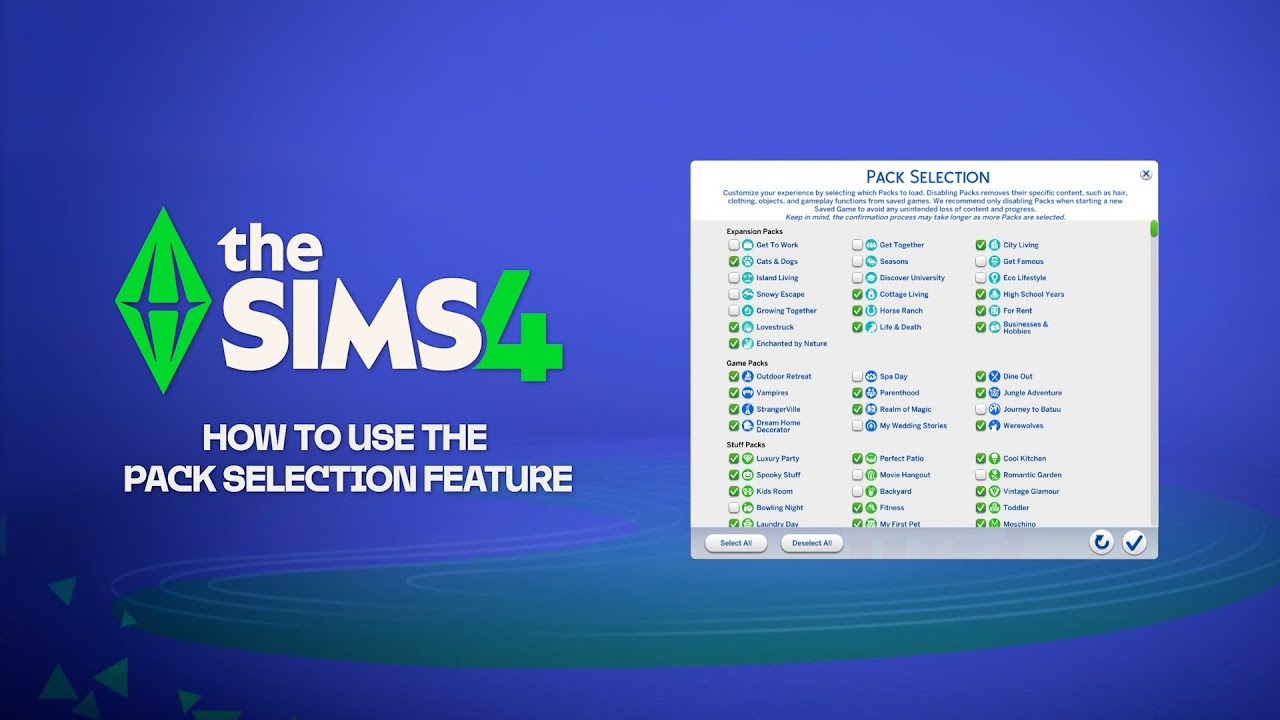
Pack selection is a Marketplace feature that lets you customize which Packs you want active in The Sims 4. This is helpful for storytelling and your gameplay experience, as well as freeing up resources without needing to uninstall Packs you’re not currently using. Pack selection is available on all platforms: PC, Mac, PlayStation® and XBOX.

How do I use Pack selection to activate or deactivate Packs?

Here’s how to load or unload Packs from your game: 
  1. 1
    Launch The Sims 4 and go to the Marketplace.
    • From the Main Menu, select Marketplace at the top of the screen.
    • Or, select the shopping cart icon in the top-right corner while in Live Mode, Build Mode, or Create a Sim.
  2. 2
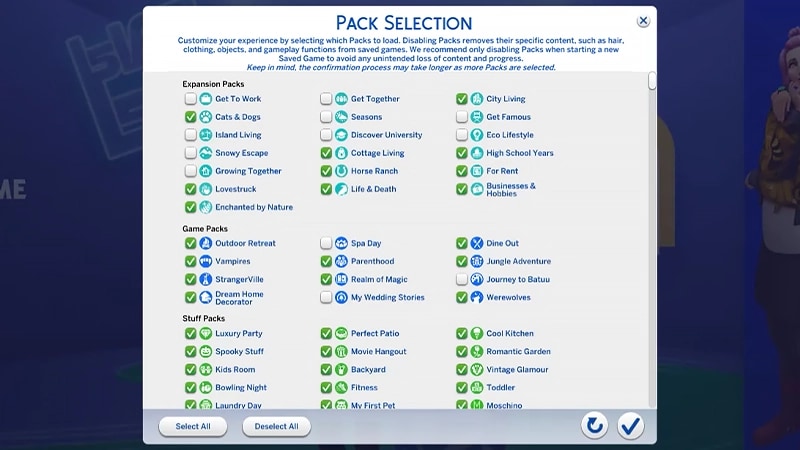
    Select the My Collection tab and choose Pack Selection.
  3. 3
    Use the checkbox at the top-left corner of each Pack to select or deselect the Packs you want in your game.
    • If a Pack is currently active, the checkbox in the top-left corner is selected. There’s also a green Active label in the bottom-left corner of the Pack tile.
    • If a Pack isn’t currently active, the checkbox in the top-left corner isn’t selected. There’s also a grey Deactivated label in the bottom-left corner of the Pack tile.
  4. 4
    Select Confirm
Depending on the Pack you’re activating or deactivating, you may get a pop-up notification telling you a restart is required for your new Pack Selection choices to show.
If you deactivate a Pack, your saved game will lose access to any Pack-specific content it uses, including hair, clothing, traits, and objects.Deactivating Packs can also impact existing save files. To avoid losing any content or progress, it’s best to use Pack Selection only when creating a new save.We recommend disabling all Mods before activating or deactivating any Packs. Check out our article on how to disable ModsAlways make sure your save files are backed up. For help with this, learn how to back up and reset The Sims 4.

How do I know if my saved game is missing Packs?

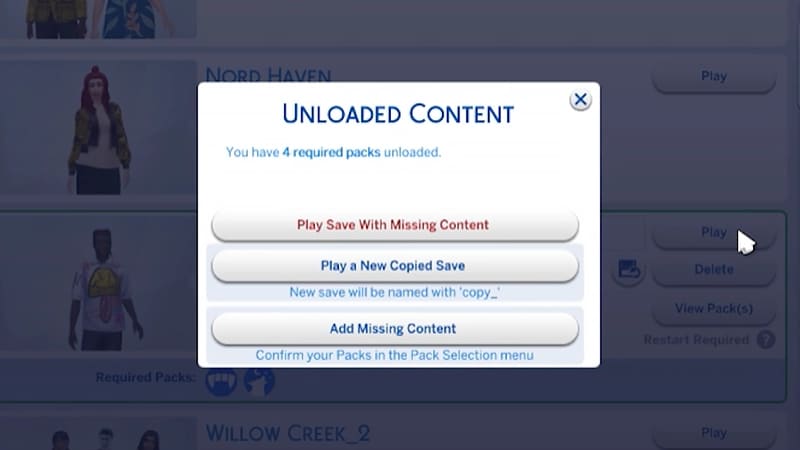
If you try to load a saved game that uses Packs you’ve deactivated since you last played, it’ll be flagged as missing required Packs. This happens because your game save uses content from a deactivated Pack.Here’s how to check whether a saved game uses content from a deactivated Pack:
  1. 1
    Launch The Sims 4 and go to the Main Menu.
  2. 2
    Select Resume Game or Load Game, then choose the saved game you want to play.
If the saved game uses content from a deactivated Pack, you’ll find:
  • Required Packs in the bottom-left corner of the saved game tile. 
    • Hover over the Pack icons to check which Packs are used in your saved game. If the Pack is not currently active, it’ll say Deactivated.
  • View Pack(s) on the right side of the saved game tile. 
    • Select this button to check which currently deactivated Packs are used in your saved game.
To continue without reactivating the required Packs, select Play. A heads-up that this means you’ll continue to play this save, but items like clothing, objects, Worlds, and gameplay features from deactivated Packs won’t be available and will be missing from your save.To reactivate the required Packs before you continue playing your saved game, follow these steps to use Pack Selection.
If your Sims were living in a world that’s specific to a Pack you deactivated, your Household will still be available in the Manage Households menu. From here, you can move them into a new Lot or merge them with another Household.Note: Any Create a Sim Items or Traits that are Pack-specific will be removed unless you reload that Pack into your game.
まだ問題が継続していますか?
さらにヘルプが必要な場合は、カスタマーサポートチームまでお問い合わせください。