개요
The Sims 4에서 팩을 설치하거나 관리하는 데 도움이 필요하신가요? 이 가이드에 따라 The Sims 4에서 확장팩, 게임팩, 아이템팩을 설치하고 팩 선택 기능으로 관리하세요.
PC 및 Mac에서 The Sims 4 팩 설치하기
이전에는 Origin에서 PC 및 Mac용 The Sims 4를 다운로드하고 실행했지만 이제 EA app이 주요 플랫폼으로 자리잡았습니다. Mac 사용자는 macOS Catalina 또는 이후 버전으로 EA app을 실행해야 합니다. macOS 업그레이드에 대한 상세 정보는 저희가 제공하는 macOS 가이드를 확인하세요.
EA app에서 디지털 구매
- 1EA app을 실행합니다.
- 2로그인 창이 뜨면 EA 계정 정보 이용하여 로그인해 주세요.
- 3라이브러리를 열고 The Sims 4를 클릭하세요.
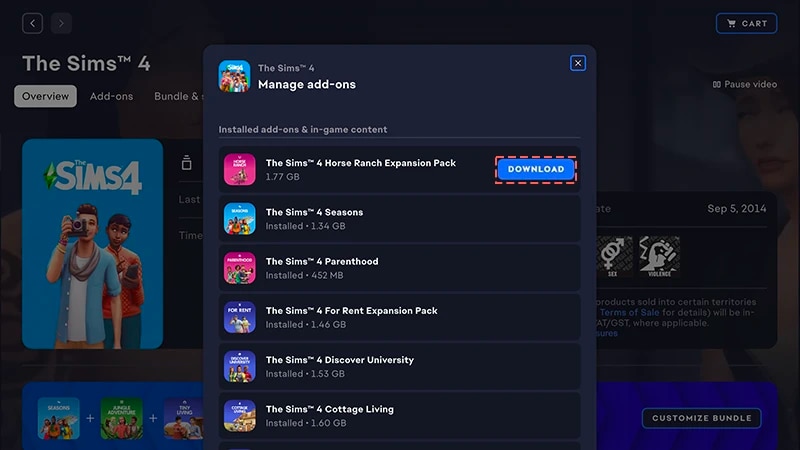
- 4애드온 클릭하면 현재 보유한 팩을 확인할 수 있습니다.
- 5팩을 보유하고 있지만 자동으로 설치되지 않았다면 다운로드 아이콘을 클릭하세요.
EA app에서 제품 코드 등록하기
- 1EA app을 실행합니다.
- 2로그인 창이 뜨면 EA 계정 정보 이용하여 로그인해 주세요.
- 3라이브러리를 여세요.
- 4"코드 등록을 클릭하세요.
- 5제품 코드를 입력한 후 다음을 클릭하고 확인을 누릅니다.
- 6EA app으로 다운로드를 클릭합니다.
이전에는 Origin에서 PC 및 Mac용 The Sims 4를 다운로드하고 실행했지만 이제 EA app이 주요 플랫폼으로 자리잡았습니다. Mac 사용자는 macOS Catalina 또는 이후 버전으로 EA app을 실행해야 합니다. macOS 업그레이드에 대한 상세 정보는 저희가 제공하는 macOS 가이드를 확인하세요.
디스크 팩을 구매한 경우(PC만 해당)
- 1게임 디스크를 디스크 드라이브에 넣고 화면의 지시를 따릅니다.
- 2메시지가 표시되면 설치 디스크 포함된 시리얼 번호(제품 코드)를 입력합니다.
- 3팩 시리얼 번호 등록이 완료되면 라이브러리 탭의 The Sims 4 게임 정보 페이지를 통해 등록한 팩을 확인할 수 있습니다.
- 4설치가 완료되면 The SIms 4를 , 선택한 후 플레이를 클릭하여 게임을 실행하세요.
The Sims 4 팩이 설치되었는지 확인하는 방법
Learn more about how to play The Sims 4 on console, including tips on using controls and troubleshooting missing content.
- 1EA app 라이브러리를 엽니다.
- 2The Sims 4 게임 타이틀을 클릭합니다.
- 3관리를 선택합니다.
- 4애드온 관리를 선택하세요.
- 5팝업창에 보유 중인 애드온 목록이 나타납니다. 설치한 애드온 및 게임 내 콘텐츠는 사용자가 보유하고 있으며 이미 설치한 콘텐츠입니다. 다운로드 가능한 애드온은 보유하고 있지만 아직 설치하지 않은 콘텐츠입니다.
- 6아직 설치되지 않은 애드온의 다운로드아이콘을 클릭하세요.
To install a Pack for The Sims 4 on PlayStation®4, you’ll need to manually download it first.If you’re playing on PlayStation®5 or want to download your Pack from the PlayStation® Store online, the steps for manual downloads will vary. Visit the PlayStation® support site to learn how to download add-ons for games.
- 1Open the PlayStation® menu and select Library.
- 2Select Purchased and choose The Sims 4.
- 3Select Game Library and choose Your Collection.
- 4From the Add-Ons section, select The Sims 4 Pack you want to download.
- 5Select the download button (an icon of an arrow pointing downwards). The Pack will install automatically after your download completes.
Packs will install automatically after downloading on XBOX unless you’ve turned off the Keep my games & apps up to date setting. This setting is turned on by default.If a Pack for The Sims 4 didn’t install automatically, follow these steps to manually install it.Visit the XBOX support site to learn more about how to find your games and add-ons.
- 1Press the XBOX button on your controller and select My games & apps.
- 2Select See all and go to Full library > Owned games.
- 3Highlight The Sims 4 and press the Menu button on your controller.
- 4Select Manage game & add ons. Then, select the checkbox of the Pack you want to install.
- 5Select Install.
- 1Launch The Sims 4 and go to the Marketplace.
- From the Main Menu, select Marketplace at the top of the screen.
- Or, select the shopping cart icon in the top-right corner while in Live Mode, Build Mode, or Create a Sim.
- 2Select the My Collection tab and choose Manage Storage
- 3If you own a Pack and it didn’t automatically install, find the Pack and select the checkbox in the top-left corner to add a check mark.
- 4Select Confirm.
How do I check if a Sims 4 Pack is installed?
If you play The Sims 4 on PC or Mac through the EA app, you can check whether a Pack is installed in the EA app without launching the game.If you play The Sims 4 on PC, Mac, PlayStation®, or XBOX, you can check whether a Pack is installed in-game using the Marketplace. If you recently downloaded a Pack, you can also check if it’s installed in Download Manager.On the EA app
In-game
If you play The Sims 4 on PC or Mac on the EA app, here’s how to check if a Pack is installed.
- 1Launch the EA app and open your Library.
- 2Select The Sims 4 and choose Manage.
- 3Select Manage add-ons. A pop-up list of your owned add-ons will appear.
- You’ll find content you own and already have installed under Installed add-ons & in-game content.
- You’ll find content you own but haven’t installed yet under Owned add-ons.
- 4To install a Pack that isn’t currently installed, find it under Owned add-ons and select the Download icon beside it.
How does The Sims 4 Pack selection work?
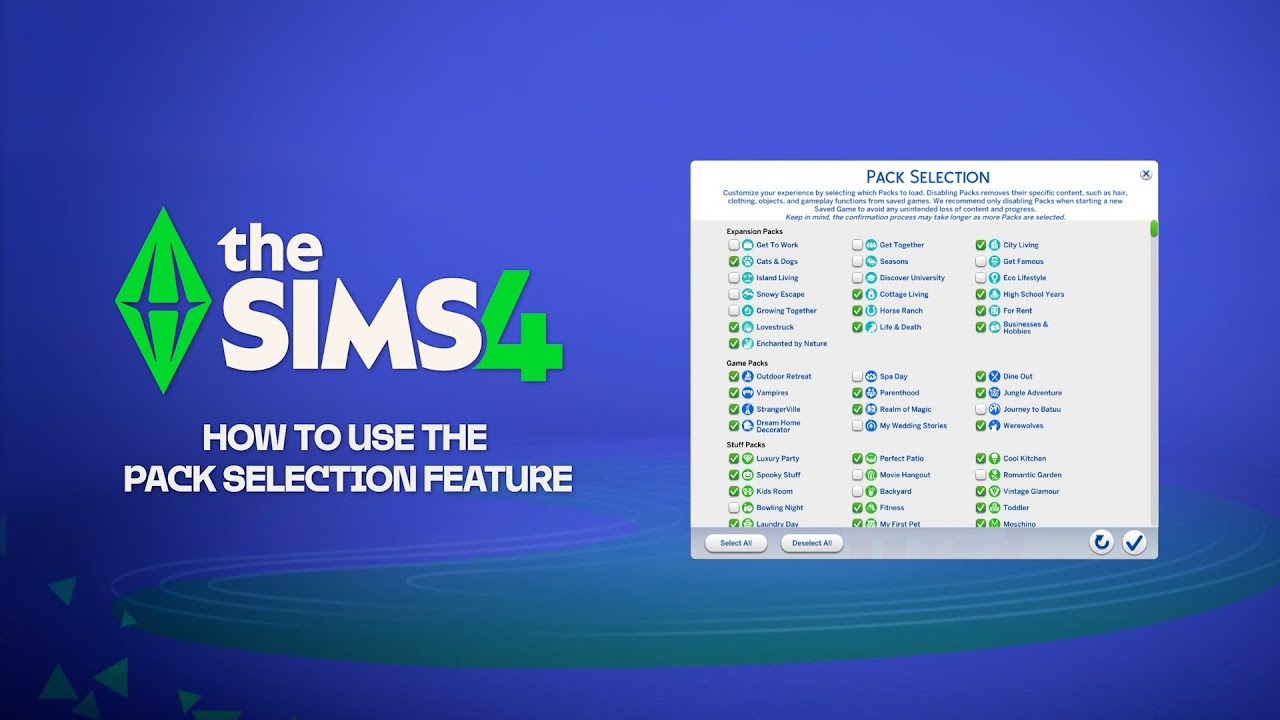
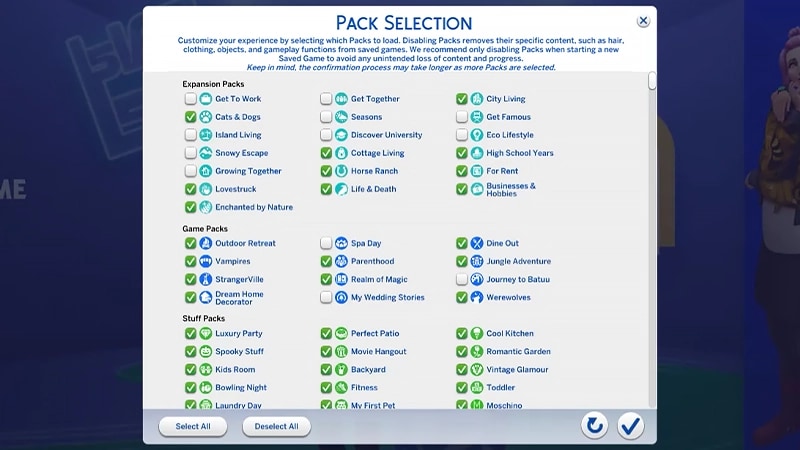
Pack selection is a Marketplace feature that lets you customize which Packs you want active in The Sims 4. This is helpful for storytelling and your gameplay experience, as well as freeing up resources without needing to uninstall Packs you’re not currently using. Pack selection is available on all platforms: PC, Mac, PlayStation® and XBOX.How do I use Pack selection to activate or deactivate Packs?
Here’s how to load or unload Packs from your game:- 1Launch The Sims 4 and go to the Marketplace.
- From the Main Menu, select Marketplace at the top of the screen.
- Or, select the shopping cart icon in the top-right corner while in Live Mode, Build Mode, or Create a Sim.
- 2Select the My Collection tab and choose Pack Selection.
- 3Use the checkbox at the top-left corner of each Pack to select or deselect the Packs you want in your game.
- If a Pack is currently active, the checkbox in the top-left corner is selected. There’s also a green Active label in the bottom-left corner of the Pack tile.
- If a Pack isn’t currently active, the checkbox in the top-left corner isn’t selected. There’s also a grey Deactivated label in the bottom-left corner of the Pack tile.
- 4Select Confirm.
If you deactivate a Pack, your saved game will lose access to any Pack-specific content it uses, including hair, clothing, traits, and objects.Deactivating Packs can also impact existing save files. To avoid losing any content or progress, it’s best to use Pack Selection only when creating a new save.We recommend disabling all Mods before activating or deactivating any Packs. Check out our article on how to disable Mods. Always make sure your save files are backed up. For help with this, learn how to back up and reset The Sims 4.
How do I know if my saved game is missing Packs?
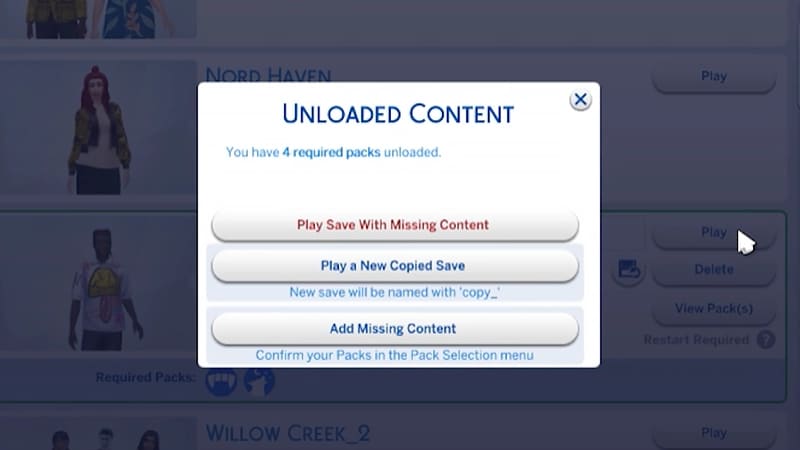
If you try to load a saved game that uses Packs you’ve deactivated since you last played, it’ll be flagged as missing required Packs. This happens because your game save uses content from a deactivated Pack.Here’s how to check whether a saved game uses content from a deactivated Pack:- 1Launch The Sims 4 and go to the Main Menu.
- 2Select Resume Game or Load Game, then choose the saved game you want to play.
- Required Packs in the bottom-left corner of the saved game tile.
- Hover over the Pack icons to check which Packs are used in your saved game. If the Pack is not currently active, it’ll say Deactivated.
- View Pack(s) on the right side of the saved game tile.
- Select this button to check which currently deactivated Packs are used in your saved game.
If your Sims were living in a world that’s specific to a Pack you deactivated, your Household will still be available in the Manage Households menu. From here, you can move them into a new Lot or merge them with another Household.Note: Any Create a Sim Items or Traits that are Pack-specific will be removed unless you reload that Pack into your game.