Обзор
Нужна помощь с установкой набора в The Sims 4 или с управлением им? Это руководство поможет установить в The Sims 4 дополнения, игровые наборы и каталоги, а также управлять ими с помощью функции выбора наборов.
Установка наборов для The Sims 4 на ПК и Mac
Перед установкой дополнительного контента для The Sims 4 необходимо убедиться, что основная игра установлена и обновлена. Ознакомьтесь с нашим руководством по установке основной игры The Sims 4.Цифровые наборы устанавливаются автоматически после приобретения. Если этого не произошло, вот инструкция, как установить его вручную.Цифровая покупка в EA app
- 1Запустите EA app.
- 2Если потребуется, выполните вход с учетной записью ЕА.
- 3Откройте библиотеку и выберите The Sims 4.
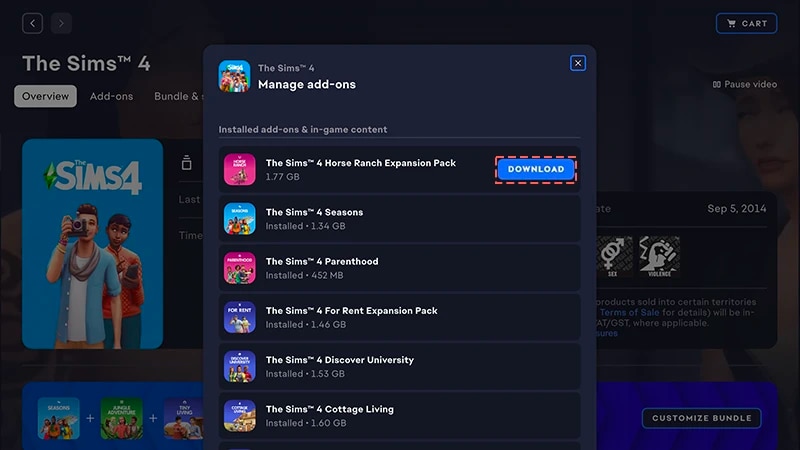
- 4Нажмите «Дополнения», чтобы просмотреть имеющийся у вас контент.
- 5Если приобретенный набор не был установлен автоматически, нажмите на значок «Загрузить».
Установка с помощью кода продукта в EA app
- 1Запустите EA app.
- 2Если потребуется, выполните вход с учетной записью ЕА.
- 3Откройте библиотеку.
- 4Нажмите «Активировать код продукта».
- 5Введитекод продукта, нажмите «Далее», а затем — «Подтвердить».
- 6Нажмите «Загрузить в EA app».
EA app заменило Origin и стало основной платформой для загрузки и запуска The Sims 4 на ПК и Mac. Для использования EA app у владельцев Mac должна быть установлена macOS Catalina или более новая операционная система. Ознакомьтесь с нашим руководством, чтобы узнать, как обновить систему macOS.
Если вы купили набор на диске (только для ПК)
- 1Вставьте диск с игрой в дисковод и следуйте указаниям на экране.
- 2Когда потребуется, введите код продукта, который вы получили вместе с установочным диском.
- 3Активированный набор появится на странице подробных сведений об игре The Sims 4 во вкладке «Библиотека».
- 4По завершении установки выберите The Sims 4, а затем «Играть», чтобы запустить игру.
Как проверить, установлен ли набор для The Sims 4
- 1Откройте библиотеку в EA app.
- 2Нажмите на значок игры The Sims 4.
- 3Выберите «Управление».
- 4Выберите раздел «Управление дополнениями».
- 5Во всплывающем окне появится список имеющегося у вас контента. Установленные дополнения и внутриигровой контент — это контент, который у вас уже есть и установка которого завершена. Загружаемый контент — это контент, который вы успели приобрести, но не установили.
- 6Чтобы установить такой контент, нажмите на значок «Загрузить».
Выбор наборов для The Sims 4
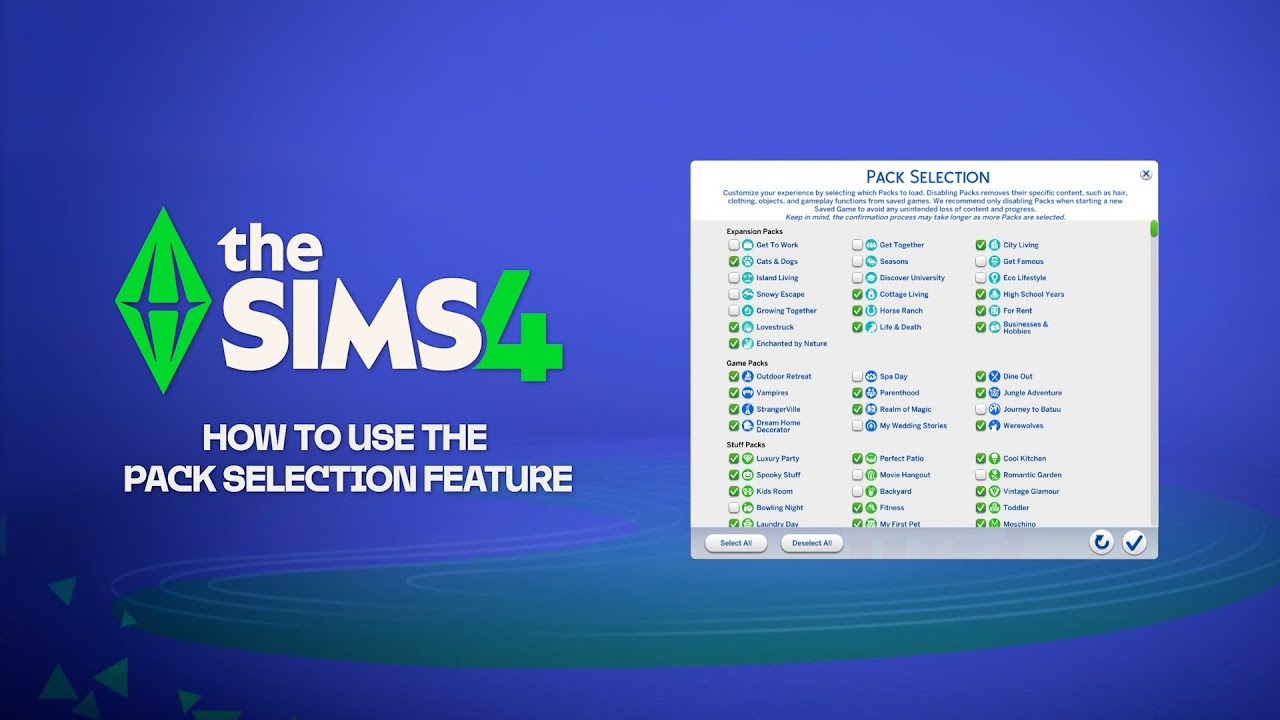
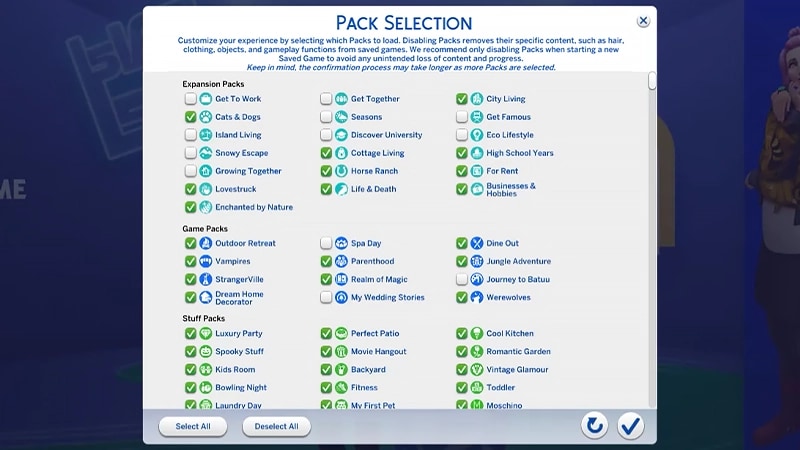
Функция выбора наборов позволяет выбрать наборы, которые нужно установить. Это помогает рассказывать истории и освобождать ресурсы без удаления неиспользуемых в данный момент наборов. Выбор наборов доступен на всех платформах — ПК, Mac и консоли. Вот как загружать наборы в игру и выгружать их из нее:- 1Откройте главное меню и выберите пункт «Выбор наборов».
- 2Выберите наборы, которые следует загрузить в игру (и снимите выбор с тех, которые нужно выгрузить оттуда).
- 3Нажмите кнопку с галочкой , чтобы подтвердить выбор.
Выгрузка наборов может повлиять на существующие файлы сохранения, так что во избежание потери контента и прогресса рекомендуется делать это только при создании нового сохранения.Перед выгрузкой или повторной загрузкой наборов рекомендуется отключить все моды. Прочитайте нашу статью о том, как отключить моды. Всегда создавайте резервные копии файлов сохранения. О том, как это сделать, рассказано в нашем руководстве.
Загрузка файла сохранения с отсутствующими наборами
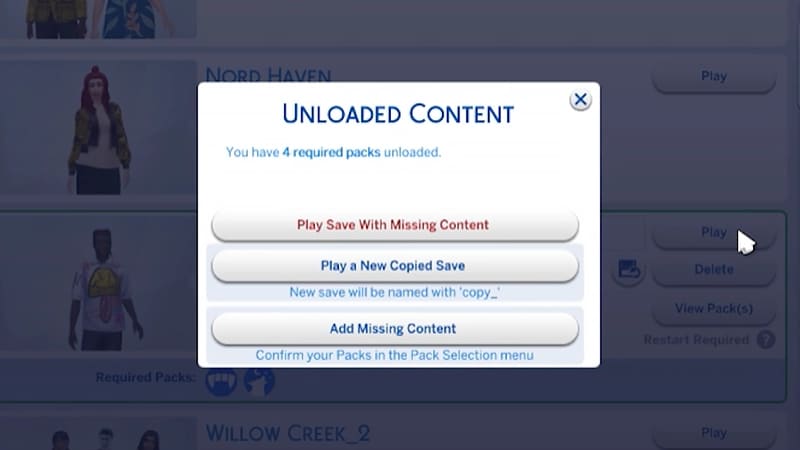
Следующие признаки указывают, что в файле сохранения указаны отсутствующие наборы.- При попытке загрузить файл сохранения выдается предупреждение об отсутствующих наборах или контенте.
- В меню выбора наборов отсутствие флажка рядом с набором указывает, что этот набор не загружен.
- Для файлов сохранения с отсутствующим контентом на ПК значки «Необходимые наборы» указывают, загружены ли наборы, необходимые для игры.
Если персонажи жили в мире из определенного набора и этот набор был выгружен из игры, семья по-прежнему будет доступна в меню «Управление семьями». Там их можно будет переместить на новый участок или объединить с другой семьей.Примечание: если вы снова не загрузите отсутствующий набор в игру, все связанные с ним объекты и черты характера из редактора создания персонажа будут удалены.