ข้อมูลโดยรวม
เว็บไซต์ Portal ของ Battlefield 6 เปิดโอกาสให้คุณสร้าง Experience แบบกำหนดเองหรือปรับแก้เกมในโหมดต่างๆ ที่มีอยู่แล้ว เรียนรู้วิธีสร้าง Experience ของคุณเองและวิธีโฮสต์เมื่อคุณสร้างเสร็จแล้ว
เริ่มต้นใช้งาน Portal
Battlefield Portal คือพื้นที่ที่คุณสามารถพบ Experience ที่ผู้เล่นสร้างขึ้นหรือออกแบบ Experience ของคุณเองได้ด้วยการสร้างต่อจากโหมดเกมที่มีอยู่แล้วหรือสร้างสิ่งใหม่ที่ไม่เคยมีมาก่อนทั้งหมดในการเริ่มใช้ Portal ให้ไปที่ เว็บไซต์ Portal แล้วเลือก Create New เพื่อสร้าง Experience ของคุณเองหากคุณไม่เคยใช้ Portal มาก่อน ตรวจสอบให้แน่ใจว่าเลือก Download SDK ก่อนเป็นอย่างแรก สิ่งนี้จะทําให้คุณสามารถเขียนโค้ดสําหรับ Experience ของคุณและแก้ไขด้านพื้นที่ แผนที่ และเลเวลได้
ฉันจะสร้าง Portal Custom Experience ได้อย่างไร
Portal Custom Experience จะมอบแม่แบบเปล่าๆ ในการสร้างให้แก่คุณ Experience แบบนี้จะปรับแต่งได้มากกว่า Verified Modes Experience เมื่อคุณสร้าง Portal Custom Experience คุณสามารถเลือกได้ทุกปัจจัยในการสร้างเกมของคุณ วิธีเริ่มสร้าง Portal Custom Experience- 1เลือก Create New
- 2เลือก Portal Custom
- 3เลือกแม่แบบเริ่มต้นแล้วเริ่มการแก้ไข
- ในการเริ่มต้น ให้ไปที่แท็บ Settings เพื่อเลือก Mode และ Game Time
- ในแท็บ Teams ให้เลือกจำนวนผู้เล่นสูงสุด จํานวนทีม และปัจจัยต่างๆ เช่น ผู้เล่นที่เป็นมนุษย์ ผู้เล่นที่เป็น AI และการตั้งค่าการฟื้นชีพของทีม บางโหมดอาจจำกัดจำนวนผู้เล่น AI
- ใต้แท็บ Modifiers ให้เลือกตัวปรับแต่งเกมเพลย์ เช่น การตั้งค่า Soldier, Vehicle, User Interface และ AI
- เลือกข้อจํากัด เช่น คลาส อาวุธ ส่วนเสริม และอุปกรณ์ต่างๆ ที่ไม่อนุญาตให้ใช้ในแท็บ Restrictions tab
- เลือกแผนที่ใต้หัวข้อ Map Rotation
- ใช้เครื่องมือ Rules Editor เพื่อตั้งค่ากฎ คุณสามารถใช้สคริปต์ TypeScript ในแท็บ Script เพื่อเขียนโค้ดกฎและตรรกะของเกมของคุณเองได้
ตอนนี้เมื่อคุณตั้งค่าพื้นฐานให้ Experience ของคุณเสร็จแล้ว คุณสามารถแก้ไขต่อได้ใน Godot ซึ่งจะทําให้คุณสามารถปรับเปลี่ยนด้านพื้นที่ เลเวล และแผนที่ได้ วิธีเริ่มต้น: การเลือกแผนที่จะเปิดแผนที่นั้นในเอนจินเกม Godot ซึ่งคุณสามารถแก้ไขแผนที่ได้ ใช้โฟลเดอร์ของไฟล์เพื่อเพิ่มวัตถุที่ปรากฏในแผนที่อยู่แล้ว ย้ายวัตถุบนแผนที่ หรือลบวัตถุออก เมื่อคุณแก้ไขเสร็จแล้ว ให้ทําดังนี้วิธีทดสอบว่าการแก้ไขของคุณทํางานในเกมได้ถูกต้องหรือไม่:คุณสามารถกลับไปที่ Godot ได้หากต้องการแก้ไขเพิ่มเติม แต่อย่าลืมบันทึก Experience ที่แก้ไขของคุณอีกครั้ง
- 1เริ่มการทำงานของ Godot คุณจําเป็นต้องดาวน์โหลด SDK เพื่อทําขั้นตอนนี้
- 2เลือก Import แล้วเปิดโฟลเดอร์ Portal SDK
- 3เลือก GodotProject> project.godot > Import
- 4เมื่อโหลด Godot แล้ว ให้เลือก Setup
- 5เมื่อเสร็จแล้ว ให้เลือก Scene > Open Scene
- 6ดูไฟล์ของคุณแล้วเลือกแผนที่ที่จะแก้ไข
- 1เลือก Scene ต่อด้วย Save Scene As...
- 2บันทึกแผนที่ของคุณด้วยชื่อใหม่
- 3เลือก Export Current Level
- 4จากนั้นให้เลือก Open Exports...
- 5กลับไปที่เว็บไซต์ Portal แล้วหา Experience ของคุณภายใต้ Drafts
- 6เลือก Experience ของคุณแล้วเลือก Modify
- 7เลือก Map Rotation
- 8ค้นหาแผนที่ที่คุณแก้ไขทางด้านขวาของหน้าจอ จากนั้นเลือกปุ่ม Import เพื่อแนบ JSON เชิงพื้นที่สำหรับแผนที่นี้
- 9เลือกไฟล์ที่คุณแก้ไข จากนั้นไปที่แท็บ Publish แล้วเลือก Save
- 1เลือก Portal > Browse Server > Locally Host
- 2ไปที่ My Experiences แล้วเลือก Experience ที่คุณต้องการทดสอบ
- 3เลือก Host Locally
ล็อบบี้ Portal คืออะไร
ล็อบบี้ Portal เป็นหน้าจอก่อนการแข่งขันที่ผู้เล่นสามารถจัดระเบียบเป็นทีม หน่วย และกำหนดการควบคุมของผู้ดูแลระบบที่เฉพาะเจาะจงได้ คุณสามารถตั้งค่าล็อบบี้ Portal เป็นส่วนหนึ่งของประสบการณ์ Portal Custom ในโหมด Battle Royale (Quads) และ Conquest ได้ โหมดอื่นๆ ไม่รองรับล็อบบี้- 1ในส่วน Hosting Setup ของประสบการณ์ของคุณ ให้เลื่อนไปที่ Enable Lobby
- 2ตรวจสอบให้แน่ใจว่าสลับ Enable Lobby เป็น On
- 1ในเมนู Team Creation ให้เลือก Reveal Join Code
- 2เมื่อคุณแชร์รหัสนี้ ผู้เล่นคนอื่นๆ สามารถค้นหาและเข้าร่วมล็อบบี้เฉพาะนี้ได้
โหมดผู้เล่นที่รับชมเป็นโหมดที่คุณสามารถเปิดได้ในล็อบบี้ Portal สำหรับโหมด Battle Royale (Quads) และ Conquest ซึ่งจะทำให้ผู้ชมสามารถรับชมการแข่งขันของคุณได้วิธีเปิดโหมดผู้รับชม:โหมดนี้มีกล้องหลายตัวสำหรับดูแลแผนที่ รับชมผู้เล่นที่ระบุจากมุมมองบุคคลที่สามหรือบุคคลที่หนึ่ง และป้ายบอกคะแนนสำหรับติดตามผู้เล่นอันดับต้นๆผู้รับชมสามารถปรับแต่งข้อมูลที่พวกเขาได้รับระหว่างการแข่งขันได้ เช่น ทีมใดที่ปรากฏในฟีดการสังหารของพวกเขา หรือข้อมูลใดที่พวกเขาได้รับเกี่ยวกับผู้เล่น จาก Spectator Options ของพวกเขา
- 1ใน Hosting Setup ตรวจสอบให้แน่ใจว่าสลับ Enable Lobby เป็น On
- 2ใน Enable Lobby ตรวจสอบให้แน่ใจว่าสลับ Allow Spectators เป็น On
- 3เลือก Host เพื่อเริ่มต้นประสบการณ์
คุณไม่สามารถเปลี่ยนการตั้งค่าล็อบบี้ของคุณได้หลังจากที่คุณได้โฮสต์ประสบการณ์และเข้าร่วมล็อบบี้แล้ว ตรวจสอบให้แน่ใจว่าการตั้งค่าของคุณถูกต้องก่อนที่จะเลือก Host หากคุณต้องการลองใช้การตั้งค่าที่แตกต่างกัน คุณจะต้องสร้างล็อบบี้ใหม่
- 1เลือก Community จากเมนูหลัก
- 2เลือก Browse Servers
- 3เลือก Filters
- 4ภายใต้ General ตรวจสอบให้แน่ใจว่าตั้งค่า Custom Lobby เป็น Lobby Enabled
- 5เลือก Apply Filters เพื่อค้นหา
ฉันจะสร้าง Verified Modes Experience ได้อย่างไร
นอกจากนี้คุณยังสามารถสร้าง Verified Modes Experience บนเว็บไซต์ Portal ได้ด้วย วิธีนี้จะทําให้คุณสามารถแก้ไขโหมดเกมที่มีอยู่แล้วให้เหมาะกับความต้องการของคุณได้ คุณไม่สามารถดัดแปลง Experience แบบนี้ได้มากเท่ากับ Portal Custom Experienceวิธีเริ่มสร้าง Verified Mode Experience:- 1เลือก Create New
- 2เลือก Verified Modes
- 3เลือกโหมดเกมที่คุณต้องการดัดแปลง แล้วเลือก Start Editing
- ในแท็บ Teams ให้เลือกจำนวนผู้เล่นสูงสุด จํานวนทีม และปัจจัยต่างๆ เช่น ผู้เล่นที่เป็นมนุษย์ ผู้เล่นที่เป็น AI และการตั้งค่าการฟื้นชีพของทีม
- ใต้แท็บ Modifiers ให้เลือกตัวปรับแต่งเกมเพลย์ เช่น การตั้งค่า Soldier, Vehicle, User Interface และ AI
- เลือกข้อจํากัด เช่น คลาส อาวุธ ส่วนเสริม และอุปกรณ์ต่างๆ ที่ไม่อนุญาตให้ใช้ในแท็บ Restrictions tab
- เลือกแผนที่ใต้หัวข้อ Map Rotation
ฉันจะเผยแพร่ Experience ของฉันได้อย่างไร
การสร้าง Experience จะทําให้คุณใช้ Experience ดังกล่าวได้ เมื่อคุณพร้อมที่จะแบ่งปัน Experience ของคุณกับผู้เล่นอื่นแล้ว ให้เลือก Submit To Publishing จะมีการตรวจสอบก่อนที่ Experience ของคุณจะพร้อมใช้เล่น ซึ่งอาจใช้เวลาประมาณสามชั่วโมงเมื่อเผยแพร่แล้ว ประสบการณ์ของคุณจะพร้อมให้ค้นหาในเมนู Portal ในส่วน My Experiences
หากคุณได้ส่งประสบการณ์ของคุณเพื่อเผยแพร่บนเว็บไซต์ Portal แล้ว ประสบการณ์นั้นจะสามารถค้นหาได้ในเกม หากคุณยังไม่ได้ทำเช่นนั้น ให้ทำตามขั้นตอนเหล่านี้เพื่อโฮสต์ประสบการณ์ของคุณในเกม
- 1ไปที่เมนู Portal
- 2เลือก My Experiences จากเมนูแบบไทล์
- 3เลือก Experience
- 4เลือก Host
- หากคุณสร้าง Portal Custom Experience คุณสามารถเลือก Host Locally เพื่อทดสอบแบบส่วนตัวได้
- 5ตอนนี้ผู้เล่นสามารถค้นหาประสบการณ์ของคุณด้วยชื่อหรือรหัสประสบการณ์ได้แล้ว
บนเว็บไซต์ Portal: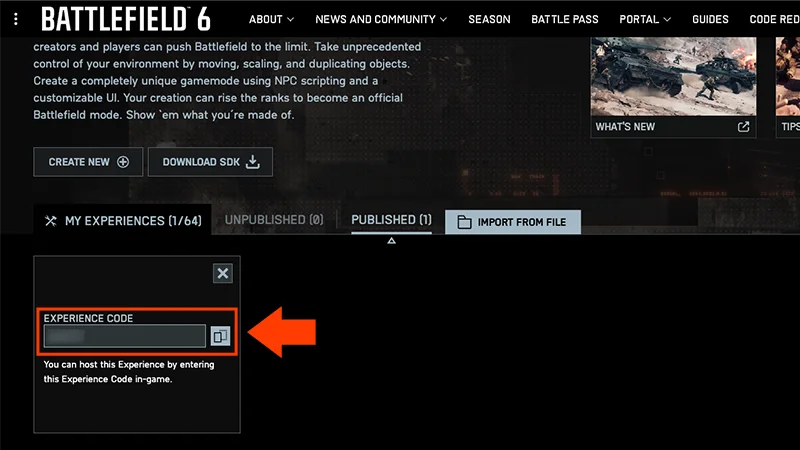

- 1ไปที่ My Experiences
- 2เลือกเมนูจุดแนวตั้ง
- 3เลือกตัวเลือก Share
- 4คัดลอกรหัสประสบการณ์
- 1ไปที่เมนู Portal
- 2เลือก My Experiences จากเมนูแบบไทล์
- 3เลือกประสบการณ์ที่คุณต้องการรหัส
- 4รหัสประสบการณ์ของคุณจะอยู่ในหน้า Summary
- รหัสประสบการณ์ช่วยให้คุณค้นหาประสบการณ์ที่เฉพาะเจาะจงได้
- รหัสเข้าร่วมช่วยให้คุณเข้าร่วมล็อบบี้เฉพาะที่โฮสต์โดยประสบการณ์ได้