如何安装《The Sims 4》内容包

9 min read

概述

需要帮助安装或管理《The Sims 4》中的内容包吗?使用本指南在《The Sims 4》中安装资料片、游戏和组合包,并通过内容包选择功能掌控一切。

在PC和Mac上安装《The Sims 4》内容包

EA app已取代Origin成为下载和发布Mac版和PC版《The Sims 4》的主要平台。 Mac版用户需要使用macOS Catalina或更高版本才能运行EA app。请查看我们的macOS指南,详细了解如何升级您的macOS
在安装《The Sims 4》的任何额外内容之前,请确保已安装并更新了主游戏。阅读我们的《The Sims 4》主游戏安装指南数字内容包将在购买后自动安装。如果没有,以下是手动安装的方法。

在EA app上安装数字产品

  1. 1
    启动 EA app。
  2. 2
    如果出现提示,请使用您的EA账户信息登录。
  3. 3
    打开您的“资料库”,点击《The Sims 4》。 
  4. 4
    点击“附加内容”,查看您目前拥有哪些内容包。
  5. 5
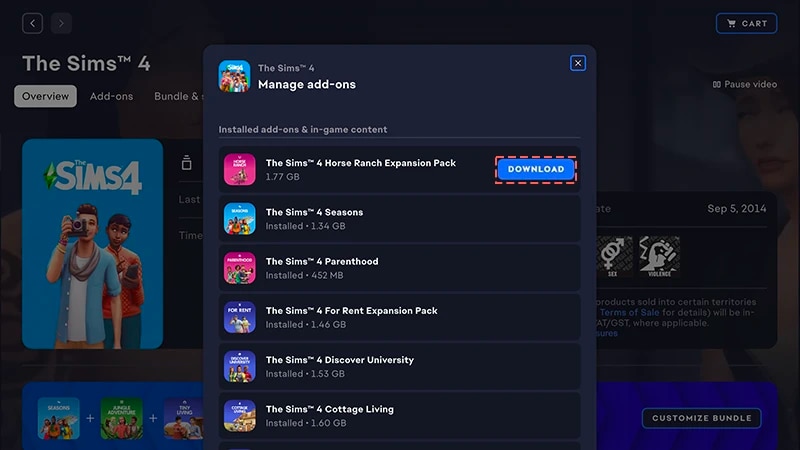
    如果您拥有一个内容包但尚未自动安装,请点击“下载”图标。 
显示在EA app上安装《Sims 4》内容包“下载”按钮位置的图片。

在EA app上安装通过产品代码购买的内容包

  1. 1
    启动 EA app。
  2. 2
    如果出现提示,请使用您的EA账户信息登录。
  3. 3
    打开您的“资料库”
  4. 4
    点击“兑换代码”
  5. 5
    输入产品代码,点击“下一步”,然后选择“确认”
  6. 6
    点击通过EA app下载
需要更多关于兑换码的帮助吗?请阅读我们的兑换码指南以了解更多信息
EA app已取代Origin成为下载和发布Mac版和PC版《The Sims 4》的主要平台。 Mac版用户需要使用macOS Catalina或更高版本才能运行EA app。请查看我们的macOS指南,详细了解如何升级您的macOS

如果您购买的是光盘内容包(仅限PC)

  1. 1
    将游戏光盘插入光驱,然后按照屏幕上的说明进行操作。
  2. 2
    出现提示时,请输入安装光盘附带的商品代码。
  3. 3
    兑换内容包后,您可以在“资料库”标签栏中的《The Sims 4》游戏详情页面查看。
  4. 4
    安装完成后,选择《The Sims 4》,然后点击“开始游戏”启动游戏。 

如何检查《The Sims 4》内容包是否安装

Learn more about how to play The Sims 4 on console, including tips on using controls and troubleshooting missing content.
  1. 1
    打开您的EA app“资料库”
  2. 2
    点击《The Sims 4》游戏图标。
  3. 3
    选择“管理”
  4. 4
    选择“管理附加内容”
  5. 5
    在弹出窗口中,将显示您拥有的附加内容列表。已安装的附加内容游戏内容指您已经所有并且已安装的内容。可下载的附加内容指您已经所有但尚未安装的内容。
  6. 6
    点击“下载”图标,即可下载尚未安装的任何附加内容。 

How do I check if a Sims 4 Pack is installed?

If you play The Sims 4 on PC or Mac through the EA app, you can check whether a Pack is installed in the EA app without launching the game.If you play The Sims 4 on PC, Mac, PlayStation®, or XBOX, you can check whether a Pack is installed in-game using the Marketplace. If you recently downloaded a Pack, you can also check if it’s installed in Download Manager.
If you play The Sims 4 on PC or Mac on the EA app, here’s how to check if a Pack is installed.
  1. 1
    Launch the EA app and open your Library.
  2. 2
    Select The Sims 4 and choose Manage.
  3. 3
    Select Manage add-ons. A pop-up list of your owned add-ons will appear. 
    • You’ll find content you own and already have installed under Installed add-ons & in-game content
    • You’ll find content you own but haven’t installed yet under Owned add-ons.
  4. 4
    To install a Pack that isn’t currently installed, find it under Owned add-ons and select the Download icon beside it.

How does The Sims 4 Pack selection work?

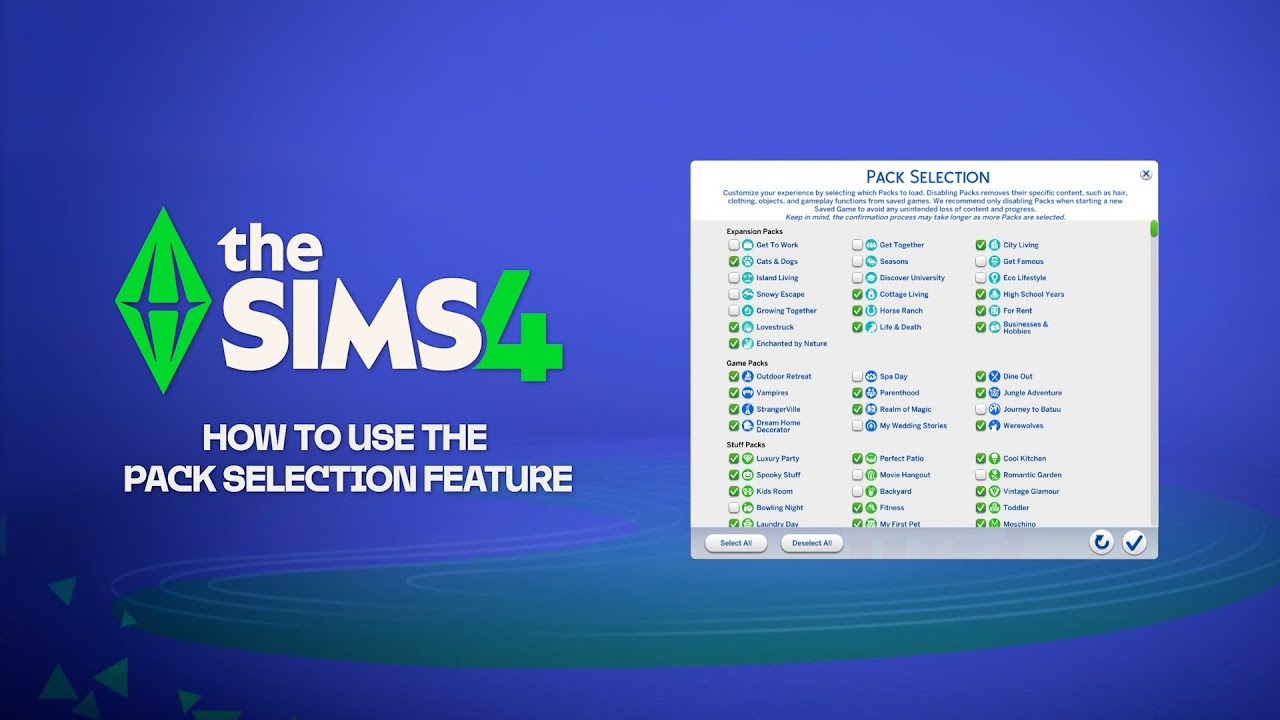
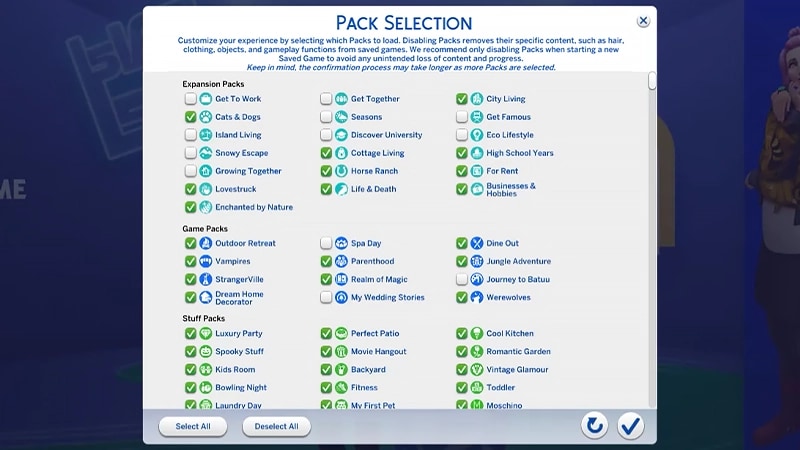
Pack selection is a Marketplace feature that lets you customize which Packs you want active in The Sims 4. This is helpful for storytelling and your gameplay experience, as well as freeing up resources without needing to uninstall Packs you’re not currently using. Pack selection is available on all platforms: PC, Mac, PlayStation® and XBOX.

How do I use Pack selection to activate or deactivate Packs?

Here’s how to load or unload Packs from your game: 
  1. 1
    Launch The Sims 4 and go to the Marketplace.
    • From the Main Menu, select Marketplace at the top of the screen.
    • Or, select the shopping cart icon in the top-right corner while in Live Mode, Build Mode, or Create a Sim.
  2. 2
    Select the My Collection tab and choose Pack Selection.
  3. 3
    Use the checkbox at the top-left corner of each Pack to select or deselect the Packs you want in your game.
    • If a Pack is currently active, the checkbox in the top-left corner is selected. There’s also a green Active label in the bottom-left corner of the Pack tile.
    • If a Pack isn’t currently active, the checkbox in the top-left corner isn’t selected. There’s also a grey Deactivated label in the bottom-left corner of the Pack tile.
  4. 4
    Select Confirm
Depending on the Pack you’re activating or deactivating, you may get a pop-up notification telling you a restart is required for your new Pack Selection choices to show.
If you deactivate a Pack, your saved game will lose access to any Pack-specific content it uses, including hair, clothing, traits, and objects.Deactivating Packs can also impact existing save files. To avoid losing any content or progress, it’s best to use Pack Selection only when creating a new save.We recommend disabling all Mods before activating or deactivating any Packs. Check out our article on how to disable ModsAlways make sure your save files are backed up. For help with this, learn how to back up and reset The Sims 4.

How do I know if my saved game is missing Packs?

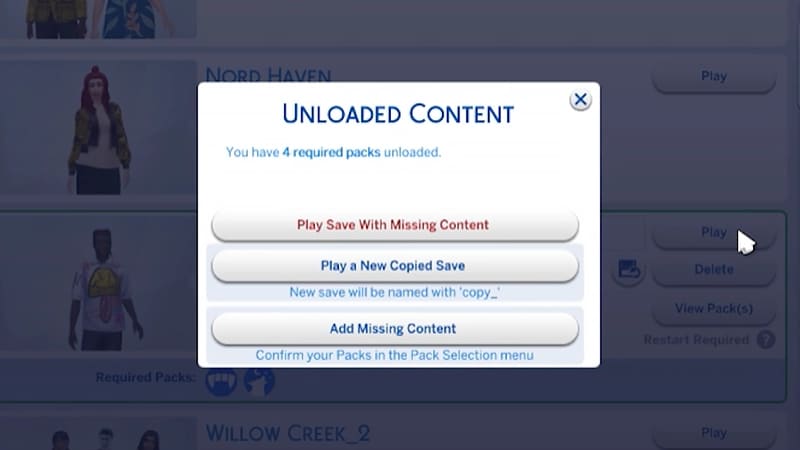
If you try to load a saved game that uses Packs you’ve deactivated since you last played, it’ll be flagged as missing required Packs. This happens because your game save uses content from a deactivated Pack.Here’s how to check whether a saved game uses content from a deactivated Pack:
  1. 1
    Launch The Sims 4 and go to the Main Menu.
  2. 2
    Select Resume Game or Load Game, then choose the saved game you want to play.
If the saved game uses content from a deactivated Pack, you’ll find:
  • Required Packs in the bottom-left corner of the saved game tile. 
    • Hover over the Pack icons to check which Packs are used in your saved game. If the Pack is not currently active, it’ll say Deactivated.
  • View Pack(s) on the right side of the saved game tile. 
    • Select this button to check which currently deactivated Packs are used in your saved game.
To continue without reactivating the required Packs, select Play. A heads-up that this means you’ll continue to play this save, but items like clothing, objects, Worlds, and gameplay features from deactivated Packs won’t be available and will be missing from your save.To reactivate the required Packs before you continue playing your saved game, follow these steps to use Pack Selection.
If your Sims were living in a world that’s specific to a Pack you deactivated, your Household will still be available in the Manage Households menu. From here, you can move them into a new Lot or merge them with another Household.Note: Any Create a Sim Items or Traits that are Pack-specific will be removed unless you reload that Pack into your game.
仍然有问题?
请联系我们的客户支持团队获取更多帮助。